


Published on 30 January, 2026
How to Add, Edit, and Delete Notes in the Activity Log
Notes allow you to add context to specific events for investigations, compliance documentation, or team collaboration.
In order to view, edit, or add a note, look for the button underneath “More details…” on the right-hand side of the event inside the Message column.
Add a Note
- Locate the event in the activity log table on the Log Viewer page
- Click “Add Note” on the right side of the event
- Enter your note in the modal window

Click “Save Note”

Edit a Note

- Click the note icon inside the event
- Edit the text in the modal
- Click “Save Note”

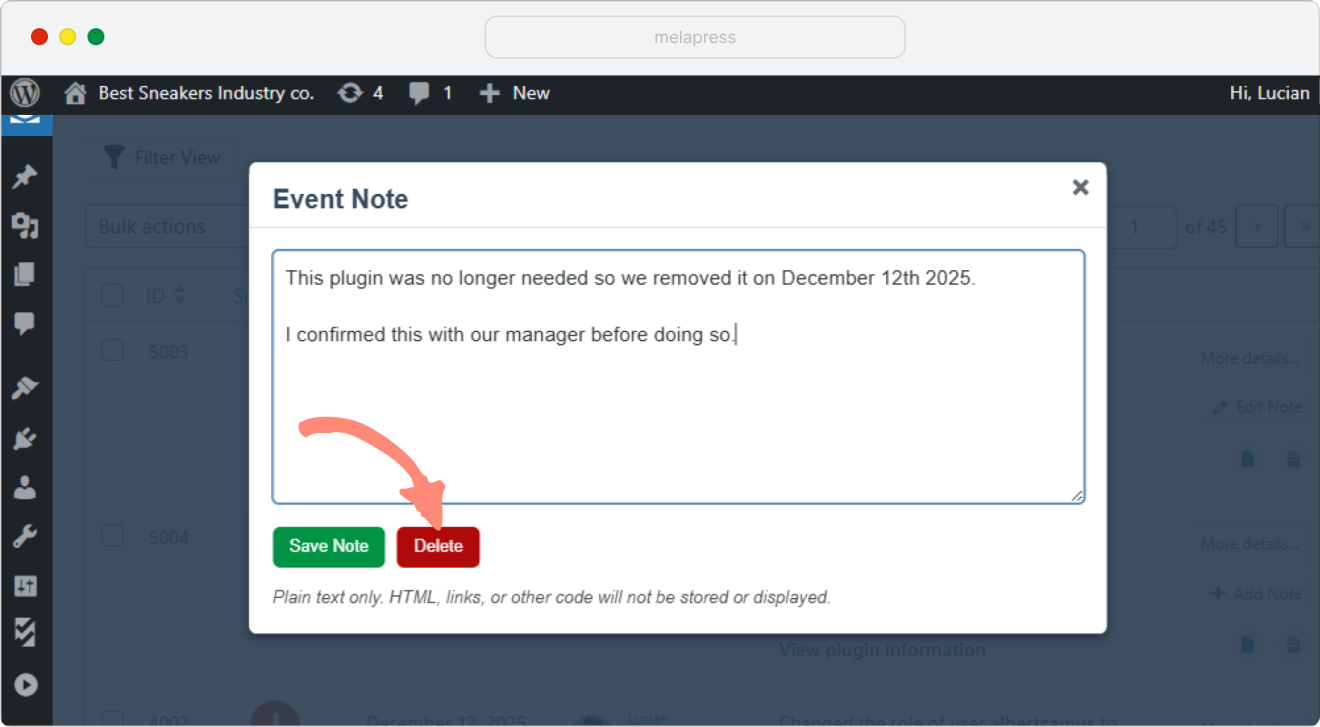
Delete a Note
- Click the note icon inside the event
- Click “Delete”
Notes are visible to all users with activity log access.
