



Published on 26 November, 2024 by Brenda Barron
What Happens to Posts When You Delete a Category in WordPress?
WordPress categories are a useful organizational tool. But when a particular category has outlived its usefulness, you may have the urge to delete it and clean up the site clutter. However, one thing may give you pause: what happens to the posts attached to that category?
The short answer is that deleting a category doesn’t mean deleting the posts within. But what exactly happens to those posts? And what steps should you take before deleting a category to minimize disruption on your site? Let’s get into the answers.
Table of contents
Effects of deleting a category in WordPress
You may just be worried about your posts being deleted when deleting a category (which they aren’t). However, there are other concerns to keep in mind when deleting a category on your site. To that end, understanding what happens when you delete a category will cut back on any issues. Here are some of the things to consider as well as how to deal with them:
Posts get recategorized or become Uncategorized
When you delete a category, your posts remain in WordPress, so they’re not deleted.
If your posts are assigned to multiple categories, the deleted category will be removed from its list of categories. So if you have a post in category A and category B, deleting category A will mean it is now only visible in category B.

If your post has no other categories, it will instead get reassigned to Uncategorized. This category is built into WordPress and can’t be deleted, though it can be renamed.

You can delete a category by going to Posts > Categories, hovering over the category you want to get rid of, and clicking the red Delete button.

If you’re wondering what happens to subcategories after deleting a category, these won’t be deleted either. They just become their own parent category or get reassigned to the deleted category’s parent category.

Basically, deleting a category doesn’t remove your posts or other categories. You won’t get any unwanted surprises. Posts won’t be hidden and child categories won’t disappear.
That doesn’t mean deleting a category can’t cause other problems, however. It can affect your site’s link structure and SEO if not properly managed.
Internal links to the category break
When you delete a category, any links automatically generated to it by WordPress will be removed. The list of categories at the top of the post is a good example of this.
But if you’ve manually linked to the category somewhere else, the links will remain but no longer work. This applies to links you’ve made within your posts, navigation menu, or other widgets.
You’ll then have a broken link on your site. That’s bad for both user experience and SEO. Clicking a link in a menu and getting taken to a 404 page is a frustrating experience for users.
Before deleting a category, you can check your site for links to this category. Make sure there are no links to it hidden somewhere. Or, use a broken link checker plugin after the fact.
Links to posts within the category
When you delete a category, any posts assigned to it don’t disappear. Instead, they’re automatically moved to the default category, which is typically “Uncategorized” unless you’ve changed it.
This reassignment can have a big impact on your permalink structure if your site uses custom permalinks that include the category, like example.com/category/post-name.
Once the posts are moved to the default category, their URLs will update to reflect the new structure.
For example, a post previously at example.com/news/my-article would change to example.com/uncategorized/my-article. This change means any existing links to the original category-based URL will break, leading to 404 errors unless properly redirected.
(Back)links to the category lead to a 404 page
Your category pages are likely being indexed by search engines. And some may generate a significant amount of organic traffic.
But when you delete a category, it will take some time for Google and other search engines to get the message. People will continue to click the link and land on a 404 page. Then, they’ll usually get frustrated and leave.
If any other websites have linked to your category page, this will also send users to a 404 page.

It’s important to note that, as mentioned earlier, deleting a category can also affect links to posts within that category. If your permalink structure includes the category name like this: example.com/category/post-name, deleting the category will cause the post URLs to update, leading to broken backlinks unless redirects are set up.
To handle this, you might set up a 301 redirect from the deleted URL. Direct it to a relevant page or category. A 301 redirect tells search engines that the page has been permanently moved. It also keeps users browsing your site instead of just clicking off instantly.
There are many popular plugins that can help you set this up properly. 301 Redirects is a good example.
Here’s a quick guide for using it:
1. Figure out the link to your deleted category page. This should be something like /category/slug, where “slug” is replaced with the category’s URL slug. The URL slug can be found in Posts > Categories under the Slug header. For example, the Uncategorized URL is usually /category/uncategorized.

2. Go to Plugins > Add New Plugins and search for the 301 Redirects plugin. Once you find it, click Install then Activate.
3. Find the new settings page in Settings > 301 Redirects.
4. In the Redirect Rules tab, enter the deleted category’s URL into the box on the left. Then input the page you want to redirect to in the box on the right.
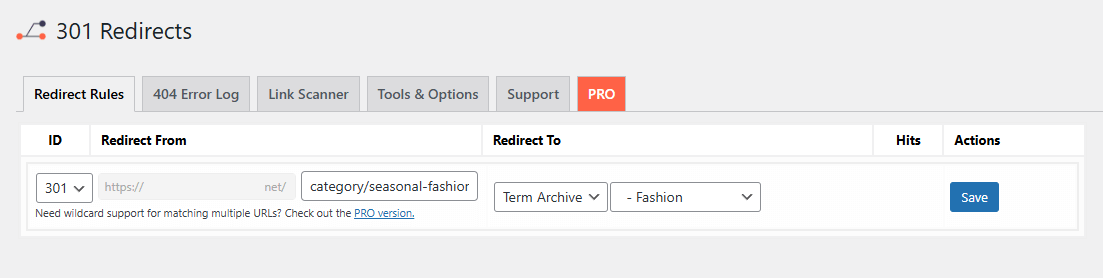
5. Click Save.
With that, 404 errors should no longer be an issue.
Steps to take before deleting a category page
We’ve already established that deleting a category in WordPress can impact your site’s structure. And it impacts the user experience and SEO as well. So, it’s a good idea to know what you’re doing before you press the Delete button.
To summarize what we’ve covered here, follow these steps. And you’ll make sure deleting the category doesn’t disrupt anything:
- Check for any posts that use that category. Then, reassign them to other relevant categories.
- Look for any links to the category in your posts, pages, menus, sidebars, and other areas. Remove or replace these links.
- After deleting the category, use a broken link checker plugin to find any links you might have missed.
- Set up 301 redirects for the soon-to-be-deleted category page. Redirect to a relevant category or page.
With all this done, you should ensure a smooth transition. That means no unwanted 404 pages, uncategorized posts, or broken internal links.
Delete WordPress categories the right way
Deleting a category in WordPress may seem simple. And honestly, it is. WordPress is designed so your posts aren’t affected in any way. They’re just bumped to the Uncategorized category. And subcategories get seamlessly recategorized.
By following the steps above you can avoid common pitfalls like broken links and 404 errors. So, reassign your posts, update internal links, and set up 301 redirects. Be proactive and plan ahead and deleting a category will have no effect.