


Updated on 16 April, 2026 by Joel Barbara
WooCommerce Security: How to Secure your Online Store
Securing your WooCommerce store is not only a good idea but a must. As a vendor, you have certain responsibilities in keeping sensitive customer data secure and protected. Equally important, you want to make sure that your website remains live and available to customers.
WooCommerce security can be a stressful topic to deal with, with endless doomsday messaging about websites being hacked and how your website might be vulnerable. It also requires constant attention and vigilance to make sure you are able to respond to evolving threats.
In this article, we’ll look at the most important steps you can take to secure your WooCommerce website.
Important note: If you need to comply with specific requirements such as GDPR and PCI DSS, you must understand which requirements you need to fulfill. Failure to do so can result in hefty fines and loss of payment processing capabilities.
Table of contents
- 1. Install a TLS certificate
- 2. Update all software
- 3. Configure password policies
- 4. Add 2FA (two-factor authentication)
- 5. Backup and recovery
- 6. Track user and system activity
- 7. Limit login attempts
- 8. Emergency escalation procedure
- 9. Train team members
- 10. Ensure all accounts follow the principle of least privilege
- 11. Install a firewall and malware scanner
- 12. Monitor file and permission changes
- 13. Harden your WordPress login
- 14. Spam protection
- 15. Implement HTTP security headers
- More WooCommerce hardening
1. Install a TLS certificate
Before anything else, you need to make sure that your domain is protected by a TLS (formerly SSL) certificate. A TLS certificate is used to encrypt data transmitted between your online store and customers. If the data is not encrypted, pretty much anyone will be able to read whatever information flows between WordPress and customers – including personal information the customer submits.
It’s also worth noting that TLS is mandatory in terms of data protection regulations such as GDPR. PCI DSS also mandates the use of TLS certificates.
If you’re not sure whether you have a certificate or not, simply:
Open Chrome or your favorite web browser
Visit your website
Click the icon next to the address bar
If you do not have a TLS certificate, getting one should be your top priority. The good news is that most hosting providers make it dead easy to install one. You can also use a plugin such as Really Simple Security if the hosting provider is less than helpful (although you might want to consider switching providers if this is the case).
If you already have a TLS certificate, note the expiry date so that you can renew it before it expires. You’ll be able to renew the certificate through your hosting provider’s backend. The procedure will vary from one provider to the next. Check your provider’s documentation for the exact procedure or contact their support team for help.
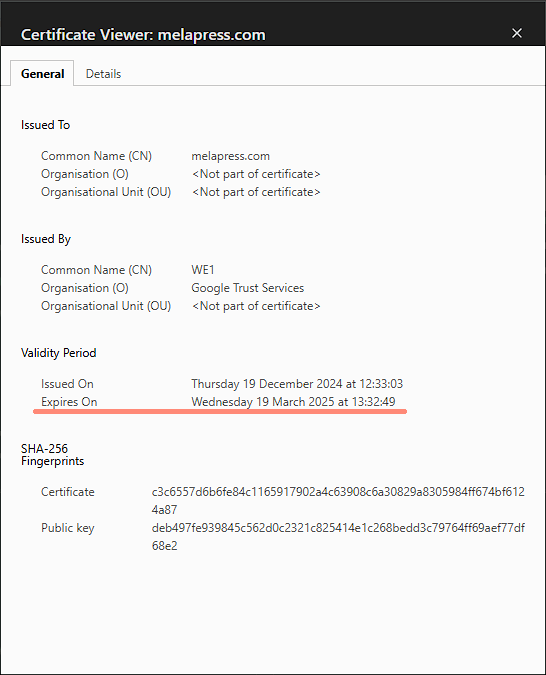
TLS certificates also help with search engine rankings since search engines such as Google prefer secure websites over insecure ones.
2. Update all software
This one is relatively easy and won’t cost you a dime: double win. Start by making sure WordPress and all plugins and themes are up to date. Why is this important? Security vulnerabilities can sometimes sneak their way into the software we install. Whenever a vendor becomes aware that such a security bug exists in their software, they release an update with a fix. Fixes reduce the risk of attacks such as SQL injection and Cross-Site Scripting (XSS).

Not all updates are equal. Some are critical, and others are minor fixes or maintenance updates. There might also be concerns about installing updates in highly customized environments.
When it comes to updates (and a few other things), consistency is critical. If you have a highly customized environment, you might want to install new updates in a staging environment first. If this is your case, consistently aim for a quick turnaround. If you’re not worried about updates breaking things, automatic updates should be your new BFF.
You also need to make sure that PHP, the web server, the Operating System, and any other software WordPress runs on are kept up-to-date. If you’re self-hosting, this is your responsibility. On the other hand, if you have managed hosting, you’ll need to make sure your hosting provider is ruthless in keeping everything up to date. To be fair, most hosting providers do, but it doesn’t hurt to double-check. As the adage goes, trust but verify.
3. Configure password policies
While asking users nicely to use strong passwords is a good starting point, the issue is that there is no mechanism to enforce or confirm this. As such, a password policy can be a valuable sidekick on your mission to secure your online store. These allow you to enforce specific password lengths, the use of special characters, and similar.
Using our own Melapress Login Security, you can easily set up password policies to ensure all users configure strong passwords. You can set different rules for different roles, giving you implementation flexibility. While there is some leeway in setting more lax policies for non-critical accounts, this has to be balanced with risks that potential vulnerabilities may lead to privilege escalation. When in doubt, it is safer to err on the side of caution.
4. Add 2FA (two-factor authentication)
While strong passwords act like a very secure key, 2FA acts like a secondary lock. The second authentication mechanism offered by 2FA ensures that even if passwords get compromised, bad actors will still not be able to gain access. Without the corresponding 2FA code, access will not be granted, keeping accounts safe.

2FA is seen as something of a gold standard of login security. It is easy to implement with plugins such as our own WP 2FA. With many websites already enforcing 2FA, you do not have to worry about user pushback either. 2FA has become ubiquitous, and getting on board is a no-brainer.
WP 2FA makes adding 2FA a straightforward affair, thanks to its built-in wizards. It also offers multiple secondary authentication options, ensuring you’re able to get all users on board. Other features, such as backup 2FA methods, ensure users are always able to log in – keeping everything running smoothly at maximum security.
5. Backup and recovery
While backups do not contribute directly to security, they act like a safety net should security fail. Equally, you need to ensure you have a recovery procedure in place. This will allow you to recover faster in the case of a catastrophic event. At a minimum, this should include:
Regular backups and test restores, including handling of sensitive files
Service restoration plans, including:
WordPress re-installation: The procedure that must be followed to restore a backup to your live site
Moving to a new hosting provider and updating DNS records: If, for some reason, your hosting provider becomes unable to provide continued service, you should be able to move your site to a new provider with minimal downtime
Customer and stakeholder communication: How do you communicate service disruptions to stakeholders and customers, especially in the event of a security breach
6. Track user and system activity
From publishing and editing posts and pages to adding new products, discount codes, and everything in between, users breathe life into the site. However, all these changes can cause conflicts, security issues, and even outages.
Maintaining an activity log ensures that users’ activities are recorded, allowing you to detect potential issues as well as diagnose issues you’re currently facing.
WP Activity Log is our own activity log plugin. It offers broad logging capabilities and is compatible with several 3rd party plugins, including WooCommerce, straight out of the box. Once set up using the built-in setup wizard, it will start collecting and storing data on its own, making it one of the best tools for WooCommerce security around.
Track WooCommerce activity
Tracking WooCommerce activity provides you with customer and user insight that is difficult to track otherwise. Having an audit trail enables you to spot suspicious activity early on and have a record of activity to refer to should something happen.
One common type of fraud we’ve seen customers successfully counteract with WP Activity Log is address swapping. The customer places an order and then changes their shipping address. The item is sent to the ‘wrong’ address, prompting the customer to ask for a refund or initiate a chargeback.
Using the WP Activity Log, we can see when the customer placed the order. The provided information includes the date and time, IP address, and username, among other things.

We can also see when the shipping address was changed with the same information provided.

This isn’t all an activity log plugin is good for, though. It can also help you track changes made to your site, including content changes, technical changes, and changes to plugins, like installs and updates. This can help you detect other security issues, as well as prove compliance with regulations like GDPR and PCI-DSS.
7. Limit login attempts
Failed login attempts tell us one of two things: either users are forgetful or a bad actor is carrying out brute force attacks against your WooCommerce store.
While users forgetting their password is nothing to be alarmed about (hey, it happens to the best of us!), brute force attacks are something you need to be informed about as soon as possible.
If you’re using WP Activity Log, not only can you run regular reports, but you can also configure the plugin to send you email or SMS notifications whenever there are a number of failed login attempts. Being informed is the first step in being able to take action, so it’s always something worth having.
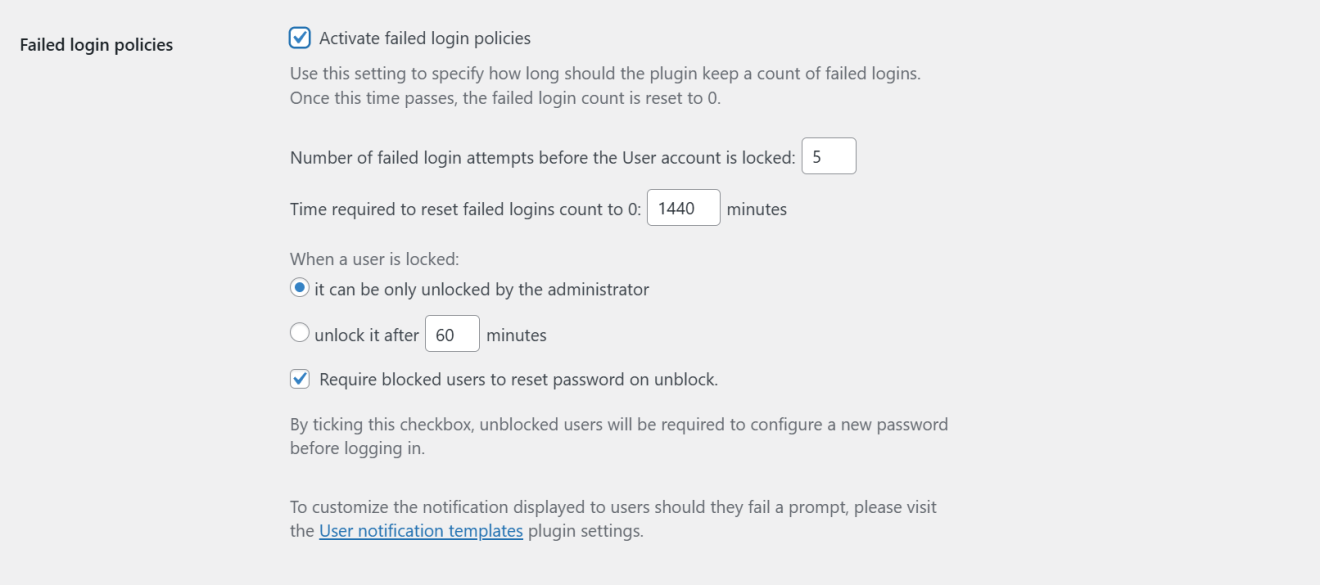
You can also limit login attempts using a plugin such as our own Melapress Login Security. While this is a premium feature, it does enable you to automatically lock user accounts when they go over a number of failed login attempts – ensuring bad actors do not manage to breach through and, for example, steal customer data.
8. Emergency escalation procedure
Things break. This is an inevitable part of any system (thank you, second law of thermodynamics). So, we must be prepared for when they do.
To this end, you’ll need to make sure you have an updated list of whom you need to contact if something happens. The last thing you want to do is find yourself scrambling to locate your hosting provider’s contact details while your site is down. If you have an account manager, make sure you save their number, too.
If you have an agency or a 3rd party administrator, make sure you know whom to call, even at odd hours, and what the SLA (Service Level Agreement) is. This will enable you to plan better should there ever be a problem.
9. Train team members
Training team members on security best practices has a real and significant impact on WordPress security. Our latest WordPress security survey showed a 30% increased likelihood of a security breach among those who do not train their team members when compared with those who do.
Training users does not have to be a complex affair. A good understanding of security risks and security best practices goes a long way. If you have a team, ensure any team members tasked with managing security-related tasks receive regular training on software as well as legislation and standards that apply to your WooCommerce store.
It is equally important to stay informed about WordPress security topics by reading blogs such as our very own. Podcasts are another great way to learn about security topics while on the move. Do discuss any concerns you might have with your administrator/developer or agency. This will help you ensure you stay at the top of your game while having all your bases covered.
10. Ensure all accounts follow the principle of least privilege
The principle of least privilege tells us that each user should only have access to be able to carry out the tasks that they’ve been assigned – no more, no less. Giving a user additional access in case they will need to perform a specific task down the line is inviting trouble and can backfire.
Providing users with just the right access lowers the risk of accidental changes that may have negative repercussions. Should there ever be a breach, the principle of least privilege can offer some mitigation by lowering the risk of privilege escalation. Of course, it also protects us from internal malicious activity.
You can create new roles using our Melapress Role Editor plugin, which is designed with ease of use in mind (and we really mean it). Roles and capabilities can give the most seasoned of administrators sweaty palms. Melapress Role Editor provides a steady hand with wizards and an intuitive interface that will leave your palms dry, and user accounts secure.
11. Install a firewall and malware scanner
Firewalls use signatures to understand whether incoming website traffic is malicious or not. Think of signatures as fingerprints of known criminals. By comparing the “fingerprints” of website visitors with its database of ‘criminal fingerprints,’ firewalls can detect potentially harmful activity before it reaches your website and shut it down before it can do any damage.
Firewalls come in vastly different shapes and sizes. However, the most common WordPress firewall is the WAF type. WAF stands for Web Application Firewall, and one of the cool things about it is that we can install it as easily as installing a plugin.
Keep rules and signatures up to date
The signatures list, which, using the previous analogy, is like ‘criminal fingerprints’, needs to be updated regularly to include new signatures. Out-of-date lists run the risk of missing harmful traffic, effectively rendering the firewall (partially) ineffective.
Free firewalls tend to delay the release of new signatures, while premium editions get them as soon as they become available. While this is not necessarily the end of the world, it is a risk that must be accounted for in your WooCommerce security policy.
12. Monitor file and permission changes
At the heart of WordPress and WooCommerce are the files that make up your WooCommerce store. Changes, especially unauthorized ones, can spell trouble. They could be a sign of a successful breach, malware injection, or data theft. As such, monitoring for changes is critical.
Monitoring files and permissions manually is a gargantuan task, which is why plugins such as Melapress File Monitor are so useful.
Melapress File Monitor is a 100% free plugin developed in-house by us. It identifies any changes to your WordPress and WooCommerce files as well as changes to file permissions.
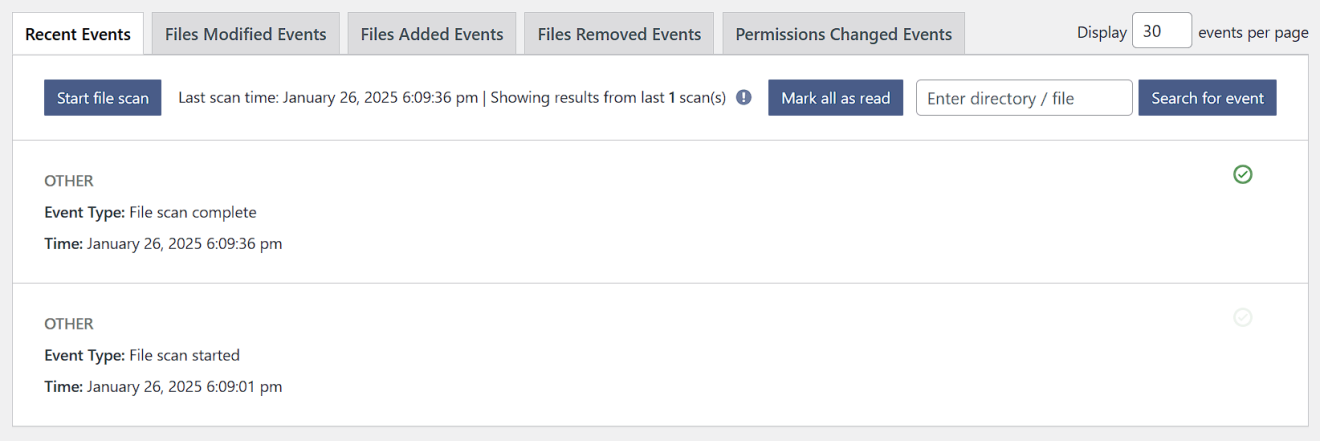
You can then check whether any reported changes are legitimate or not and take action if required.
13. Harden your WordPress login
Securing your login page is one of the most important security measures you can take to protect your WordPress website and online store. We previously discussed strong passwords, 2FA, and limiting login attempts – and these are a good foundation.
However, we can protect the login page further using a WordPress plugin we also mentioned earlier – Melapress Login Security.
The free edition comes with several features, including:
Password security policies
Limit failed login attempts
Change the login URL
Reset all passwords with one click
The premium edition adds:
Restrict access by time, IP
Add security questions
One-click WooCommerce integration
and much more!
14. Spam protection
While spam is not necessarily a direct threat, it does present an increase in security risk. And when it comes to WooCommerce security, risk mitigation is the name of the game.
Anti-spam measures, such as CAPTCHA, can greatly reduce spam and thus the risk of an accidental click that can have negative repercussions. While training staff in identifying and dealing with spam is certainly advisable, anti-spam measures can still significantly reduce risk and human resource hours that would otherwise be dedicated to dealing with spam.
A plugin such as CAPTCHA 4WP can enable you to get spam under control in minutes. The free edition comes with all ReCAPTCHA versions out of the box, including Google reCAPTCHA V3 failover to V2.
The premium edition adds hCAPTCHA, Cloudflare Turnstile, and 1-click WooCommerce support with different placement options on checkout, among other features.
15. Implement HTTP security headers
HTTP security headers improve your WooCommerce’s security by taking advantage of customers’ browser security features. Enabling security headers on your WordPress website enhances its defense against common threats like cross-site scripting (XSS) and clickjacking.
HSTS (Strict-Transport-Security header) and CSP (Content-Security-Policy header) are two popular security headers. However, you’ll find others that improve other facets of the communication process. Implementing security headers can be done through the .htaccess file, the functions.php file, or by using a plugin. If you use a CDN, security headers can also be implemented at this level.
More WooCommerce hardening
In this article, we discussed several key areas that are of vital importance to WooCommerce security. While all of this will ensure you have solid security foundations, you can take it a step further with further WordPress hardening. You can also harden the WordPress database for additional data security.