



Updated on 7 October, 2026 by Robert Abela
WordPress Permalinks not working (404): Causes & fixes
If you have ever clicked on a website link only to be met with an unwelcome ‘404 not found’ error, you will understand how frustrating it can be. Not only is this a terrible experience for website users, but it can also negatively impact your SEO efforts.
If you own or manage a WordPress website, there are several quick measures you can take to fix broken permalinks. We’ll cover these below, along with the most common causes of WordPress permalinks not working and what you can do to prevent the issue from happening again.
Table of contents
- What are WordPress permalinks?
- Common causes for WordPress permalinks not working and how to fix them
- Cause 1 – Broken permalink rewrite rules
- Fix – Reset the permalink structure
- Cause 2 – The permalink structure or URL was changed
- Fix – Check recent permalink changes and set up redirects
- Cause 3 – Problems with your .htaccess file
- Fix – Check and regenerate the .htaccess file
- Cause 4 – Plugins and WordPress core updates
- Fix – Deactivate and test plugins
- Cause 5 – WordPress migration and restoring backups
- Fix – Check the site URL, permalink settings, and server configuration
- How to prevent WordPress permalink problems
- WordPress permalinks not working FAQs
- Conclusion
What are WordPress permalinks?
Permalinks are the permanent URLs used to access posts, pages, categories, and other resources on your WordPress website.
WordPress automatically generates permalinks based on the permalink structure defined in Settings > Permalinks. Depending on your settings, a post called WordPress security could have a URL such as:
https://example.com/wordpress-security/WordPress stores posts and pages in its database and can identify them using query-based URLs such as example.com/?p=122. Its rewrite system allows these URLs to be presented as more readable “pretty permalinks”, such as example.com/wordpress-security/. This rewrite process is also why problems with WordPress rewrite rules or server configuration can cause permalinks to suddenly stop working.
Permalinks play a big role in WordPress. Not only do they allow us and website visitors to find pages and posts, but search engines also use URLs when crawling and indexing your website.
This is why broken permalinks are more than an inconvenience. If pages that previously worked suddenly return a 404 error, visitors may no longer be able to access them, and search engines may eventually remove them from their results.
With that in mind, let’s look at what can cause WordPress permalinks to stop working.
Common causes for WordPress permalinks not working and how to fix them
There are various possible reasons for WordPress permalinks not working. These often result in the dreaded 404 (page not found) error, although the exact symptoms can differ depending on the cause.
Let’s start by listing the main causes followed by some common ways to fix WordPress permalinks.
Cause 1 – Broken permalink rewrite rules
When it comes to WordPress permalinks not working, there’s a quick process using the standard WordPress settings that can often fix the issue.
This simply involves resetting your WordPress permalinks. Best of all, it takes less than a minute to complete.
Fix – Reset the permalink structure
Clicking the Save Changes button within the permalink settings forces WordPress to refresh its rewrite rules and can sometimes solve the broken permalinks issue you’re facing.
- Log into the WordPress Dashboard, usually via
/wp-admin. - Click Settings on the left panel.
- Click Permalinks.
- Keep your existing permalink structure selected.
- Click Save Changes.
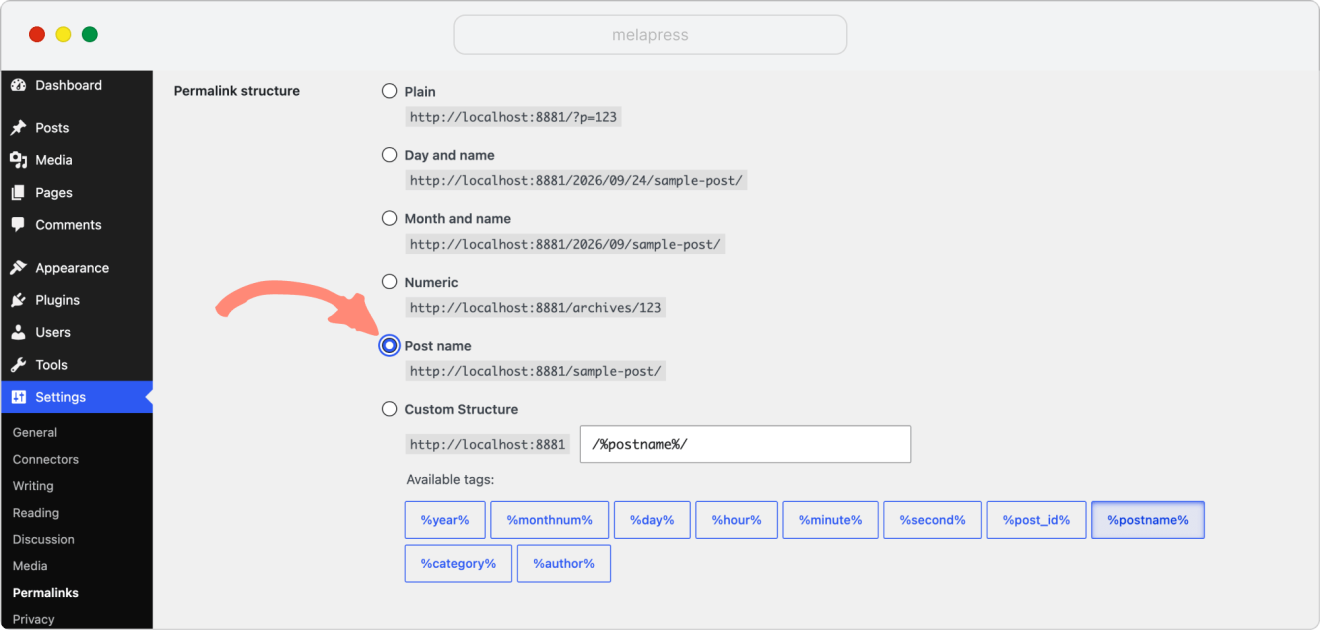
You do not need to actually change the permalink structure.
Once you have saved the settings, test several of the URLs that previously returned an error.
If they now work, the issue was most likely related to WordPress’ rewrite rules. If not, continue with the troubleshooting steps below.
Cause 2 – The permalink structure or URL was changed
WordPress offers several site-wide permalink structures under Settings > Permalinks, including Plain, Day and name, Month and name, Numeric, Post name, and Custom Structure. Plugins such as WooCommerce can also add their own permalink settings, while WordPress allows you to customize category and tag bases. Changing any of these settings can change existing URLs and potentially leave old links pointing to URLs that no longer work.
Changing the WordPress permalink structure should be a rare occurrence. While it’s an easy enough procedure, it requires a healthy amount of planning.
Changing the URL structure without proper planning can lead to 404 errors, which negatively affect visitor experience and SEO.
For example, imagine an existing post has the following URL:
https://example.com/2025/wordpress-security/You then change the site-wide permalink structure to use the post name only:
https://example.com/wordpress-security/The content itself still exists, but links pointing to the previous URL may no longer take visitors to the correct page.
The same problem can occur when changing the slug of an individual page or post, changing category or tag bases, restructuring WooCommerce URLs, or making other changes that alter existing URLs.
Fix – Check recent permalink changes and set up redirects
Start by navigating to Settings > Permalinks and checking whether the currently selected structure is the one you expect.
If the problem started immediately after changing your permalink structure, you have two main options:
- Restore the previous structure, or
- Keep the new structure and redirect old URLs to their new equivalents.
If you intentionally changed your permalink structure, make sure you:
- Update any internal links that need to be updated.
- Set up the required 301 redirects from old URLs to new ones.
- Check menus and other manually added links.
- Check whether external websites are linking to important old URLs.
- Scan your website for 404 and redirection errors.
- Update and submit your sitemap where appropriate.
Do not assume that changing the setting automatically takes care of every old URL. Depending on the change, some URLs may be handled correctly while others can still return 404 errors.
If you are not sure whether somebody recently modified the permalink settings, this is also something you can check with our WP Activity Log plugin. The plugin keeps a record when the WordPress permalink settings are changed, as well as changes to individual post URLs.
This can be especially useful on websites where several administrators, developers, or agency users have access. Instead of trying to work out whether somebody changed a setting, you can check the activity log to see what changed and when.
Cause 3 – Problems with your .htaccess file
The .htaccess file is found within the root directory of WordPress websites running on Apache and is used, among other things, to store URL rewrite rules.
WordPress uses these rewrite rules to make pretty permalinks work. As such, an incorrect or corrupt .htaccess file can result in previously working URLs returning 404 errors.
The file can also be modified by plugins and other processes. Even though you may not have manually modified it yourself, something else on your website may have changed it.
Note: Nginx does not use .htaccess. If your website runs on Nginx, URL rewriting is handled through the server configuration instead.Fix – Check and regenerate the .htaccess file
Fortunately, issues with the .htaccess file can be fixed by simply replacing the file with a new one. The following process outlines the steps you can take using an FTP client or any file manager tool, such as the one included within cPanel. There are also file manager plugins with this same functionality in case you want to make the changes directly from the WordPress backend.
Before replacing the file, it is important to understand the contents of your current .htaccess file. These often contain more than just permalink rules and can include additional code added by developers or automatically by plugins. Removing everything can result in the site breaking, so it’s important to work with care.
For this example, we are using the FileZilla FTP client:
Step 1: Enter your hosting details into your FTP client, such as FileZilla
Step 2: Look for .htaccess in the directory containing your WordPress installation. If you cannot see it, make sure your FTP client or file manager is configured to show hidden files. Depending on your hosting setup, this may be your public_html directory.
Step 3: Before making any changes, download a copy of your existing .htaccess file as a backup. The file may contain redirects, security rules, or other configuration added by plugins or developers, so you should not delete it without keeping a copy.

Step 4: Rename the existing .htaccess file to something like .htaccess_backup.

Step 5: Return to your WordPress dashboard and navigate to Settings > Permalinks.
Step 6: Keep your existing permalink structure selected and click Save Changes. WordPress will attempt to generate a new .htaccess file with the rewrite rules required for your current configuration.
Step 7: Test the URLs that were previously returning 404 errors.
If WordPress cannot create or update the .htaccess file automatically, it may display the rewrite rules that need to be added manually. In that case, follow the instructions WordPress provides or ask your hosting provider for help.
Do not blindly replace your existing .htaccess file with a generic configuration. Multisite installations, websites installed in subdirectories, redirects, security plugins, and other custom configurations may require additional rules.

Keep an eye on unexpected file changes
One of the difficulties with .htaccess problems is identifying that the file changed in the first place.
Melapress File Monitor keeps an eye on files on your WordPress website and alerts you when changes are detected. It can also notify you about file permission changes and show which files were modified.
This gives you another useful troubleshooting signal. If your permalinks suddenly stop working and you can see that website files changed at roughly the same time, you have somewhere concrete to start investigating rather than troubleshooting blind.
Cause 4 – Plugins and WordPress core updates
Newly installed plugins and plugin updates are two potential causes of WordPress permalinks not working.
In the case of plugin updates, this can sometimes be due to a WordPress core compatibility issue or a conflict with another plugin. It’s also possible that WordPress has been updated, resulting in an older plugin requiring an update to remain compatible.
Plugins may also register their own rewrite rules or make changes that affect how URLs are handled.
Fix – Deactivate and test plugins
If you have recently installed or updated a plugin and find that you have broken permalinks, follow the steps below.
Step 1: Back up your website
Ensure you have a complete backup of your website. This should include your database and files so that you can easily restore the previous version if necessary.
Step 2: Check for plugin conflicts
Start with any plugin that was installed or updated immediately before the problem appeared.
Deactivate the suspected plugin and test your permalinks again.
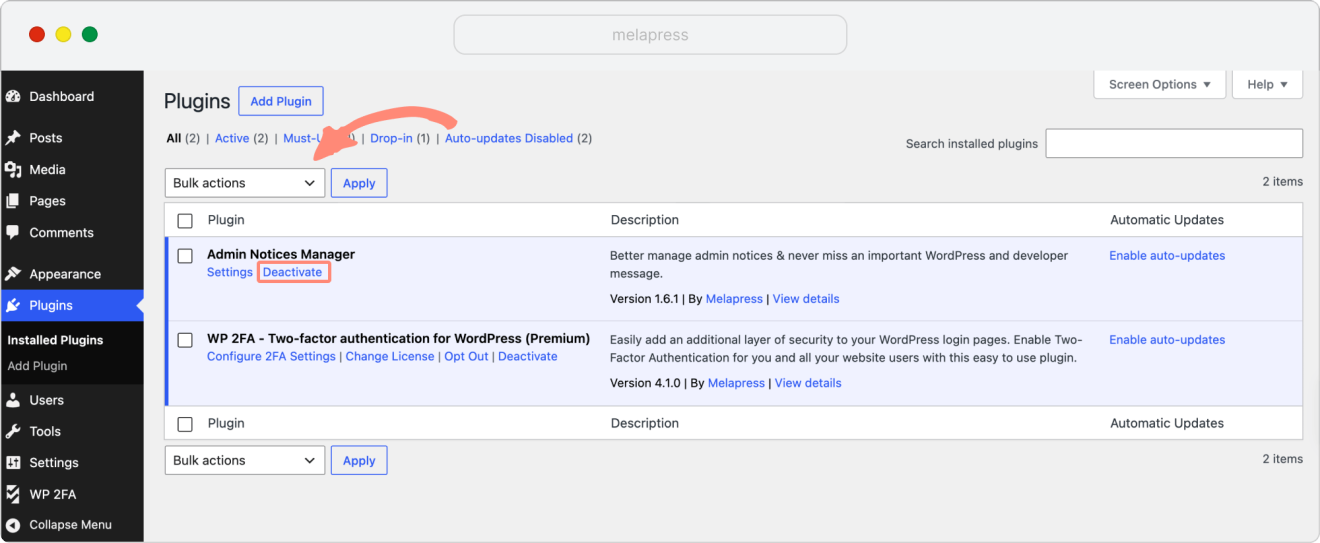
If the problem remains, you can deactivate other plugins one at a time, testing your WordPress permalinks after each has been disabled.
If you identify the plugin responsible for the broken permalinks, reactivate your other plugins and continue testing to make sure the issue does not return.
Step 3: Fix or replace the culprit plugin
If the issue began after installing or updating a specific plugin, check whether a newer update is available or whether other users have reported a similar problem.
Depending on the situation, you might temporarily roll back to a known working version, contact the plugin developer for support, or replace the plugin. If you do roll back, check that the older version does not contain any known security vulnerabilities and treat the rollback as a temporary troubleshooting measure rather than a long-term fix.
Always remember to test each change to see whether the broken permalink issue has been resolved.
Check what changed before the problem started
Again, knowing what changed immediately before the problem appeared can save a considerable amount of troubleshooting time.
WP Activity Log records a wide range of WordPress changes, including plugin installations, activations, deactivations and updates, WordPress core updates, changes to post URLs, and changes to the site-wide permalink settings.
If permalinks worked yesterday and do not work today, checking recent activity can help you narrow down which changes are worth investigating first.
Cause 5 – WordPress migration and restoring backups
Permalink issues and 404 errors can also occur when migrating WordPress to a new host or server or restoring a WordPress backup.
You may even find that your homepage works perfectly but other content on your site is inaccessible. This can also include problems with images and media after migrating WordPress to a new domain or host.
Fix – Check the site URL, permalink settings, and server configuration
When you migrate a WordPress site or restore from a backup and face issues with permalinks not working, there are a few essential steps to take.
Step 1: Verify the Site URL
- Navigate to Settings > General
- Check that the WordPress Address (URL) and Site Address (URL) are correct for your current domain and host
If you have changed domains, also make sure the old domain is not still being used elsewhere in your configuration or content.
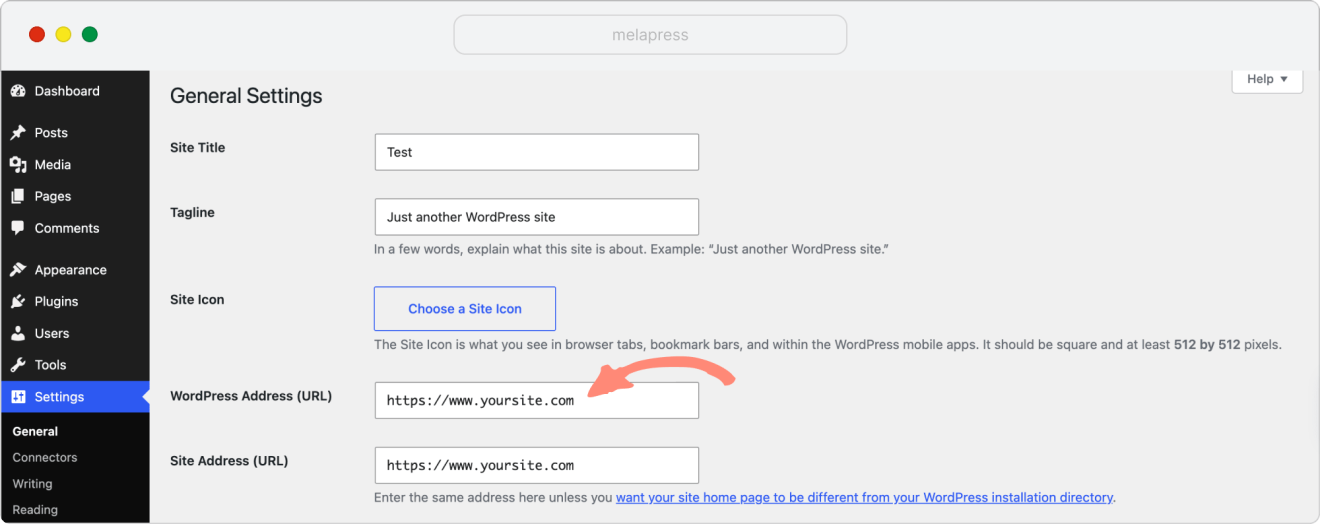
Step 2: Reset your permalinks
- Navigate to Settings > Permalinks
- Click Save Changes while keeping the correct structure selected
A migration or restore can leave rewrite rules out of sync with the current website configuration, so refreshing them should be one of your first steps.
Step 3: Check .htaccess or your web server configuration
If your website runs on Apache, check that .htaccess contains the appropriate WordPress rewrite rules and that the server is configured to process them.
If your website runs on Nginx, check the equivalent rewrite configuration at server level. WordPress’ own documentation notes that server configuration is required for pretty permalinks to work correctly on Nginx.
Step 4: Check file permissions
Incorrect file or directory permissions can also create problems following a migration or restore.
Rather than changing permissions blindly, compare them with your host’s recommended settings or ask the hosting provider to verify them.
Step 5: Test your website
After making any changes, navigate through the site and make sure different types of URLs work correctly.
Test more than the homepage. Check individual posts, pages, category pages, products if you use WooCommerce, and any other important areas of the website.
How to prevent WordPress permalink problems
If you have a large website with many pages, identifying permalink issues can be a challenge. This is why it is better to be proactive rather than reactive, particularly after major changes or updates.
There are a few ways to reduce the chance of broken permalinks and identify problems earlier.
Plan before changing your permalink structure
Changing WordPress permalinks is not a small change. Before changing the permalink structure of an existing website:
- Take a complete backup.
- Make a list of internal links that may need to be updated.
- Identify existing URLs that will require redirects.
- Account for important external links.
- Think carefully about whether the new structure is likely to accommodate future growth.
The last thing you’ll want is to change your site-wide URL structure regularly.
If you are changing permalinks for SEO or usability reasons, make sure the potential benefits justify changing existing URLs that may already have rankings, inbound links, bookmarks, and traffic.
Carry out manual checks
Carrying out a quick check of your website by testing your internal links and menus can give you a good idea of whether or not there is a problem with your permalinks.
Although it’s a simple test, browsing your site is one of the quickest ways to see if you are encountering 404 errors and broken links.
This is particularly useful immediately after:
- WordPress updates
- Plugin updates
- Website migrations
- RestoringSearch
- Consoleing permalink settings
- Changing domains
- Large website redesigns
Review Google Search Console
Connecting your website to Google Search Console is another useful way of keeping on top of broken links and indexing problems.
Review the indexing reports for URLs Google cannot access or index, particularly after changing the structure of your website.
Keep in mind that Search Console does not detect everything immediately, so it should not replace your own testing.
Use Broken link checker tools
There are several link checker tools available that can help you keep on top of any broken links. Some of these tools are WordPress plugins such as the Broken Link Checker from WPMU DEV, or Link Whisper.
Monitor WordPress and file changes
When a website suddenly develops a problem, one of the first questions you’ll usually ask is: What changed?
Keeping a record of changes can make that much easier to answer.
WP Activity Log keeps a record of user and system activity on your WordPress website. For permalink troubleshooting specifically, it can record changes to the WordPress permalink settings and changes to individual post URLs, as well as plugin, theme, and WordPress updates that might help explain when the problem started.
Melapress File Monitor provides visibility at the file level, alerting you when files or file permissions change.
Used together, these give you a much clearer picture of what happened on the website immediately before an issue appeared.
WordPress permalinks not working FAQs
Can I change my WordPress Permalink after publishing?
Yes. You can change your site-wide permalink structure by navigating to Settings > Permalinks.
You can also change the URL of an individual page or post through the WordPress editor.
However, changing an existing URL means links may still point to its previous address. Check for broken links afterwards and set up redirects where required.
What is the lifespan of a permalink?
There is no set duration associated with your permalinks.
As the name implies, however, permalinks are intended to provide permanent URLs to content. Avoid changing established URLs unnecessarily, particularly when they already receive traffic or have external websites linking to them.
Why does my homepage work but other WordPress pages return 404 errors?
This is often an indication that WordPress’ pretty permalink rewrite rules are not working correctly.
Start by navigating to Settings > Permalinks and clicking Save Changes.
If that does not work, check your .htaccess file if you use Apache or your server-side rewrite configuration if you use Nginx. WordPress lists broken pretty permalinks following migrations and server changes as a common scenario for this type of problem.
Are there other common causes of 404 errors in WordPress?
Yes. Not every 404 error is a permalink problem.
A page may simply have been deleted, moved, or renamed. Theme changes, custom post types, redirects, and server configuration can also cause URL-related problems.
The important distinction is whether one particular URL is broken or whether large numbers of previously working WordPress URLs have suddenly stopped resolving.
How do permalink changes and 404 errors impact SEO?
Broken permalinks can negatively impact SEO in several ways.
Search engines may be unable to crawl and index affected pages. A page that previously ranked can eventually disappear from search results if its URL consistently returns a 404, while inbound links pointing to that URL no longer lead visitors to the intended content.
Changing a permalink is not automatically bad for SEO. The problems usually arise when URLs are changed without properly updating internal links and redirects.
How can I prevent permalink issues in the future?
Keep an eye on your website after WordPress and plugin updates, migrations, restores, and URL changes.
You can use tools such as Google Search Console and broken link checkers to identify inaccessible URLs.
WP Activity Log can also help you keep track of changes happening within WordPress, while Melapress File Monitor can alert you to changes happening to website files. Together, they can help you detect unexpected changes more quickly and potentially identify what caused the issue in the first place.
What’s the difference between permalinks, slugs, and URLs?
Permalinks, slugs, and URLs may seem to refer to the same thing; however, there are subtle differences between each one that are worth knowing. Understanding these differences, as nuanced as they might be, will help you ensure you take full advantage of everything permalinks have to offer.
– Permalinks: The permanent URL intended to identify a particular piece of content, such as a post or page.
– Slug: The part of the permalink that identifies that particular resource, such as wordpress-security in /wordpress-security/.
– URL: The general term for the address of any resource on the web. A permalink is therefore a type of URL.
Conclusion
Fixing WordPress permalinks is essential to maintain your site’s accessibility, usability, and SEO standing.
Start with the simplest solution: navigate to Settings > Permalinks and save your existing settings to refresh WordPress’ rewrite rules.
If that does not solve the issue, work through the most likely causes based on what changed recently. Check whether the permalink structure itself was modified, inspect .htaccess or your web server configuration, test recently updated plugins, and check your settings following a website migration or backup restore.
Most importantly, try to establish what changed before the problem appeared. Monitoring WordPress activity and website file changes can give you the information you need to narrow down the cause and fix broken permalinks faster.