


Updated on 7 October, 2026 by Robert Abela
How to Choose Secure WordPress Plugins: Best Practices, Performance & Safety
WordPress plugins are awesome, and if you want your site to have a specific function or add additional functionality, the chances are there is a plugin out there for it. On the WordPress repository, there are tens of thousands of plugins, and with so many choices, sometimes it can be hard to know which one to trust. When you’re faced with such a decision, it might be tempting to just pick a random one.
However, you should not. There is a well-tested process you should follow before picking a plugin for your WordPress website. This helps you weigh quality, trustworthiness, security, and performance rather than guessing. This guide walks you through that process.
Table of contents
- Quick checklist before installing a plugin
- A quick refresher: what is a WordPress plugin?
- What to do before you start searching for a plugin
- How to choose the best WordPress plugin for your needs
- Security considerations when installing plugins
- Does the number of plugins really matter?
- Frequently asked questions
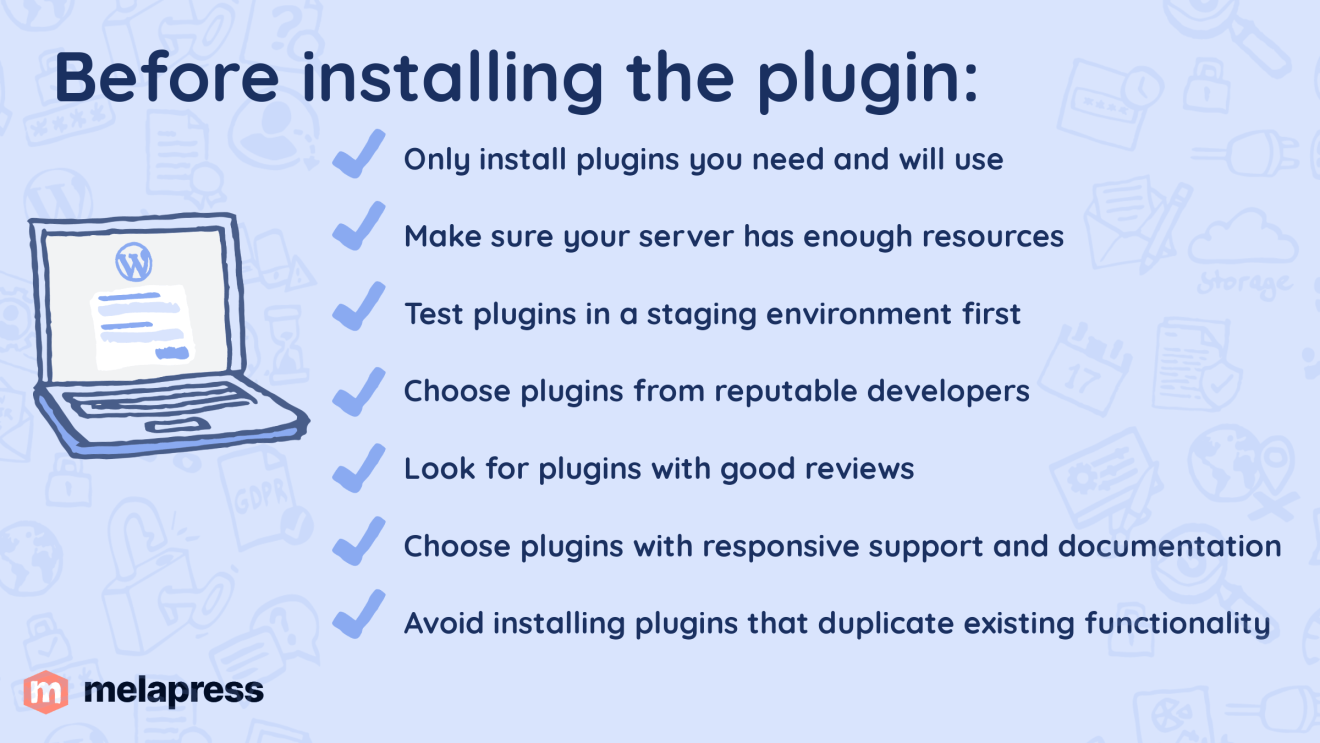
Quick checklist before installing a plugin
- Only install what you need and will use.
- Make sure your web server has enough resources.
- Test plugins in a staging environment first.
- Only install plugins from reputable developers and companies.
- Install plugins with good reviews.
- Only install plugins with responsive support and documentation.
- Only install a plugin if you don’t already have one that does the same job.
- Uninstall deactivated plugins and always keep the active ones up to date.
A quick refresher: what is a WordPress plugin?
A WordPress plugin is a software package that adds new features and capabilities to your WordPress website. Plugins come in all shapes and sizes and cover a wide spectrum of different functionalities. These can be anything from adding an eShop to your website to bolstering security, like adding two-factor authentication. In many ways, plugins work like the apps you install on your phone. They are developed by individuals and businesses alike and can be free or paid.
You can typically find plugins through the official WordPress plugin repository, unofficial repositories such as CodeCanyon, or WordPress plugin developers directly.
What to do before you start searching for a plugin
Before you start looking for a plugin, the first thing you should do is create a list of requirements. This is a list of all the functions that you want the plugin to do. Do that in the order that is important to you.
For example, when choosing an activity log plugin for your WordPress website, you should check how broad the activity log coverage is and whether the logs are comprehensive enough. This will help you determine whether the plugin fits your needs or not.
The order of features’ importance matters because sometimes you won’t find a single plugin that does everything you need.
Once you’ve laid out what you actually need, you can start looking at what plugins are out there, and whether you need a single one or maybe a number of them.
Note: There’s a common misconception that the number of plugins impacts speed or security. However, it’s important to keep in mind that the quality of the plugin has a much bigger impact. A single plugin with many different functionalities can actually add more bloat and potential security risk to your website than a handful of smaller plugins that are well developed and do a single thing well.
How to choose the best WordPress plugin for your needs
A WordPress plugin page on the repository contains detailed information about the plugin, including what it does, how to use it, and more. Use this information to decide whether the plugin is the best fit for you. Once you’ve decided what you need and start searching through the directory, pick a few plugins that suit your needs, then use the tips below to choose the best one.
Plugin ratings
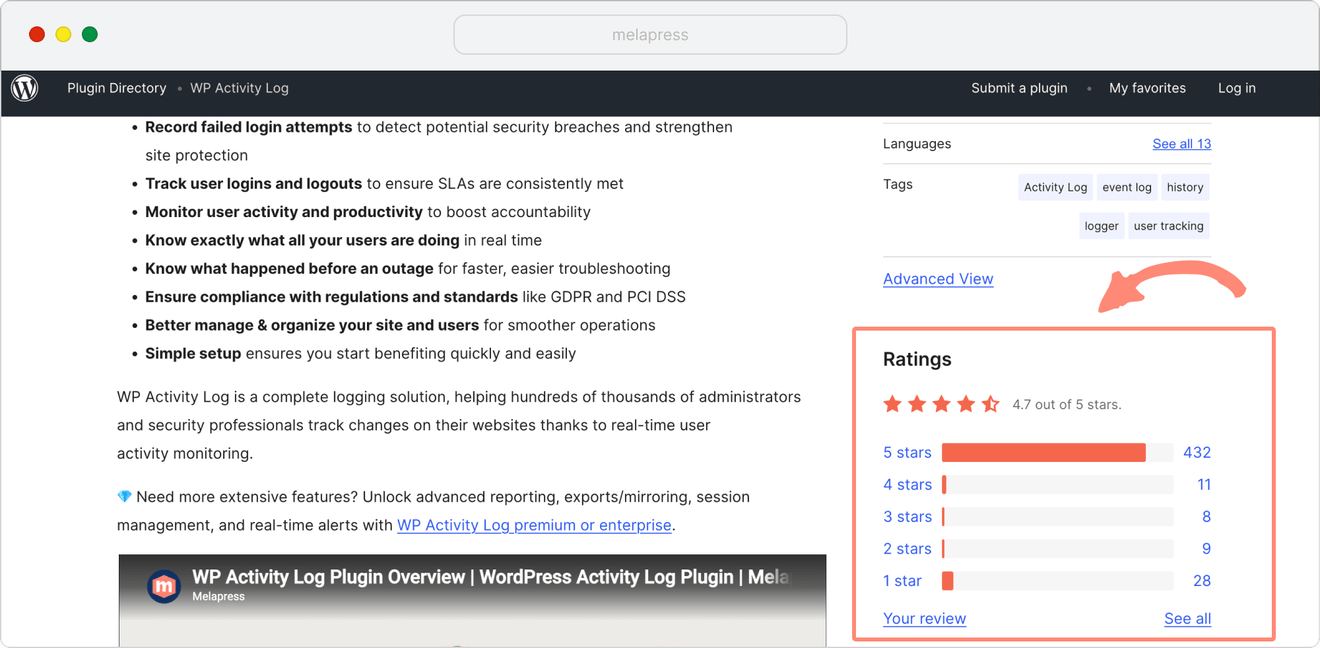
The easiest thing to do when choosing free WordPress plugins is to check out the overall rating.
On the WordPress plugin repository, users have the option to rate the plugin by choosing from one to five stars. A good rule of thumb is to stay away from plugins that don’t have an average of at least four (or almost four) stars.
Anything lower than that is typically not a good sign. A plugin becomes popular because it is well maintained, works as advertised, users get responsive support, and any reported issues are always addressed on time.
User reviews
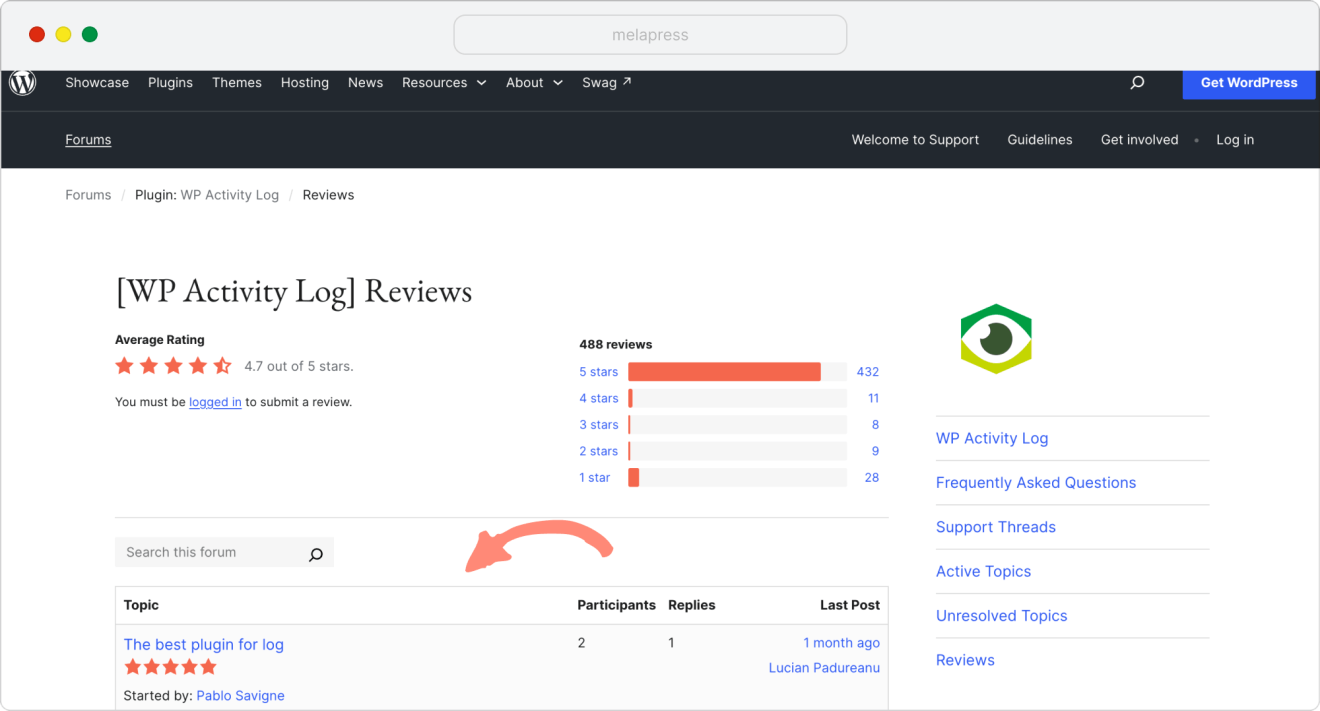
Reading user reviews is a great way of knowing why a specific plugin has the rating it does. It shows you what people like, which issues there might have been in the past, etc.
Number of active installations
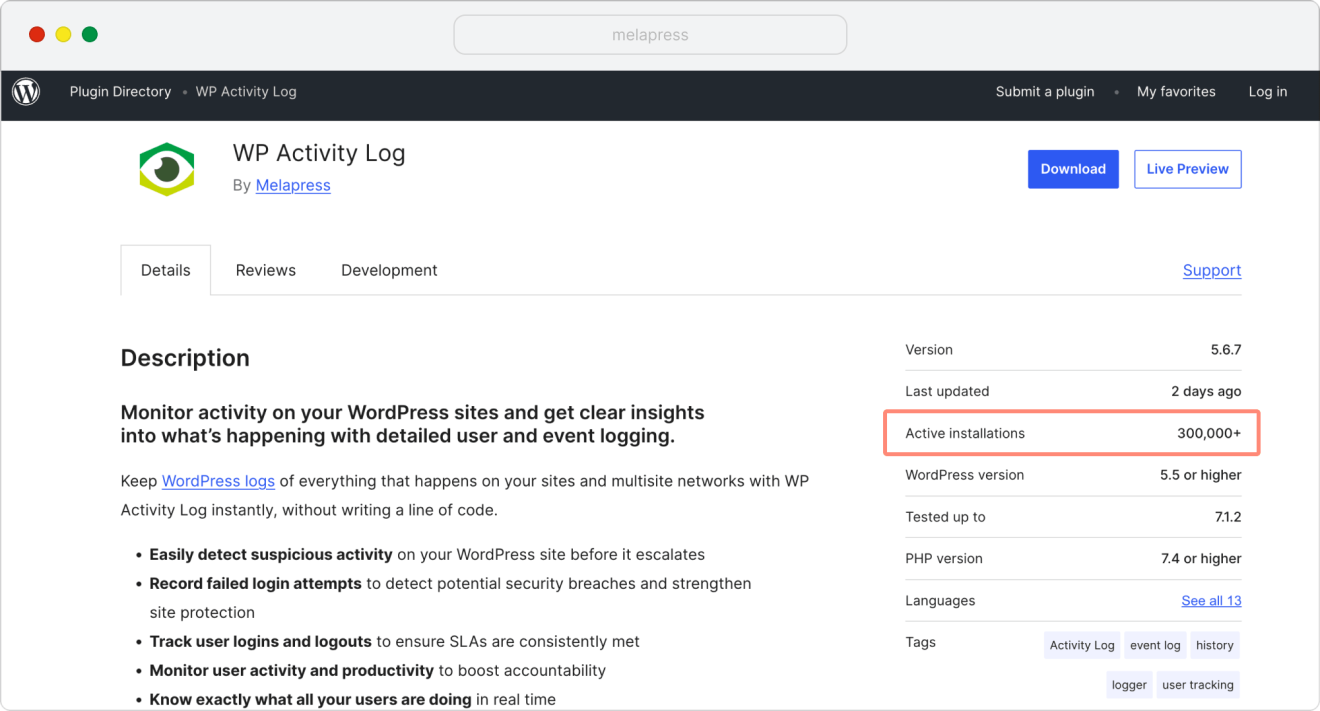
A plugin that has been downloaded by millions of users is, of course, different from one that has been downloaded just a few times. If a plugin is installed on many WordPress websites, it’s likely doing a fair job, and there’s more chance of potential small bugs and issues being discovered and reported by users. Assuming it is from a good plugin developer, this means more patches and a more mature product.
That being said, there are some “diminishing returns” when it comes to install numbers. Going from a completely untested plugin with 10 installs to one with a few thousand installs is a big jump, with the first indicating it is used on barely any sites and the second showing it is already live on many real sites.
But when choosing between a plugin with 100.000 installs or one with 300.000 installs, both show a large number of websites are actively using it. At this scale, other factors like features, ratings and the developer’s reputation become more important than just install counts.
Developer reputation
It is also worth looking at who is behind the plugin. A newer plugin from a developer with a strong track record may be a better choice than one with slightly more downloads but from a developer that doesn’t have any proven track record.
Check whether the developer maintains other plugins, how long they have been active in the WordPress ecosystem, and how they respond when problems arise.
This matters even more as the number of plugins available continues to grow. In our Melapress Show episode on WordPress security for small businesses, WordPress security consultant Kathy Zant highlighted the question of long-term maintenance:
“If you look at the WordPress plugin repository, we’re seeing a surge of new plugins. But how many of them will still be there next year? How many will still be working and maintained?”
A developer’s reputation does not guarantee that a plugin will always be maintained, but it gives you another useful signal when deciding whether you want to rely on it.
Updates and compatibility
When a plugin isn’t updated regularly by its developers, or it has been a very long time since it was last updated, there’s a good chance it is not well maintained. There are some exceptions to this rule, as certain small plugins don’t necessarily need as many updates as larger, more feature-rich ones.
Even so, most high-quality plugins receive frequent updates, making a lack of regular updates a red flag you should be wary of. Should you be considering a plugin that hasn’t been updated in over six months, it’s a good rule of thumb to spend some time understanding why. It might be because for this specific plugin, updates aren’t needed as regularly.
That’s ok if the developer is showing it is keeping up with updates over a longer time period. However, if it seems like other options are being updated more, the plugin is rarely updated at all, or there’s no clear reason for the delay, it is worth considering a different option.
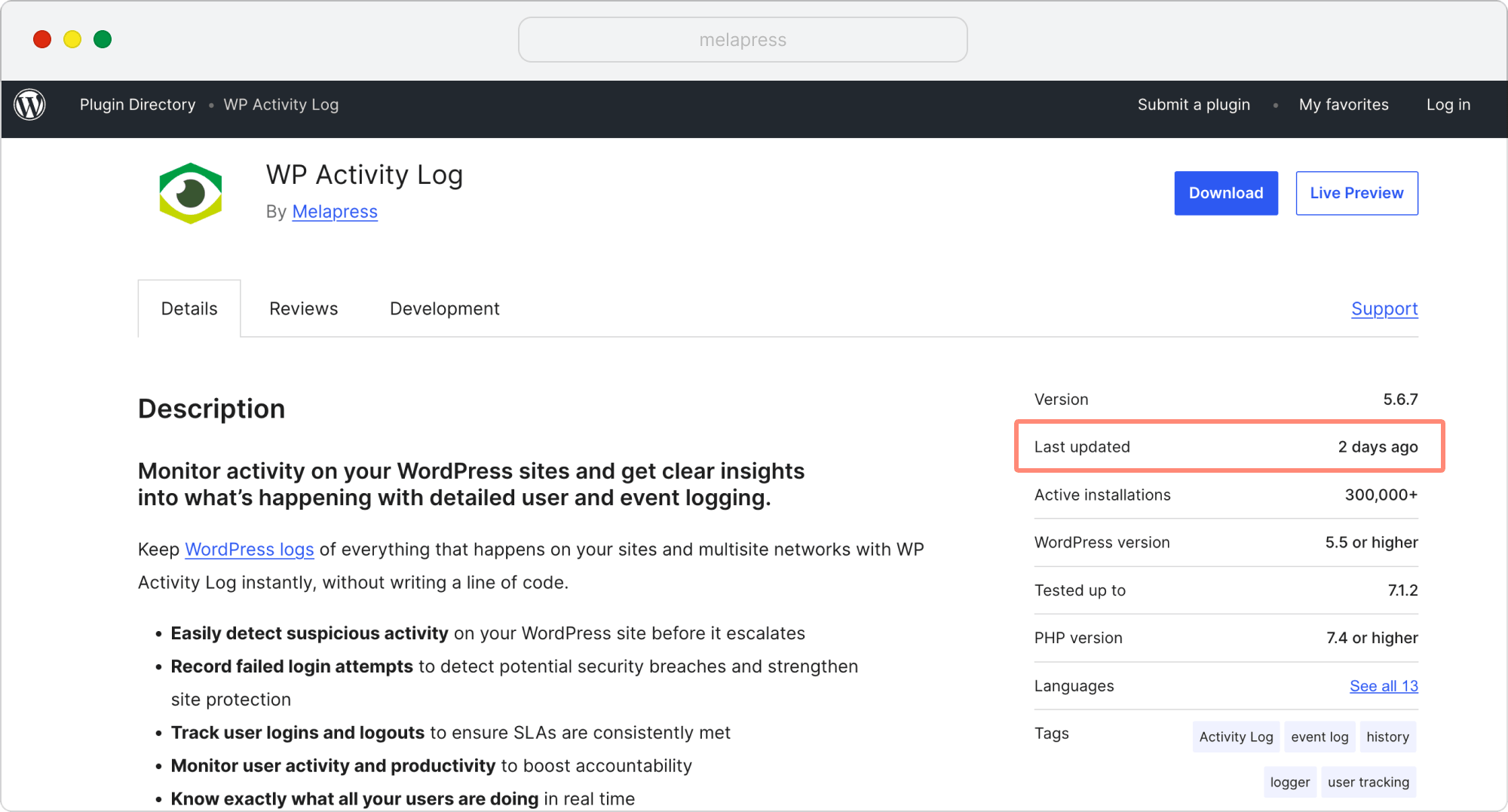
Note: In the WordPress plugin repository you can check exactly when a plugin was last updated by looking at the Details section. You can also find a log of all previous updates under the Development tab and checking the changelog.
Support
All plugins on the WordPress plugin repository have a support forum located within the Support tab. If you see regular activity within those forums, that is a good sign that the developer is responsive and is actively working to update and patch user-reported issues.
Apart from the forum support (for free plugins), if you are evaluating a premium plugin, you should definitely check the plugin’s website and see how easy it is to get support. Send a test email or perhaps ask a pre-sales question to get a good idea of how responsive the developers are.
Double-check what Google says, or use AI to evaluate
In addition to trustworthy sources, you should also search for the plugin on Google. By doing so, Google will return a ton of detailed reviews from bloggers, social channels, or other websites.
These days, you can also ask AI like Google Gemini, ChatGPT, Claude or other models to evaluate the plugin. This can help get a sort of second opinion, as well as surface some information or competitors you might not have found otherwise. Just make sure you verify important claims, particularly around security vulnerabilities, update history, and current plugin features, against primary sources.
Security considerations when installing plugins
Whenever you install a plugin on a WordPress website, you add new code and functionality to the site. Depending on what the plugin does, this may introduce new endpoints, permissions, integrations, or ways of handling user input. Each of these can increase the website’s attack surface if they are not implemented securely.
This does not mean that larger or more feature-rich plugins are inherently less secure. What matters more is how well the plugin is developed, maintained, and secured.
Risk is something that is managed rather than eliminated, and the same is true for WordPress plugins. Proper development and testing practices reduce the risk of something going wrong, and a good, responsive developer can reduce the exposure in case something does. So the question becomes: how do we manage that risk?
- Choose a reputable source. Use the developer, maintenance, reviews, and support signals discussed above to assess whether the plugin comes from a provider you trust.
- Test in a staging environment first. New plugins might not play well with existing plugins on your site, even if they’re reputable. Testing on a non-live environment lets you confirm the effects before going live.
- Update everything before you install. Make sure the WordPress core and your other plugins are updated before installing new ones.
- Pay attention to the update cycle. This was already mentioned in above sections, but regular updates also impact security.
- Check the plugin’s security history. Look for any known vulnerabilities and, more importantly, how quickly and transparently the developer responded to them. A past vulnerability does not necessarily make a plugin unsafe, but slow patching or poor communication can be red flags.
Performance considerations
Not all WordPress plugins require the same amount of resources. Some functionality requires more database space, another more processing power. In this regard, you need to ensure that the server on which WordPress is installed is adequately equipped for what it needs to do.
For example, an ecommerce plugin will require way more resources than a plugin that prints a daily quote. A shared hosting account might not be a wise choice if you’re building an e-commerce site, and even more so if you’re planning on growing substantially. It’s not that the plugin requires too many resources; it’s that a shared hosting plan doesn’t offer many resources to begin with.
That being said, how well the plugin is developed and maintained also plays a role in performance. Poorly optimized code can slow a site down regardless of the functionality the plugin adds, so this is also something to keep in mind and test before going live. A few practical steps help keep performance healthy:
- Start by choosing the best WordPress hosting provider your budget allows. This bolsters overall performance, uptime, and security, maximizes page load speed (which in turn enhances your SEO), reduces bounce rate, and increases average time on page.
- Make sure your server has adequate resources to run all the plugins you require. The higher the number of poorly coded plugins you install and run, the more strain is added to server resources.
- Test the plugin in staging before release. Conflicts with other plugins can create performance issues, but so can the new plugin’s settings, or other factors. Testing the plugin on a staging site first allows you to check the performance impact before using it on your live site.
- Perform regular maintenance. Update plugins regularly and remove inactive ones. A good WordPress update strategy keeps your website’s performance in tip-top shape.
How to monitor plugin resource usage
If you suspect a plugin is consuming more resources than it should, Query Monitor can help you investigate it. It shows database queries, HTTP API calls, PHP errors, hooks, scripts and styles, and other useful information, with much of the output attributable to individual plugins or themes. You can download it from the official repository.
Once installed and activated, Query Monitor can help show you which plugins, if any, are slowing down your website. From there, you can decide whether to uninstall them or upgrade your hosting package. If a plugin is making too many database queries, it’s worth investigating why before you uninstall anything, as it might be a normal function of the plugin. The developer might be able to help.
Does the number of plugins really matter?
Many administrators and website owners ask themselves whether they have too many plugins on their site. With an abundance of free and premium plugins available, it’s easy to get carried away. But is there a cut-off point at which you should stop installing any more?
The truth is that there is no easy answer. The point is that requirements drive specifications. Blindly installing more plugins “just in case” someone will need them someday is not a good strategy. Instead, plan according to the needs of the site at that time while keeping any growth plans in mind. Good planning lets you meet current requirements while creating a setup that won’t require a complete redesign in a few months.
So instead of asking how many plugins are too many, the better question is: how many plugins do I need to achieve the functionality I want, and how do I make sure my site continues to run smoothly?
Installing fewer plugins does not necessarily equate to a safer, more responsive website. This isn’t to say you shouldn’t keep an eye on the number of active plugins, it is definitely possible to have too many. But site performance depends on a number of factors, all of which need to be taken into account. If you have a solid web server and all your plugins are from reputable developers, you can install as many as you genuinely need.
Frequently asked questions
How many plugins are too many for WordPress?
There is no specific number. You should be more concerned about plugin quality and security than quantity. As a rule of thumb, only install what you need and what your server can handle, and commit to checking for updates regularly. If all your plugins are from reputable developers and you have a solid web server, you can install as many as you need.
How do I know how many plugins I have?
It’s very easy to view all your plugins. In the dashboard, navigate to Plugins > Installed Plugins. From there you can see every installed plugin, which are active, and which require an update. Examine the list and see if you can remember what each one does or when you last used it. If you can’t, that may indicate the plugin is surplus to requirements and needs to be removed. Test this in a non-live environment first so you can be certain of the effects before removing it on the live website.
How do I remove unnecessary plugins from WordPress?
Once you’ve decided a plugin is unnecessary, navigate to Plugins > Installed Plugins, find the plugin, and click Deactivate (you must deactivate a plugin before you can remove it). Once deactivated, click Delete.