How to track client changes as an agency (WordPress)

Managing multiple stakeholders on a WordPress project is not always easy. From writers and developers to clients themselves, everyone has a job to do, and this results in many actions being taken on your or your client’s websites.
This is fine when things go well, but as every agency owner knows, this isn’t always the case. Sometimes, a client breaks their site without realizing, and as their agency, they’ll turn to you to fix it.
By tracking changes made by your clients, you can quickly troubleshoot and resolve technical issues as well as disputes, ensuring you keep the client and save time in the process. In this post, we’ll show you how to achieve this.
Why agencies should track changes made by clients, freelancers, and employees in WordPress
Clients often make changes such as updating plugins, editing content, or tweaking settings. The same goes for freelancers and employees you hire, meaning you don’t always know who’s making what change at what time.
When not seen in the larger context, these changes can cause issues and conflicts that cause the website to break or important features to stop functioning properly. This can set a project back and lead to cost overruns, missed deadlines, and endless troubleshooting.
Automated tracking of user activity is a surefire way to:
- Ensure accountability: Keep a record of who did what and when on your clients’ WordPress sites. This helps avoid disputes by being able to show them exactly when a breaking change might have been made and by who, and prevent it from happening again.
- Improve troubleshooting: When a client emails you saying “their site broke” you usually don’t have a lot to go off. A log can help you spot the changes made before the site stopped working and find the cause quickly, saving time.
- Offer better support: With clients’ activity history right at your fingertips, knowing what went wrong becomes much easier, allowing you to offer much better and more efficient support.
- Improve workflows: Improve workflow efficiency with a bird’s eye view of all activity on a WordPress site, reducing your overhead costs.
It also helps you:
- Improve site security: Spot suspicious behavior early before it becomes a threat.
- Achieve compliance: Help your clients achieve compliance with regulations and standards that require access records, like GDPR and PCI DSS.
Using an activity log plugin makes tracking client changes straightforward. It takes very little time to set up and monitor while providing the information you need to keep everything under control.
Using WP Activity Log to track client changes
WP Activity Log is fully equipped to track user and system activity across your WordPress websites. Thanks to its broad logging capabilities, it can track changes made by your clients, freelancers, and employees, providing you with unprecedented views of what happens on the WordPress sites you manage.
Uncover every clue with WP Activity Log
Suspicious logins? Content changes? Solve website mysteries and secure your site!

- Install and activate WP Activity Log
Getting started with WP Activity Log is both easy and straightforward. First, choose the edition that best fits your requirements. We recommend the Premium edition for most agencies as it delivers the best value in terms of functionality and pricing. For large agencies, Enterprise can be the better choice, with the ability to mirror and archive logs, the ability to use external databases, and priority support.
Install the plugin by navigating to Plugins > Add New Plugin and then clicking on Upload Plugin. Upload the plugin ZIP file and then install and activate once prompted to do so.
Once activated, the initial setup wizard will kick in and guide you through the configuration process. The plugin will then start logging user and system activity data.
Please note that the WP Activity Log plugin logs and displays activity data. As such, data will only be collected when the plugin is installed and activated.
- Tracking client changes
WP Activity Log tracks various things that can be useful for client change tracking, including but not limited to:
- Changes to content, including adding, deleting, and editing posts and pages
- Changes to WordPress settings and popular 3rd party plugin settings
- Installation, deactivation, and uninstallation of plugins and themes
- Logins, logouts, and failed logins
For a full list of features and functionalities, check out the features page.
There are two primary ways to view client data: the Log Viewer and Reports. The Log Viewer is available in both Free and Premium editions, while reporting is an exclusive feature of the premium edition.
By default, log data is organized chronologically. However, you can click on any of the headers to change how the data is shown.
The premium edition also includes several advanced search filtering options, enabling you to drill down into the log data to find specific activities with more ease.
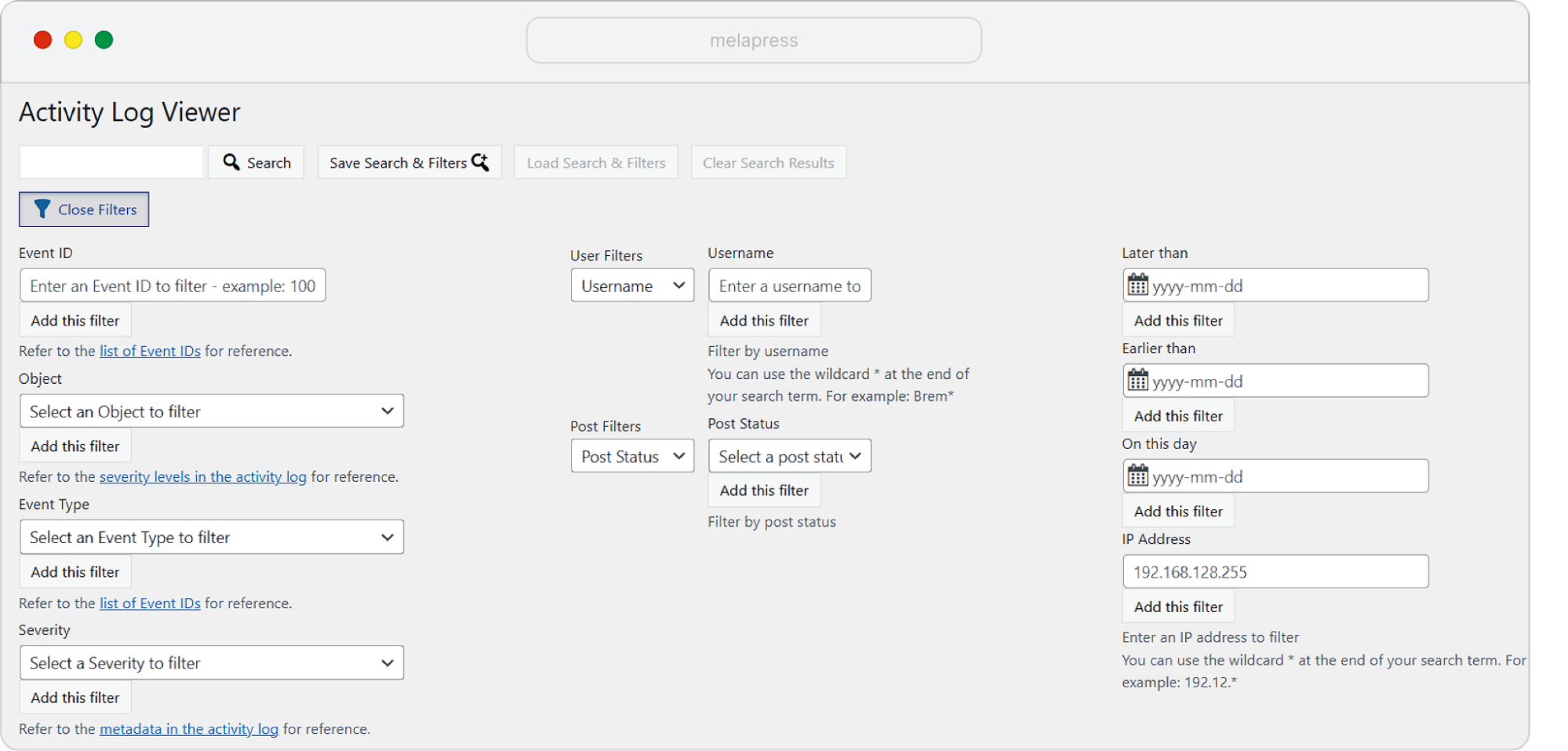
If you’re using filtering, you can choose any of the available options, which include filtering by user, type of activity, date, and much more.
For example, let’s say we wanted to run a test on a specific page. We make the change and wait a few weeks for the test results to come in. However, a few days after the page was published, someone made an important change to the page, interrupting the test.
Without an activity log plugin, it would be very hard to find out what was changed and who made the change. With WP Activity Log, however, we can find out what change was made, who made the change and when at the click of a button.
Besides the fact that this prevents us from making decisions based on invalid test results, it also allows us to understand what went wrong. We can then adapt our processes to prevent it in future. For example, we might have to limit account permissions for specific users, send out an email informing employees of the test, or similar.
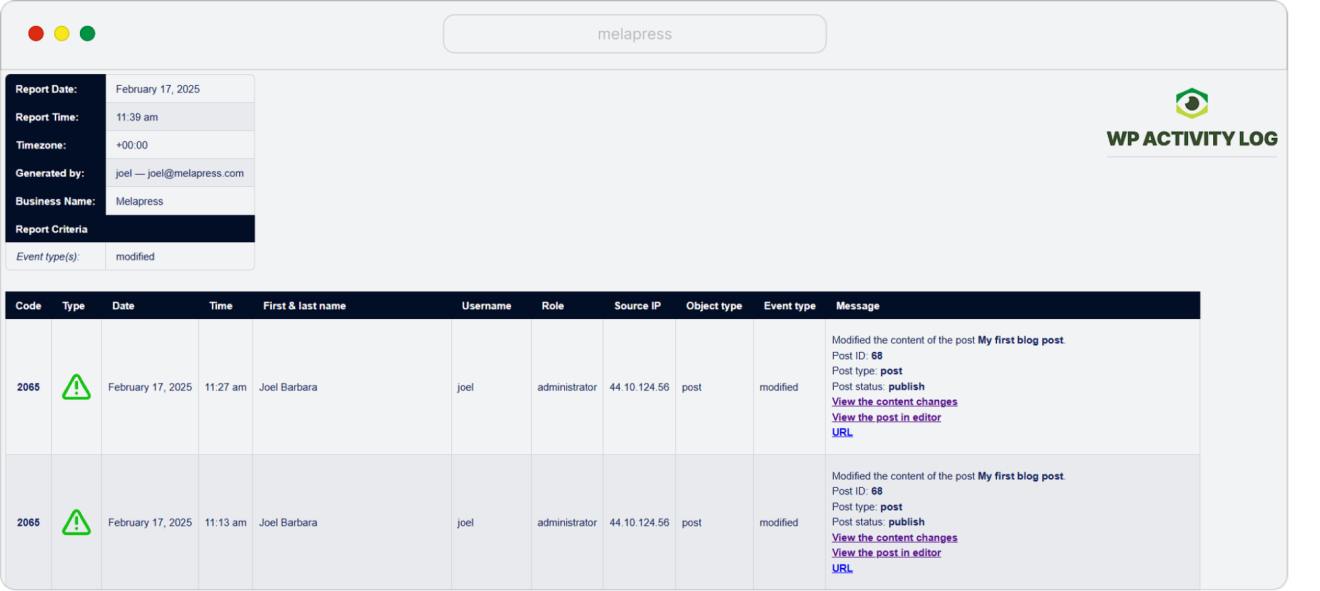
With WP Activity Log, we can search for a specific activity; 2065 – modified the content of a post.

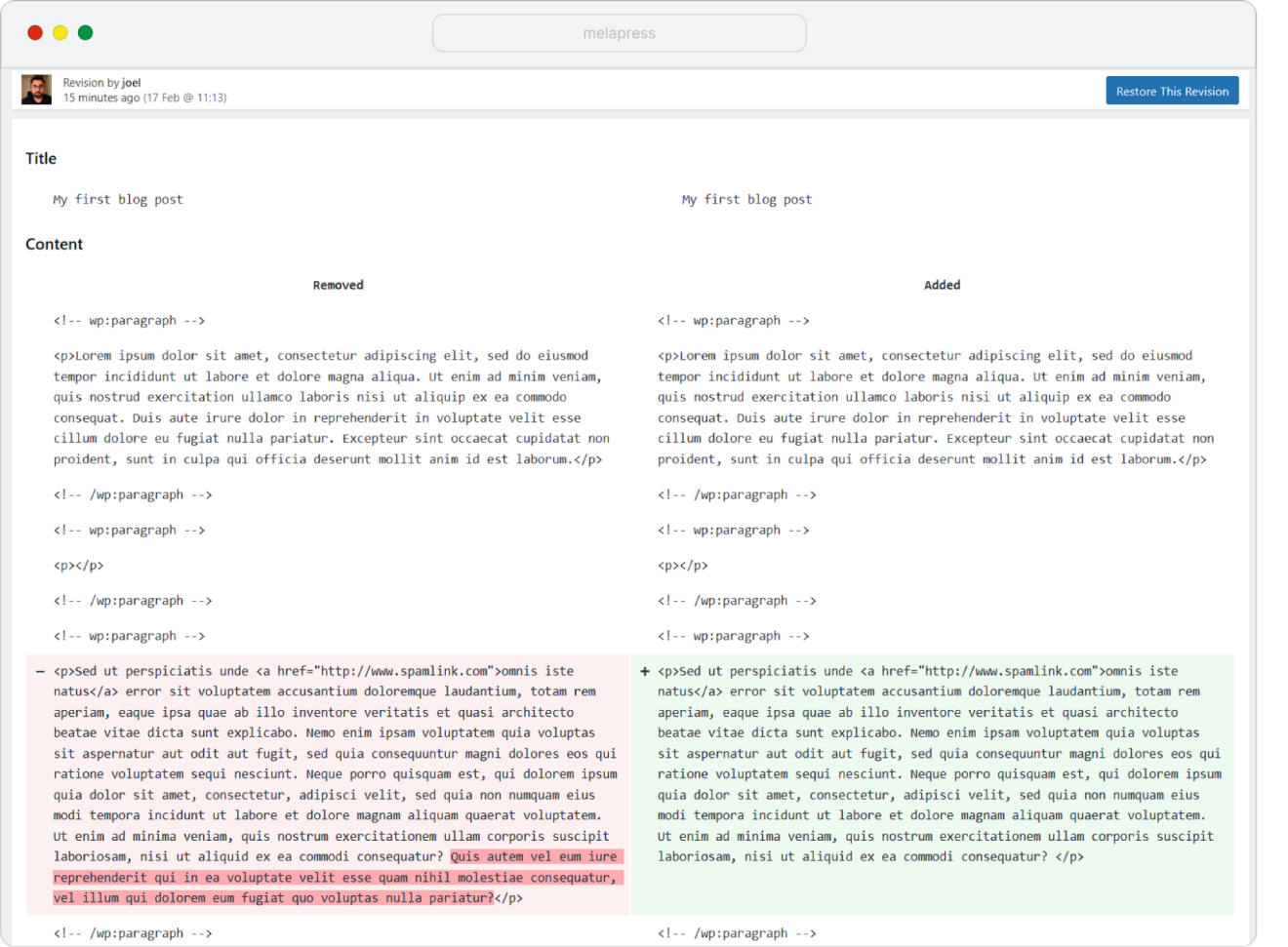
This gives us the user who made the change, the date, their IP, as well as which post was modified among other things. We can get further confirmation by clicking on the View the content changes, which will tell us exactly what was changed.
In the screenshot below we can see that an entire sentence was deleted, conveniently highlighted in red.
- Running reports
We can also run automated or ad-hoc reports based on the type of user activity we want to see. Reports make it easier to share your findings with a client in the event of a dispute.
Whether you want to share progress reports, SLA reports, or anything in between, activity log reports make it easy to collate and share the data – in fact, the whole process can be automated with no intervention required on your part. And since timestamps and other critical information can easily be referred to, you’ll have all of the backing information right at your fingertips.
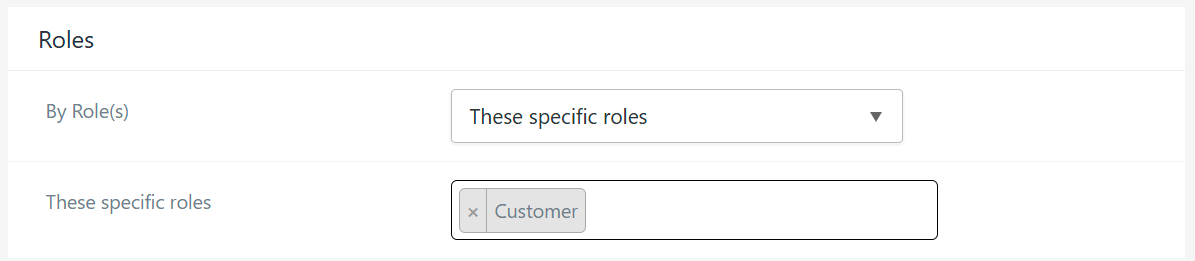
For example, we want to generate a report of all customer activity for the previous month. We can easily accomplish this by running a report for a specific role, in this case, Customer.
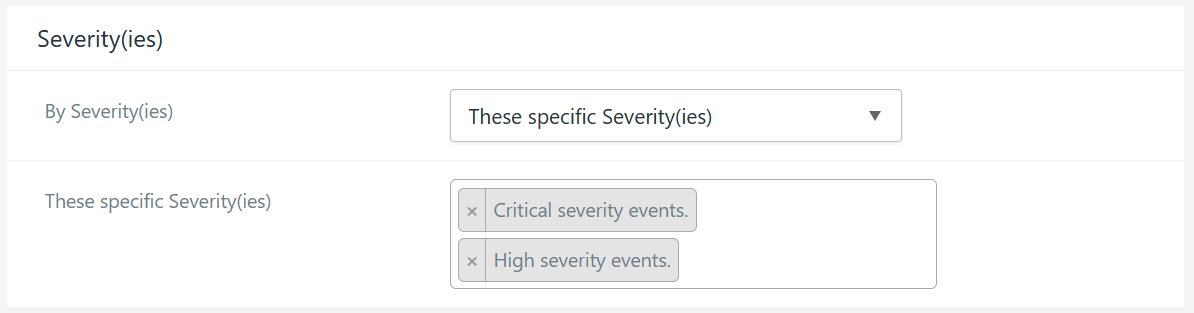
We can make the report more specific by limiting the report to events that have a specific severity for example.
Reports also include several white labeling options that enable you to customize reports’ look and feel with your agency’s logo, business name, and contact details. This makes reports look more professional and your agency more authoritative.
- Receiving notifications
WP Activity Log also includes a notifications module that sends you email or SMS notifications about critical changes on your clients’ websites. The plugin comes with several built-in notifications and a custom notification builder that enables you to create virtually any notification you want.
Notifications are a great way to stay informed about critical changes on the go. You can configure alerts for important events including:
- Plugin and theme installations, activations, and deactivations
- Login activity including failed login attempts
- Changes to WordPress settings and user roles
- Content modifications, including post updates and deletions
Real-time notifications enable you to quickly respond to issues before they escalate, ensuring minimal downtime and enhanced security for your clients’ websites. By setting up notifications to your specific requirements, you can stay ahead of potential problems and provide more responsive and efficient customer support.
Tracking customer changes – an essential activity for WordPress agencies
Managing customer sites is no small feat. Having the right tools, however, can help you stay one step ahead. By using WP Activity Log, you can track client changes to provide proactive support, ensure accountability, and streamline troubleshooting.
Furthermore, it helps you improve workflows and security, provide better client support, and prevent small issues from escalating into costly problems.