


Updated on 28 October, 2026
How to configure WordPress security questions
Melapress Login Security enables you to set up security questions that users must answer when performing sensitive activities.
You can require users to answer a security question when they:
- Request a password reset
- Enable a disabled account
- Change their email address
In this guide, we’ll explain how to enable security questions, customize the available questions, and how users can configure and answer them.
How to enable Security questions
To enable Security questions, you first need to enable login security policies. You can do this by navigating to Login Security > Login Security Policies.
If you haven’t done this yet, refer to our getting started with Melapress Login Security guide for step-by-step instructions on how to install and configure the plugin.
Once login security policies are enabled, follow these steps:
- Navigate to Login Security > Login Security Policies in your WordPress dashboard.
- Scroll down to the Security questions section.
- Tick the Activate Security questions checkbox.
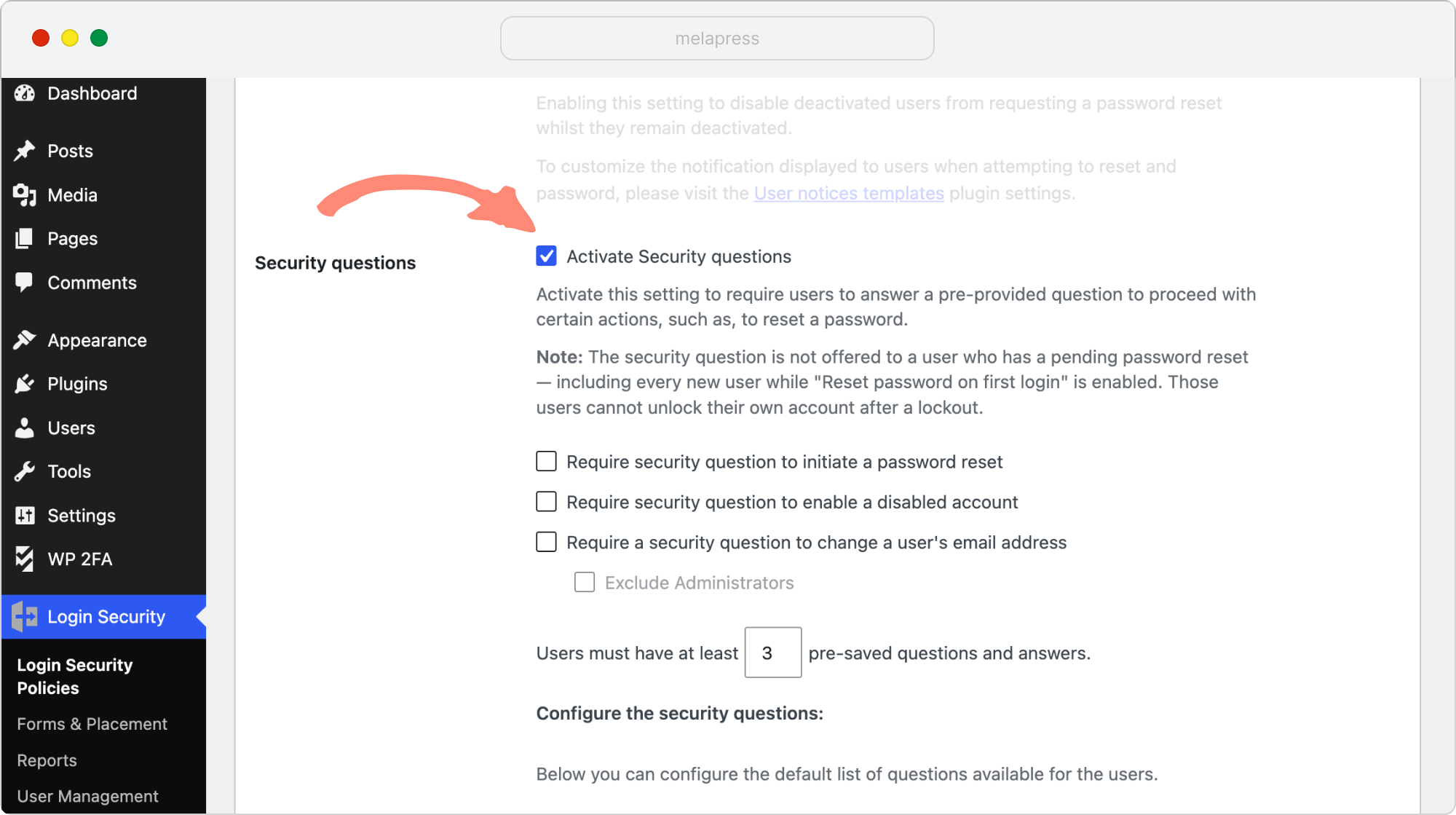
- Choose when users must answer a security question by enabling one or more of the following options:
- Require security question to initiate a password reset: users must answer a security question before requesting a password reset.
- Require security question to enable a disabled account: users must answer a security question to re-enable their account.
- Require a security question to change a user’s email address: Users must answer a security question before changing their email address. You can also select Exclude Administrators if you don’t want this requirement to apply to administrators.
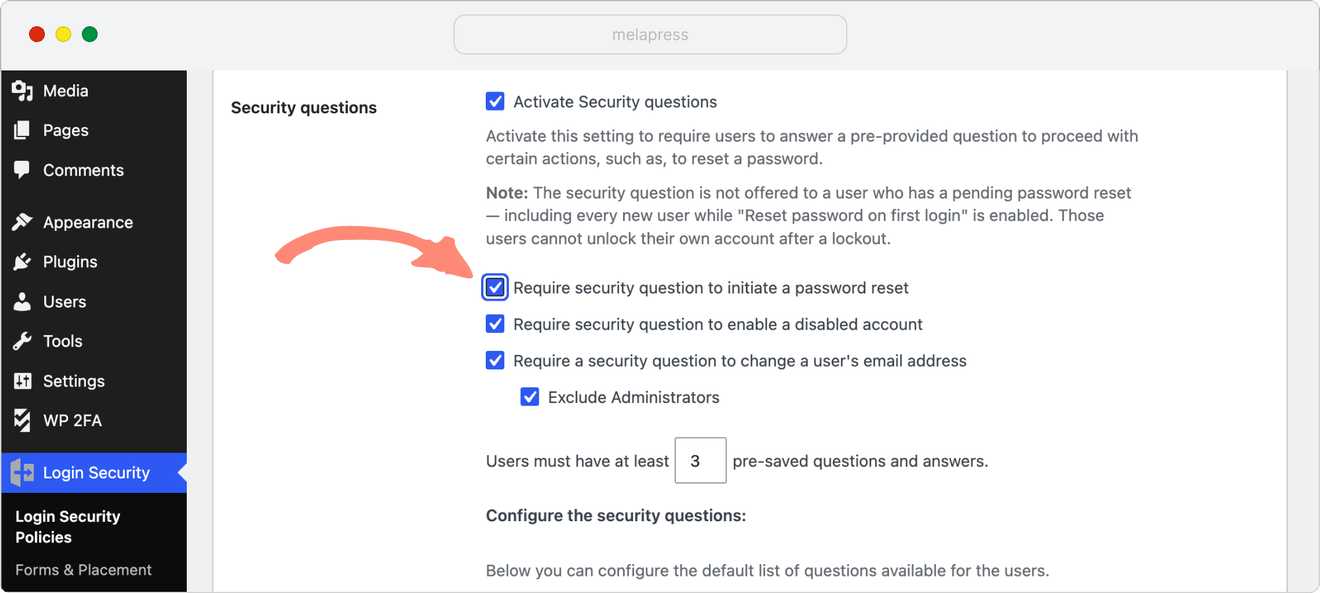
Note: Security questions are not offered to users who have a pending password reset, including new users with Reset password on first login enabled. These users cannot unlock their own accounts using a security question after a lockout.
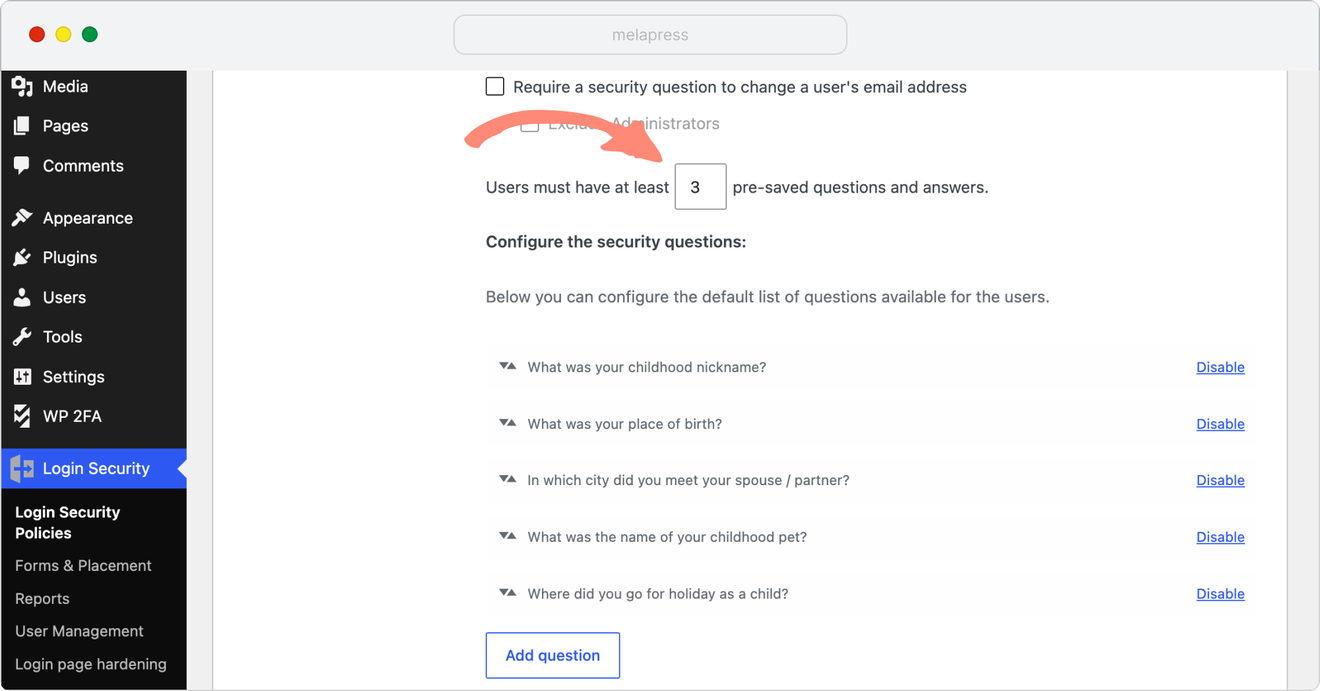
Next, choose how many questions and answers users need to have configured. Melapress Login Security will then choose one randomly whenever any of the previously selected activities are performed.
Simply enter the number in the text field within the Users must have at least _ pre-saved questions and answers.
Configuring the available security questions
Melapress Login Security comes with a number of pre-configured security questions users can choose from when setting up their security questions. As the administrator, you can disable any of these questions and even add your own.
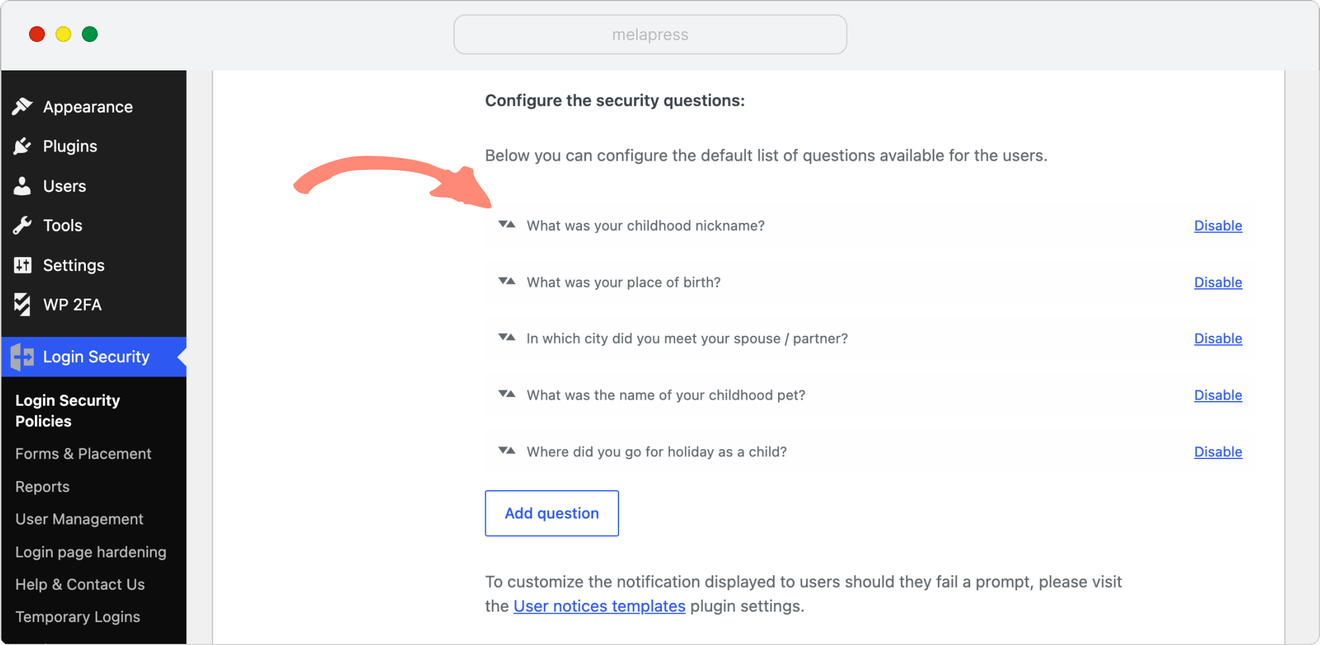
To disable a security question, simply click on Disable at the end of the question. The question will be greyed-out and the Disable option will turn to Enable – signifying that the question is disabled. You can re-enable it at any point by clicking on Enable.
To add a question, simply click on the Add question button and enter the question in the provided text field. To save the question, click on the blue Add question button.
Remember to click on Save Changes at the bottom of the page to save any changes.
How users configure and use security questions
Once the security questions policy has been enabled, users will be prompted to configure their security questions.
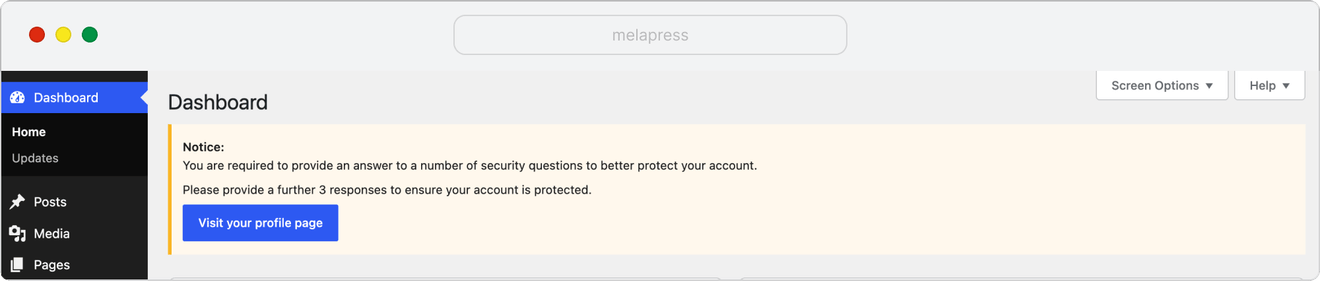
Once they click on the Visit your profile page button, they will be taken to their profile page, where they can configure the available questions.
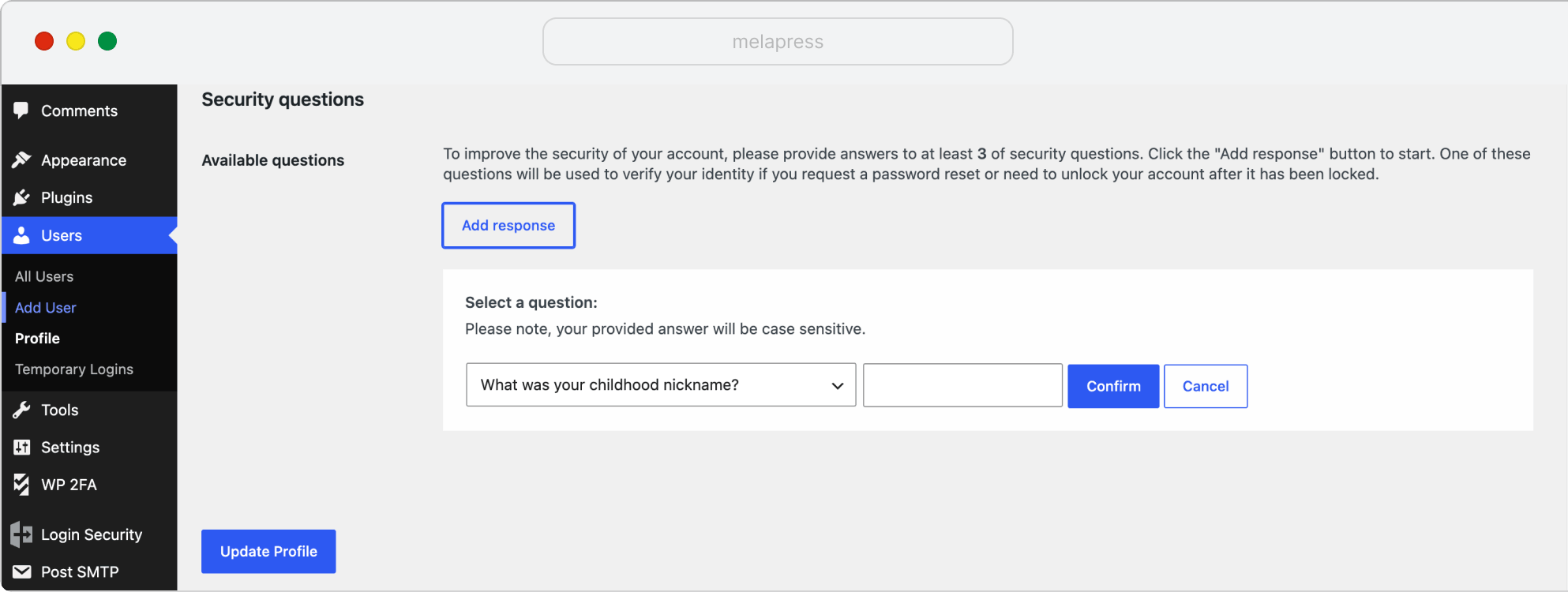
Users must answer the minimum number of questions as configured by the administrator.
Once that is done, any time the user tries to perform any of the activities associated with the security questions policy, they will be prompted to provide an answer to the question before they can proceed forward with the activity.
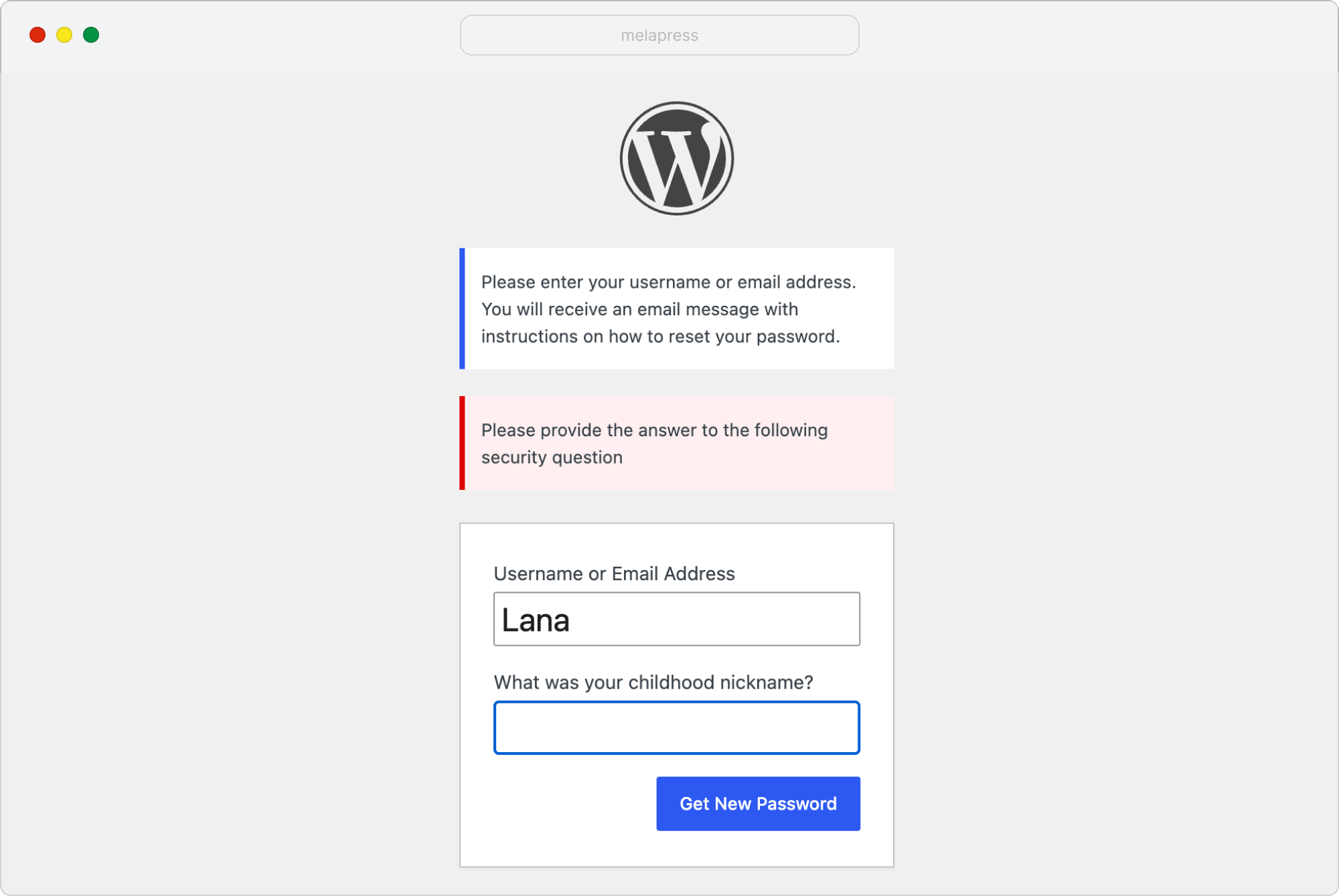
Managing security questions
You can change the security question settings at any time by navigating to Login Security > Login Security Policies.
From the Security questions section, you can change which actions require verification, update the minimum number of questions users must configure, or manage the list of available questions.
Remember to click Save Changes after making any changes.
