Updated on 6 October, 2026
How to prevent users from removing 2FA in WordPress
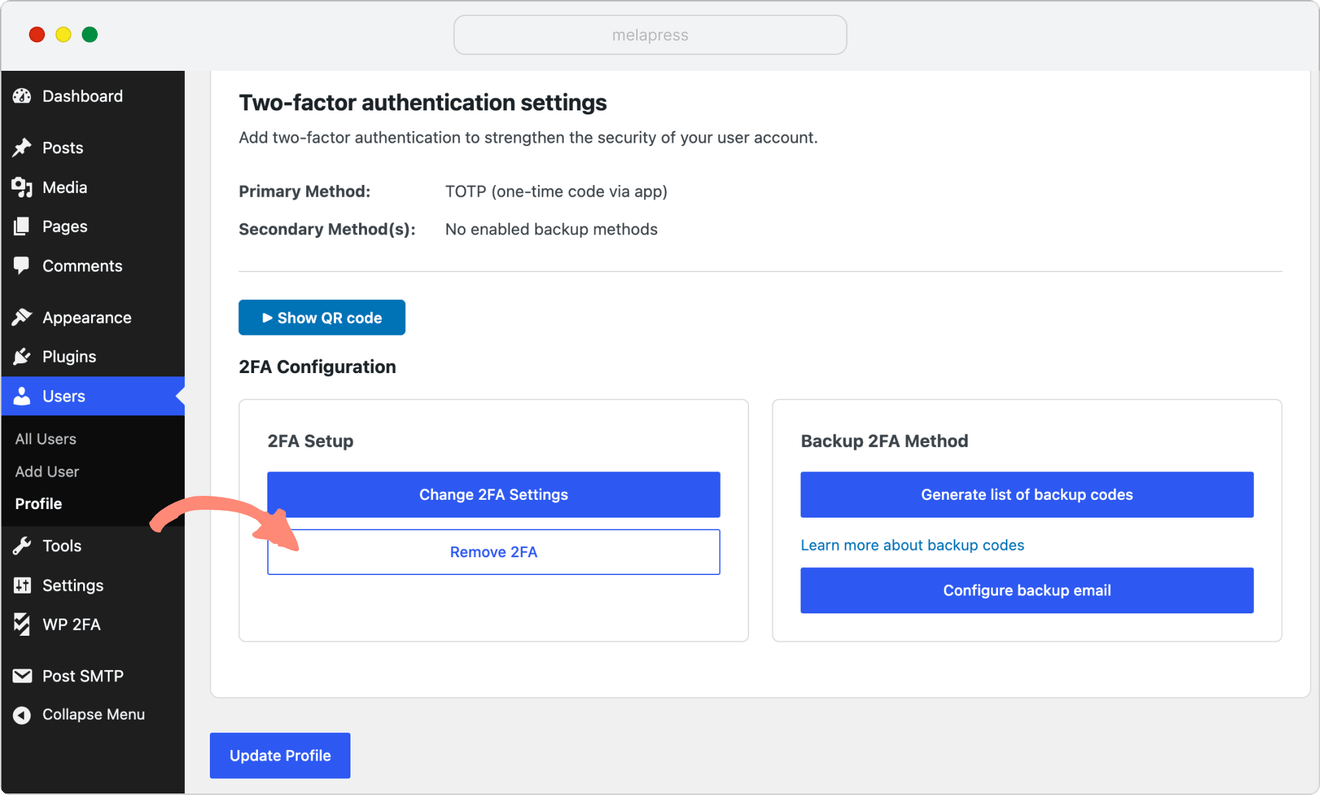
By default, WP 2FA allows users to remove 2FA from their user profile page. WordPress administrators who don’t want to give their users this option can hide the Remove 2FA button.
To hide this button, go to WP 2FA > 2FA Policies. If you want to enable this feature for all user accounts, ensure you are on the Sitewide 2FA policies tab, and click the User access settings tab.
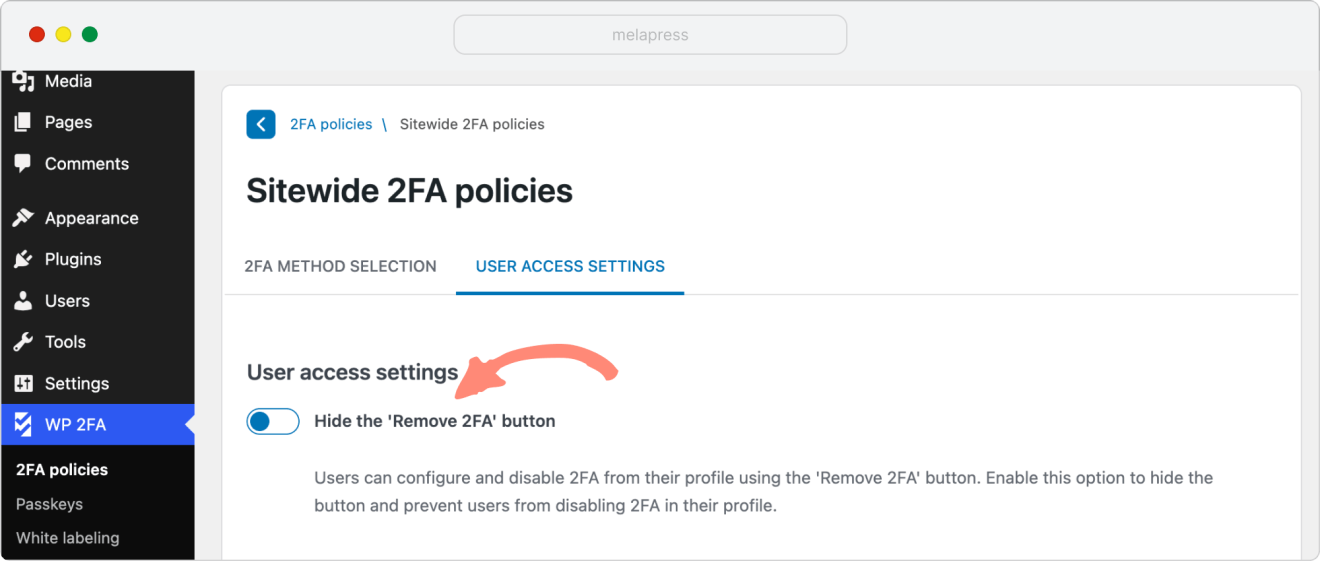
Then tick Hide the ‘Remove 2FA’ button – this option hides the Remove 2FA button, thus preventing users from disabling 2FA.
Hide the Remove 2FA button for a custom role
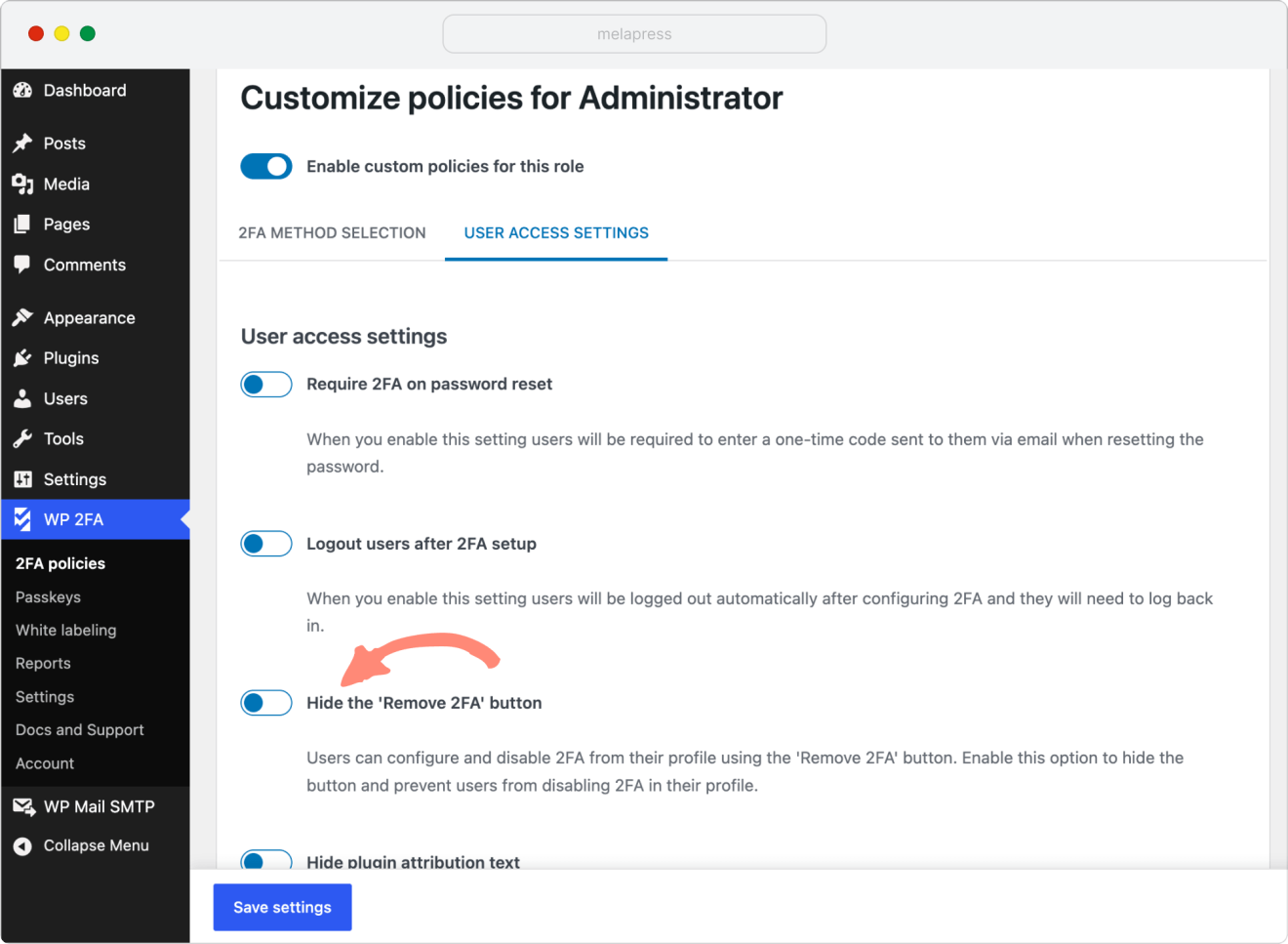
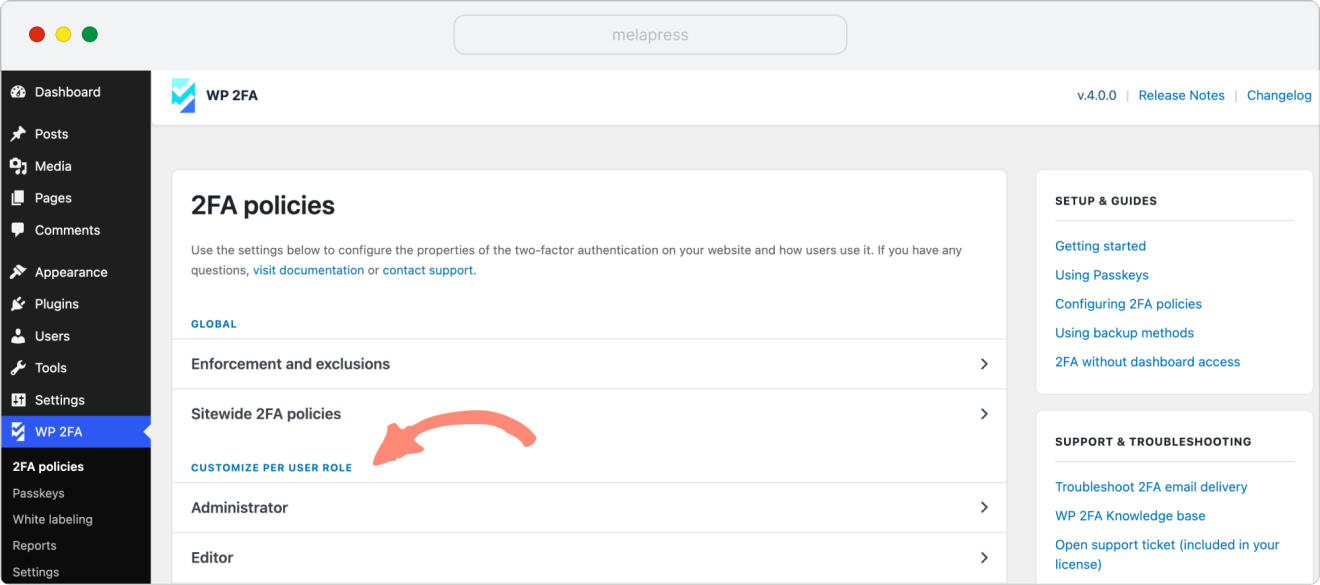
If you want to apply this feature to the custom role, go to WP 2FA > 2FA policies > Customize per user role section.
Note: Setting different 2FA policies per user role is available in WP 2FA Premium.
Then, go to the User access settings tab, scroll to Hide the ‘Remove 2FA’ button, enable it, and save settings.