


Updated on 19 July, 2025
How to edit activity log notification templates
WP Activity Log notifications use templates that can be edited and personalized according to your needs and requirements. This article explains how.
Table of contents
Editing the Email Notification Template
To modify the template the plugin uses for the email notifications:
- Navigate to WP Activity Log > Notifications
- Click on the Settings tab and scroll down to the Default templates section
- Click on the Email template tab
- Subject: Here, you’ll find the subject of the email as it is currently configured. You can add or remove any of the available tags and add static text.
- Body: Here, you’ll find the body of the email as it is currently configured. You can add or remove any of the available tags and add static text and HTML.

You can send a test email to ensure everything is configured and works as expected. Click the Send test email button to send a test email.
Once ready, click on Save Notifications.
Editing the SMS Notification Template
To modify the template the plugin uses for the SMS notifications:
- Navigate to WP Activity Log > Notifications
- Click on the Settings tab and scroll down to the Default templates section
- Click on the SMS template tab
- Body: Here, you’ll find the body of the SMS as it is currently configured. You can add or remove any of the available tags and add static text. Do keep in mind that each SMS is limited to 160 characters. If you exceed this limit, multiple SMSs will be sent.
- Shorten URLs with bit.ly: Use this option to shorten URLs with bit.ly, thereby reducing the number of characters used.
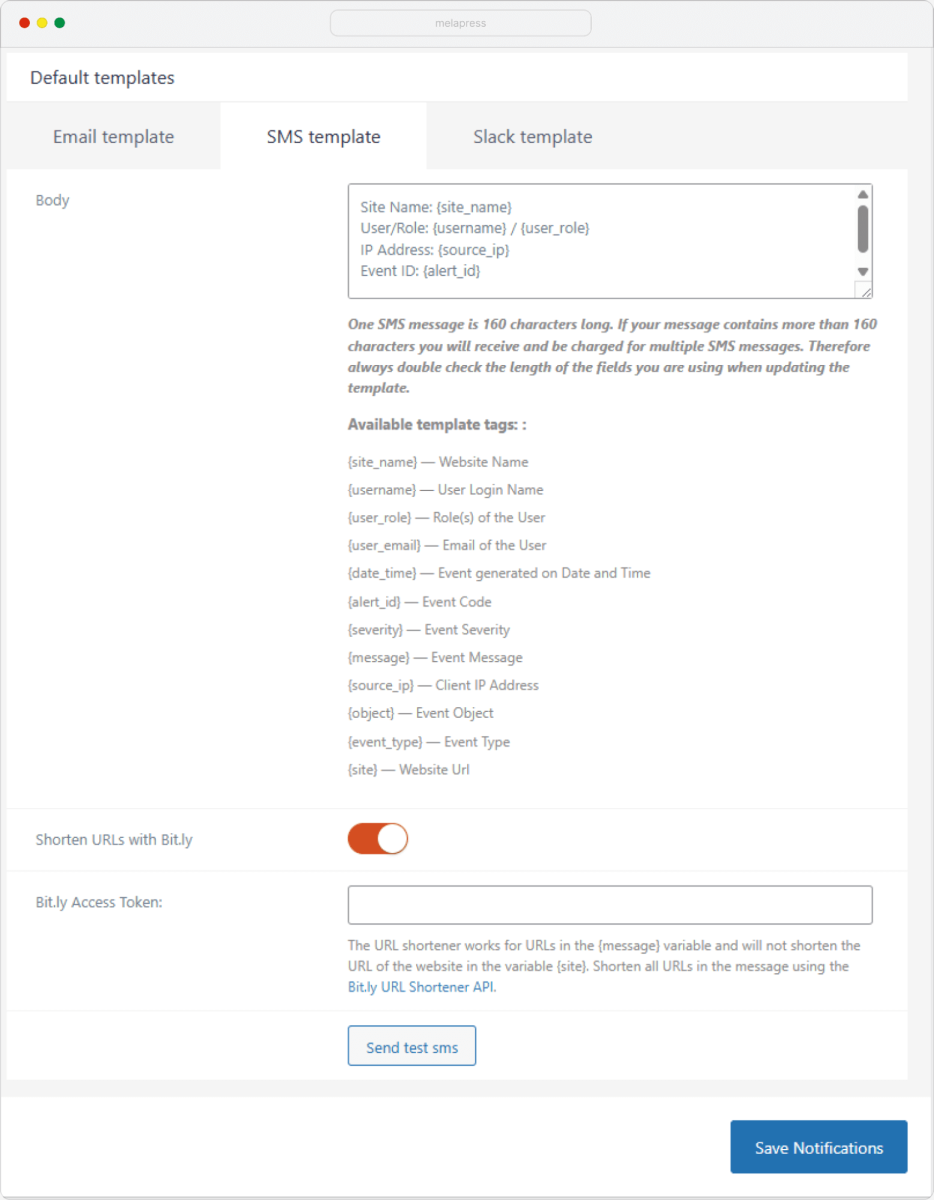
You can send a test SMS to ensure everything is configured and works as expected. Click the Send test SMS button to send a test SMS.
Important note: To send SMS notifications, you need to configure a Twilio connection.
Editing the Slack Notification Template
To modify the template the plugin uses for the SMS notifications:
- Navigate to WP Activity Log > Notifications
- Click on the Settings tab and scroll down to the Default templates section
- Click on the Slack template tab
- Body: Here, you’ll find the body of Slack messages as it is currently configured. You can add or remove any of the available tags and add static text.
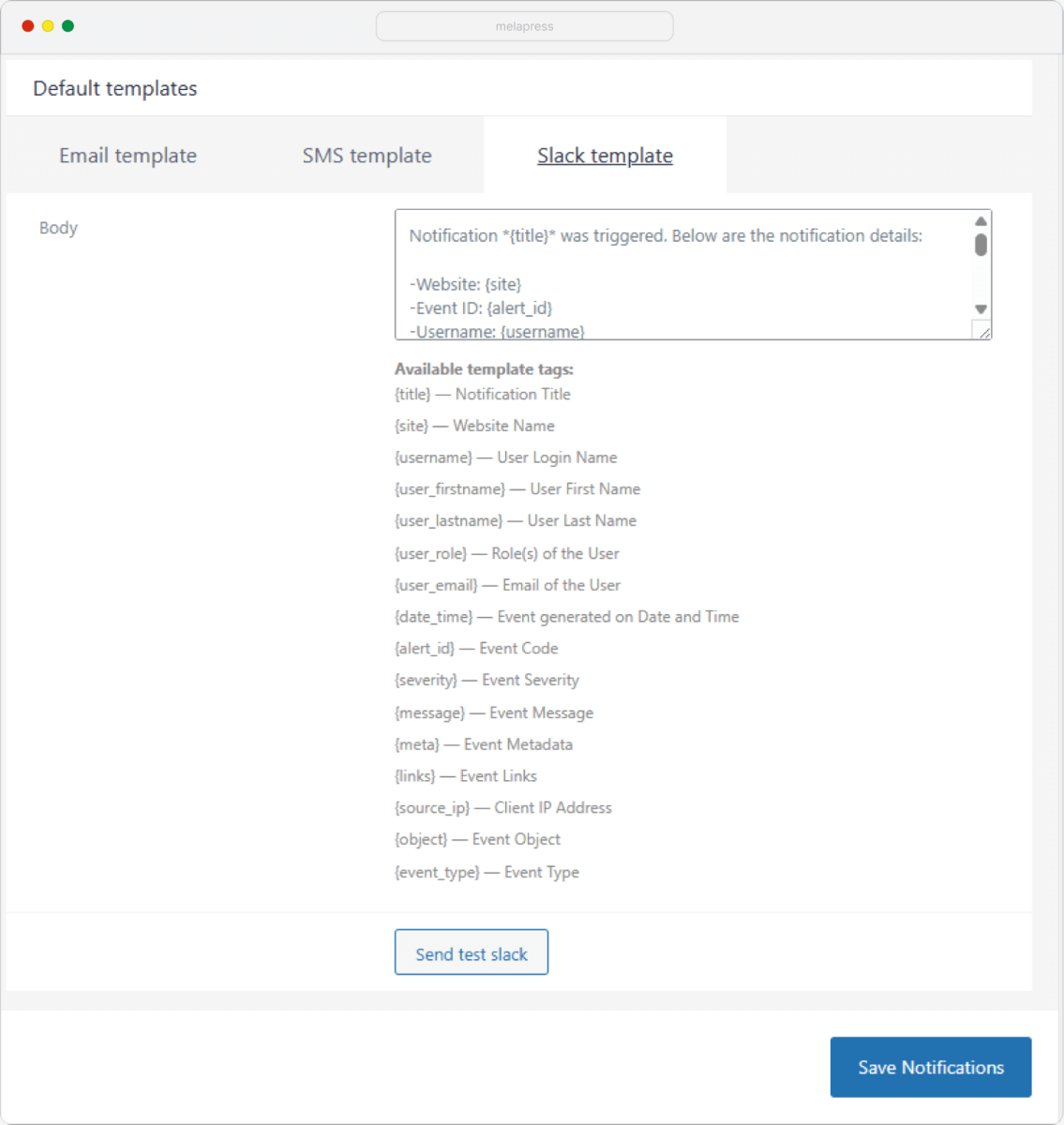
You can send a test Slack message to ensure everything is configured and works as expected. Click the Send test Slack button to send a test. Once ready, click on Save Notifications.
