


Published on 21 January, 2026 by Robert Abela
What Are Passkeys for WordPress & How to Set Them Up
Passwords have been one of the weakest links in WordPress security for a long time. It’s the reason we developed Melapress Login Security, Melapress Role Editor, and WP 2FA, and the reason we regularly cover user account security on our blog and YouTube channel…
However, even with strong password policies, password managers, and limits on login attempts, passwords can still be reused, forgotten, or revealed to hackers via phishing or other techniques.
Passkeys are starting to change that.
In this article, I’ll explain what passkeys are, how they work in practice, and what using passkeys for WordPress actually looks like today. We’ll also walk through how to set them up, what they replace (and what they don’t), and when they make sense for WordPress sites and teams.
Note: Passkeys are included in WP 2FA, our two-factor authentication plugin for WordPress. If you don’t have 2FA set up on your site, or you’re looking to add passkeys to your site, make sure to check it out.
What are passkeys?
Passkeys are a way of securely signing in to your WordPress user account without using a password. Instead of typing a password, you log in using your device, for example, by approving a prompt with your fingerprint, Face ID, or a device PIN.
That might sound confusing, but it’s actually quite simple. Rather than relying only on something you know (a password), a passkey combines proof of something you have (your device) with a secure, on-device verification step (like entering a pin, password, or using biometrics).
Because the passkey is securely stored on the device and never shared, it can’t be guessed, reused, or leaked in a data breach. An attacker would need physical access to the device AND be able to pass the local user verification to log in.
As you might expect, this generally makes them way more secure.
Note: Without getting too technical, it’s important to note that the passkey is tied to both the device AND the website. So, it’s also not possible for a bad actor to, for example, trick a user by sending them to a cloned login page, as the passkey simply won’t work.
The more technical story
Under the hood, passkeys use public-key cryptography. Keeping things fairly simple, this works as follows:
- A private key is stored securely on the user’s device (for example, in the device’s secure enclave or keychain).
- A public key is stored by the website or service.
- During login, the device proves it has the private key without ever sending it over the internet.
Because there is no shared secret, there is nothing for users to remember or reuse. This also means there’s nothing meaningful that can be stolen in a data breach, and that passkeys can’t be phished in the same way passwords can.
From a user’s perspective, logging in with a passkey usually means approving a prompt on their device, similar to unlocking their phone, rather than typing credentials into a form.
Passkeys are based on open standards (FIDO2 / WebAuthn) and are supported by all major platforms and browsers, including Apple, Google, Microsoft, Chrome, Safari, and Firefox.
When & why you should use passkeys for your WordPress login
Passkeys make the most sense when you want to improve security without adding more friction for users.
They’re particularly useful if:
- Your site has multiple users (teams, agencies, clients, or contributors)
- You’re tired of dealing with weak, reused, or forgotten passwords
- You want strong protection against phishing without relying solely on user behaviour
From a security perspective, passkeys significantly reduce common WordPress attack vectors. There’s no password to brute-force, reuse, or steal, and phishing attacks become largely ineffective because the passkey is tied to both the device and the site.
From a usability perspective, passkeys often reduce friction. Logging in becomes a quick approval step instead of typing credentials. This can help prevent issues with locked user accounts due to forgotten or mistyped passwords, as well as save the user time logging in.
That said, passkeys don’t have to be an all-or-nothing decision. For most WordPress sites, they work best as an additional login option alongside passwords and 2FA, giving users a more secure and convenient alternative without forcing an abrupt change. This is especially true when first offering the option to use passkeys, as it enables users to get used to the process first.
How to use passkeys on your WordPress website
Adding passkeys to your WordPress website is actually surprisingly easy. For this guide, we’ll be using our own WP 2FA plugin.
Note: Adding passkeys is available in the free version of WP 2FA. However, if you want users to be able to register multiple passkeys, you’ll need WP 2FA Premium or Enterprise. These versions come with a 30-day money-back guarantee, ensuring you can set it up risk-free.
After installing and activating the plugin and walking through the setup wizard, you can implement passkeys for your WordPress user accounts using the following steps.
Step 1: Enable and configure passkeys (administrator set up)
Before you/your users can start registering passkeys and logging in with them, they need to be set up by the site admin.
- To do this, head over to your WordPress dashboard and navigate to Wp 2FA > Passkeys
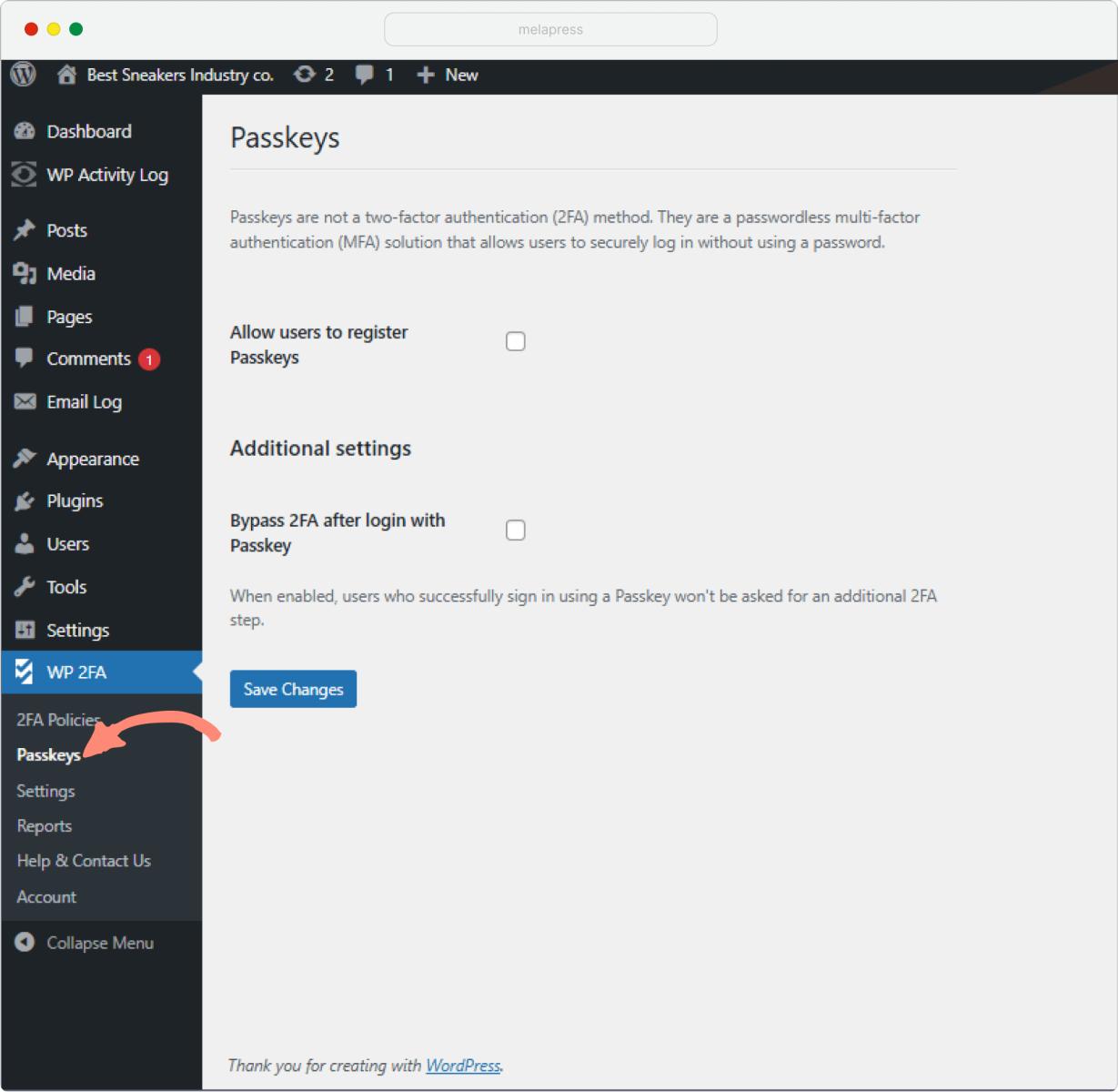
- Next, enable the passkey feature and configure which roles will be able to set up passkeys for their user accounts.
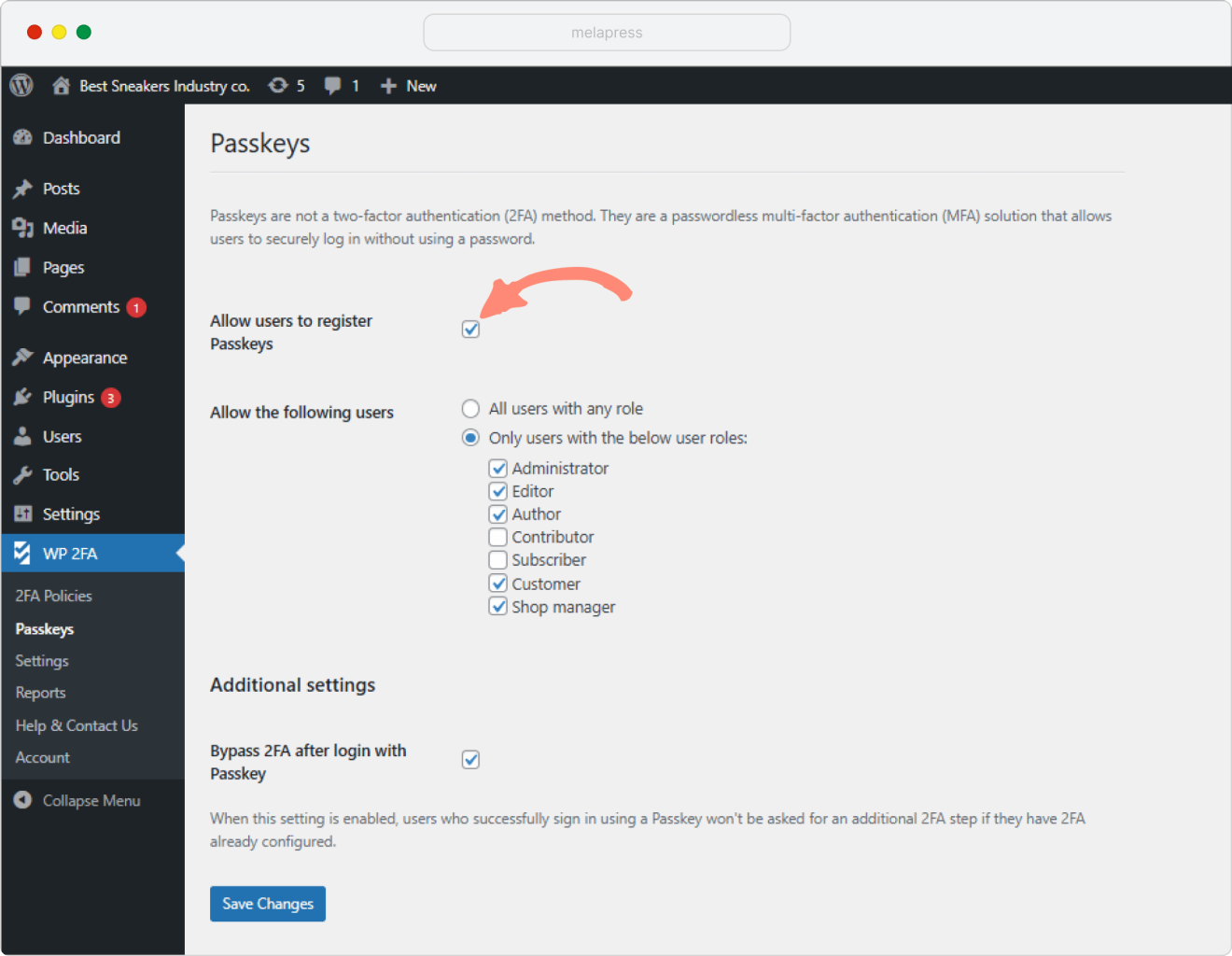
- Once everything is set up, you can Save Settings, and you’re all done!
Step 2: Setting up passkeys for individual user accounts (for individual users)
Now, it’s time for your users to start setting up passkeys for their accounts. You can also follow this step to add passkeys for your administrator account.
Note: Below is a summarized version that should be detailed enough for many. However, we also have a full guide on our knowledge base: How to register and log in to WordPress with Passkeys using WP 2FA (user guide)
- In your WordPress dashboard, navigate to Users > Profile and locate the Add a Passkey button
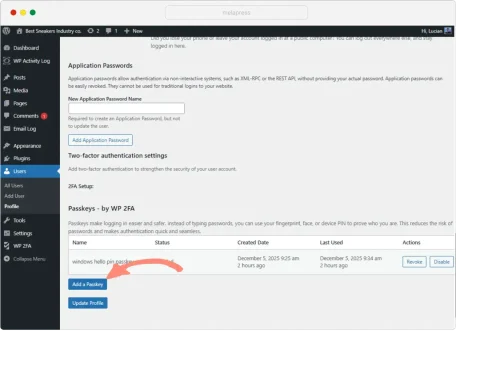
- Choose your authentication method
After clicking Add a passkey, you’ll be shown two buttons:
- Add a USB security key: Use this for hardware security keys like YubiKey, Google Titan Key, or Microsoft Security Key
- Add a Passkey – Use this for biometric authentication (Windows Hello, Face ID, Touch ID, fingerprint) or other available passkey methods available
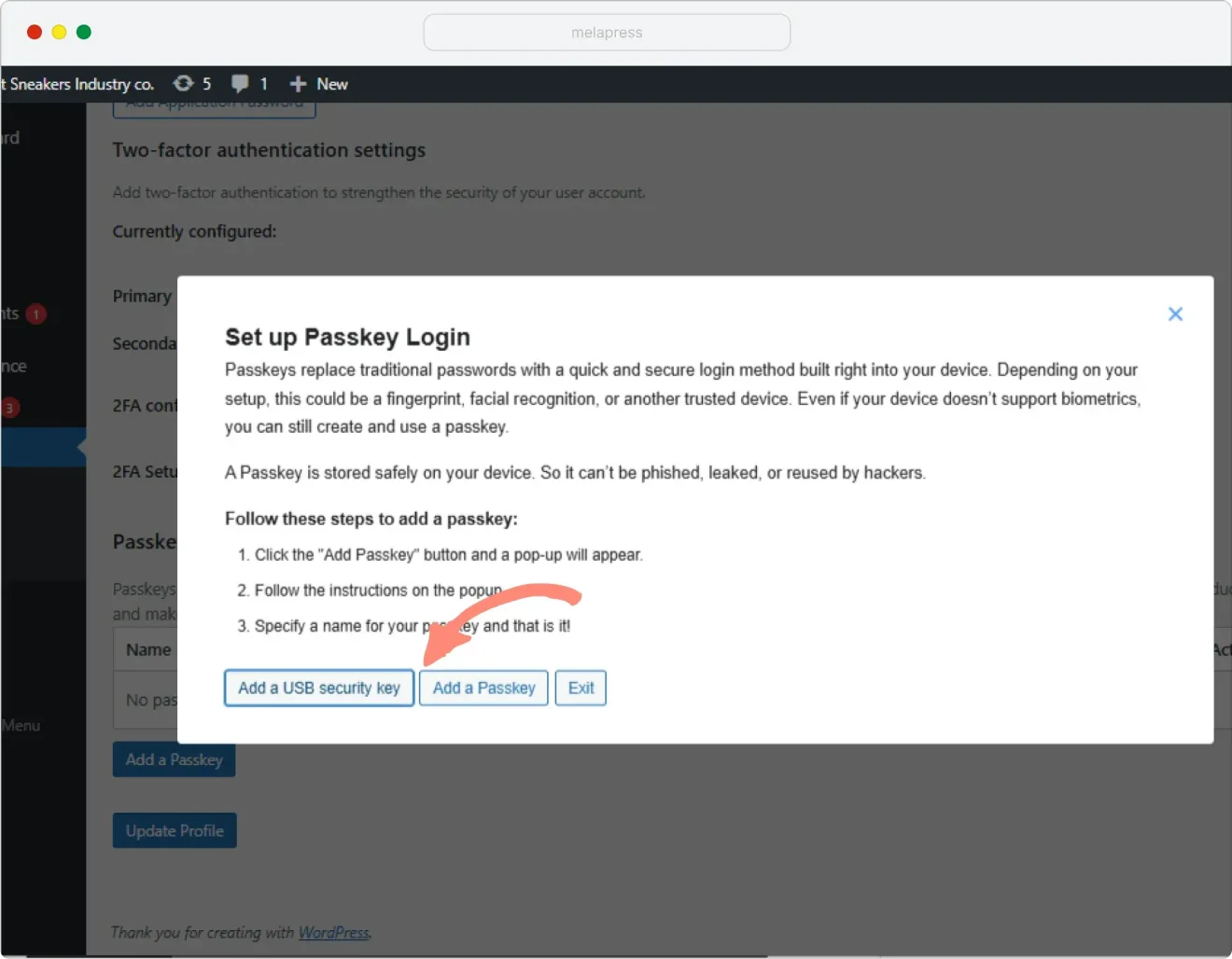
Select whichever one you want to set up and follow the wizard to register the passkey. If you run into any trouble registering a passkey, check out this article for a more detailed guide for each method.
Step 3: Logging in with passkeys
To subsequently log in with a passkey, all you have to do is navigate to your regular WordPress login screen and click on Log in with a passkey.
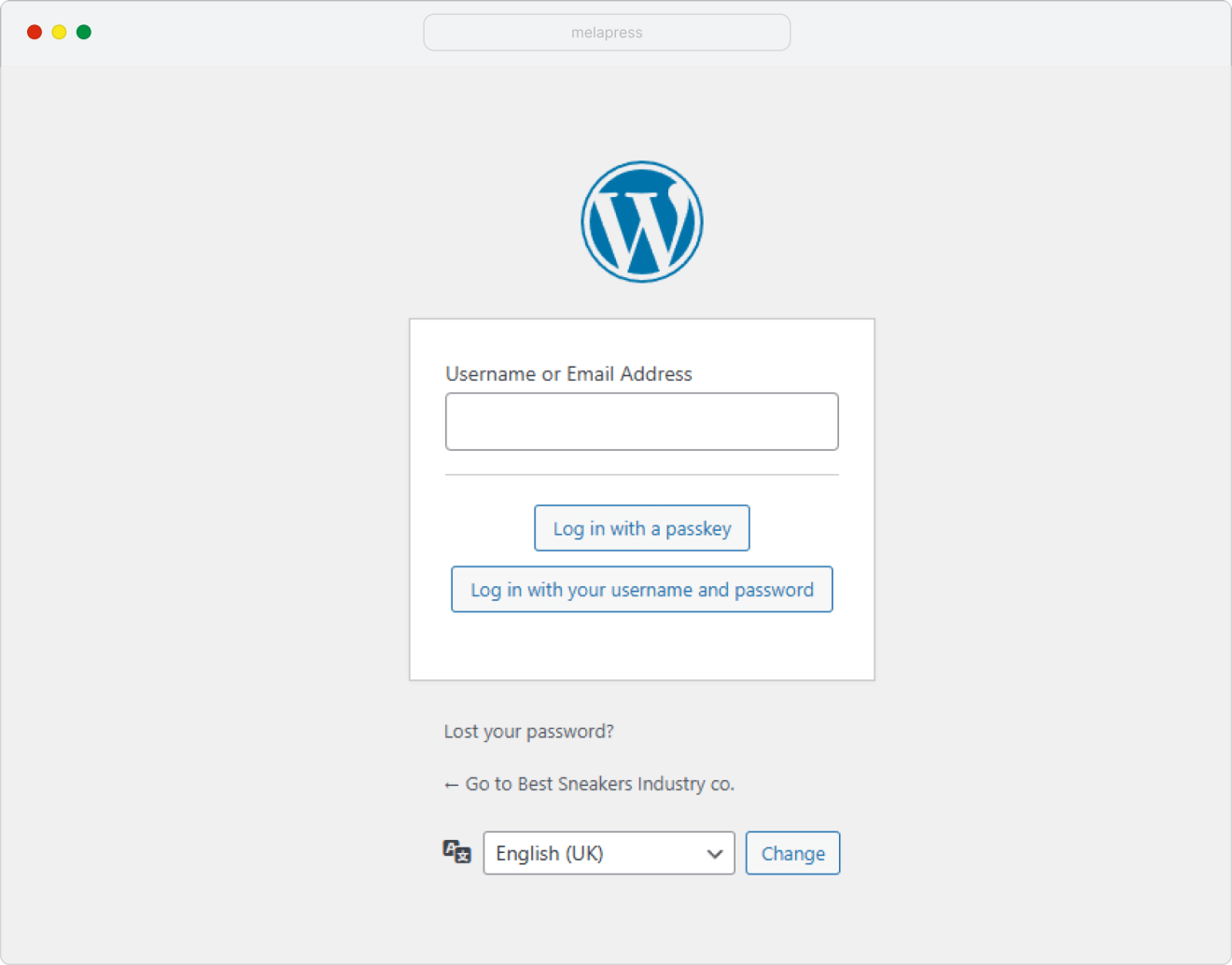
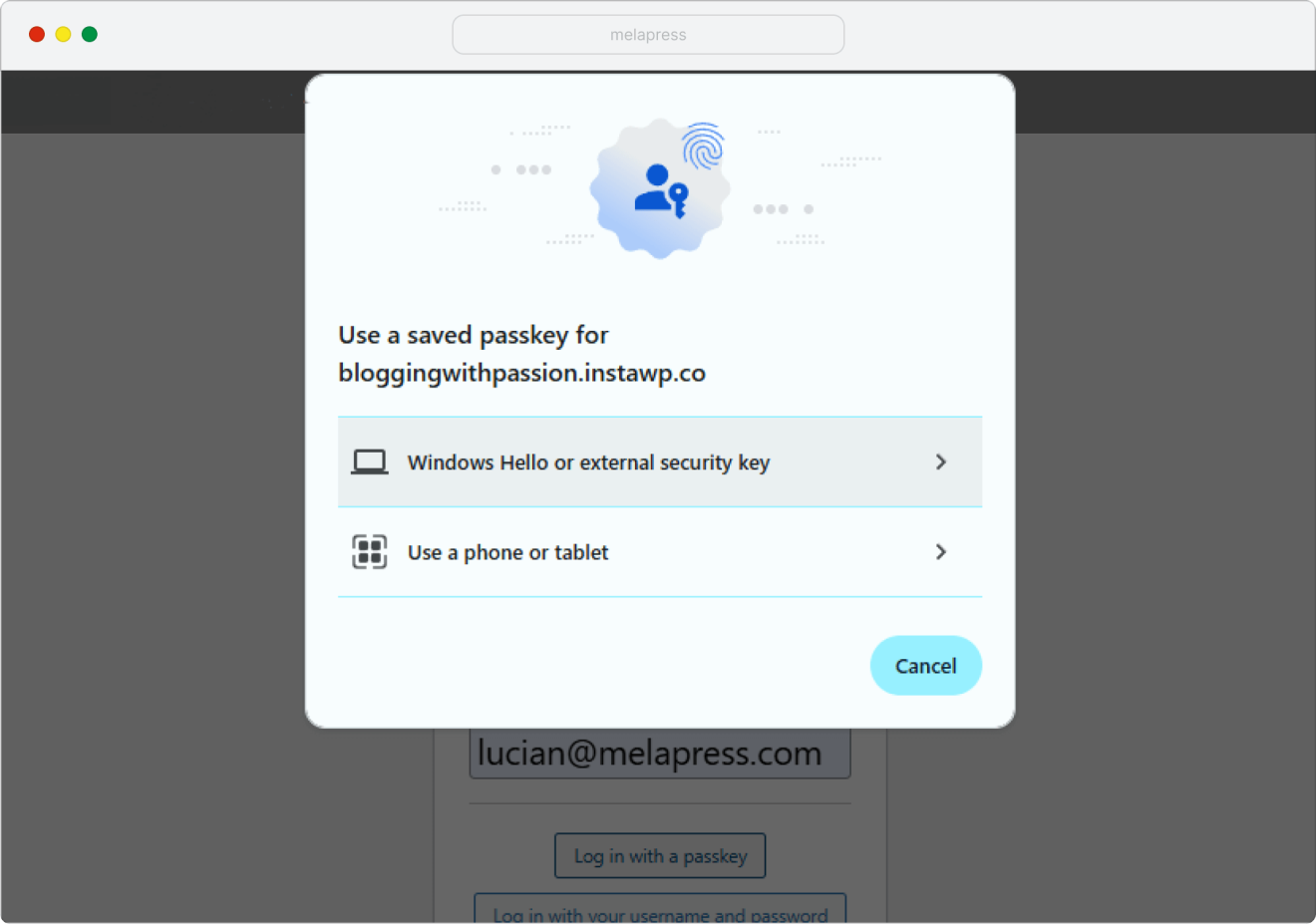
You’ll then be able to authenticate using any of the methods you configured. Simply follow the prompted steps to log in.
Note: If you run into any issues, check out our more detailed guide for logging in with passkeys on WordPress.
FAQs
How do passkeys help secure my WordPress user accounts?
Passkeys improve WordPress user account security by removing the password from the login process. Because passkeys don’t rely on shared secrets (there’s nothing to brute-force or reuse), phishing attacks are largely ineffective, and stolen databases, for example, don’t expose usable credentials.
Each passkey is cryptographically tied to both the user’s device and your site, which means even if an attacker tricks a user into visiting a fake login page, the passkey simply won’t work. In practice, this reduces the most common causes of compromised WordPress user accounts: weak passwords, credential reuse, and phishing, without relying on users to “do the right thing” every time.
What other steps can I take to secure my WordPress user accounts?
Passkeys are a strong improvement, but they work best as part of a broader approach to WordPress security. Common additional measures include:
– Enforcing two-factor authentication (2FA) for sensitive roles
– Enforcing the use of strong passwords, using a plugin like Melapress Login Security.
– Using strong role and permission management to limit access, using a plugin like Melapress Role Editor
– Monitoring login activity and user actions for suspicious behaviour, using an activity log like WP Activity Log.
– Limiting login attempts and protecting against automated attacks
– Keeping WordPress core, themes, and plugins up to date
For most sites, the goal isn’t a single perfect control, but layered security: reducing risk at multiple points while keeping the login experience usable for real users.
What types of passkeys are there?
There are two broad types of passkeys. The first is device-bound passkeys that are stored locally on a single device, such as a laptop, phone, or hardware key, like a YubiKey. These are highly secure but only available on that specific device.
The second is synced passkeys, which are stored in a platform account (for example, Apple iCloud Keychain or Google Password Manager) and automatically synced across the user’s devices. This makes them much more convenient for everyday use.
Both types are built on the same standards and offer strong security. The main difference is how easily users can access them across multiple devices, which is often the deciding factor for WordPress users who log in from more than one place.
Are passkeys supported by WordPress core?
No. At the time of writing, WordPress does not natively support passkeys. To use passkeys for WordPress logins, you need a plugin or an external authentication provider that implements passkeys using WebAuthn/FIDO2 standards.
What devices and browsers support passkeys?
Passkeys are supported on all modern platforms, including Windows, macOS, iOS, and Android. Major browsers such as Chrome, Safari, Edge, and Firefox support passkeys, though the exact user experience may vary slightly depending on the device and operating system.
What happens if a user loses access to their passkey?
Should a user lose access to their passkey, they can log in using their username or password, and the passkey can be revoked. The site administrator can also disable 2FA for a single login, allowing the user to also reconfigure 2FA if needed, when using WP 2FA.
We recommend registering multiple passkeys to prevent the risk of lockouts and ensure you can continue logging in with passkeys.