


Updated on 7 October, 2026 by Gina Lucia
WordPress change tracking: How to monitor website changes
Your WordPress website is a unique combination of plugins, files, posts, pages, users, and so much more. No matter the size of your WordPress website, the likelihood is that it regularly goes through quite a number of changes, some of which you may not even be aware of.
With such a complicated mix, it’s important to understand how to monitor your website for changes and ensure your WordPress security is on point. Not only that, but monitoring your site for changes can help with user accountability, troubleshooting, productivity, reporting and compliance.
In this guide, we’ll look at the main types of WordPress changes worth tracking and how an activity log and file integrity monitor can help you understand what changed, who or what changed it, and when it happened.
Table of contents
- Why monitor changes on your WordPress website?
- How to start monitoring WordPress changes
- Get notified about important changes
- What WordPress changes should you track?
- Tracking WordPress database changes
- Using change tracking when something goes wrong
- What changes should you pay most attention to?
- Staying on top of WordPress changes
Why monitor changes on your WordPress website?
Let’s explore this with a couple of examples.
Imagine you run a multi-user site, which means you have a good number of people logging in and making changes to different elements of your website. These people could be blog writers, developers, content managers, administrators, freelancers, and more.
One of your blog writers logs into the website, makes some changes to one of your published blog posts, and logs out again.
It just so happens that these changes contain errors. You only find out about the change a week later when someone alerts you to the mistakes.
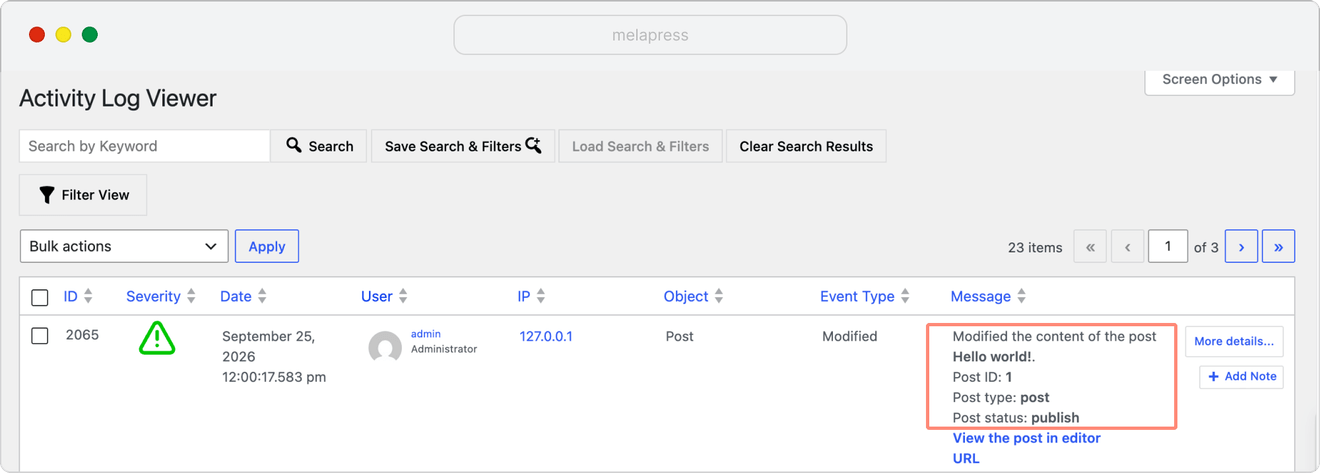
Without any record of what happened, you now need to work out whether the page was actually changed, when it happened, who changed it, and whether anything else was modified.
With an activity log installed, you already have a record of the change.
The same principle applies to an online store.
One of your shop managers might log into the site and change a product price by mistake. You may only realize there’s a problem when orders start coming through at the incorrect price.
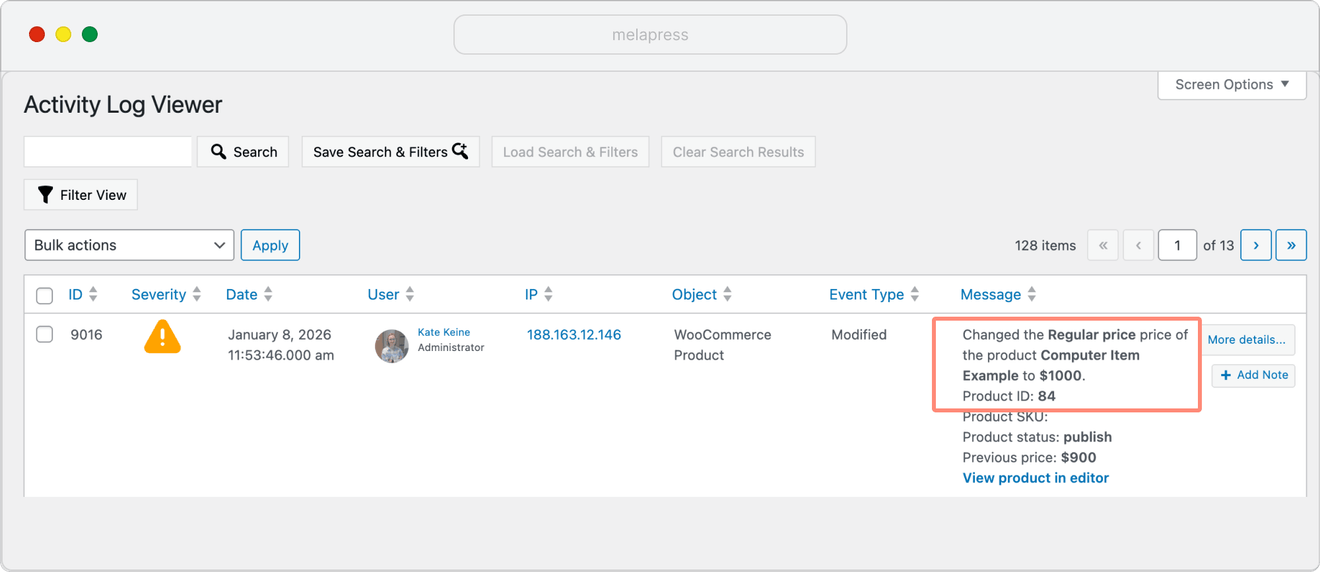
An activity log can give you a record of the change so you can identify what happened and take action.
The list of possible scenarios is endless. WordPress change tracking essentially gives you an audit trail you can refer back to instead of trying to reconstruct events after something has already gone wrong.
This can be useful for several reasons.
User accountability
On websites with multiple users, an activity log allows administrators to see what users are doing.
This is useful when several employees, developers, agencies, freelancers, or clients have access to the same website.
Rather than asking everyone whether they changed something, you can check the activity log.
Troubleshooting
One of the most useful questions you can ask when troubleshooting WordPress is…
What changed immediately before the problem started?
If a feature was working at 09:00 and stopped working at 09:30, finding that a related plugin was updated at 09:15 gives you a very good place to start.
Change tracking won’t automatically fix the issue, but it can dramatically reduce the number of possible causes you need to investigate.
Security
Website changes are not automatically suspicious. Plugins update files, editors modify content, and WordPress updates itself.
The value of monitoring is having enough context to distinguish expected changes from unexpected ones.
For example:
- Did an administrator install that new plugin?
- Why was a user suddenly given administrator privileges?
- Was that PHP file modified during a legitimate plugin update?
- Who changed an important WordPress setting?
Having a record of these changes can make investigating suspicious activity considerably easier.
Compliance
Activity logs and audit trails can also form part of broader compliance processes.
Depending on the standards, regulations, or internal policies that apply to an organization, you may need to demonstrate who had access to a system, which administrative actions took place, and when important configuration or account changes were made.
The exact requirements will vary, but maintaining an audit trail can provide the records needed when that information is requested.
How to start monitoring WordPress changes
The most practical way for most people to monitor changes on their WordPress website is with a plugin.
For user and system activity, WP Activity Log keeps a detailed record of supported activity taking place across WordPress. Once installed and configured, it automatically starts recording activity.
The information logged can include:
- What happened
- Which user performed the action
- Which object was affected
- The date and time
- The event type
- Relevant event metadata
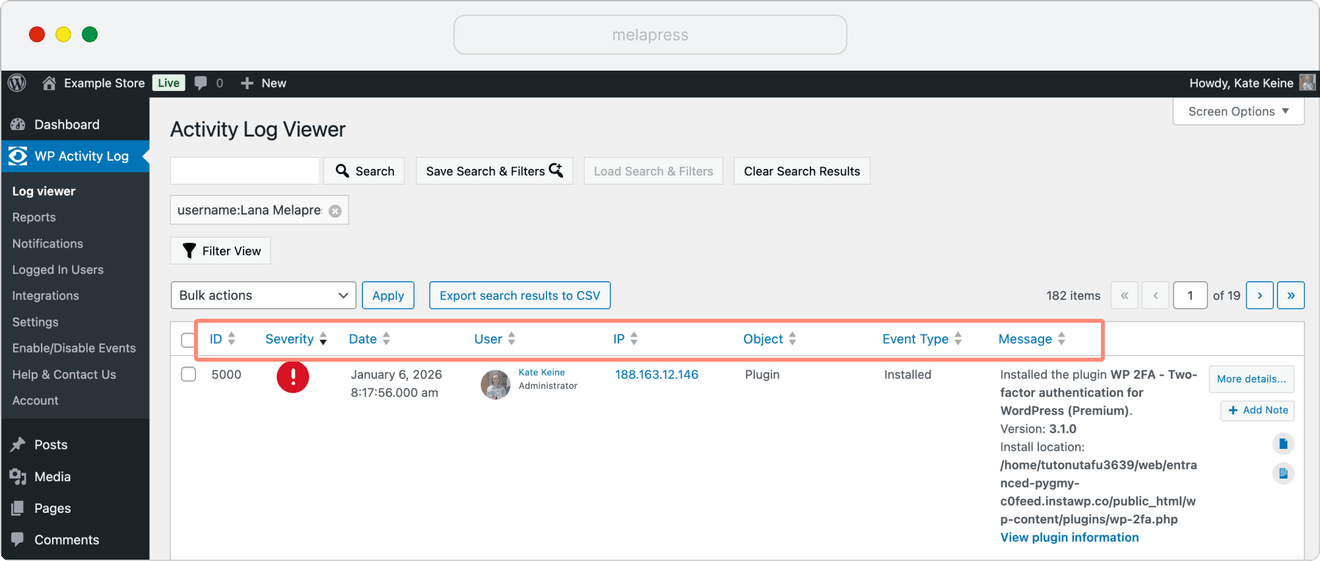
You can then search and filter the activity log when you need to investigate something.
On a small website, looking through recent activity may be enough. On a larger or particularly active WordPress site, search, filtering, reports, and notifications become considerably more useful.
For file changes, Melapress File Monitor runs file integrity scans and alerts you when it detects additions, modifications, deletions, or permission changes.
Using the two together gives you visibility into both what is happening inside WordPress and what is changing in the website’s files.
Get notified about important changes
Not every event requires your immediate attention.
A writer updating a draft is very different from an administrator account being created unexpectedly or an unknown component deleting a database table.
This is where notifications become useful.
Instead of continuously checking the activity log, you can configure notifications for changes that matter to you.
For example, you might want to know when:
- An administrator account is created
- A plugin is installed or deactivated
- An important WordPress setting changes
- A database table is unexpectedly created or deleted
- A particular user performs an action
- Important WooCommerce settings change
Similarly, Melapress File Monitor can alert you when file changes are detected.
The idea isn’t to receive an alert every time something happens on your website.
It’s to identify the changes that would require your attention and make sure you hear about them when they occur.
For larger websites, multisite networks, or organizations with security and compliance requirements, you may also want to store or mirror activity logs outside of the WordPress website.
External logging can allow you to retain the audit trail independently from the production site, centralize activity from multiple websites, or integrate WordPress activity with a wider logging or SIEM infrastructure.
It also means that if something happens to the WordPress website itself, your only record of what happened is not necessarily stored on the same affected system.
What WordPress changes should you track?
There are two broad areas worth monitoring on a WordPress website.
- User and system activity taking place within WordPress
- Changes being made to the files underneath WordPress
There is some overlap between the two, but they give you different types of information.
User, content, plugin and settings changes
An activity log records the actions taking place within WordPress.
For example, WP Activity Log can keep a record of changes to:
- Users and user roles
- Posts, pages, and custom post types
- Plugins and themes
- WordPress settings
- WordPress core
- Multisite networks
- WooCommerce
- Supported third-party plugins
- The WordPress database
For content specifically, WordPress already includes its own revisions system, which allows you to compare previous versions of posts and pages.
An activity log complements this by showing you the activity surrounding the content – for example, who modified it and when.
When revisions are available, WP Activity Log can also link to the WordPress revision comparison so you can see what content was actually added or removed.
For WooCommerce websites, change tracking can extend to activity such as:
- Product and price changes
- Stock
- Orders and refunds
- Coupons
- Tax and shipping settings
- Payment settings
- Customer accounts
- Shop manager activity
Plugin, theme, and WordPress configuration changes are also particularly useful to keep track of because they can have a much wider impact on how the website works.
If a plugin is installed, updated, activated, or deactivated immediately before a problem appears, you have useful information to begin troubleshooting with.
WP Activity Log is designed to provide this kind of centralized record of user and system activity rather than requiring you to check each area of WordPress individually.
WordPress file changes
We’ve taken a look at user and system changes, but what about file changes?
File changes can be considerably harder to spot manually.
For example, your site might use strong passwords and two-factor authentication, but an attacker finds their way in through a vulnerable plugin.
They are then able to inject malicious code into your website files.
Unless you know exactly which files should be there and what their contents should look like, you may have no idea anything has changed until another problem appears.
This is where a file integrity monitor comes in.
Melapress File Monitor monitors the files on your WordPress website and alerts you when changes are detected.
It can identify:
- Files that have been added
- Files that have been modified
- Files that have been deleted
- File permission changes
- Changes to WordPress core files
This means file monitoring can help with both security and troubleshooting.
If a website suddenly develops a problem and you discover that several files changed at around the same time, you have considerably more information to work with.
Likewise, if you suspect malware, identifying which files were unexpectedly added or modified can help determine the scope of the problem.
WP Activity Log and Melapress File Monitor can also work together. When both plugins are installed, file changes detected by Melapress File Monitor can be recorded in the WordPress activity log.
This gives you a more complete timeline containing both WordPress activity and changes happening at the file level.
Tracking WordPress database changes
The WordPress database is another important part of your website. It stores much of the information WordPress needs to function, including posts, pages, users, settings, and plugin data.
Changes to this information happen constantly as people use the website.
Publishing a post, changing a setting, updating a user, or processing a WooCommerce order will generally result in changes being written to the database.
However, in most cases, you don’t need to monitor every individual SQL INSERT or UPDATE statement.
What you’re really interested in is the WordPress activity that resulted in the database change.
For example, knowing that:
User John changed the role of User Sarah from Editor to Administrator
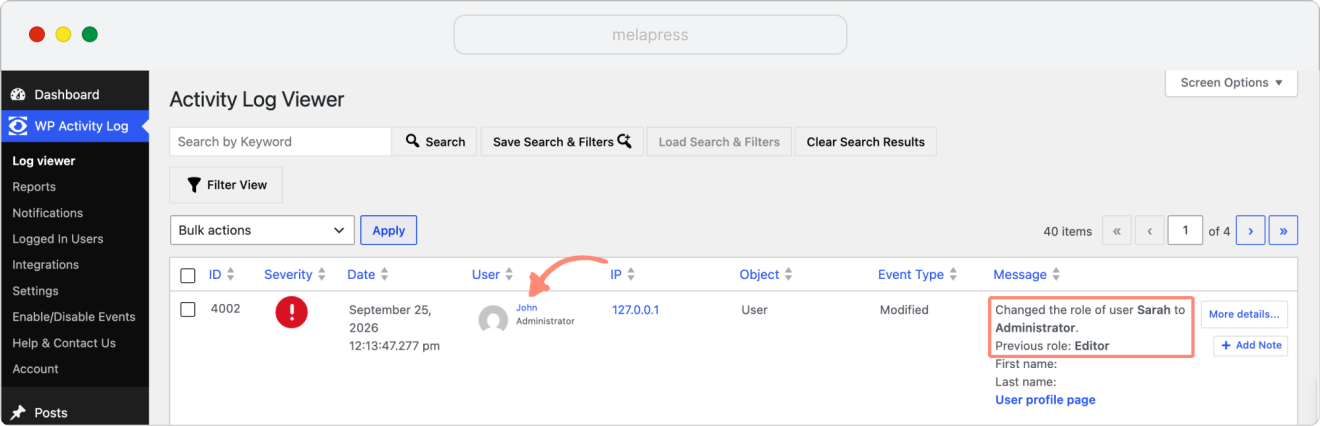
is considerably more useful to most WordPress administrators than simply being told that a value changed in a particular database row.
This is why an activity log provides a more usable way to track most changes to WordPress data.
There are, however, certain database changes that are worth monitoring more directly.
Database table changes
Plugins, themes, WordPress itself, and other components can make structural changes to the WordPress database.
For example, they may:
- Create database tables
- Modify the structure of existing tables
- Delete database tables
These kinds of changes are much less common than everyday WordPress activity, which makes unexpected database structure changes particularly interesting.
WP Activity Log can record these changes and identify whether they were made by:
- A plugin
- A theme
- WordPress itself
- A component whose source cannot be identified
The source is important.
A plugin creating several database tables when it is installed may be entirely normal. An unidentified component unexpectedly creating, modifying, or deleting tables deserves considerably more attention.
Tracking database changes can therefore help with security, data integrity, compliance, and troubleshooting.
For example, if a website develops an issue immediately after a plugin modifies the structure of several database tables, you have another useful clue as to what might have caused the problem.
You can also configure WP Activity Log notifications for database activity, either by monitoring database events generally or by targeting specific database event IDs.
This is particularly useful because structural database changes should normally occur much less frequently than everyday content or user activity.
Using change tracking when something goes wrong
Change tracking becomes particularly useful when you actually need to investigate an issue.
If something suddenly stops working, start by asking What changed immediately before the problem appeared?
And check the following:
- Recent user and system activity.
- Plugin, theme, and WordPress updates.
- Settings changes.
- Database structure changes.
- File changes detected by your file integrity monitor.
Compare these events with the time the issue first appeared.
For more technical problems, you can combine this information with the WordPress debug log and your server logs.
Each source gives you a different part of the picture.
- The activity log tells you what happened.
- File monitoring tells you what changed on disk.
- The debug log tells you what error WordPress generated.
For example, imagine a website suddenly begins producing a critical error.
Your activity log shows that a plugin was updated five minutes earlier. Your file monitor confirms that several of that plugin’s files changed at the same time. Your debug log then identifies a fatal PHP error coming from one of those files.
Instead of testing dozens of unrelated components, you now have a very clear place to start.
This is one of the main reasons monitoring works best when it is set up proactively. You cannot retroactively create a complete activity history after something has already gone wrong.
What changes should you pay most attention to?
The answer depends on the type of WordPress website you run.
For a company website, you may care most about administrator activity, published content, plugin and theme changes, WordPress settings, user roles, and website files.
An online store might also prioritize product prices, stock, refunds, coupons, payment settings, and shop manager activity.
Membership and community websites may pay closer attention to account registrations, role changes, login activity, membership settings, and administrator or moderator actions.
For an agency managing client websites, one of the most important questions is often simply:
Was this changed by us, the client, WordPress, or a plugin?
An activity log makes that much easier to establish when several people or organizations have access to the same website.
What you generally don’t need to do is treat every WordPress event as equally important.
Focus on the changes that could affect the security, functionality, content, or operation of your particular website, then configure your monitoring and notifications accordingly.
Staying on top of WordPress changes
Monitoring your WordPress website needn’t be hard work or frustrating – much of it can be automated.
The important thing is having enough visibility to understand what is happening across your site.
WP Activity Log provides a record of user and system activity, from content and account changes to plugin updates, WordPress settings, WooCommerce activity, and database structure changes.
Melapress File Monitor adds another layer by monitoring the files underneath WordPress and reporting unexpected additions, modifications, deletions, and permission changes.
Together, they give you a much more complete picture of what changed, who or what changed it, and when it happened.
Whether you’re troubleshooting an issue, investigating suspicious activity, managing a team, or maintaining an audit trail, having this information available when you need it can save considerable time, and remove a lot of the guesswork involved in managing a WordPress website.


Monitor user and system activity with support for 3rd party plugins and session management.