


Published on 21 October, 2026
How to connect WordPress management platforms with WP 2FA enabled
WP 2FA allows you to protect your WordPress login with two-factor authentication (2FA) while using WordPress management platforms. However, for some setups, a few extra steps may be required to ensure the connection to the WordPress management system is set up correctly.
In this guide, we’ll explain how to connect popular WordPress management platforms like ManageWP while keeping WP 2FA enabled.
Table of contents
How WordPress management platforms connect to your website
Some site management platforms such as ManageWP and Modular DS install a worker or connector plugin on each website. The platform then authenticates its requests through that plugin using its own keys or tokens, rather than repeatedly signing in with your WordPress username and password.
Platforms like ManageWP ask for administrator credentials to install the connector automatically. A 2FA prompt can interrupt this initial login. You can avoid it by installing the plugin yourself and connecting with a key, or by allowing a one-time login without 2FA where that option is available.
Connect ManageWP using a connection key (best option)
- Log in to your WordPress dashboard as an administrator.
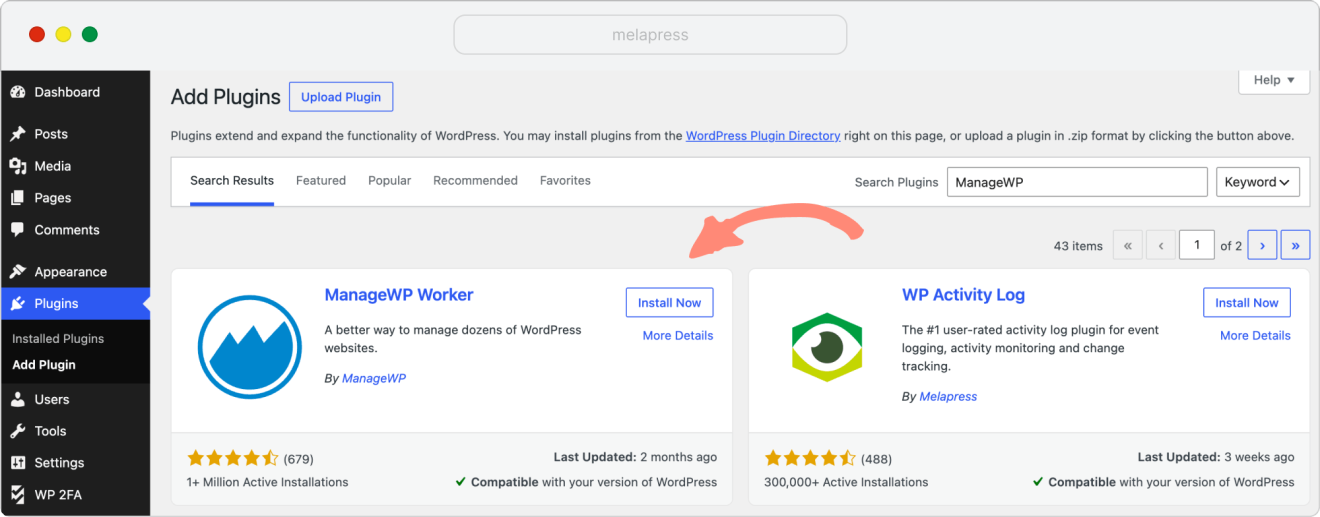
- Go to Plugins > Add Plugin, search for ManageWP Worker, and install and activate it.
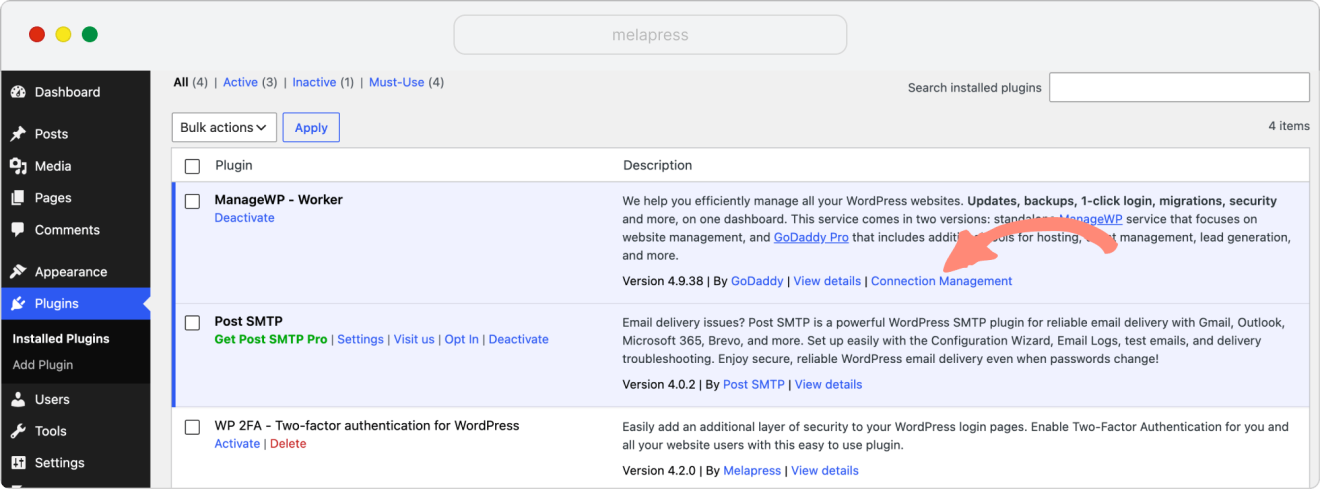
- Open Plugins > Installed Plugins, find ManageWP Worker and Connection Management.
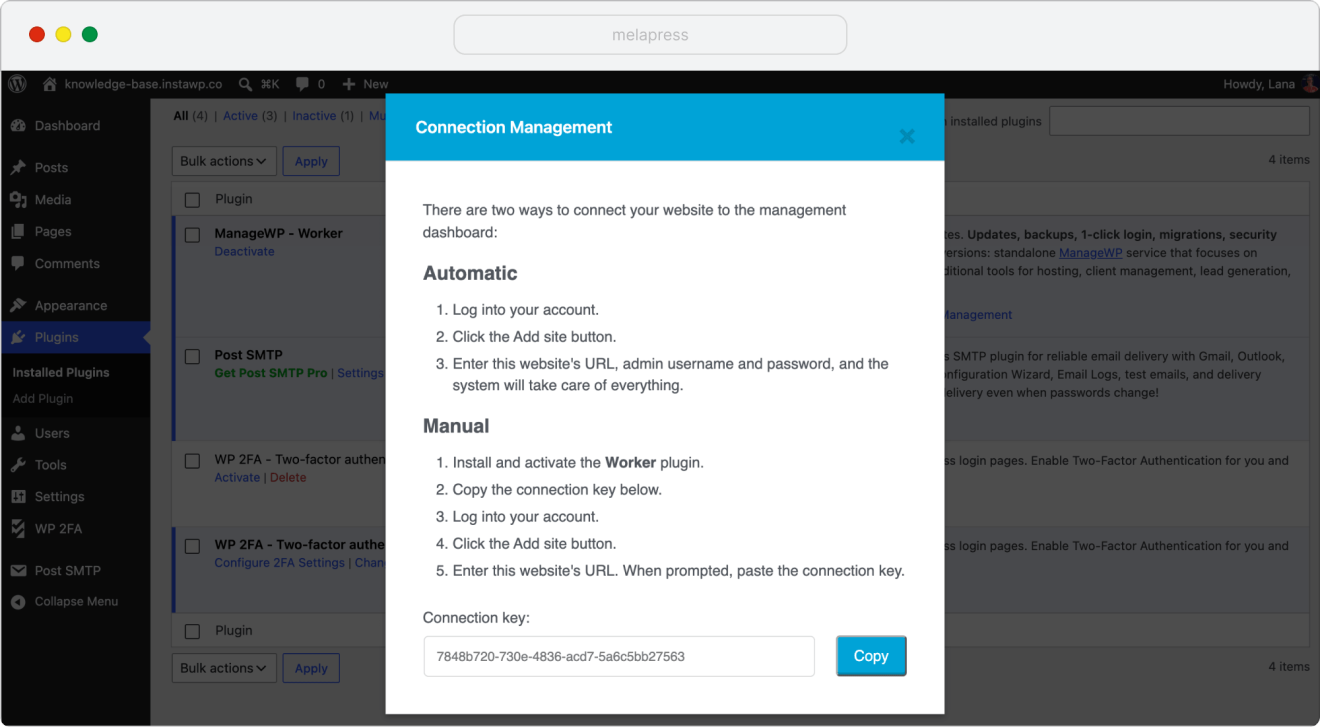
- Click Connection Management and copy the connection key.
- In your ManageWP dashboard, click the plus icon to add a website. Enter your website URL, including the correct HTTPS and www format.
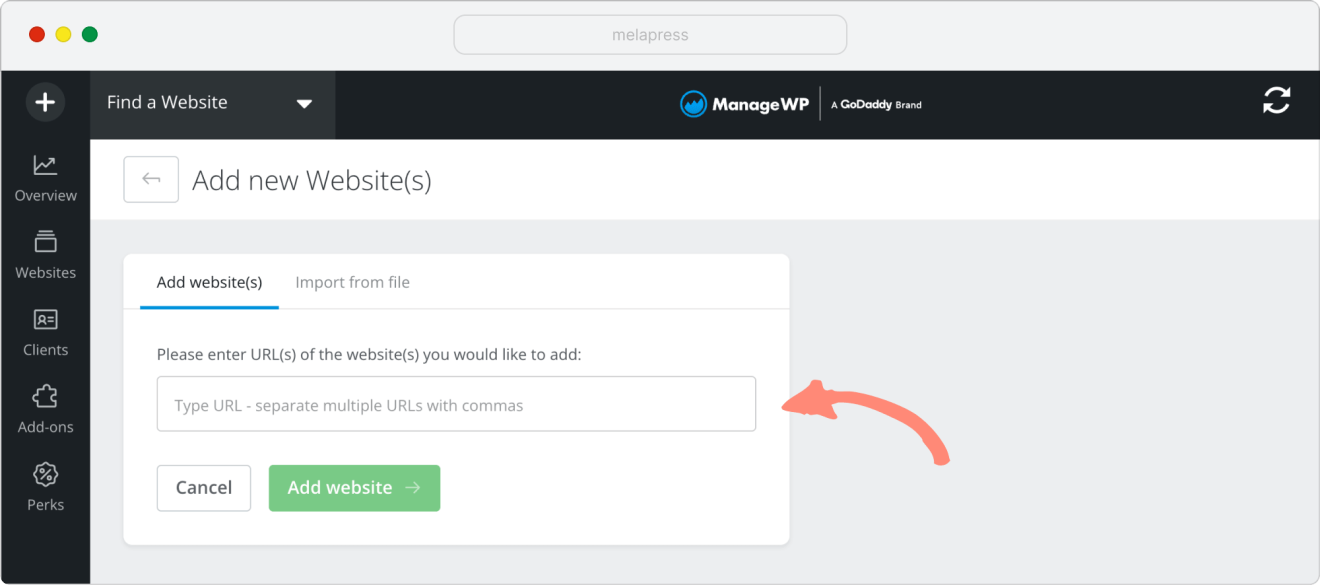
- Choose Use connection key instead.
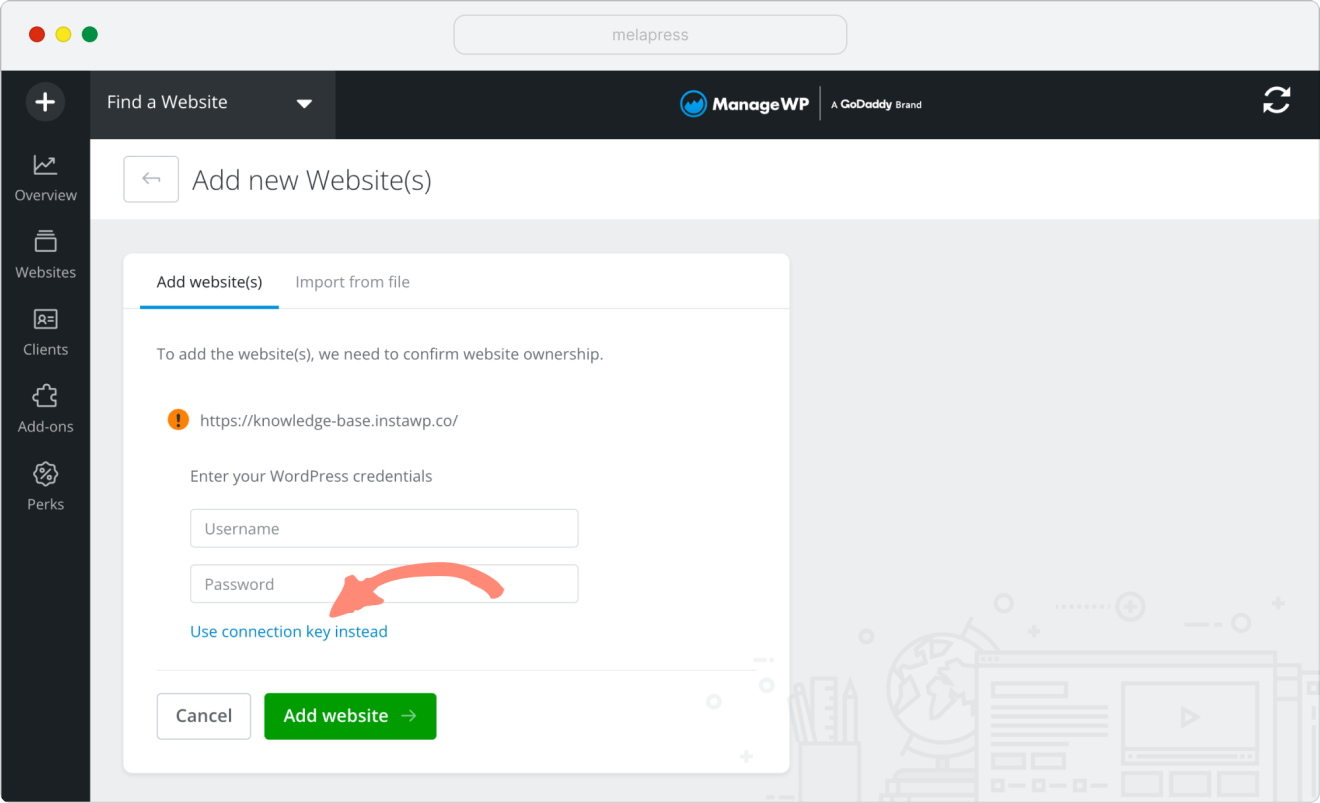
- Paste the key you copied earlier and follow the remaining instructions to complete the connection. If your website uses a custom WordPress login URL, enter the custom login slug when requested.
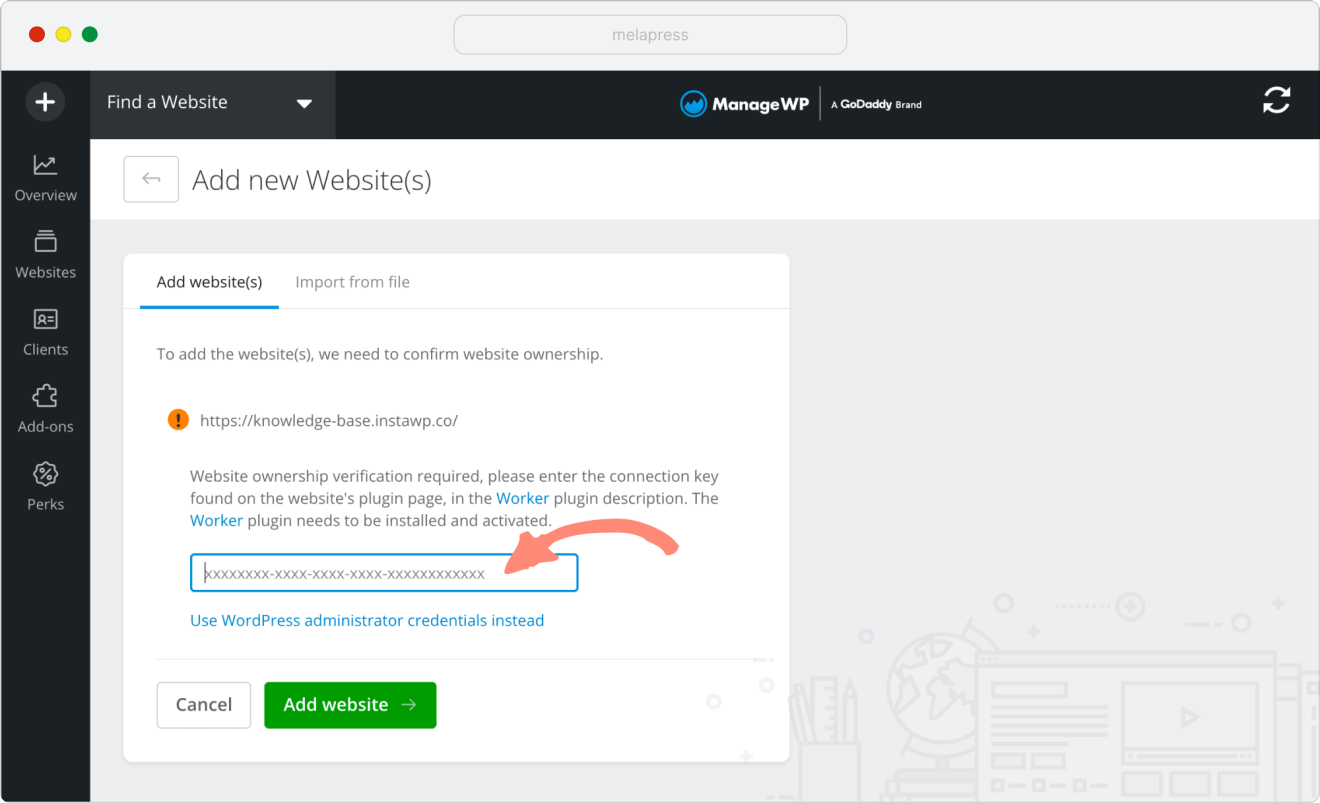
This method does not require you to give ManageWP your WordPress password or change your 2FA settings.
Connect ManageWP using your WordPress credentials
If you prefer automatic installation, use WP 2FA’s one-time bypass for the administrator account you will enter in ManageWP. This option requires WP 2FA Premium.
- Ask an authorized administrator to go to Users > All Users, hover over the account that ManageWP will use, and click Remove 2FA temporary. You can also access this option from the user’s profile.

- Once you’ve temporarily removed the 2FA requirement, proceed directly to the ManageWP dashboard to Add website wizard.
- Enter your website URL and the same administrator account’s username and password. If prompted, provide your custom login slug.
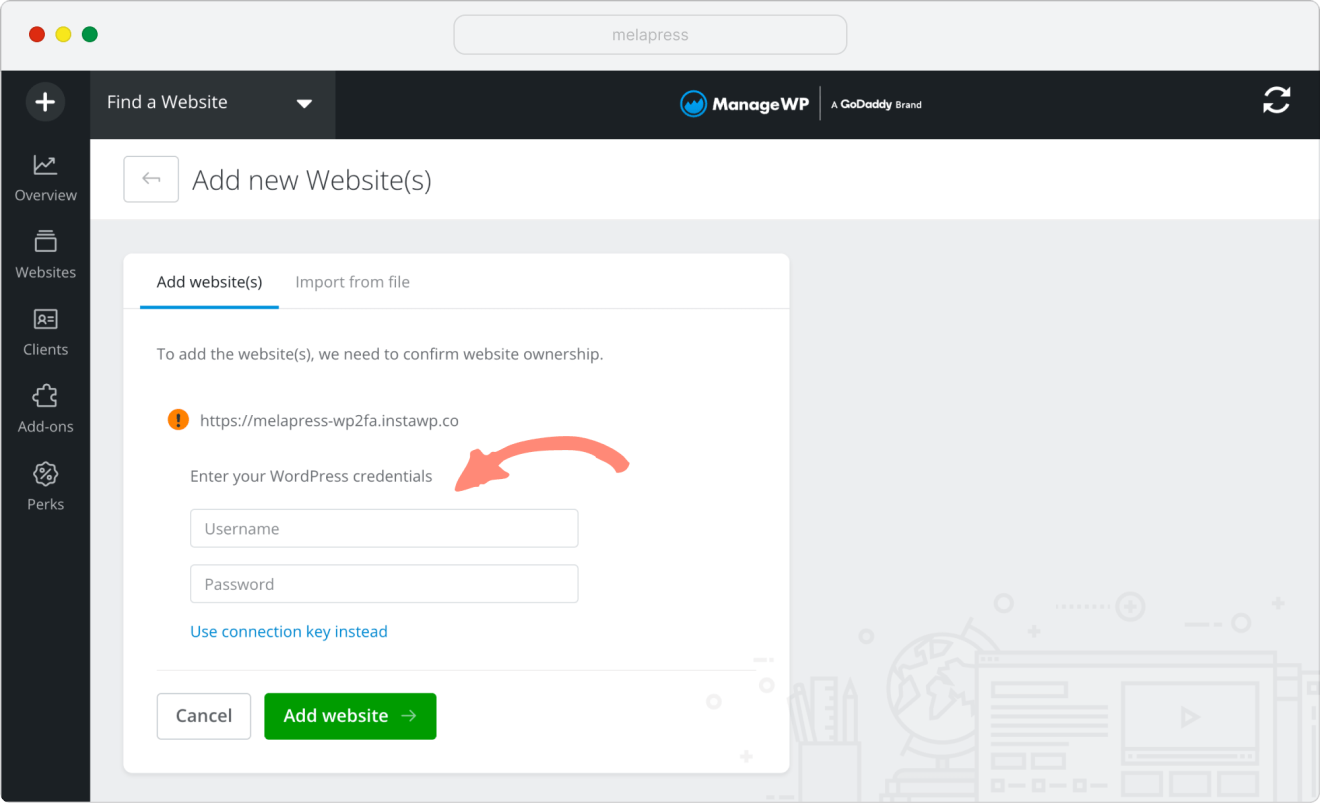
- Then click Add website and ManageWP will install and connect the Worker plugin automatically.
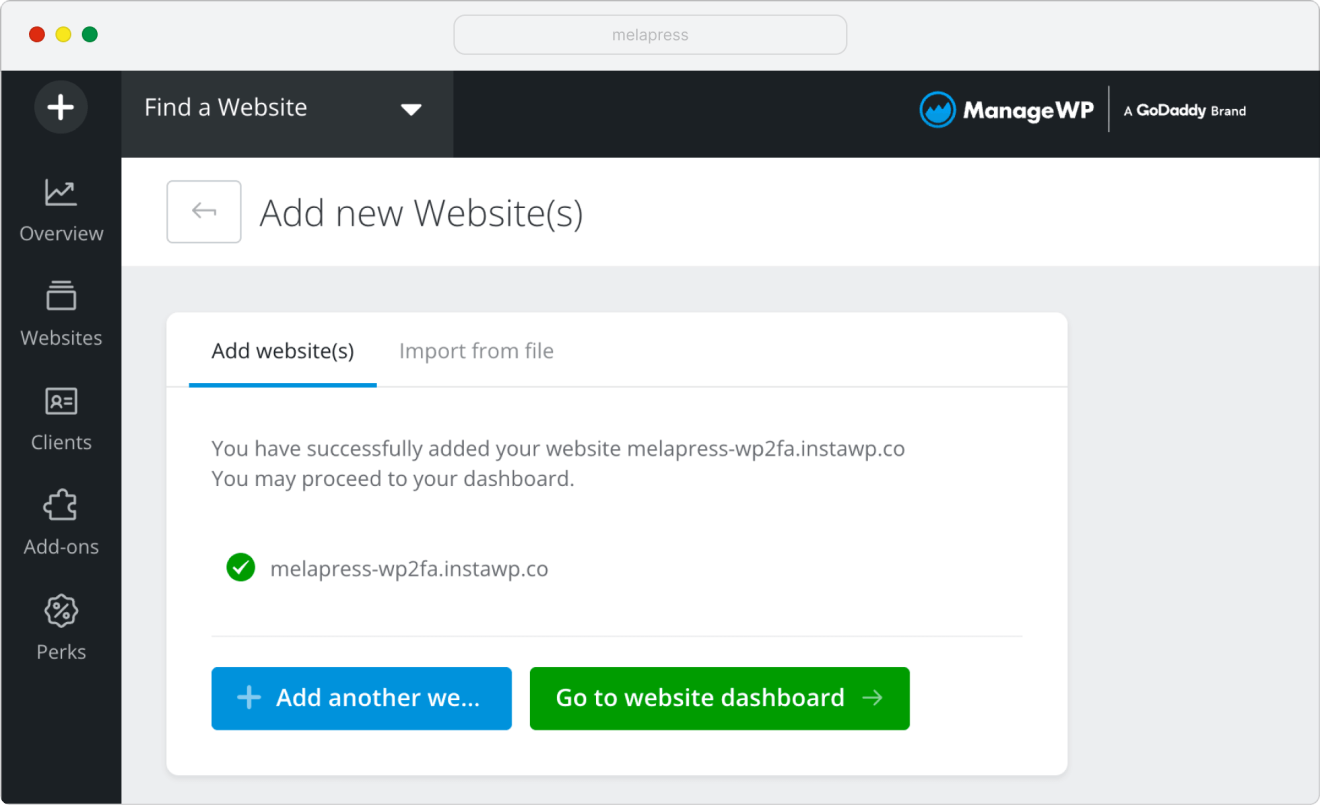
Important: The bypass allows one login and expires after one hour if unused. It does not delete the user's existing 2FA configuration. Avoid another login with that account before ManageWP completes setup, as it could use the bypass. After it is used or expires, normal 2FA requirements resume.
Connect WP Umbrella using an API key
WP Umbrella’s documented setup uses an API key directly, so you can leave your WordPress 2FA settings enabled throughout.
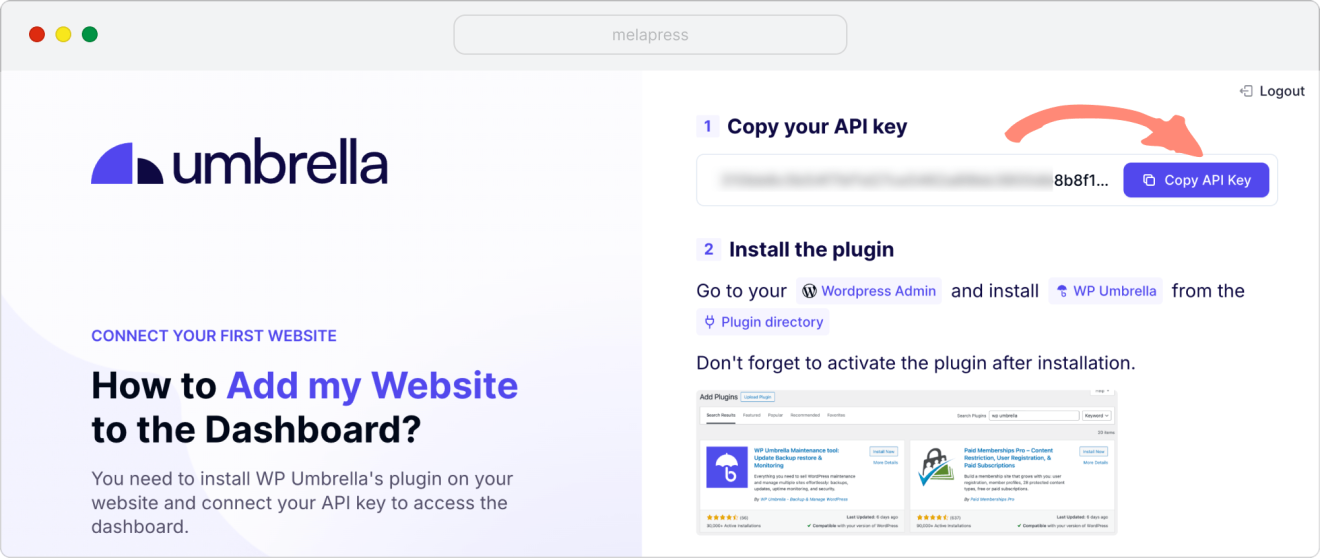
- Log in to your WP Umbrella dashboard and copy the API key for the workspace you want to connect.
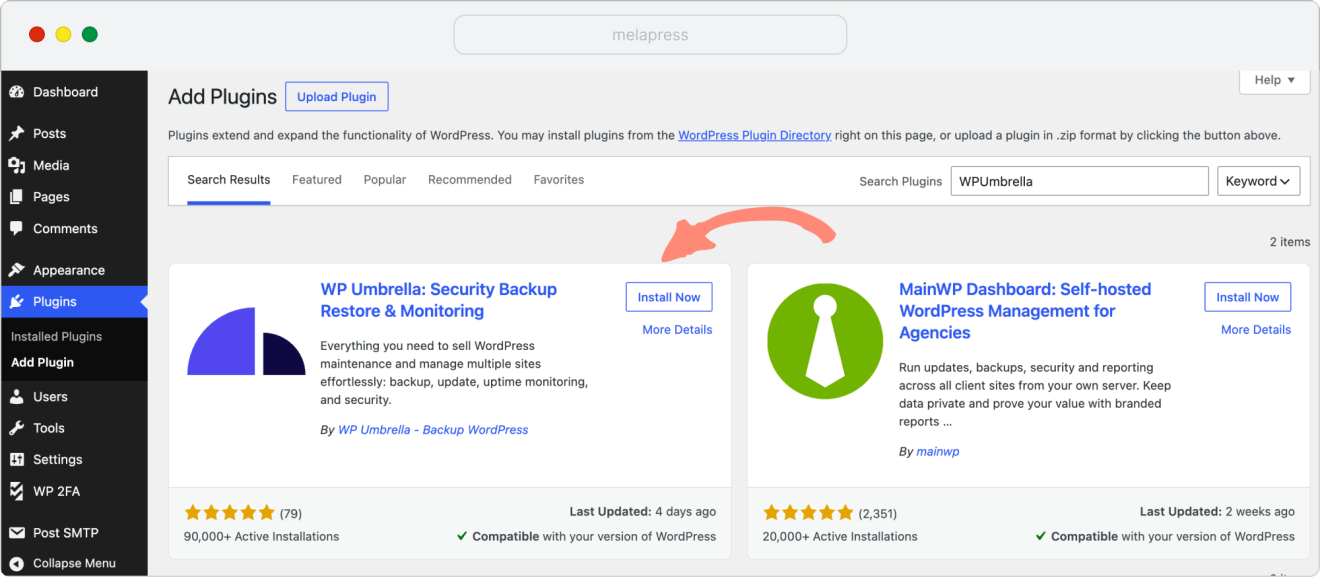
- Log in to your WordPress dashboard, completing 2FA as usual. Go to Plugins > Add Plugin, search for WP Umbrella, and install and activate it.
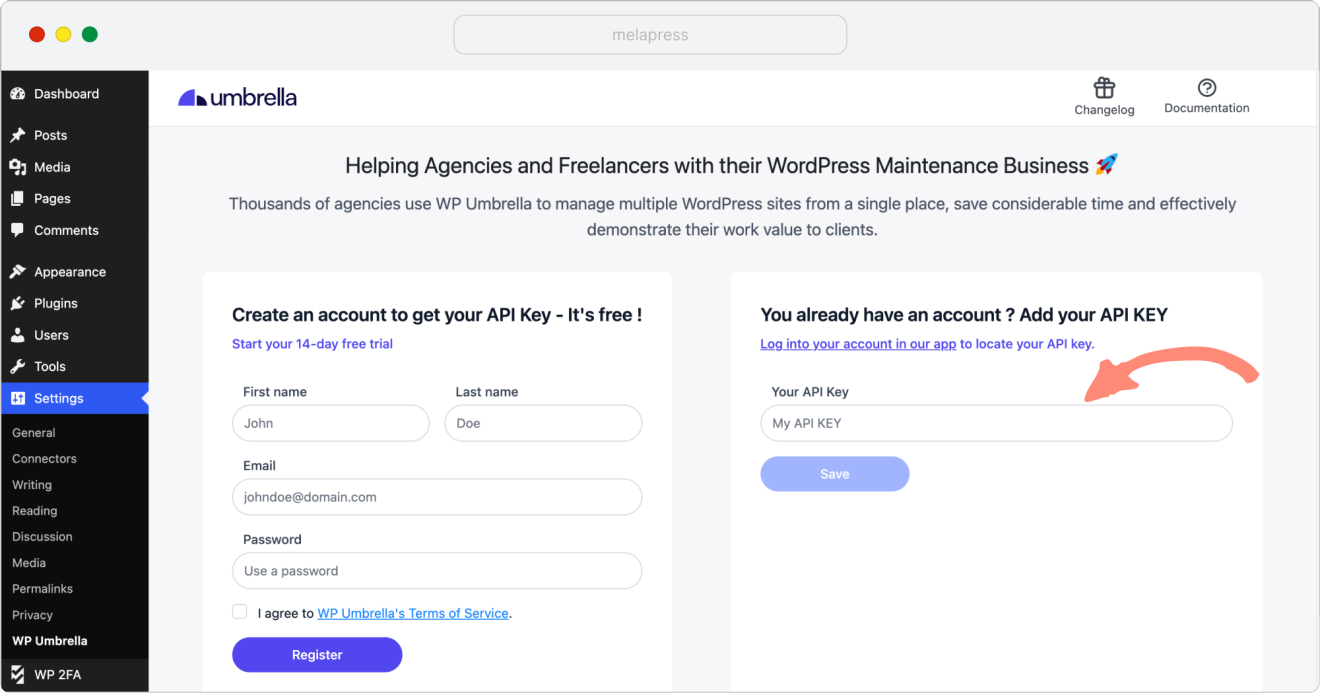
- Go to Settings > WP Umbrella, paste the API key, and click Save.
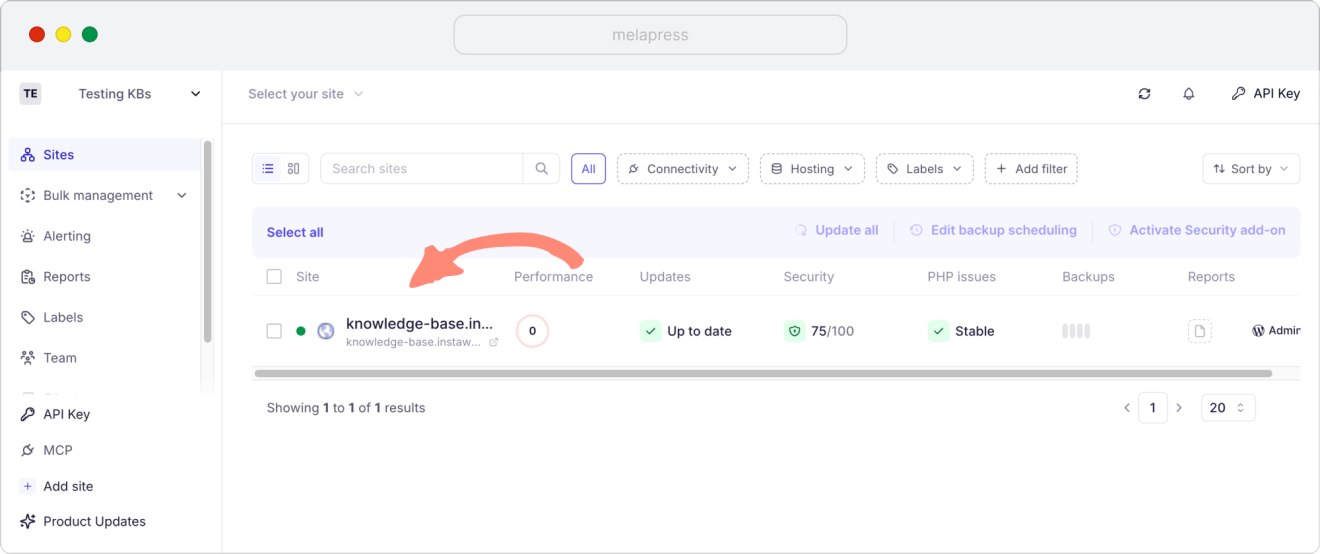
- Confirm that the website appears in your WP Umbrella dashboard.
Connect Modular DS using connection keys
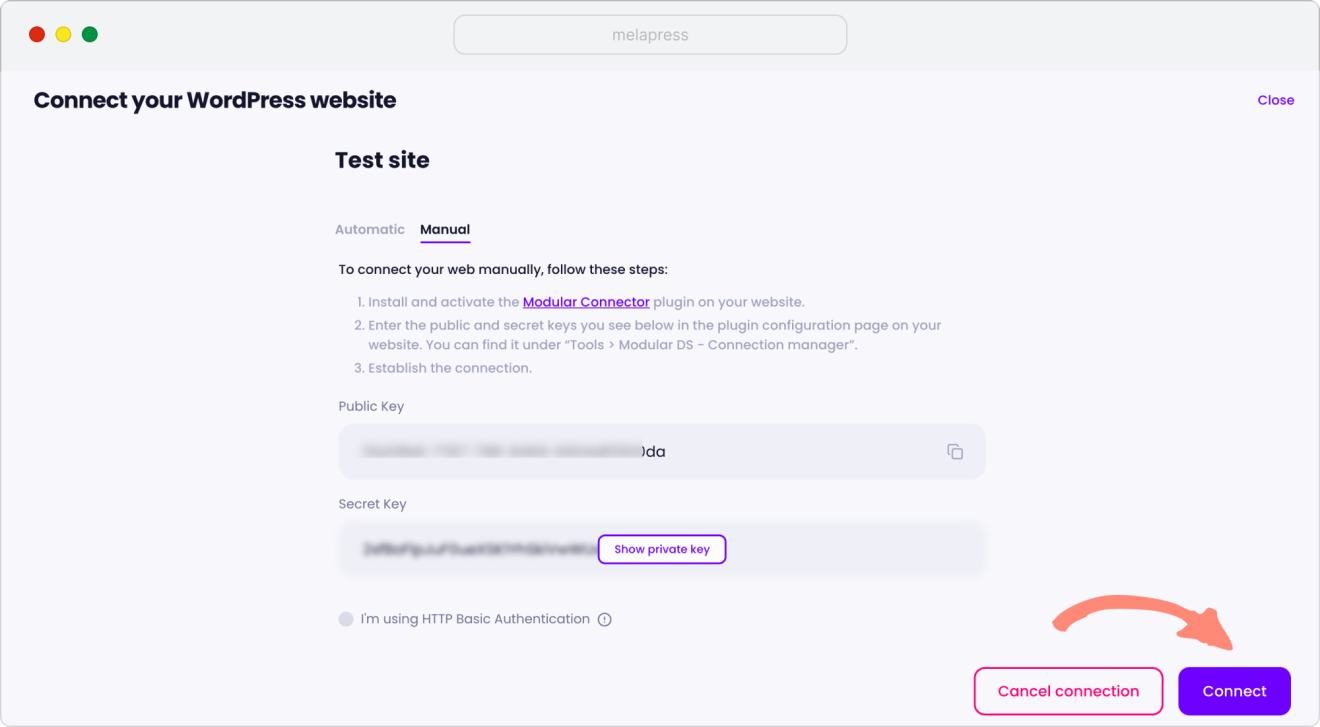
Modular DS also supports connecting your WordPress website without disabling 2FA. You can install its connector plugin manually and use the connection keys provided by Modular DS.
- Log in to your Modular DS dashboard and start adding a new website.
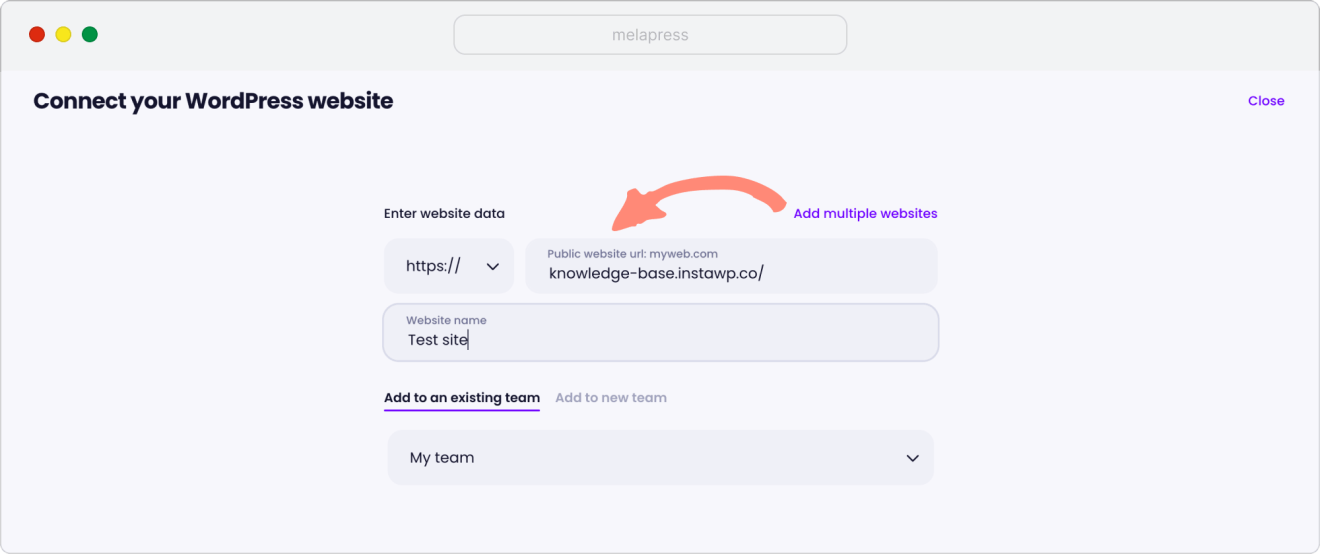
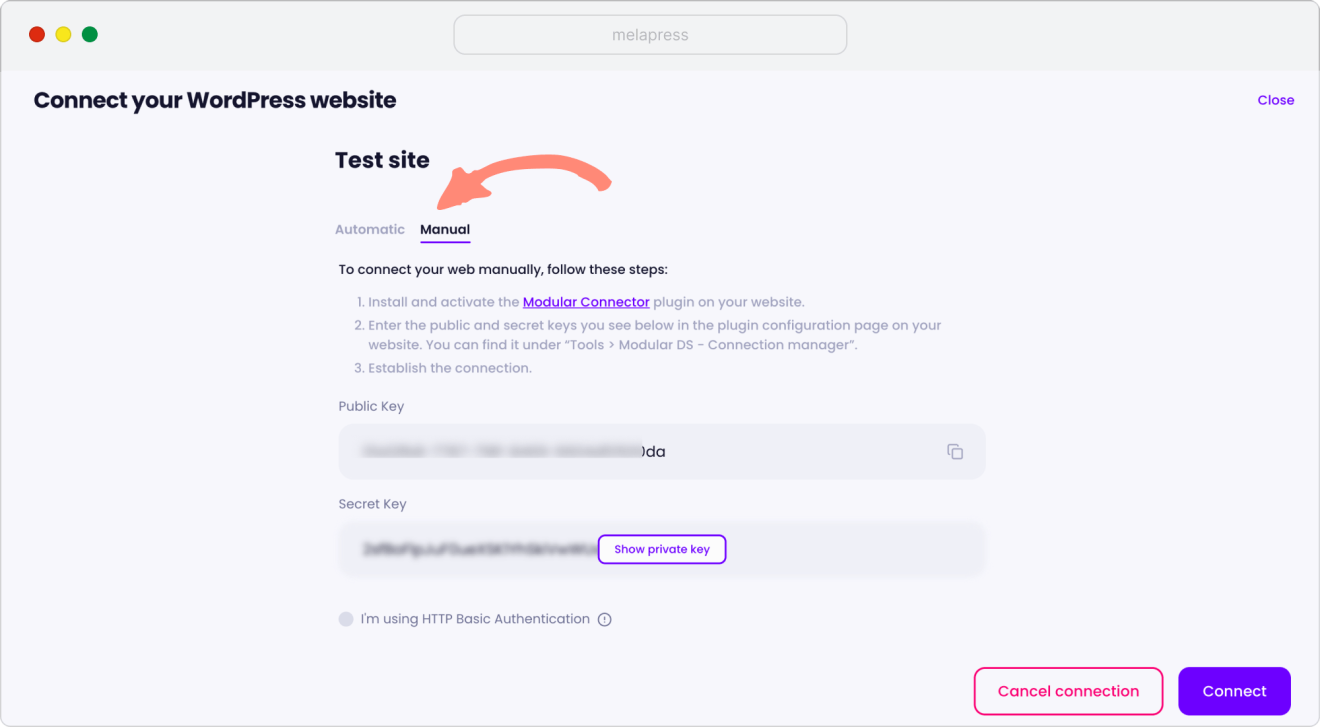
- Enter your website details, choose the manual connection option.
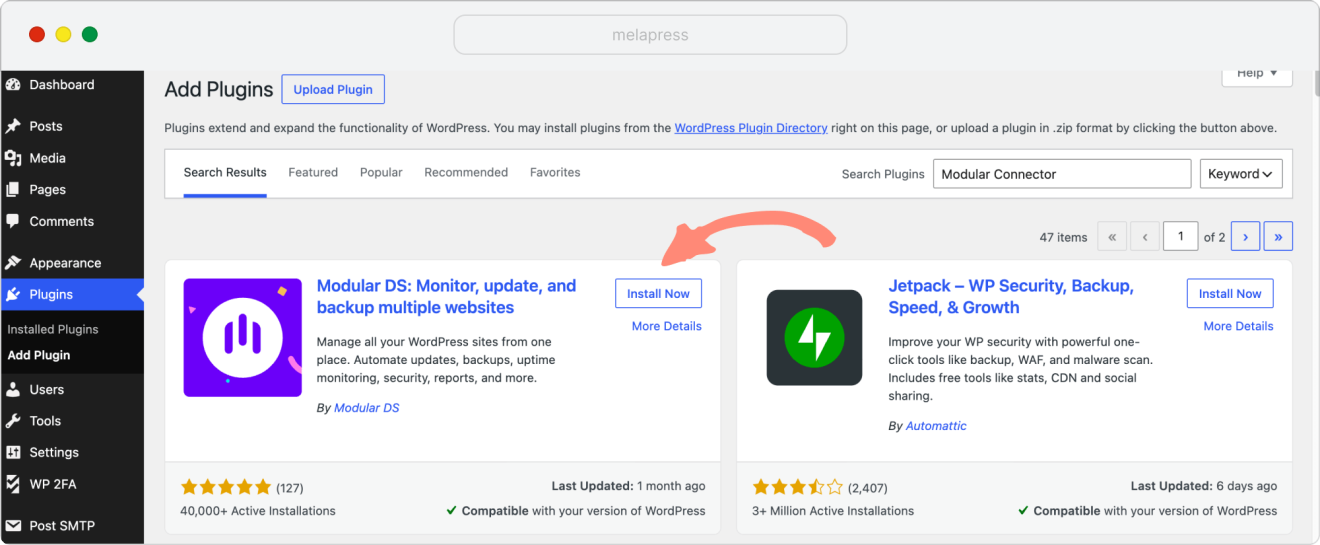
- Install and activate the Modular Connector plugin on your WordPress website.
- Then navigate to Tools > Modular DS – Connection Management.
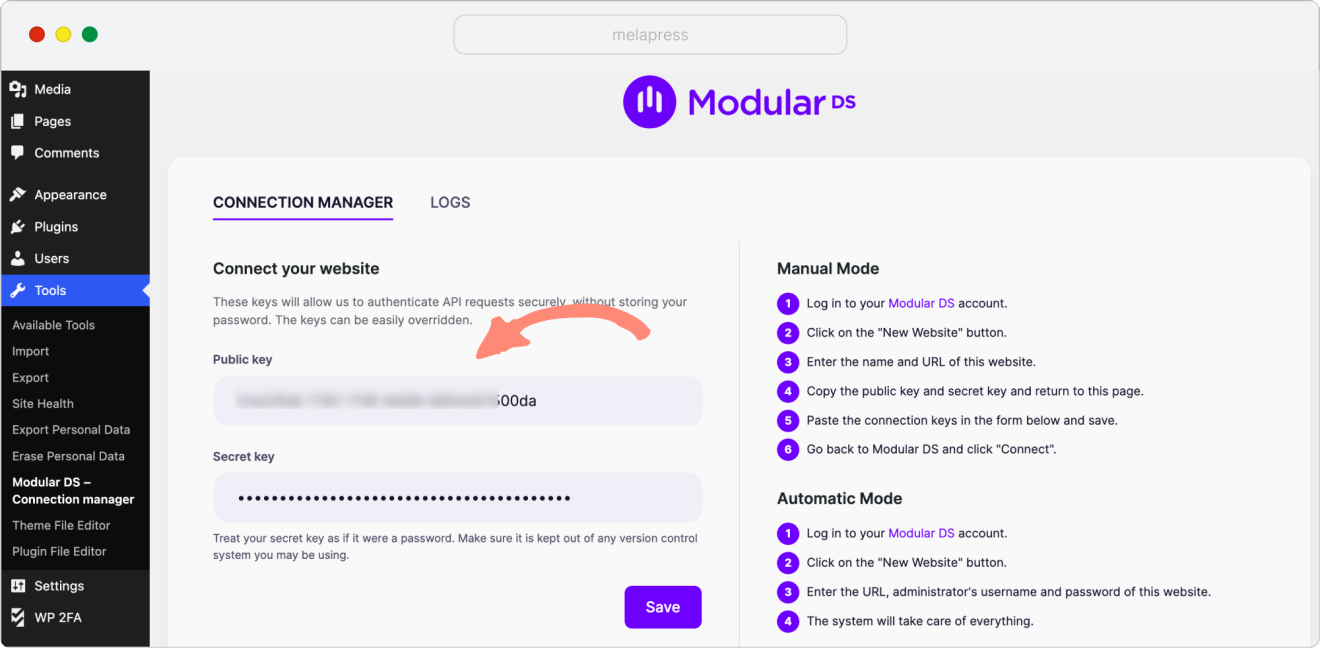
- Copy the public and private keys from the Modular DS dashboard into the corresponding fields.
- Click Save.
- Return to Modular DS and click Connect to finish.
Alternative: Use a WordPress account excluded from 2FA
If the platform cannot connect using a connection key or you cannot install its connector manually, you can use a dedicated WordPress account that is excluded from WP 2FA and does not have 2FA configured.
Important: We strongly recommend keeping 2FA enabled for all users whenever possible, so this approach should only be used when required by the integration. If possible, use a dedicated account with only the permissions the management platform needs.
Connect older applications using WordPress Application Passwords
Some older applications and integrations may support WordPress Application Passwords.
Application Passwords allow compatible applications to authenticate through the WordPress REST API or XML-RPC without using your regular WordPress login password.
To create an Application Password:
- Log in to your WordPress dashboard.
- Navigate to Users > Profile.
- Scroll down to Application Passwords.
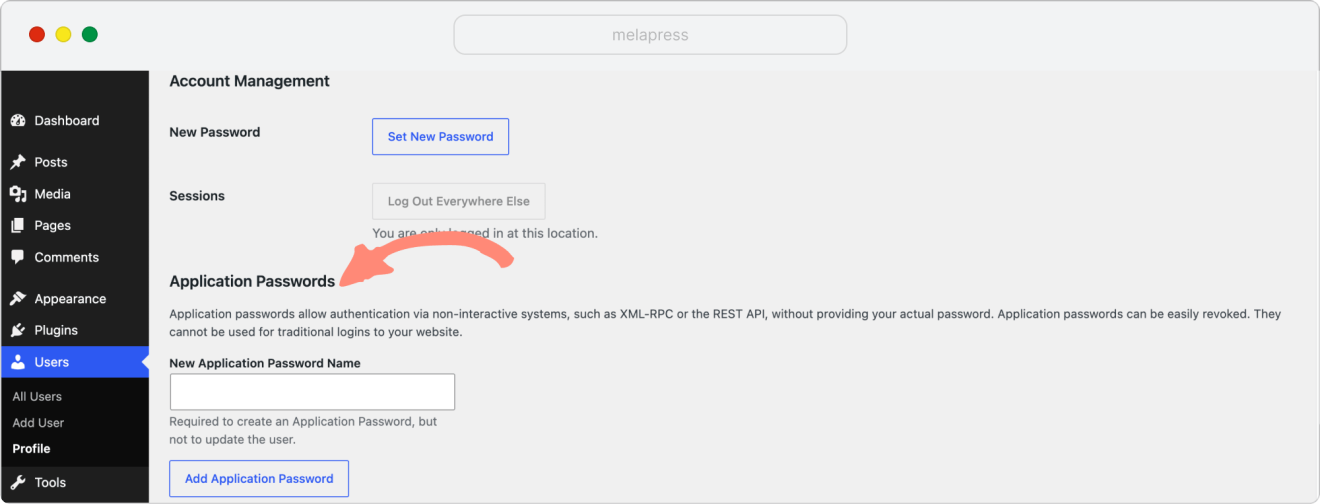
- Enter a name for the application and click Add Application Password.
- Copy the generated password and use it with your WordPress username when configuring the application.
Note: Application Passwords cannot be used to sign in through the normal WordPress login form. They only work with applications that support this authentication method. Use HTTPS and revoke any Application Passwords you no longer need.
For more information, read our guide on WordPress Application Passwords.
Frequently asked questions
Which WordPress management platforms can I use with WP 2FA?
You can use WP 2FA with popular WordPress management platforms, including ManageWP, Modular DS, WP Umbrella, MainWP, InfiniteWP, and others. These platforms use different connection methods. Some use a connection key or API key, while others require a dedicated plugin or WordPress login credentials. Follow your management platform’s connection instructions to choose the appropriate method.
Do I need to disable 2FA to connect a WordPress management platform?
No. Many management platforms allow you to connect using a connection key, API key, or dedicated plugin without disabling 2FA.
If your platform requires WordPress login credentials, you can use WP 2FA’s temporary 2FA removal option available in the Premium version.
Will users still need to complete 2FA after connecting a management platform?
Yes. Connecting a management platform does not change your WP 2FA policies. Users will still need to complete 2FA when logging in to WordPress, according to your configured policies.
Do I need to complete 2FA every time my management platform accesses WordPress?
No. Once your management platform is connected through its own plugin or connection key, it can connect with your website without requiring a new WordPress login each time. You will still need to complete 2FA when logging in to WordPress yourself, according to your WP 2FA policies.
Can I use WordPress Application Passwords to connect a management platform?
Yes, if the platform supports WordPress Application Passwords through the REST API or XML-RPC. Application Passwords cannot be used in the normal WordPress login form.
