


Published on 9 October, 2026
How to migrate 2FA from Wordfence Login Security to WP 2FA
WP 2FA includes a built-in importer to help you migrate from the discontinued Wordfence Login Security plugin. It automatically transfers users’ existing 2FA configurations when they log in, allowing them to continue using their authenticator apps and backup codes without any additional setup.
Note: The Wordfence Login Security Migrator is only available when Wordfence Login Security is installed and active on your website. Keep the plugin active until all users have been migrated to WP 2FA.
Table of contents
How to migrate Wordfence 2FA settings using the WP 2FA setup wizard
You can enable automatic migration from Wordfence Login Security when setting up WP 2FA for the first time.
- Install and activate the WP 2FA plugin on your WordPress website.
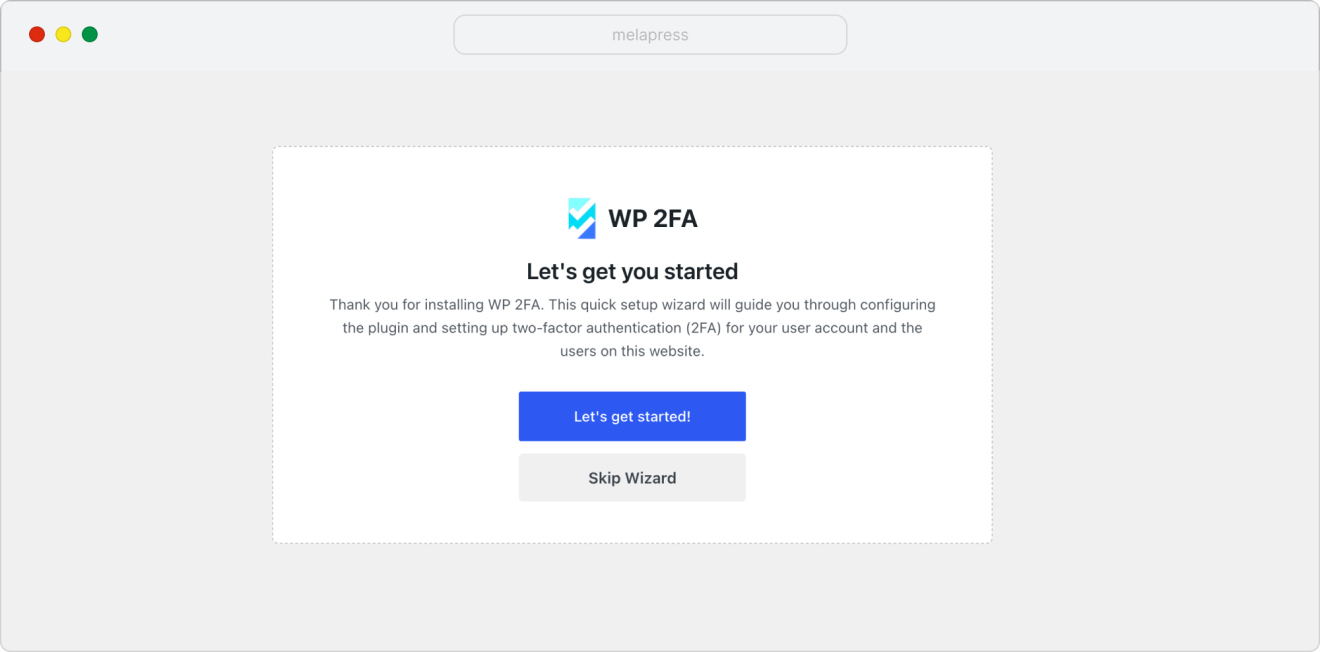
- The WP 2FA setup wizard will launch automatically after you activate the plugin. Click Let’s get started to begin.
- Follow the wizard to configure your site’s 2FA settings.
- Once you’ve completed the main configuration steps, you’ll see the Wordfence Login Security has been discontinued screen.
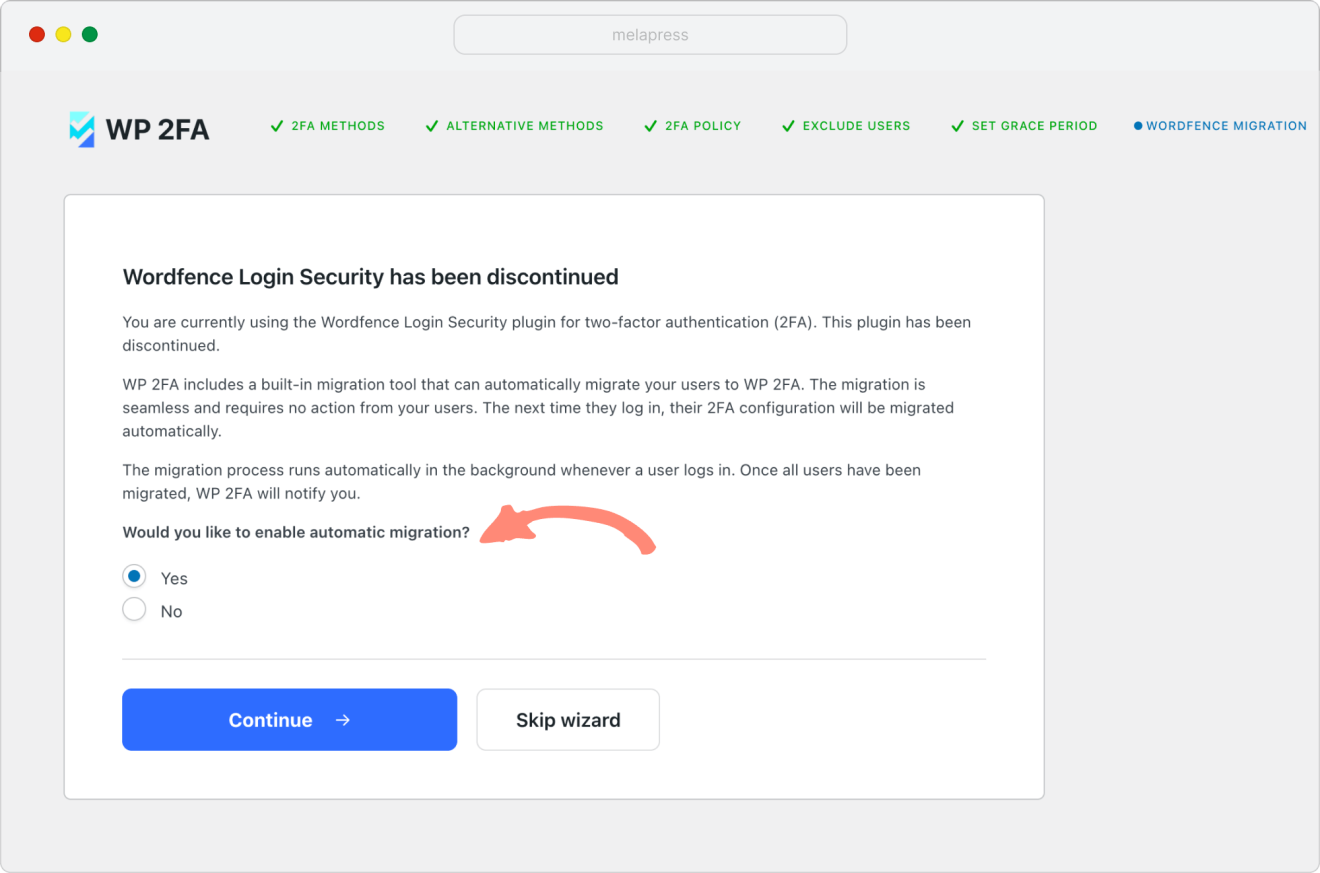
- Select Yes to enable automatic migration and click Continue.
That’s it! WP 2FA will automatically migrate each user’s existing 2FA configuration the next time they log in. Users won’t need to set up their authenticator apps or generate new backup codes.
Note: If you want to explore more 2FA configuration options, refer to our Getting started with the WP 2FA plugin guide.
How to enable Wordfence 2FA migration without the setup wizard
If you skipped the WP 2FA setup wizard, you can enable automatic migration directly from the WordPress dashboard.
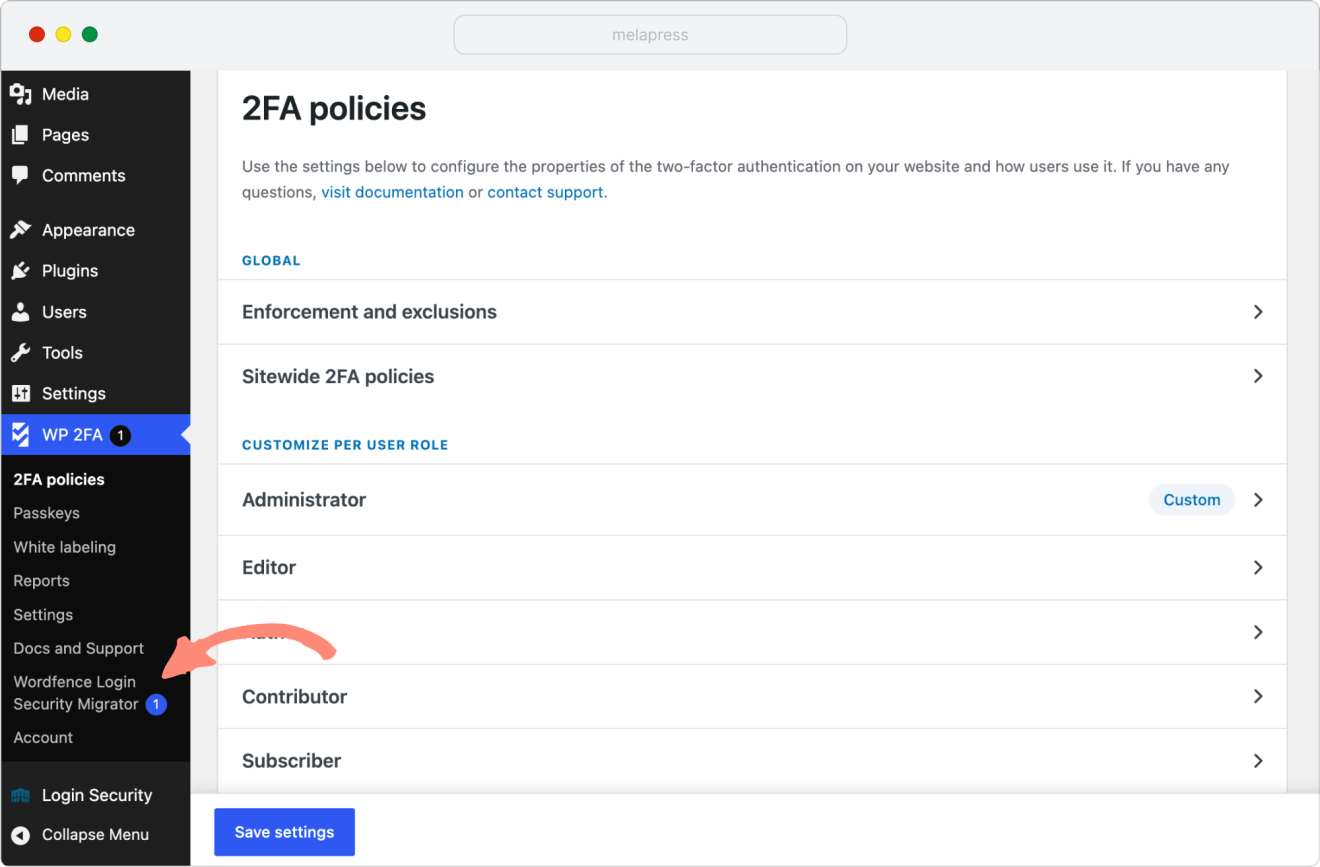
- Go to WP 2FA > Wordfence Login Security Migrator.
Note: The Wordfence Login Security Migrator menu item is only visible if the Wordfence Login Security plugin is installed on your website. If the plugin is deactivated, reactivate it before proceeding with the migration, and keep it active until all users have been migrated to WP 2FA.
- Enable Automatically migrate 2FA users from WordFence Login Security to WP 2FA.
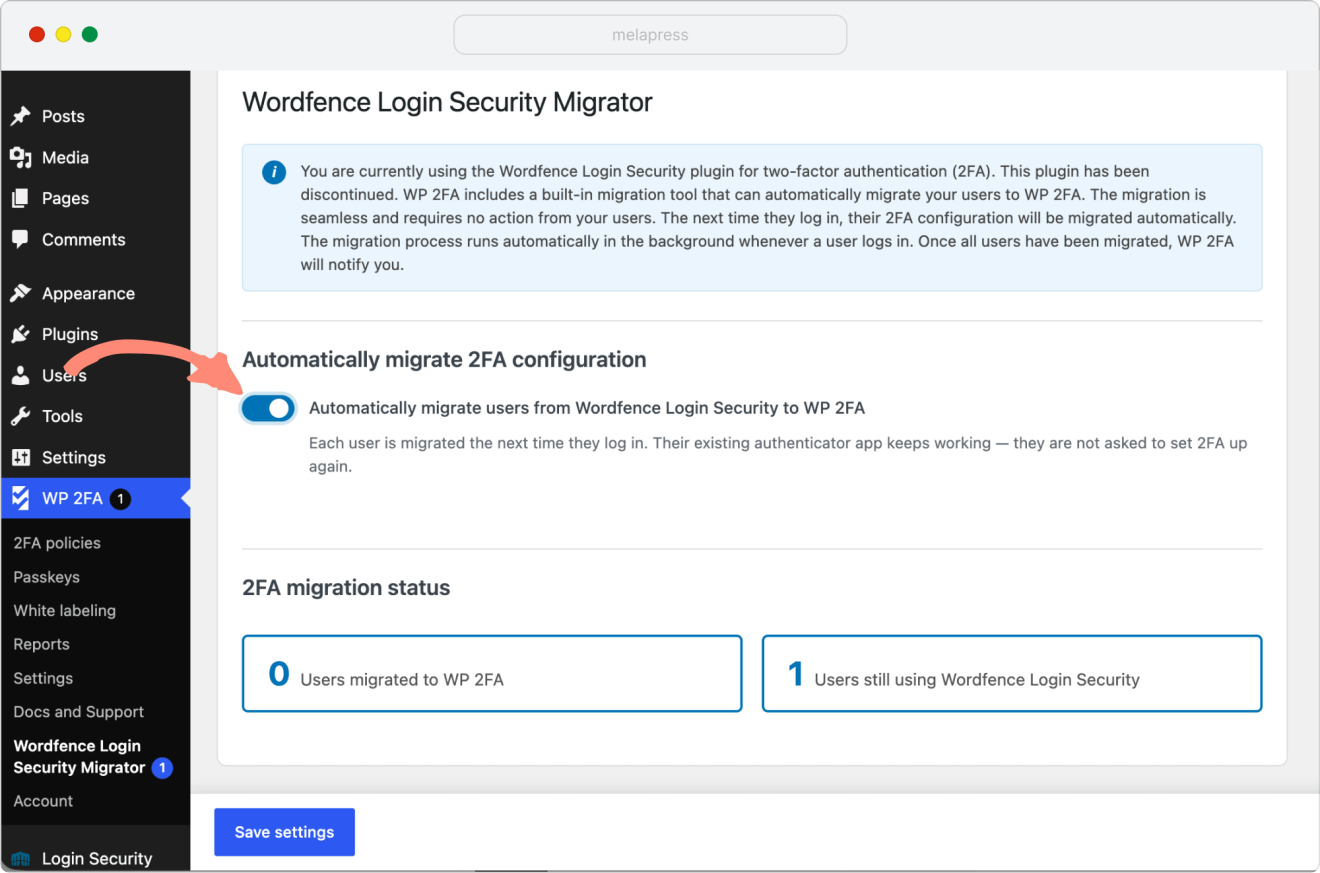
- Click Save settings.
How to check the migration progress
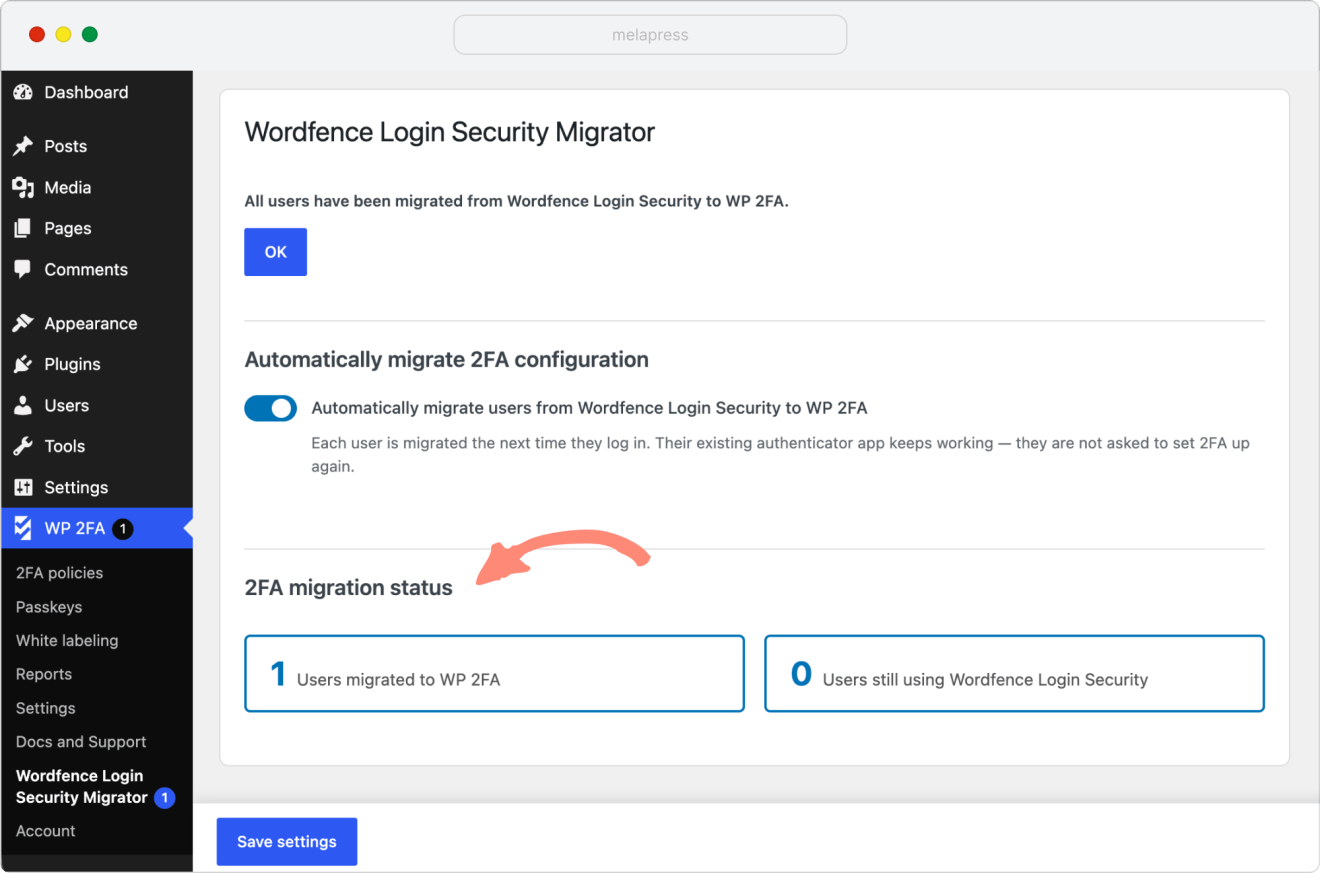
You can monitor the migration progress from WP 2FA > Wordfence Login Security Migrator.
Important: Keep the Wordfence Login Security plugin active until all users have been migrated to WP 2FA. Do not deactivate or delete it while the migration is still in progress.
Under 2FA migration status, you’ll see:
- Users migrated to WP 2FA – the number of users whose 2FA configurations have been migrated.
- Users still using Wordfence Login Security – the number of users who haven’t been migrated yet.
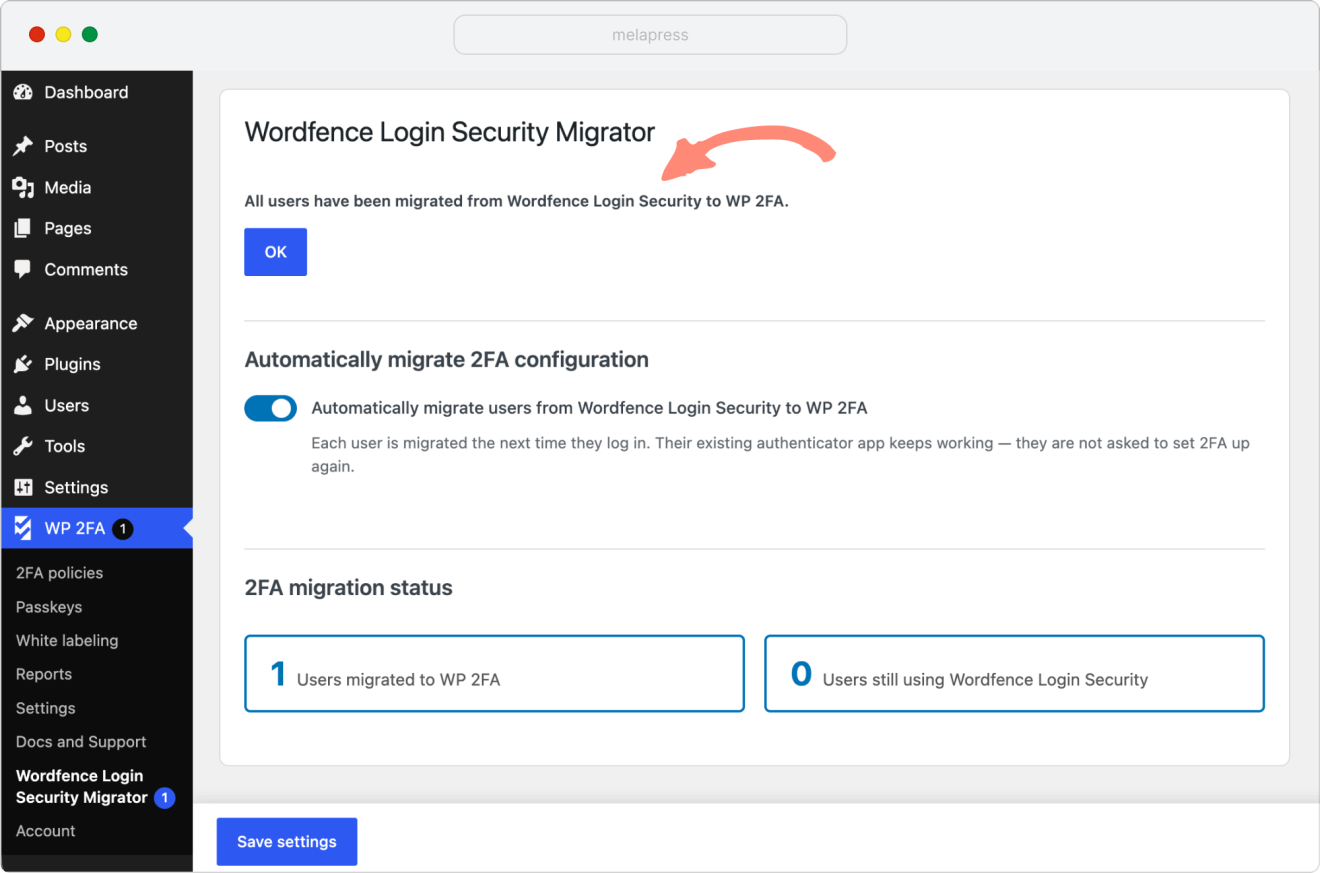
Once all users have been migrated, WP 2FA will display a message confirming that the migration is complete.
Before removing Wordfence Login Security, we recommend testing the login process to confirm that users can still authenticate using their existing authenticator apps and backup codes.
After all users have been migrated successfully, you can deactivate and delete the old Wordfence Login Security plugin from Plugins > Installed Plugins.
The Wordfence Login Security Migrator menu item will then disappear from WP 2FA.
Frequently asked questions
When was Wordfence Login Security discontinued?
The standalone Wordfence Login Security plugin was discontinued in July 2026 and is no longer supported.
What does this mean for Wordfence Login Security users?
The standalone Wordfence Login Security plugin is no longer supported. To continue using Wordfence’s login security and 2FA features, you’ll need to switch to the full Wordfence Security plugin, which also includes additional security features such as a firewall, malware scanning, and brute-force attack protection.
Alternatively, if you prefer to migrate to another supported 2FA plugin without the extra security features, you can use WP 2FA. It allows you to maintain a simple 2FA setup, with a built-in importer that automatically transfers your users’ existing authenticator app configurations and backup codes without requiring them to set up 2FA again.
Will users need to set up 2FA again after migrating to WP 2FA from WordFence Login Security?
No. WP 2FA automatically transfers each user’s existing 2FA configuration when they log in. They can continue using their authenticator apps and backup codes without setting up 2FA again.
What if I’ve already deactivated or deleted Wordfence Login Security?
To migrate your existing 2FA settings to WP 2FA, Wordfence Login Security must be installed and active on your website.
If you’ve deactivated the plugin, simply reactivate it. If you’ve deleted it, reinstall and activate it. You can then use the migrator as long as your Wordfence Login Security 2FA settings are still available on your website.
Can I remove Wordfence Login Security immediately after enabling migration?
No. Wordfence Login Security must remain active until all users have been migrated to WP 2FA. Once the migration is complete and you’ve confirmed that 2FA works correctly, you can safely deactivate and delete the old plugin.
