


Updated on 24 September, 2026
How to enable and configure passkeys in WordPress using WP 2FA (admin guide)
Passkeys provide a secure, passwordless way to log in to your WordPress site using a device, biometric authentication (fingerprint, facial recognition), or a hardware security key. This guide explains how to configure passkeys in WP 2FA and use them to log in across different devices.
Note: this guide is for admins who are first setting up and troubleshooting passkeys on their WordPress site. If you’re looking to activate passkeys on your user account, this guide on how to activate and use passkeys in WordPress using WP 2FA focuses specifically on activating passkeys on an individual account.
What Are Passkeys?
Passkeys are a modern authentication method that eliminates the need for passwords. Instead of typing a password, you authenticate using:
- Biometric authentication: Fingerprint scanner, facial recognition (Face ID), or iris scan
- Hardware security keys: Physical devices like YubiKey, Google Titan Key, or Microsoft Security Key
- Device PINs: Screen lock PIN or pattern on your mobile device
Passkeys are more secure than traditional passwords because they cannot be phished, stolen, or reused across sites.
Prerequisites
Before setting up passkeys, ensure:
- WP 2FA plugin is installed and activated
- Your browser supports passkeys (Chrome, Firefox, Safari, Edge – latest versions), your device supports biometric authentication, or you have a hardware security key
Click to accept marketing cookies and enable this content

Setting up Passkeys in Plugin Settings
Before users can configure passkeys, you need to enable the passkey feature in WP 2FA:
1. Log in to your WordPress dashboard
2. Navigate to WP 2FA in the admin menu and click on Passkeys (found in the plugin’s root menu)
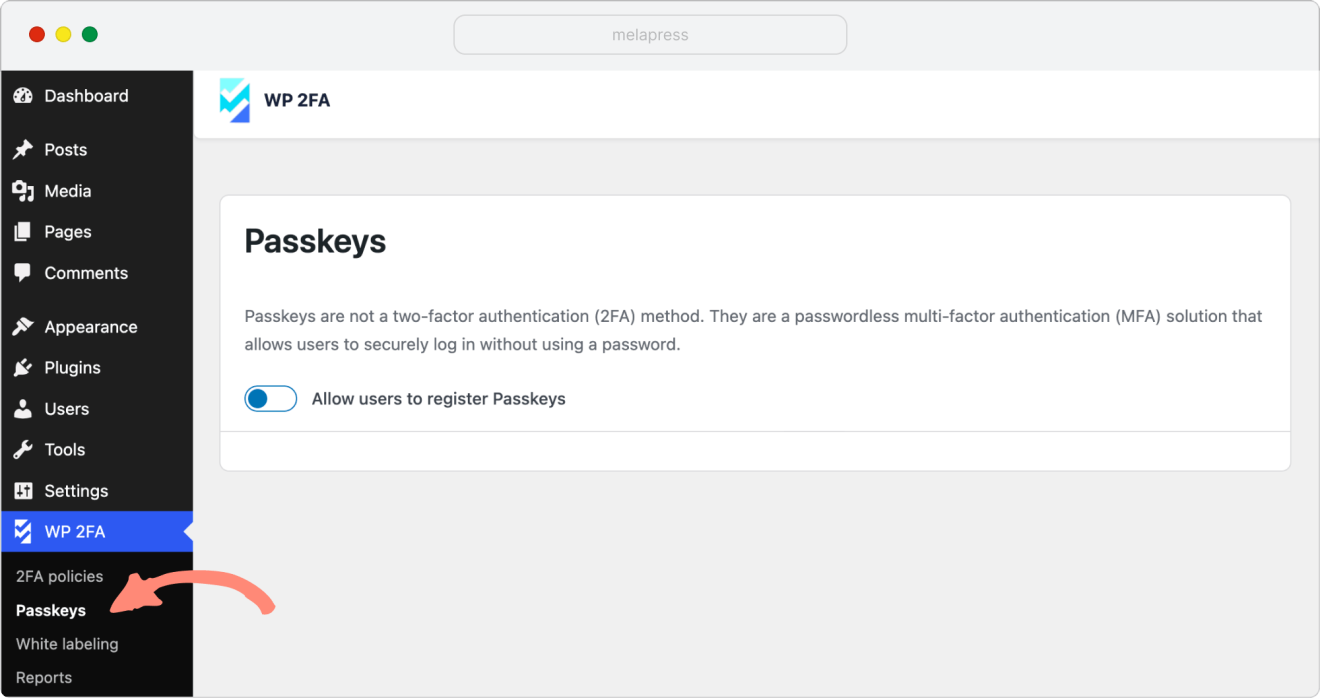
3. Enable the passkey feature by toggling it on
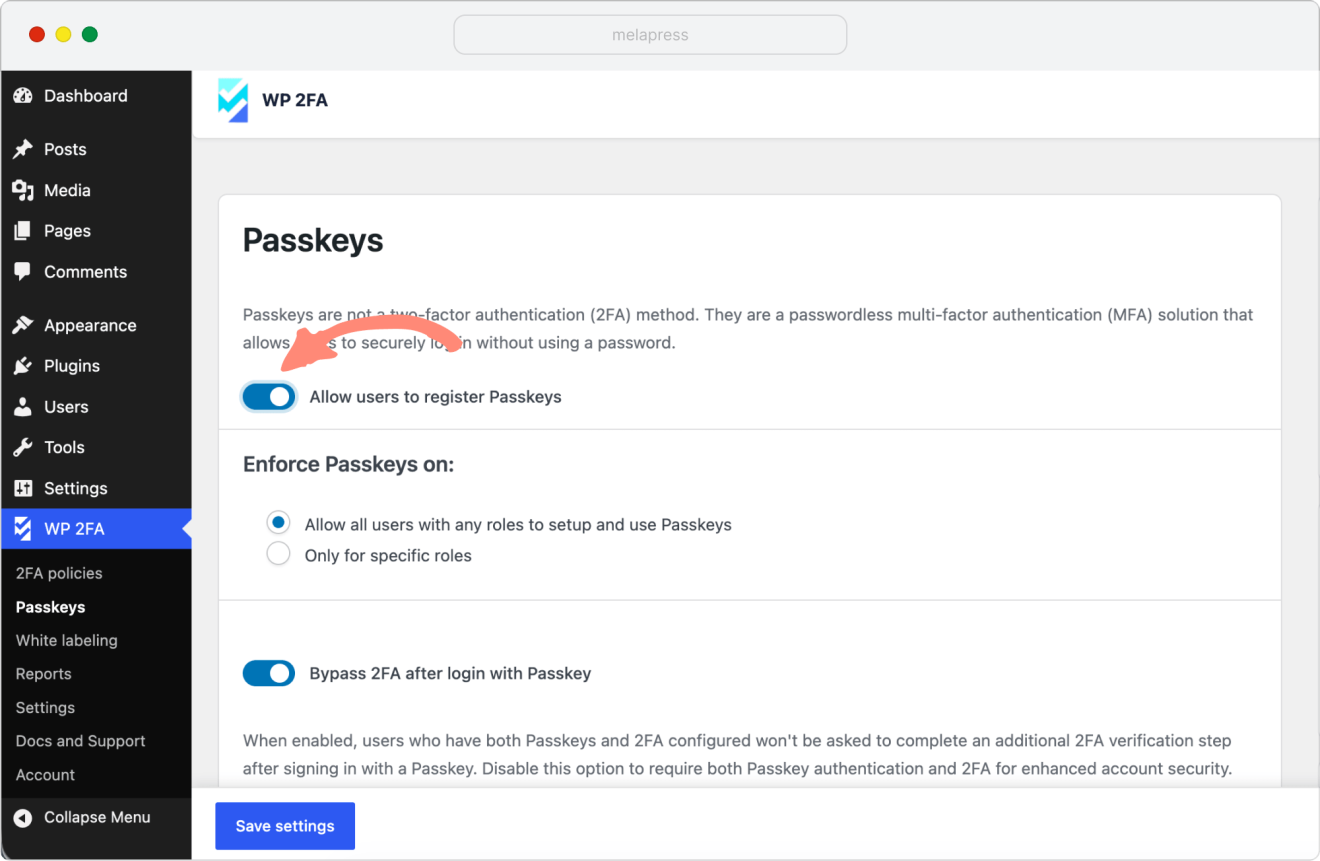
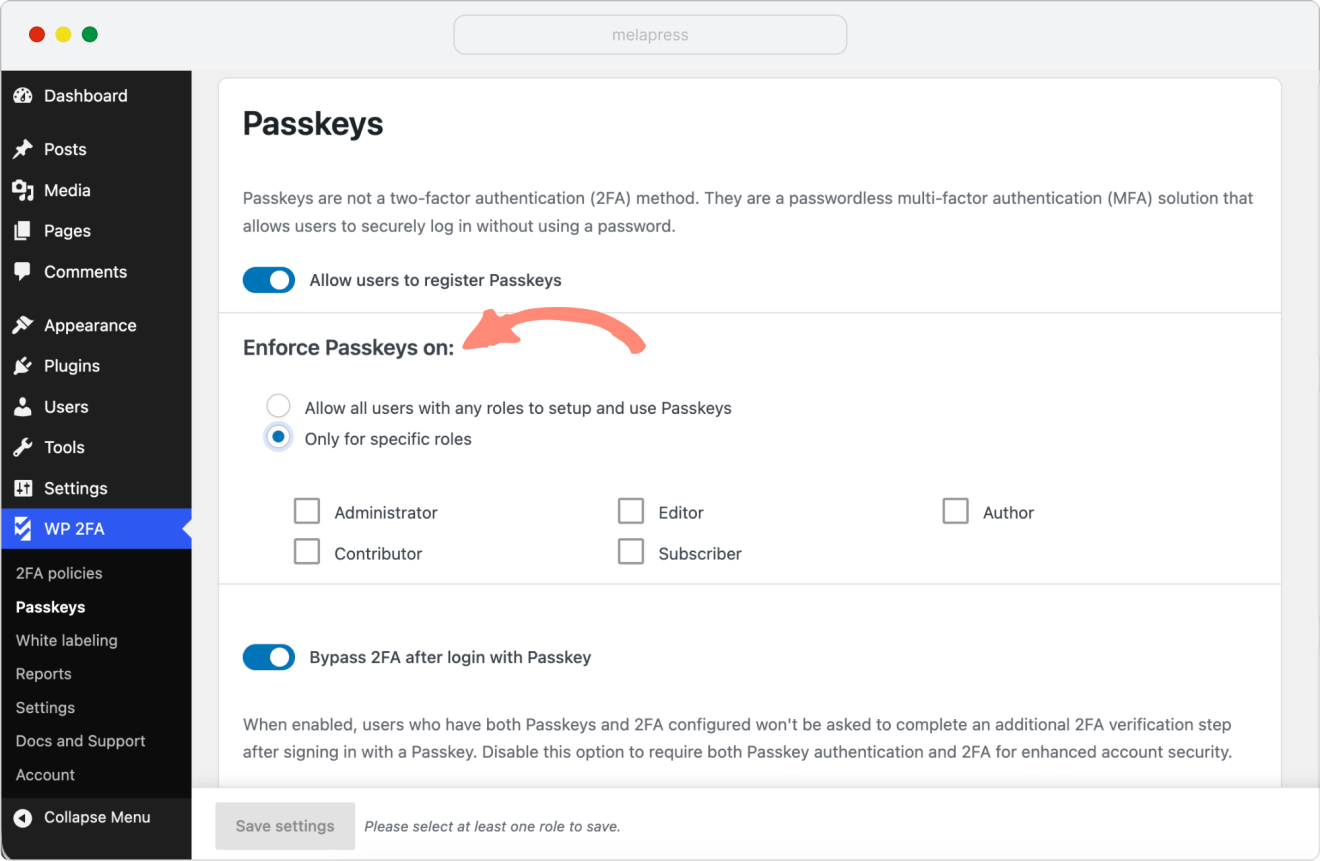
4. Configure which user roles will be able to set up and use passkeys
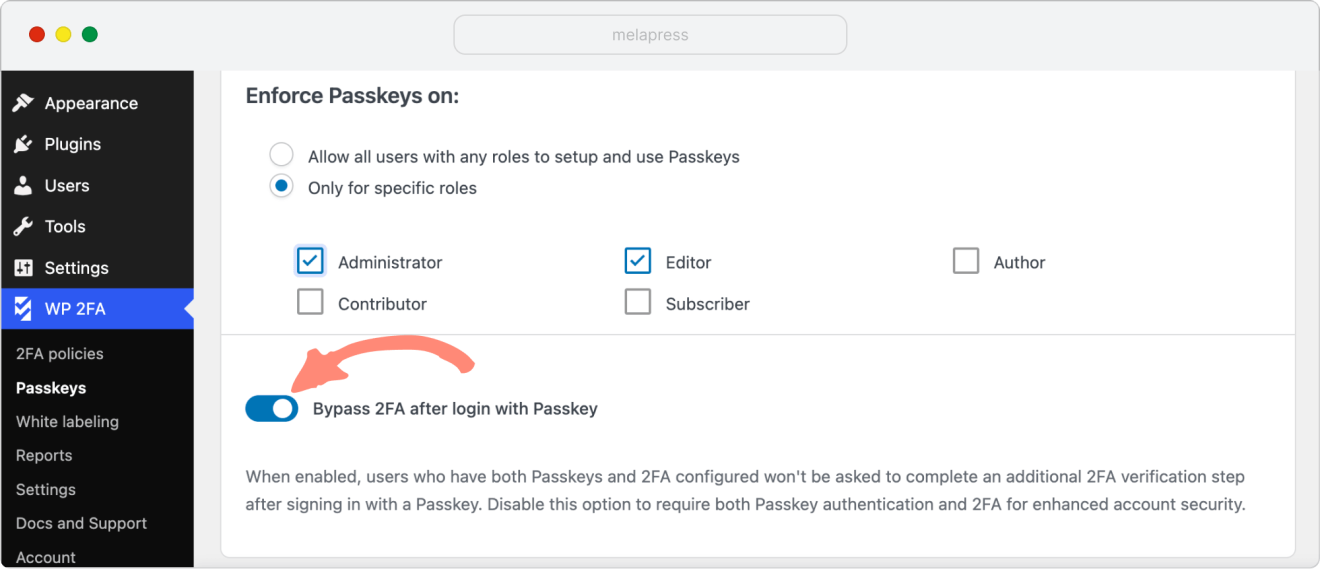
5. You can choose whether or not to allow the user to bypass any existing 2FA configurations if logging in with a Passkey.
When this setting is enabled, users who successfully sign in using a Passkey won’t be asked for an additional 2FA step if they have 2FA already configured.
6. Click Save Settings
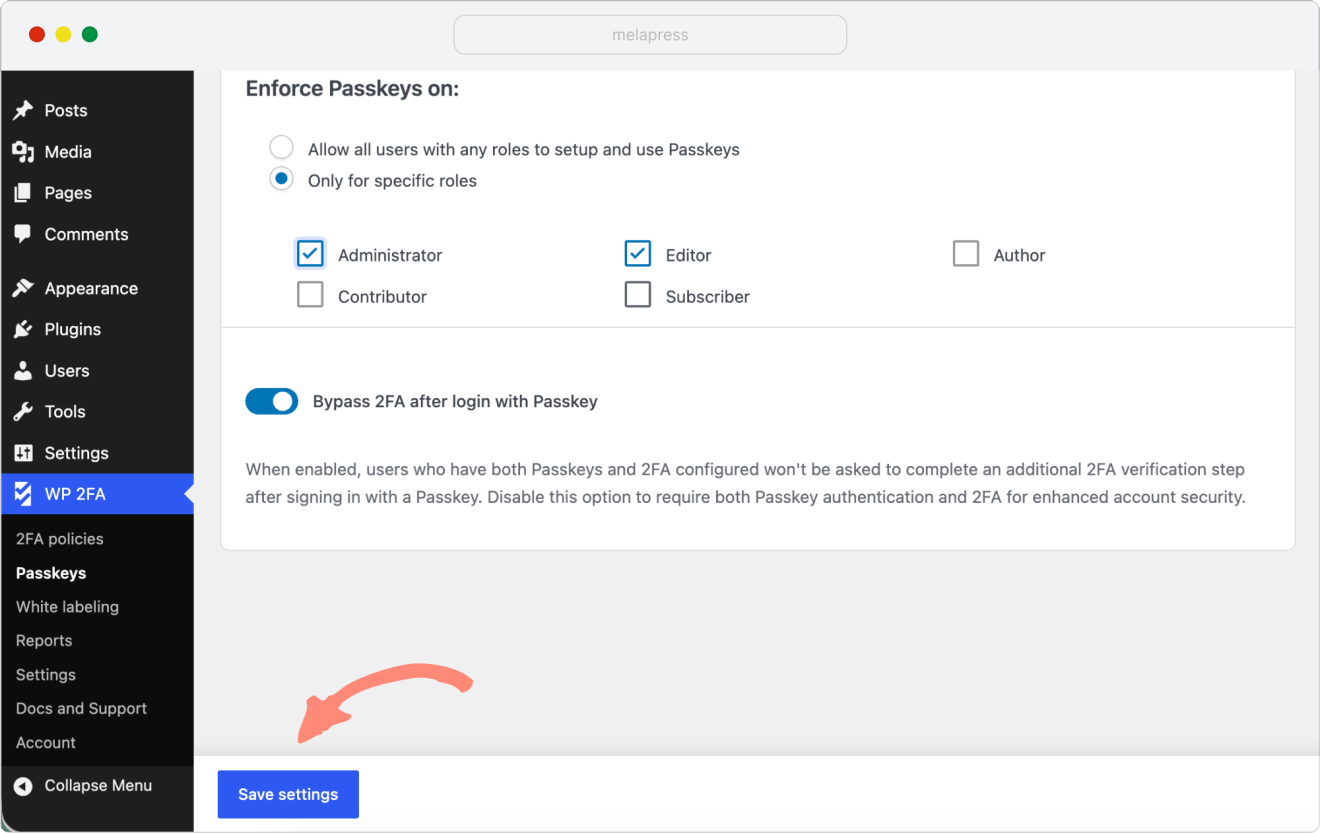
Once enabled, users will be able to add and configure passkeys from their profiles.
Setting up and managing passkeys on your user account (User Side)
We’ve written a separate guide about registering and using passkeys on the user side. It shows you how to activate passkeys on your user account, as well as how a user can manage their passkeys from the WordPress dashboard. You can check it out below:
How to activate and use passkeys in WordPress using WP 2FA
Troubleshooting
“Passkey Not Recognized” Error
Possible causes:
- Browser doesn’t support passkeys
- Security key is not FIDO2-compliant
- Biometric sensor not working properly
Solutions:
- Update your browser to the latest version
- Try a different authentication method
- Ensure your hardware security key is FIDO2-certified
Cross-Device Login Not Working (QR Code)
Possible causes:
- Devices not on the same network
- Bluetooth disabled
- Camera permissions not granted
Solutions:
- Ensure both devices are on the same Wi-Fi network
- Enable Bluetooth on both devices
- Grant camera permissions to your mobile browser
- Try scanning the QR code again
Cannot Add Passkey
Possible causes:
- Browser compatibility issue
- Conflicting browser extensions
- Device doesn’t support biometric authentication
Solutions:
- Try a different browser (Chrome, Firefox, Safari, Edge)
- Disable browser extensions temporarily
- Use a hardware security key instead of biometric authentication
- Check your device settings to ensure biometric authentication is enabled
Frequently Asked Questions
Are passkeys more secure than passwords?
In general, passkeys are considered more secure in most situations. Passkeys are resistant to phishing, credential theft, and brute-force attacks because:
They use public-key cryptography
The private key never leaves your device
They cannot be guessed or stolen through phishing
Can administrators force users to use passkeys?
Currently, WP 2FA allows users to configure passkeys as an optional authentication method. Admins can encourage passkey adoption but cannot force it at this time.
Do passkeys work offline?
Yes, passkeys can authenticate locally on your device even without an internet connection, though you’ll still need an internet connection to access the WordPress site itself.
