


Updated on 8 July, 2026
What are 2FA backup codes?
WordPress two-factor authentication, just like 2FA elsewhere, relies on a separate account to deliver an OTP (One Time Passcode) to login to WordPress. This separate account can be an authenticator app, email, your phone, or Authy account – depending on how 2FA was set up.
This may present a problem should you lose access (even if temporary such as forgetting your phone charger at home) to that account which may prevent you from logging in to WordPress. This is precisely the problem 2FA backup codes solve.
What are backup codes?
Backup codes are a series of one-time codes you can use as a backup should your primary 2FA method become unavailable. These codes are generated through WordPress itself (provided 2FA is enabled).
How to get backup codes
If you are using WP 2FA for your WordPress two-factor authentication, you have two options to get backup codes: during 2FA configuration and after 2FA has been configured. These backup codes consist of 16 digits and will allow users to log in should their primary 2FA method become unavailable.
During 2FA configuration
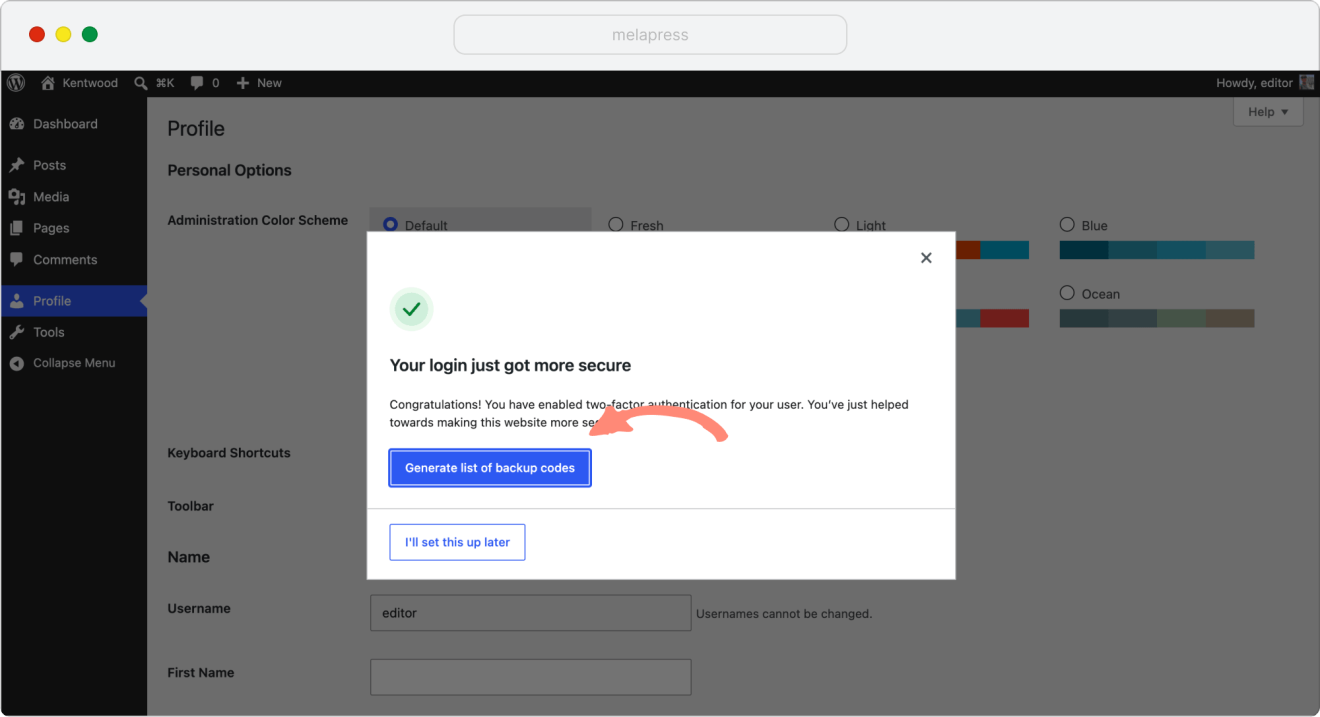
When configuring 2FA through the wizard, at the very last step, you will be asked if you want to generate a list of backup codes – provided your administrator has made these available. Simply click on the Generate list of backup codes to get your list of backup codes.
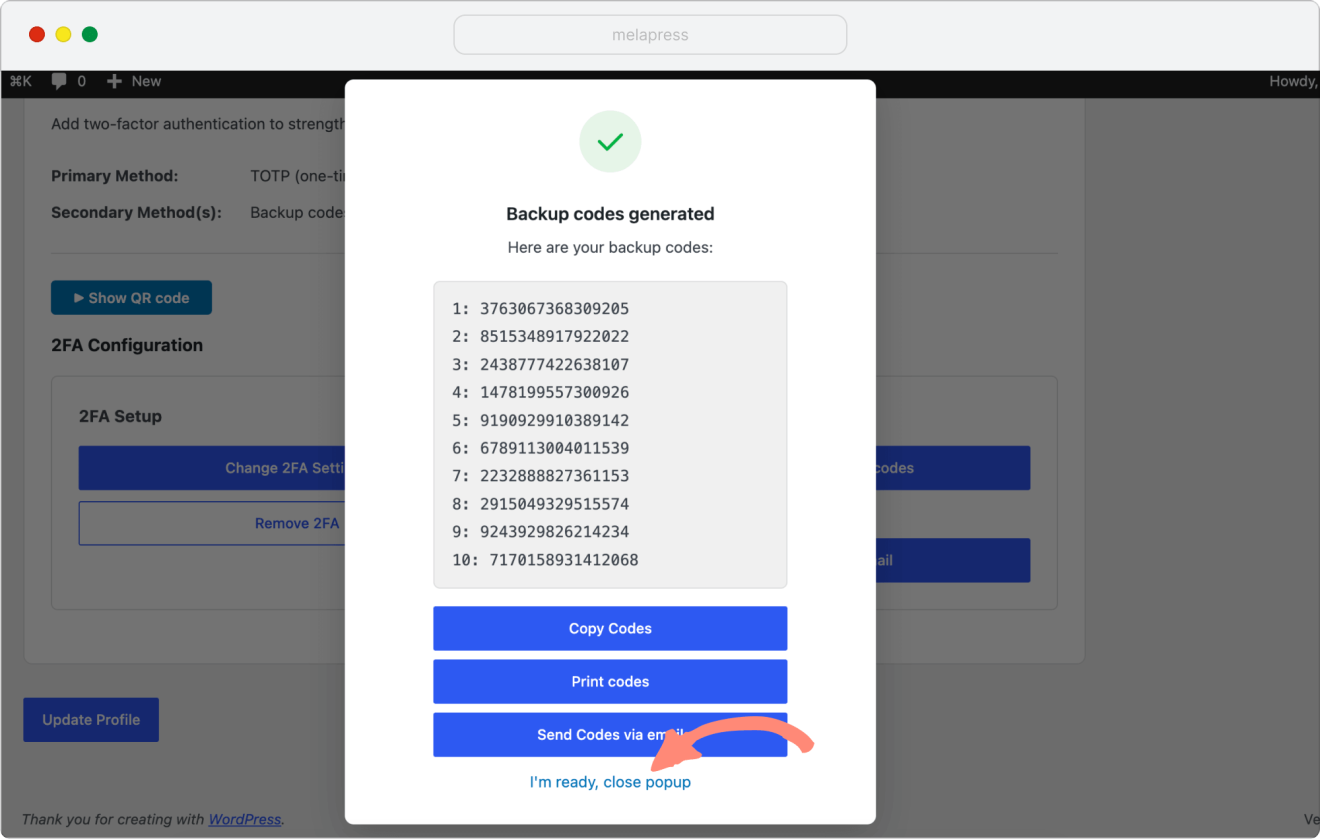
From here you can either:
- Copy – copy the backup codes and save them somewhere secure
- Download – automatically download a text file with the codes
- Print – opens the print dialog so you can print the backup codes using your preferred printer
- Send codes via email – sends the backup codes to the email address associated with your user profile
Note: Make sure you keep them in a (very) safe place as these codes are a part of your authentication process. Once a code is used, you can safely discard it since it’s only valid for one-time use.
After 2FA configuration
If you missed the backup code generation option during the setup process or used them all up and need some more, you can still generate a fresh new batch from your WordPress user profile page.
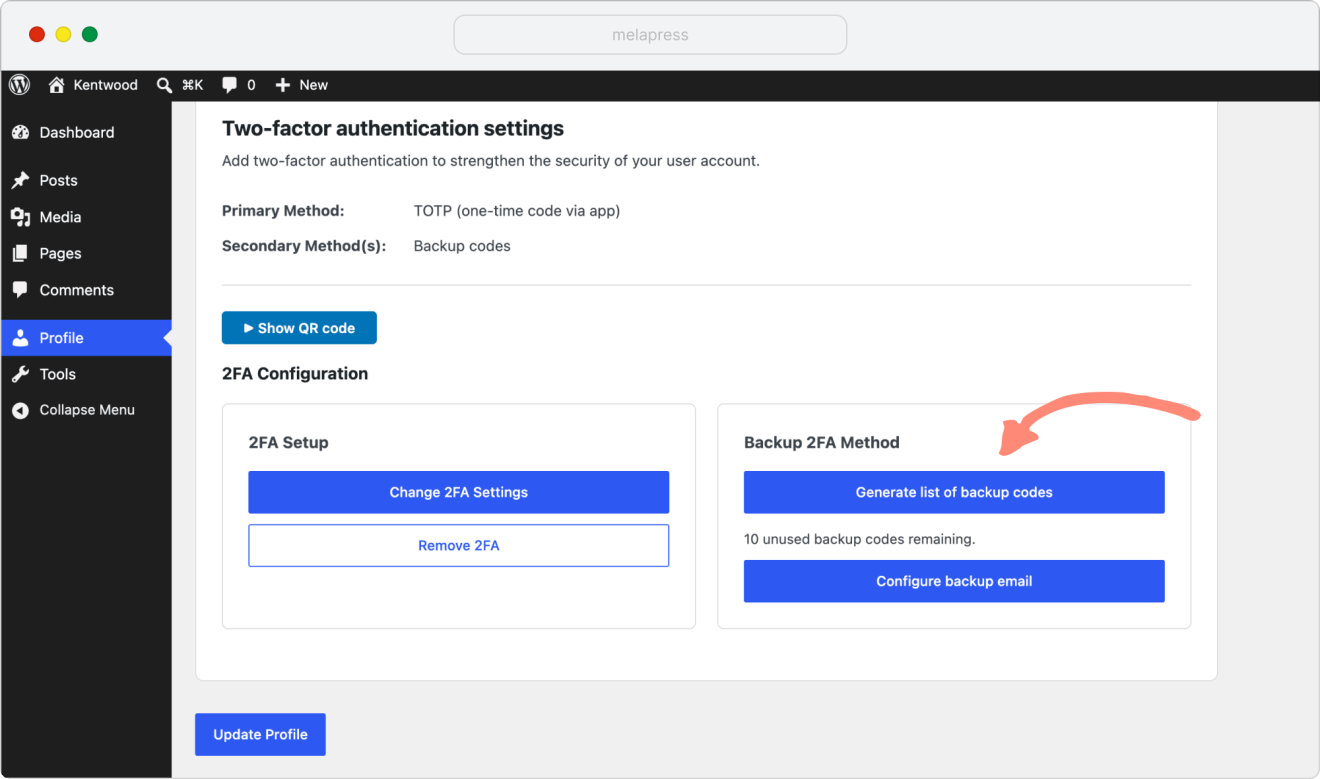
To generate backup codes after 2FA has been set up:
- Go to your WordPress user profile page
- Scroll down to the Two-factor authentication settings section
- Click on Generate list of backup codes
This will generate a new list of 10 backup codes which you can download, print, or copy and paste to a location of your choosing. Click I’m ready, close popup once done.
When to use backup codes
Think of backup codes like a single-use emergency spare key. To log in to your WordPress website you need the username, password, and a one-time code generated by your chosen 2FA method. If for some reason you cannot generate the one-time code via the normal primary means, backup codes will act as a stand-in replacement, allowing you access as if you had the OTP generated by your primary method.
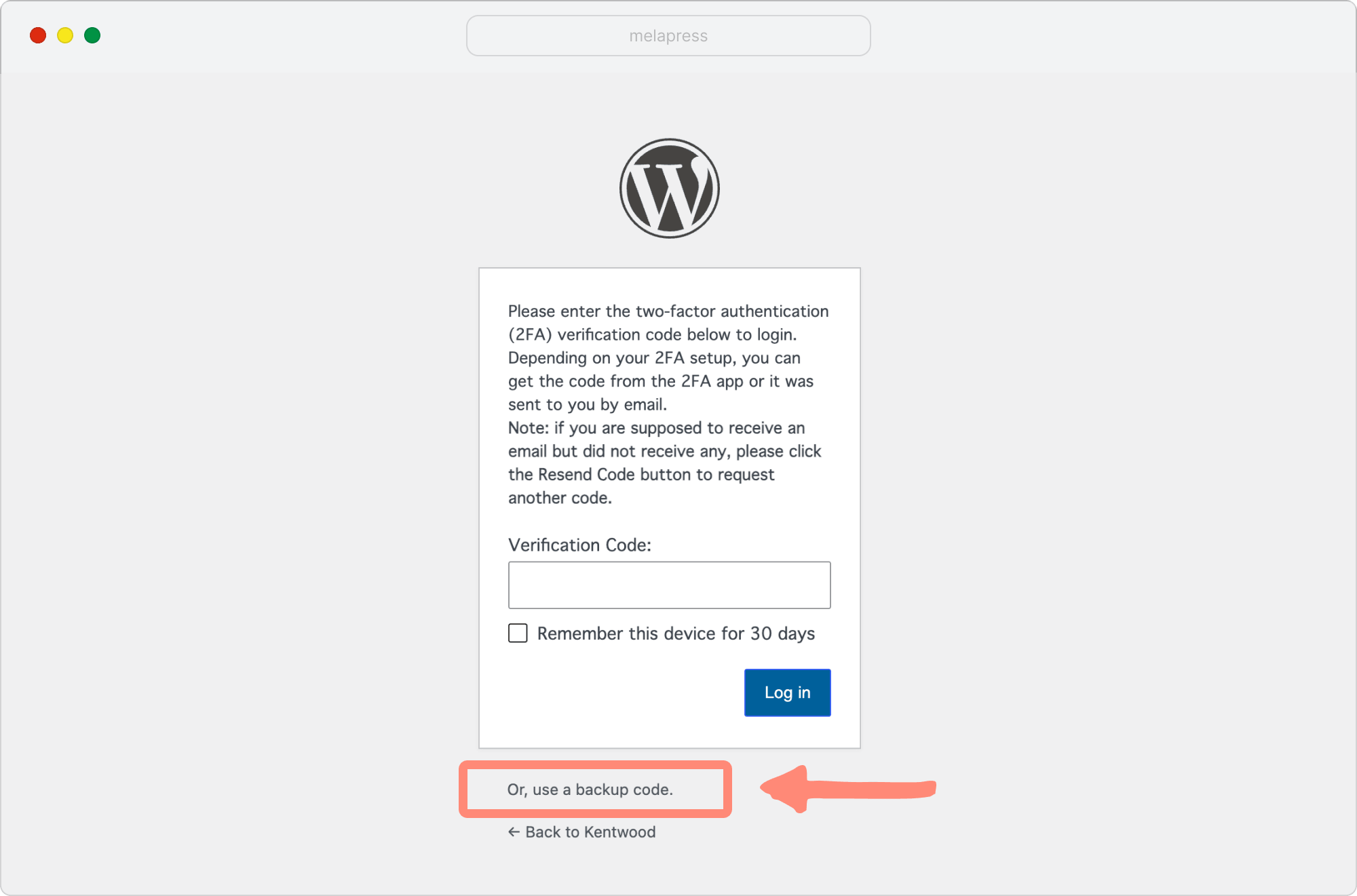
To use a backup code, click on Or, use a backup code when asked for the two-factor authentication code. The link is highlighted in the screenshot below. Enter any of your available backup codes, and you will log in to your WordPress website.
How many backup codes can you have, or have left?
Backup codes are also one-time codes. So once you use a code, it cannot be used again. By default, the plugin creates ten backup codes for every user. You can see how many backup codes you have left under the WP 2FA settings section on your profile page.
Note: Do not wait until you have just one backup code left. Don’t risk getting locked out. Create ten new backup codes whenever you have less than two unused backup codes left.
Backup codes alternative
Users also get access to email OTP as a secondary 2FA method. Your administrator needs to enable this feature for it to become available. It allows you to receive a one-time passcode via email should your primary 2FA method fail.
