



Updated on 15 April, 2026 by Brenda Barron
How to Restore a Previous Version in WordPress (Undo Edits)
Ever made a change to your WordPress site and wished you could hit the undo button? Mistakes are common, and sometimes your site malfunctions, so knowing how to restore previous versions can really save your day.
WordPress comes with many built-in ways to undo a mistake, from simply hitting the undo button to restoring an older version of a post/page or even rolling back your entire site. Today, we’ll guide you through the detailed steps of how to roll back to previous versions and help you recover your lost work.
Table of contents
Undo changes in WordPress
If you still have the post or page where you made a mistake open, the simplest and easiest way to take care of it is to use the undo button.
You can find this at the top of the editor. Just click the back arrow to undo your last edit, and click the forward arrow to redo it.

You can also press Ctrl+Z on your keyboard to undo, and Ctrl+Y to redo. If you’re using the Classic Editor, this is your only option for undoing.
Using revisions to restore a post or page
What if you made unwanted edits and want to restore a page to a previous version? This is also simple to do thanks to the revisions feature in WordPress. It works exactly the same for both posts and pages, though keep in mind that some custom post types do not support post revisions.
If you’re using the default Gutenberg editor, here’s what you need to do.
1: Navigate to Posts > All Posts or Pages > All Pages. Open up the post/page you want to restore.
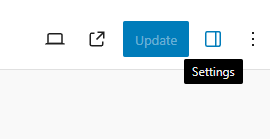
2: If you don’t immediately see a panel on the right, click the square-shaped icon next to the Update/Publish button to open the Settings panel.
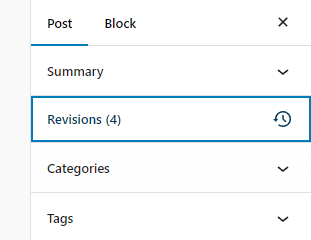
3: In the Post panel, below the Summary tab, look for a Revisions button. If you don’t see it, you may not have made any changes yet, or revisions may not be enabled. Click it to open the revisions screen.
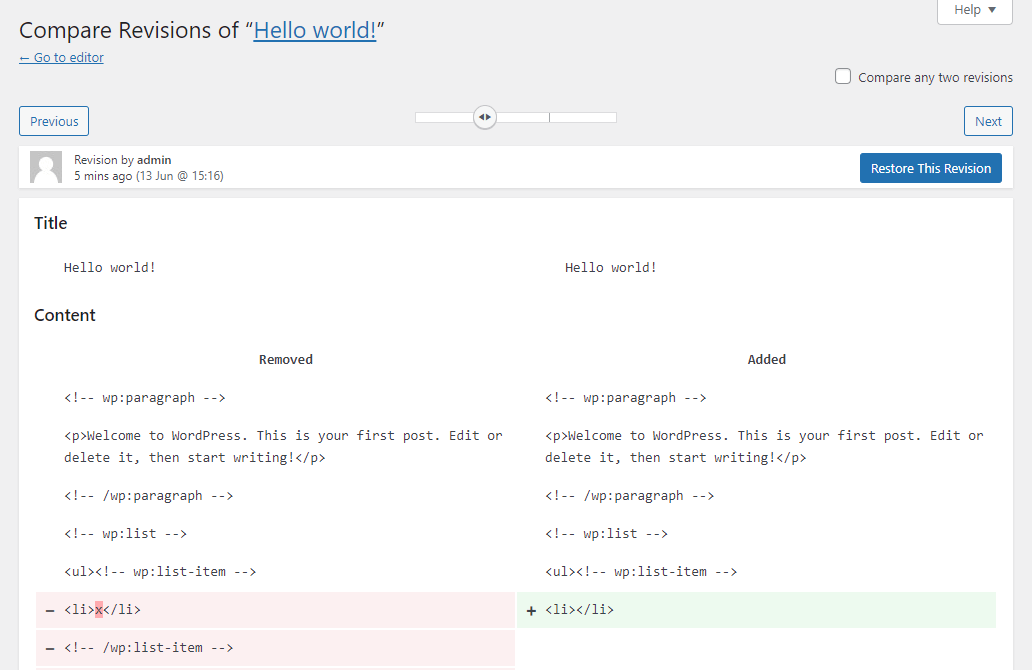
4: Use the slider at the top or the Next and Previous buttons to look through your revisions. You can use the Compare any two revisions button to see the differences.

5: Click Restore This Revision to revert to an older version.
If you’re using the Classic Editor plugin, the process is just a little different. Here’s how to do it.
1: Open the post or page you want to restore.
2: In the Publish box on the right, look for an entry labeled Revisions. Click Browse.

3: This part is identical to navigating Gutenberg revisions. Just use the slider to look through them and click Restore This Revision when you find the one you want.
Thanks to the revisions feature, unwanted changes can be removed in just a few clicks.
Restoring an autosave of a post or page
WordPress automatically saves your work every few seconds to prevent data loss. If you refresh by accident, your browser crashes, or you have a power outage, then it’s easy to restore your in-progress work. Here’s how.
1: Open the post or page you want to restore.
2: If an autosave is available, you’ll see a notice at the top of the screen. Click View the autosave.

3: You’ll be taken to the Compare Revisions screen where you can see the difference between the autosave and the current version of your post. Click Restore This Autosave.

This is exactly the same with the Classic Editor, except the notification looks a little different.

Autosaves are a very good safety net and it helps ensure that your work is never lost.
Recovering trashed posts and pages
Accidentally deleted a post or page? No worries – WordPress makes it easy to recover deleted content. Here’s what you need to do.
1: Navigate to Posts > All Posts or Pages > All Pages in your WordPress dashboard.
2: At the top of the page, above the list of posts/pages, you’ll see several small links leading to folders: All, Published, Drafts, etc. Click the one labeled Trash.

3: Browse through the trashed items to locate the post or page you want to restore. You can use the search bar if you have a lot of content to sift through.
Step 4: Hover over the title of the post/page you want to restore. Click Restore.

The post or page should immediately return to the All folder in the state you left it in.
Restoring a backup of your content or site
It’s always a good idea to have a backup of your website on hand. If something goes seriously wrong and the revisions feature isn’t working, you may need to restore your posts or even your entire site.
You’ll need to be proactive here and keep regular, scheduled backups of your content. If you’ve already lost your data, then it’s too late.
These steps will only work for you if you took a backup before your data was lost.
Import posts and pages
If you have several posts or pages that need to be reverted, or you can’t find your old content using the revisions or autosave restore tools, then you can always re-import your content.
WordPress has a simple import/export system built in. This is a partial backup recovery which only affects your posts and pages, unlike backup plugins which restore your entire website files.
When you want to import your saved posts, here’s what you do.
Step 1: Navigate to Tools > Import.
Step 2: Look for the WordPress entry and click Install Now to download the WordPress importer plugin. When it’s finished, click Run Importer.

Step 3: Upload your export file, then click Upload file and import. Follow the prompts.

Note that this tool will not update any existing posts. If you want to restore a post to an older version, you’ll need to back it up with the Export tool, then delete it when you’re ready to restore it with the Import tool.
Restoring a previous version of your website
Sometimes the revisions feature isn’t good enough. Maybe your site was broken by a plugin, or malware has entirely defaced it. You may need to roll back your entire website to a previous version.
Much like with using the Import/Export Tools, you’ll need to be proactive and take regular backups before a crisis happens. If your data is already missing, it’s too late to backup and restore now. Yesterday is always the best time to take a backup of your website.
Here’s how you can restore your website using the UpdraftPlus plugin.
1: Navigate to Settings > UpdraftPlus Backups.
2: Click Restore next to the backup in the Existing backups list.
3: If you need to upload your backup WordPress files manually, instead click Upload backup files.

Some web hosts also have their own backup tools. This will vary depending on your host, but you can check by logging into your hosting provider dashboard and searching for a Backup option. You can backup and restore your website from here as well.
If your web host uses cPanel, here’s how you can restore a backup.
1: Log in to cPanel and click Backup Wizard.

2: Click Restore. Then click Databases as WordPress posts/pages are stored in the database.

3: Upload your previously taken backup files by clicking Upload.
The same can be done through the Backups page; here you just upload your backup file under Restore a Database Backup.

Identifying changes with WP Activity Log
If you’re trying to keep careful track of changes made to your posts and pages, you may wish to install a plugin like WP Activity Log. It can help you narrow down which changes are made by who, and when. This information can, in turn, be used to reverse changes manually if necessary.


Monitor user and system activity with support for 3rd party plugins and session management.
1: Install WP Activity Log through Plugins > Add New or purchase the premium version.
2: Navigate to WP Activity Log > Log Viewer and look through the list.

3: If you want to narrow down the options, you can click Filter View below the search bar at the top and enter a particular event ID (like 2065, the ID for a user modifying a post). Or you can hover over a certain user’s name and click Search to show only events from that user.

You can then use the timestamp to manually track down and undo these changes, or restore a backup from right before they happened.
Final thoughts: Keep your data safe
You’d be surprised about how common mistakes are. Anything can happen, from accidental deletion to misinformed edits. And that’s not to mention things like plugin conflicts or malware that can mess up your site, requiring you to roll back.
Luckily, there are plenty of ways to restore a previous version of your content, from using the built-in revisions system to recovering accidentally deleted articles. And it’s always a good idea to have a full-site backup on hand.
In the future, you can take extra proactive measures like installing Melapress Login Security to stop malware from breaching your site or WP Activity Log to keep a close eye on who’s editing your articles.


Set login & user security policies such as limit login attempts, login page hardening, and much more.
Frequently Asked Questions (FAQs)
What are WordPress revisions and how do they work?
WordPress revisions are a feature that automatically saves different versions of your posts and pages as you edit them. You can revert to any previous version if needed. Each time you save or update a post, WordPress stores a revision, allowing you to compare and restore past versions.
What is the WordPress revisions feature for?
Running a WordPress site involves a lot of moving parts. Accidental edits and deletions are something everyone has done. You’ve edited an article but deleted part of the content without realizing it or accidentally deleted the wrong post. Or you’re in the middle of writing when the power goes out or your browser crashes.
And sometimes you may rewrite an article or redo a page only to change your mind when the content overhaul doesn’t go as planned.
Being able to roll back to a previous version of a post, page, or website can make all of these issues an inconvenience rather than a disaster.
What’s the difference between revisions and backups?
The revisions feature in WordPress takes frequent snapshots of your articles and pages as they’re being edited, so you can easily restore them to an earlier version. Meanwhile, a backup creates a full backup of your entire website and database, including your posts and pages.
Restoring a backup is much less convenient as it restores your entire website, and there’s no easy way to compare incremental changes like small updates to your posts. But it’s very helpful if all your posts and pages are broken.
What happens to the current revision when I restore a previous version?
When you restore a previous version of a post or page, the current version is not deleted. Instead, it is saved as a new revision. This means you can always revert back if needed.
How can you prevent data loss?
If you lose your data due to not having backups in place, it can be a big blow. Rewriting or recreating lost content is always frustrating, and we want to make sure this doesn’t happen again.
As handy as the revisions feature is, it’s important to take other measures to protect your data.
– Set up automatic backups: Install a plugin or use your web host’s built-in tools to ensure that your website and its content is backed up daily or weekly. Just make sure you store the data in a remote location, not only on your website’s server.
– Install a security plugin: Malware and hacking attempts can lead to serious data loss and site defacement. It’s a good idea to install a security plugin like Melapress Login Security to keep bad actors from ruining your website.
– Enable two-factor authentication: This is another solid way to keep your site secure and unwanted visitors out.
– Use an activity log: An activity log plugin, such as WP Activity Log, tracks all changes on your website. This is especially useful if you have multiple editors. You can easily keep an eye on who’s making changes to your posts and pages and when those changes occurred.