


Published on 12 October, 2026 by Bram Vergouwen
WordPress security monitoring: How to monitor your website for suspicious activity
A secure WordPress website is not just one that tries to stop hackers. You also need to be able to detect if someone breaks in, and what is happening on the website.
Who is logging in? Are there repeated failed login attempts against an existing user? Was a new administrator account created? Or did somebody change a user’s password or permissions?
Without monitoring, many of these activities can happen without anyone knowing about them until something goes wrong.
This is where WordPress security monitoring comes in.
By keeping an activity log, monitoring user sessions and file changes, and setting up notifications for the events that actually require your attention, you can identify suspicious behavior much earlier. It also gives you considerably more information to work with if you ever need to investigate a security incident.
In this guide, we’ll look at what you should monitor on a WordPress website, how to keep track of important security events, and how to turn that information into something actionable.
Table of contents
- What is WordPress security monitoring?
- How to set up WordPress security monitoring
- What to monitor for
- Turn security logs into useful alerts
- Incorporating WordPress security monitoring into your broader security monitoring operation
- What should you do when security monitoring finds something suspicious?
- Monitoring and prevention should work together
- Frequently asked questions
What is WordPress security monitoring?
WordPress security monitoring is the process of keeping track of activity and changes that could affect the security of your website.
It complements preventive security measures rather than replacing them.
For example, two-factor authentication can make it more difficult for an attacker to compromise an account. Limiting failed login attempts can help protect against brute-force attacks. And keeping WordPress and plugins updated reduces the number of known vulnerabilities that an attacker can exploit.
These are all aimed at preventing a bad actor from gaining access to your website. However, preventative security measures like this can only reduce the chance of your site getting hacked. They can’t completely eliminate the risk.
Monitoring answers a different question:
What is actually happening on the website?
A good monitoring setup gives you visibility into several areas:
- Successful and failed login attempts
- User accounts and permission changes
- Logged-in users and active sessions
- Plugin, theme, and WordPress changes
- Important configuration changes
- File and permission changes
- Other unusual or security-sensitive activity
Monitoring this information gives you both a historical record and, where appropriate, the ability to be alerted while something is happening.
How to set up WordPress security monitoring
The easiest way to start monitoring security-related activity on WordPress is to install an activity log plugin such as WP Activity Log.
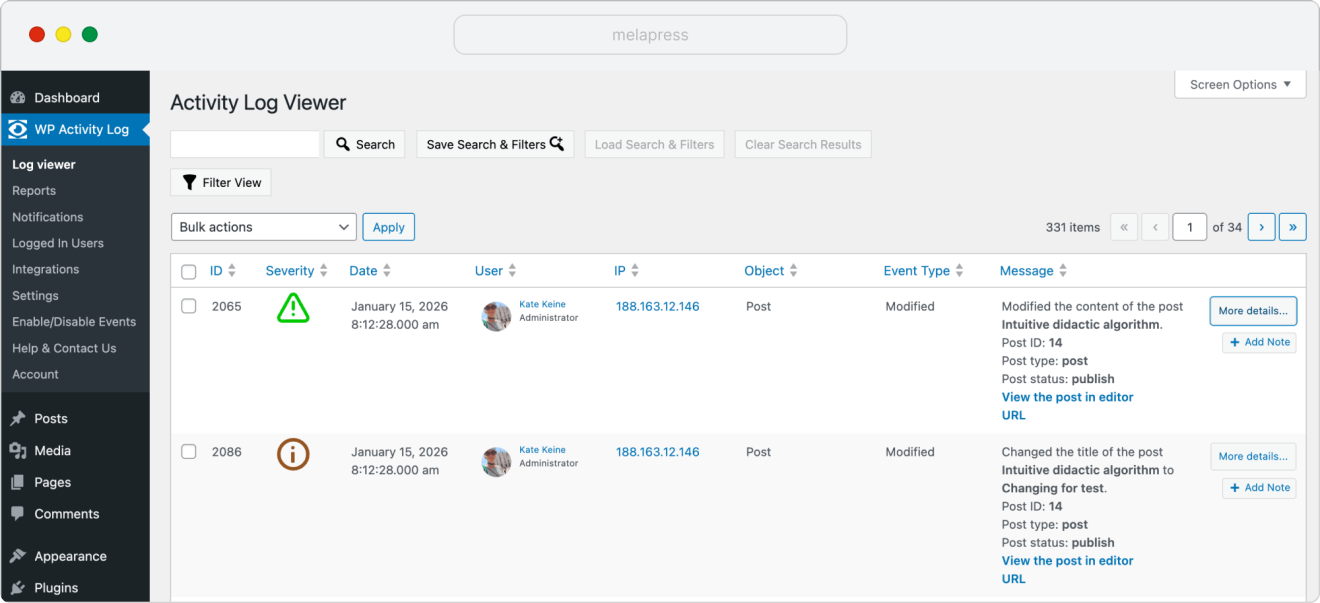
Once installed, WP Activity Log automatically starts keeping a record of supported user and system activity across your website. This includes login activity, user account changes, plugin and theme changes, WordPress settings, content changes, and hundreds of other events.
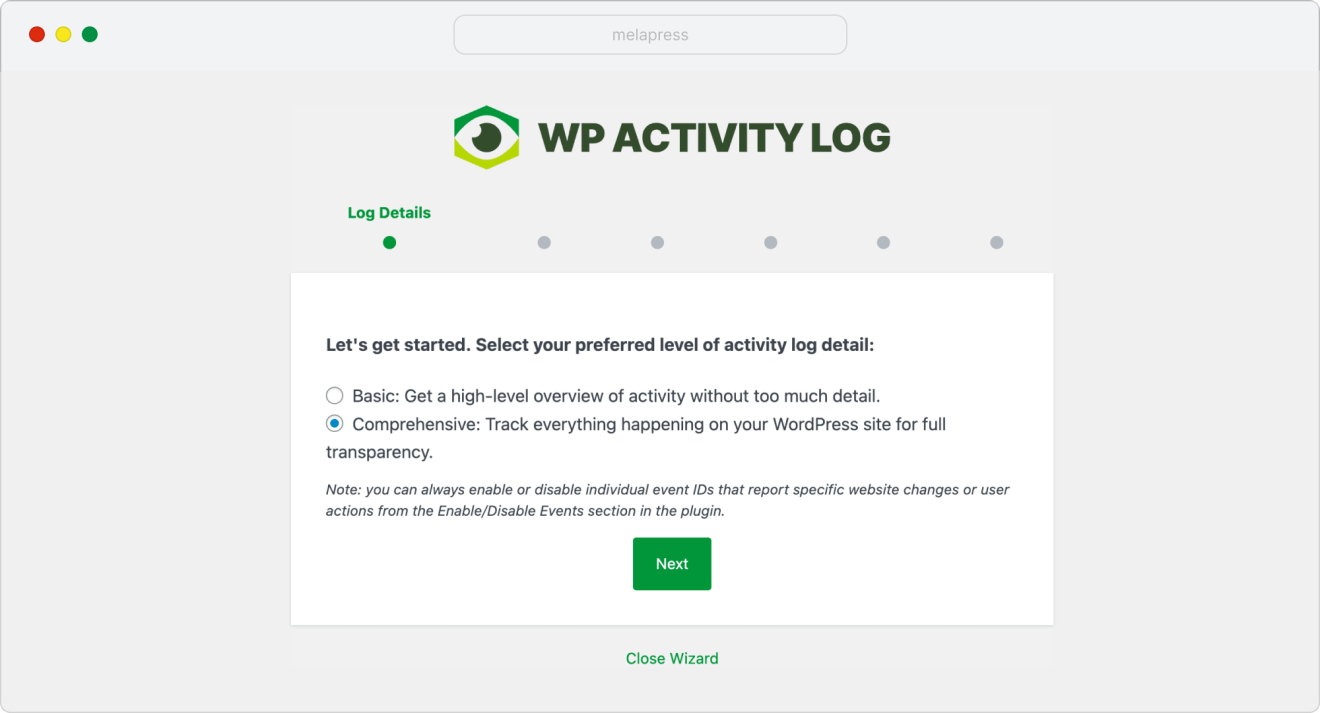
When you first activate the plugin, the setup wizard walks you through the main configuration options. You can choose the level of detail you want to record, configure login-page and user-registration options, and decide how long activity logs should be retained. All of these settings can be changed later if your monitoring requirements change.
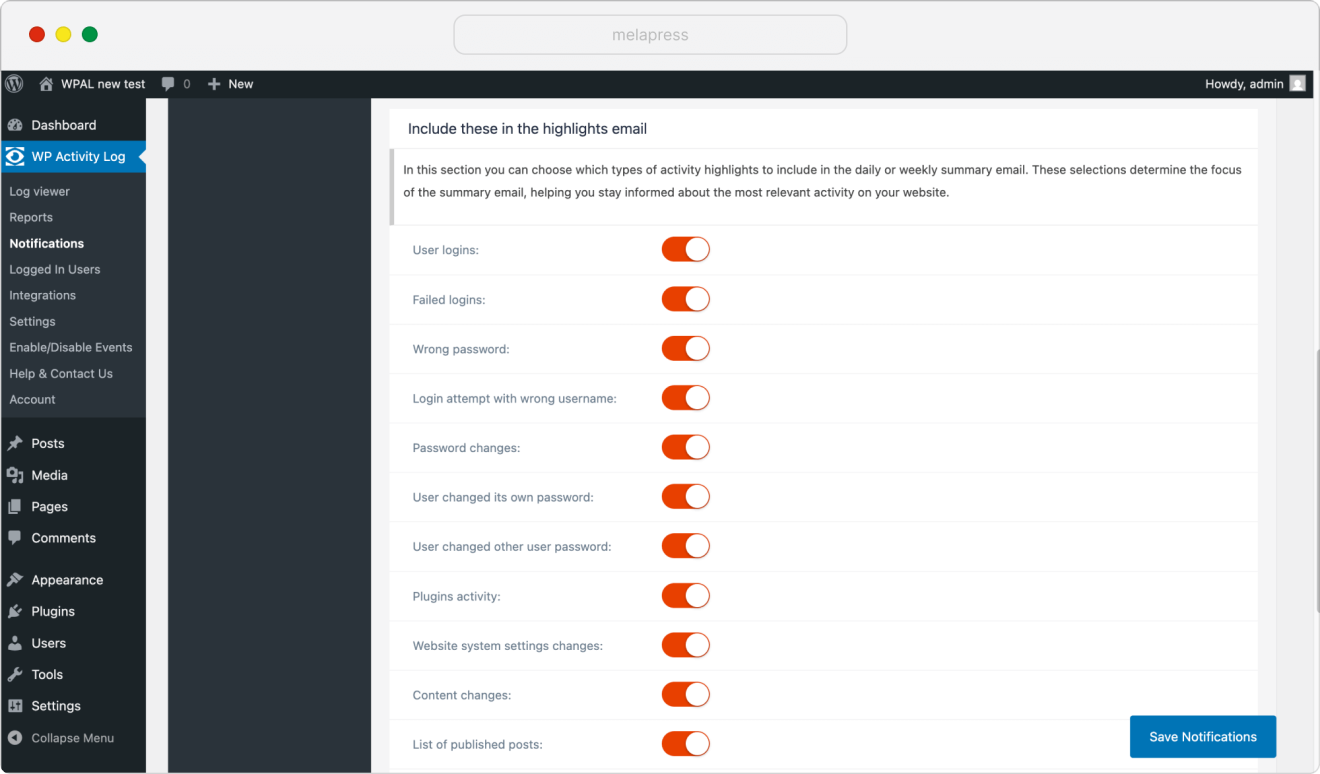
For security monitoring specifically, start by making sure you are keeping a record of the events that would be useful during an investigation, such as successful and failed logins, administrator account creation, user role and password changes, plugin and theme changes, and important WordPress configuration changes. With WP Activity Log Premium, you can then use WP Activity Log > Notifications to configure alerts for the events that require more immediate attention.
Rather than receiving a notification for everything that happens on the website, focus on high-risk events such as a new administrator being created, suspicious login activity, important account changes, or security-sensitive settings being modified. WP Activity Log Premium includes pre-configured notifications as well as a query builder for creating your own conditions.
What to monitor for
Setting up WordPress security monitoring is simple. With a few clicks, you’ll be up and running and actively keeping a log. However, knowing what you should be looking for requires a bit of thought. That’s why in this section, we’re going to highlight some of the most important things to monitor.
Monitoring WordPress login activity
The WordPress login page is one of the most obvious places to start. Attackers frequently attempt to gain access to user accounts on WordPress websites by trying username and password combinations automatically. This results in a potentially large number of failed login attempts.
That being said, failed logins do not automatically mean your website is under attack. People mistype passwords and forget credentials. It can also be the case that automated bots try usernames that do not even exist.
What matters is the context.
Keep a history of failed login attempts
WP Activity Log records both failed and successful WordPress logins.
Importantly, it distinguishes between a failed login for an existing WordPress user and a failed login using a username that does not exist.
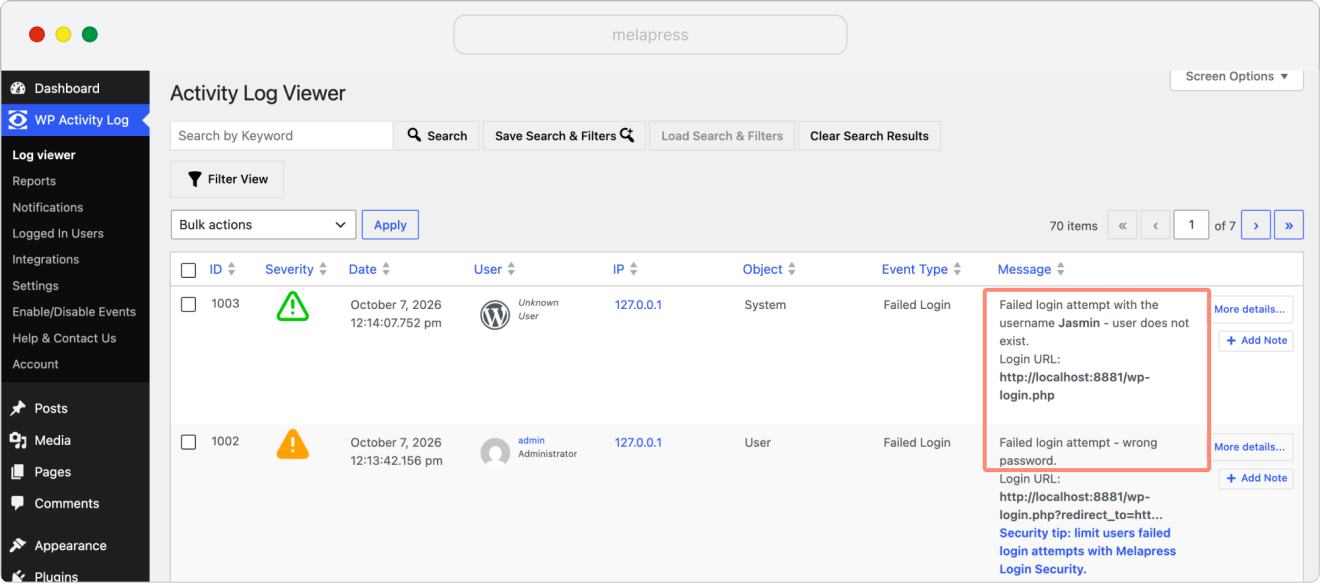
These are recorded as separate event types, making them easier to search, filter, and use for notifications. This also includes information such as which user (where applicable), source IP address, and login URL.
This distinction is useful because repeated attempts against an existing username deserve more attention than random attempts against usernames that don’t exist.
For example, if you see repeated failed login attempts against one of your administrator accounts from an unfamiliar IP address, somebody may be specifically targeting that user.
On the other hand, attempts against usernames such as admin12345 that have never existed on the website are often simply background internet noise.
The important thing is being able to tell the difference.
Monitor successful logins too
Successful logins are equally important. A failed login tells you someone tried to gain access, but a successful login tells you somebody did gain access.
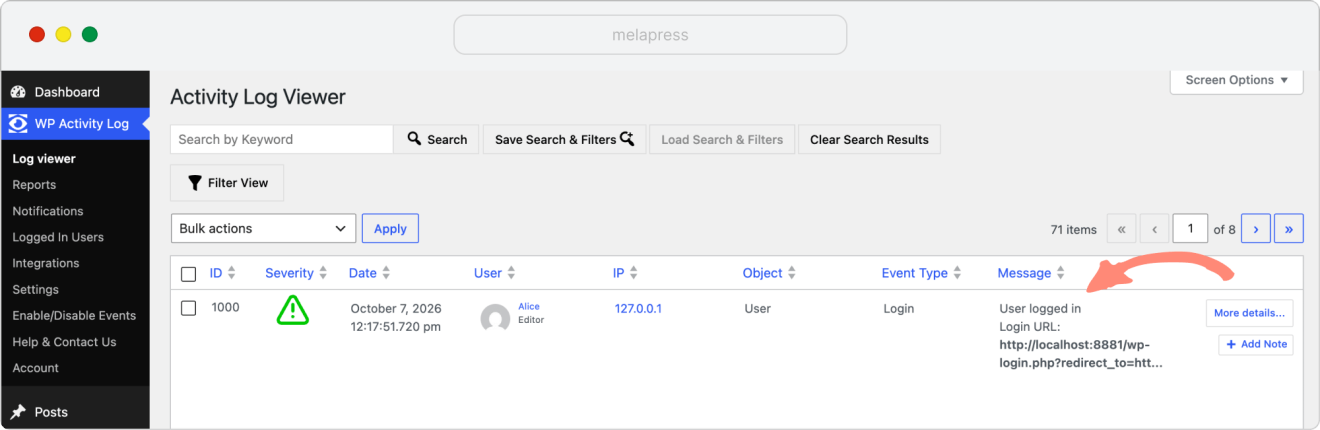
Keeping a WordPress login history allows you to investigate questions such as:
- Which user logged in?
- When did they log in?
- Which IP address did they use?
- Did they log in through the expected login page?
- What did they do after logging in?
- Did the same account have other active sessions?
This becomes particularly useful if a compromised account is used successfully and the attacker therefore generates very few failed login attempts. An apparently normal successful login can become much more interesting when it is followed by an administrator account being created, a plugin being installed, or important settings being changed.
Monitor new users and account changes
A bad actor can sometimes try creating another user account with administrator privileges. This can help preserve their access and/or even give them more permissions to make changes on your website.
In cases like this, removing the vulnerability or changing one password may not be enough. If there’s a new admin account you missed, then even with the vulnerability patched, the bad actor might be able to log into the new account and make changes on your website.
This is why user account changes are among the most important activities to monitor.
Pay particular attention to:
- New user accounts
- Administrator and Super Admin accounts
- User role changes
- Password changes
- Email address changes
- Application password changes
- User deletions
WP Activity Log records dedicated events for these types of changes, including new users, role changes, password changes, and changes to application passwords.
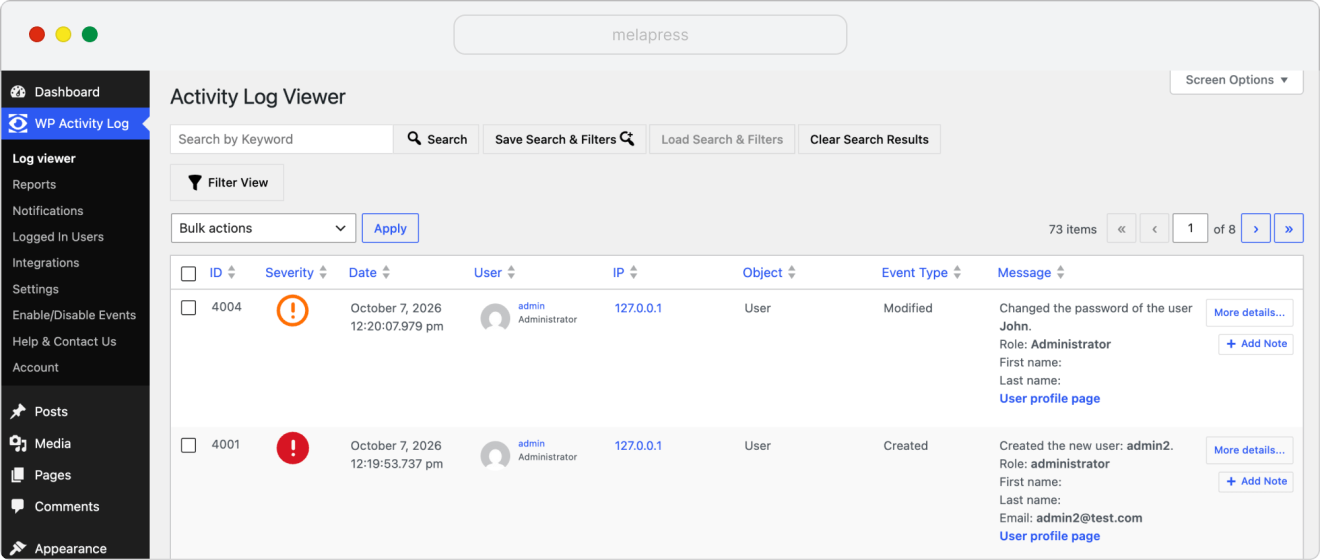
Get alerted when high-risk account changes happen
Logs are important because they allow you to investigate what already happened. But notifications go one step further, drawing your attention to activity while it is happening.
For example, you may want an immediate notification whenever:
- A new administrator is created
- An existing user is promoted to Administrator
- An administrator’s password changes
- An application password is created
- An administrator logs in from an unexpected location or IP address
WP Activity Log includes pre-configured notifications for user and WordPress activity as well as a query builder for creating custom notification conditions. Notifications can currently be sent through email, SMS, or Slack.
The important thing is not to be notified about everything.
If your inbox receives hundreds of routine WordPress events every day, genuinely important alerts become very easy to miss.
Focus notifications on activities where you would actually want to take action.
See who is logged in to WordPress
A security log tells you who logged in and what they did. Sometimes, however, you need to know who is logged in right now. Knowing which users currently have active WordPress sessions can be useful for both security and website management.
For example, perhaps an employee who left the company still has an active session. Maybe the same administrator account suddenly has several simultaneous sessions from different IP addresses. Or perhaps you discover suspicious activity and want to remove an attacker from the website immediately.
WP Activity Log Premium’s user session management functionality provides a real-time view of active WordPress sessions.
For each session, you can see information such as:
- The user and role
- Session ID
- When the session started
- When it expires
- The source IP address
- The user’s most recent activity
You can also view that user’s activity directly from the session view and terminate individual sessions when necessary.
Terminate suspicious sessions
If you identify a suspicious session, you do not necessarily have to wait for it to expire.
WP Activity Log allows administrators to terminate an individual WordPress session, a group of matching sessions, or all sessions on the website.
This is particularly useful during an incident.
If you believe an administrator account has been compromised, for example, you can terminate the existing session and then reset the account credentials rather than leaving the potentially compromised session active.
Manage idle and simultaneous sessions
A user appearing as logged in does not necessarily mean they are actively using the website. WordPress authentication relies on cookies, which means a session can remain valid even after someone has closed their browser without logging out, for example. Idle sessions increase the period during which a stolen or unattended session might potentially be abused.
User session policies can therefore be used to automatically terminate sessions after they have been idle for a defined period. WP Activity Log can also restrict multiple simultaneous sessions, which can be useful for both account security and websites where account sharing is a concern.
Monitor security-sensitive WordPress changes
Security monitoring should not stop at user accounts and logins. Once someone has administrator access to WordPress, they can potentially make many other changes.
For example, an attacker may:
- Install or activate a plugin
- Change a theme
- Modify important WordPress settings
- Change whether anyone can register
- Change the default role assigned to new users
- Modify the administrator notification email
- Create or change application passwords
- Change database structures
- Alter other security-related configuration
The individual change may not always be malicious either. Administrators legitimately install plugins and change settings all the time, some of which may introduce security risks or otherwise create issues for the website.
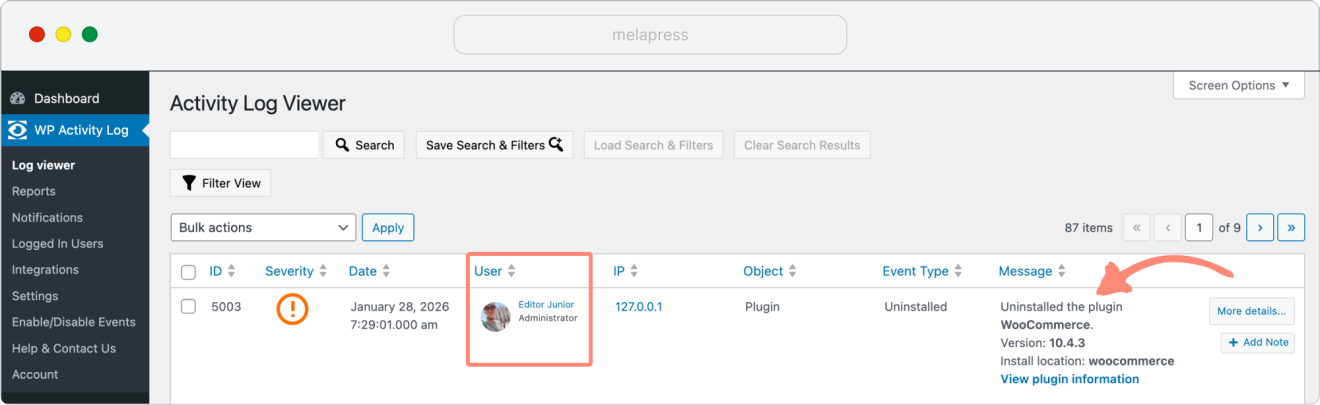
An activity log provides a timeline.
Suppose you discover an unfamiliar administrator account. You can then work backwards and see which user created it, which IP address they were using, when they logged in, and what else happened around the same time.
This is much more useful than discovering the account and having no idea how long it has been there or where it came from.
Monitor WordPress files for unexpected changes
Not every attack takes place neatly through wp-admin. An attacker who exploits a vulnerable plugin may be able to upload or modify PHP files directly. Malware may inject code into existing files, WordPress core files may be changed, or entirely new files may suddenly appear in directories where they do not belong.
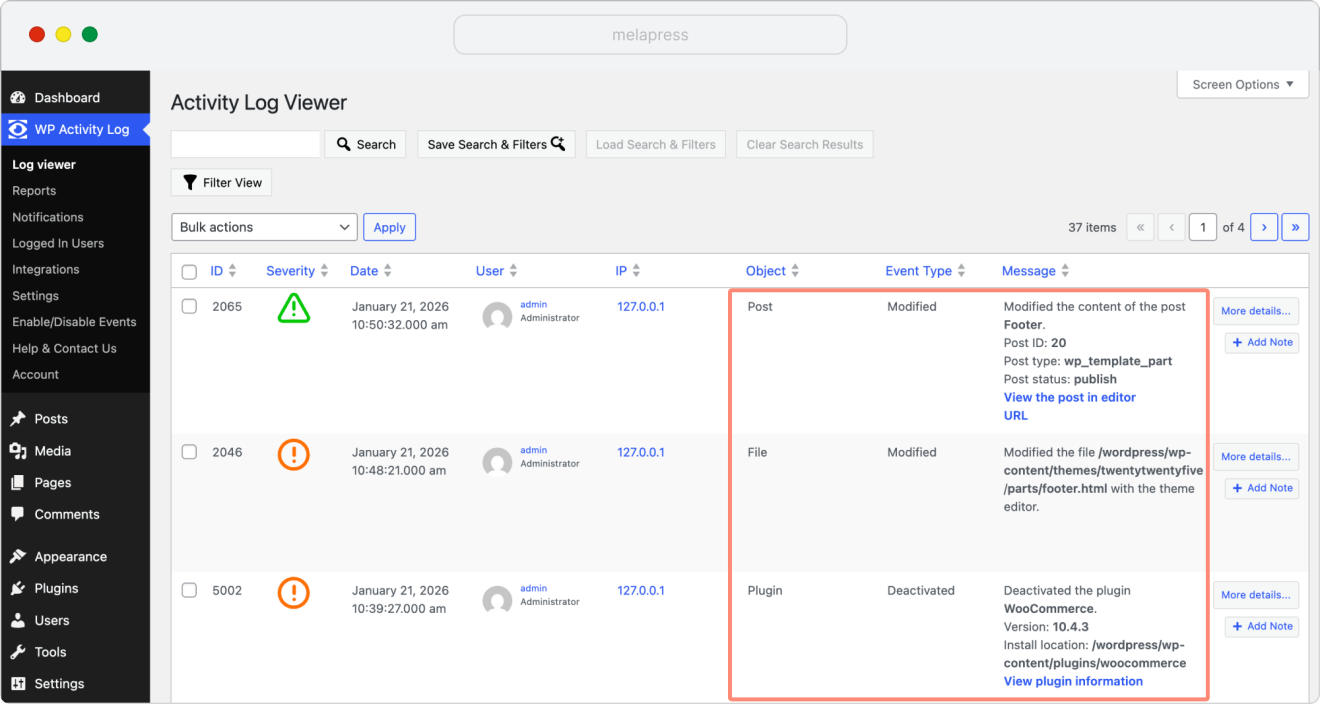
An activity log and a file integrity monitor therefore provide different types of visibility.
An activity log tells you about user and system activity inside WordPress.
A file monitor, like Melapress File Monitor, monitors the files underneath WordPress.
This can detect:
- New files
- Modified files
- Deleted files
- File permission changes
- Modified or missing WordPress core files
For WordPress core, it can compare file checksums against the official files in the WordPress.org repository. For other files, it establishes a baseline and compares subsequent scans against it. This is particularly useful because unexpected file changes can sometimes be one of the first visible signs that something has gone wrong.
For example, if an unfamiliar PHP file suddenly appears in a WordPress core directory even though no legitimate website work was taking place, that deserves investigation.
At the same time, not every file change indicates an attack. Plugin and theme updates legitimately modify files, which is why file changes should always be considered in context.
Turn security logs into useful alerts
Keeping a detailed activity log is valuable, but very few administrators have the time to watch it continuously. A more practical security-monitoring setup combines Logging for investigation and historical context with Notifications for activity that requires timely attention.
The trick is deciding what deserves an alert.
A good starting point might include:
- Creation of administrator accounts
- Administrator role changes
- Important password or application password changes
- Repeated failed logins against real users
- Administrator logins under unusual conditions
- Plugin installations
- Major security-related setting changes
- Unexpected WordPress core or file modifications
For example, WP Activity Log Premium’s custom notifications allow several conditions to be combined. You could choose to receive an alert when an Administrator logs in from an IP address other than your known office or company IP address rather than receiving an alert for every administrator login.
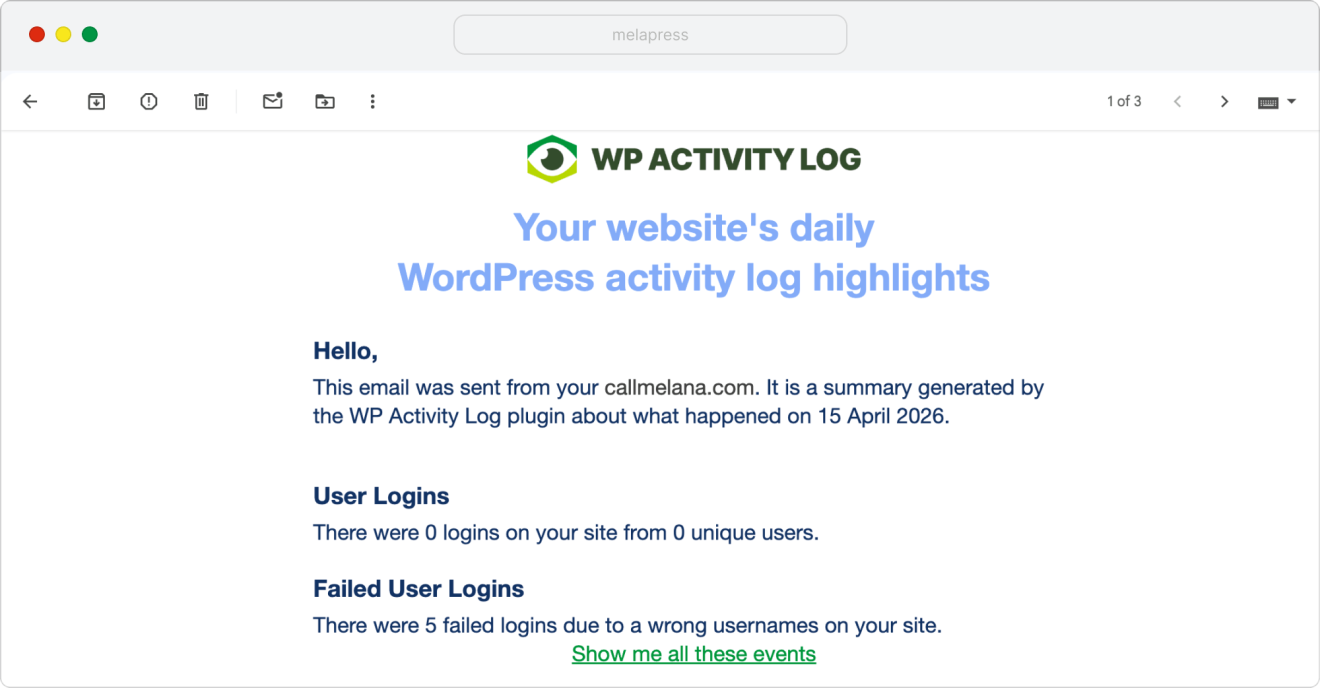
This approach dramatically reduces alert fatigue.
The objective isn’t to know about every mundane action taking place on WordPress.
It is to make sure the activity that might require your attention does not disappear among thousands of routine events.
Incorporating WordPress security monitoring into your broader security monitoring operation
For larger organizations, WordPress security monitoring will often form part of a wider security monitoring operation rather than being managed in isolation.
WP Activity Log Enterprise can mirror WordPress activity logs to external logging services and SIEM platforms, allowing WordPress events to be analyzed alongside logs from servers, applications, firewalls, identity systems, and other infrastructure. Logs can be mirrored in real time to destinations including Syslog, AWS CloudWatch, Loggly, Papertrail, and log files, which can in turn be ingested by your wider security tooling.
This allows a security team to correlate WordPress activity with events elsewhere in the organization. For example, an administrator login followed by a plugin installation can be investigated alongside authentication, network, or endpoint activity relating to the same user or IP address.
You do not necessarily have to export every WordPress event either. WP Activity Log allows mirroring connections to be filtered so that only selected events are forwarded, helping security teams concentrate on the activity that is relevant to their monitoring and detection rules.
Activity logs can also be stored or archived in an external database, separating the audit trail from the production WordPress database and providing additional options for centralized logging, long-term retention, and compliance requirements.
For organizations already operating a SIEM or centralized logging platform, this means WordPress does not need to become a separate monitoring silo. Its user, authentication, configuration, and other security-relevant activity can become another source of telemetry within the wider security operation.
What should you do when security monitoring finds something suspicious?
An alert does not automatically mean your website has been hacked. If you find something that looks suspicious, start by establishing whether the activity was legitimate and what exactly the actions were.
For example, if you receive a notification that an administrator account was created:
- Check which user created the account.
- Verify whether the change was authorized.
- Review other activity from the same user and IP address.
- Check which sessions are currently active.
- Look for related plugin, setting, or file changes.
If you establish that the activity is unauthorized, the next steps will depend on the incident. You may need to terminate suspicious user sessions, disable or remove compromised accounts, reset passwords, along with various other steps.
Do not stop at the first visible symptom. For example, deleting an unauthorized administrator account is not enough if the attacker originally gained access through a vulnerable plugin and can simply create another one.
The monitoring data you have collected can help establish the sequence of events and determine how far the incident went.
To dive deeper into this topic, check out our post about how to clean a hacked WordPress website.
Monitoring and prevention should work together
Preventive controls help reduce the likelihood of compromise. Monitoring tells you what is happening when someone tries to get in, or succeeds.
It’s not realistic to expect any preventive security measure to make it impossible for a bad actor to gain access to your website. As long as legitimate users can access your WordPress site, there will always be some route an attacker can attempt to exploit. Preventive measures can make that considerably more difficult, but they cannot eliminate the risk entirely.
This is why prevention and detection should work hand in hand. When building out your WordPress website’s security, security monitoring should form part of a broader set of controls that also includes measures such as strong authentication, access controls, updates, vulnerability management, and backups.
The goal is not only to make an attack harder to carry out, but also to make sure that if something does happen, you have the visibility needed to identify it quickly, understand what happened, and respond.
Frequently asked questions
Does WordPress keep a failed login history by default?
WordPress does not provide a comprehensive, searchable failed-login history in the dashboard by default.
An activity logging plugin such as WP Activity Log can maintain a record of failed and successful login activity along with contextual information such as the user, IP address, timestamp, and other relevant event metadata.
Are failed WordPress login attempts always a security problem?
No. Failed login attempts happen on virtually every public-facing WordPress website. Users forget passwords and automated bots continuously try random username and password combinations.
Repeated failures against a real, privileged account or other unusual login patterns deserve more attention than random failures involving usernames that do not exist.
Should I get an email for every WordPress security event?
Usually not.
Too many alerts can cause alert fatigue and make genuinely important events easier to miss.
Use the activity log to keep the complete historical record, then configure notifications only for activity that requires timely investigation or action.
Is WordPress security monitoring enough to secure a website?
No. Security monitoring is one layer of WordPress security.
It should be used alongside measures such as updates, backups, strong authentication, two-factor authentication, login protection, appropriate user permissions, vulnerability management, and other security controls relevant to your website.