



Updated on 15 April, 2026 by Lana Miro. Reviewed by Bram Vergouwen | Published on 10 February, 2026
WordPress Website Defacement: How to Monitor, Detect, and Prevent
Website defacement refers to unauthorized changes made to the publicly visible part of your website. It’s like someone sneaking in to redecorate your homepage or slipping in spammy links where you wouldn’t notice.
Defacement can impact your search rankings or brand, and can sometimes even lead to legal/compliance issues.
In this article, we explain why website defacement happens, how to spot it early, and how to stop it before it becomes a bigger problem.
Note: While this guide focuses on website defacement in a malicious sense, the monitoring and detection steps also apply to accidental changes (such as unintentional content edits and deletions, or layout-breaking changes after team edits). Visual monitoring and activity logging work the same way regardless of whether the damage was intentional or accidental.
Table of contents
How defacement happens
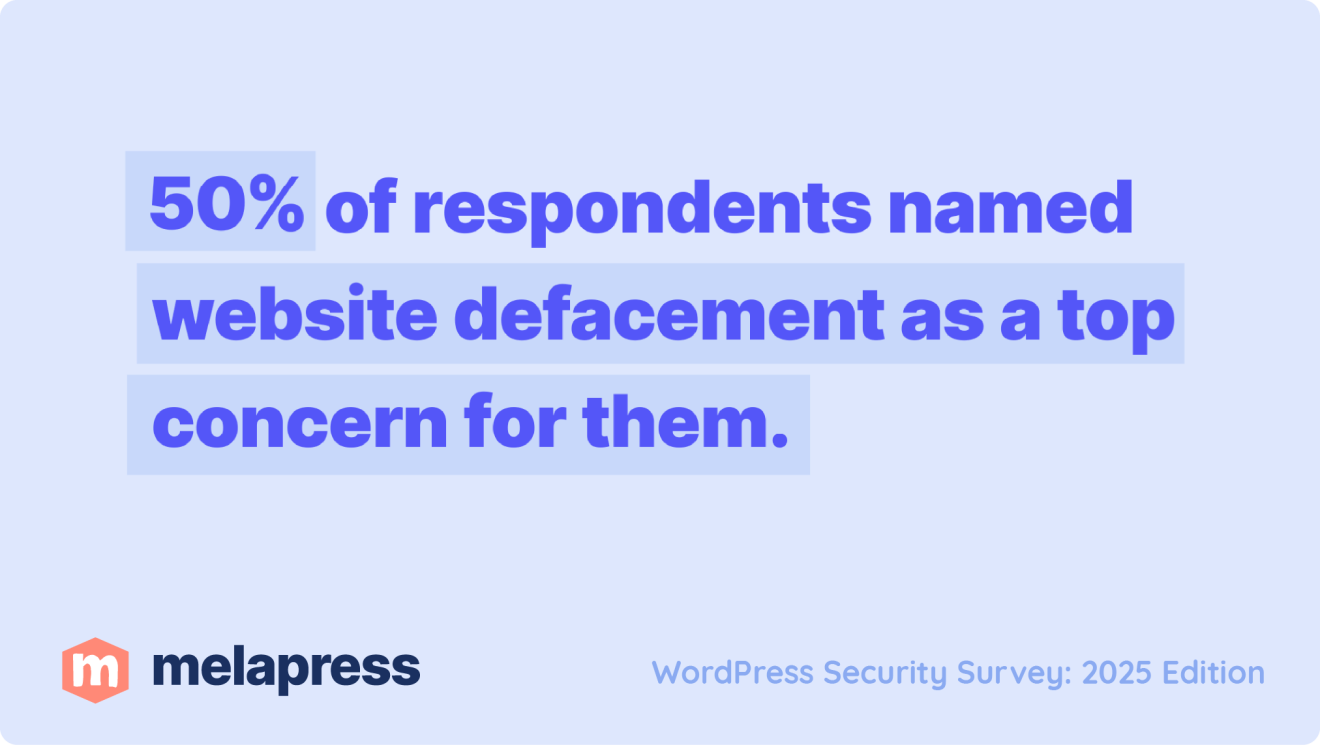
In our yearly WordPress Security Survey, 50% of respondents said website defacement was a top concern for them. That’s why we decided to explore this topic in more depth and help you understand why defacements happen and how to better prevent them.
Why bad actors deface websites
Website defacement happens for various reasons, be it financial gain, sabotage, or due to political reasons. Some of the most common reasons include:
- Financial gain: injecting spam links, redirecting visitors to phishing pages, or blackmailing site owners for payment.
- Political or ideological motives: using defaced pages to publish messages, manifestos, or propaganda for visibility and protest.
- Reputation damage: intentionally harming a business’s credibility, trust, and search rankings, even if the defacement is short-lived.
- Testing access for larger attacks: confirming control of a site before escalating to data theft or malware deployment.
Although companies and institutions with a lot of media exposure, or those that work in politically sensitive fields, are more likely to fall victim to hackers or groups/individuals with political motives, regular small businesses are far from exempt from website defacement. There are various other reasons why even small, local businesses could be a target, and that’s important to keep in mind.
Main causes of website defacement
Many defacement incidents are caused by automated attacks, where bots exploit common weaknesses across large numbers of sites. That being said, targeted attacks are also common, which can exploit different security weaknesses in a website/organization.
In many cases, website defacement isn’t caused by advanced techniques on the part of the bad actor, but by preventable issues. Some of the most common causes include:
- Outdated plugins or themes containing known vulnerabilities that bad actors actively scan for. Once a vulnerability is known, automated attacks can begin within hours, making timely updates critical.
- Weak passwords or weak user account security policies make it easier for bad actors to brute force their way in. Dictionary and brute force attacks can involve trying millions of common passwords and combinations, and it only takes one successful match to give an attacker access to your website. Without strong password requirements and protections like two-factor authentication (2FA) or login attempt rate limiting, your user accounts are at risk.
- Too broad user permissions give user accounts more access than they need. This means more accounts can make major changes, giving bad actors more user accounts to target, increasing the attack surface.
- Insecure hosting or server misconfiguration resulting in poor file permissions, shared hosting environments, or compromised server accounts. This can allow attackers to modify website files even without direct WordPress access.
- Lack of training means users don’t understand the security risks of their actions. For instance, sharing passwords, clicking suspicious links, or falling for phishing attacks can expose their credentials to attackers.


Track website changes to detect and investigate defacement
Preventing website defacement
There’s no way to 100% prevent website defacement, other than not having a website to begin with. That’s why the majority of this post focuses on detecting and monitoring for website defacement, as it’s the most common missing puzzle piece when it comes to tackling website defacement.
That being said, there are a few steps you can take to help to significantly reduce the chances of a bad actor changing the content of your website.
Keep WordPress core, plugins, and themes up to date
Many defacements exploit known vulnerabilities for which patches already exist. Delaying updates gives automated attacks an easy entry point. A good WordPress update strategy can help reduce risk substantially.
Remove unused or abandoned plugins and themes
Even inactive or forgotten components can contain vulnerabilities that attackers exploit to gain access. If you don’t use a plugin or theme, the best course of action is usually to remove it from your site.
Enforce strong passwords and enable two-factor authentication (2FA)
Your user accounts remain the weakest links in WordPress security, and they’re especially interesting targets for website defacement. Using a plugin like Melapress Login Security to secure your WordPress login and implement security policies can help to ensure user accounts remain secure. A good WordPress two-factor authentication plugin is also important, helping you to further secure your WordPress login processes.
Secure the hosting environment
Ensure proper file permissions, isolate websites where possible, and keep server software up to date to prevent attackers from modifying files outside of WordPress. Good managed WordPress hosts should already cover this, although it’s always good to get familiar with what security measures they take.
Educate users on basic security hygiene
Training users to recognize phishing attempts, avoid sharing credentials, and use secure login practices helps prevent credential theft. As is generally the case in cybersecurity, the user is often the weakest link, and educating users remains one of the most underleveraged security measures taken.
Apply the principle of least privilege
Only give users the permissions they actually need. Limiting administrative access and ensuring user accounts only have the permissions they need reduces the number of accounts that can be abused if compromised. A plugin like our newly launched WordPress user role editor is a great starting point.
The majority of the things mentioned above are general WordPress security measures that will also help protect against other attacks. If you’d like to learn more about general WordPress security, you can check out our WordPress security guide.
Monitoring for website defacement in WordPress
Taking measures to detect website defacement when it does happen is a commonly missed piece of the puzzle when it comes to security. There is no way to prevent security incidents completely, and good monitoring can be the key difference between detecting and remediating swiftly and having the issue persist. The following two steps will help you lower the risk by catching issues early with visual monitoring and activity logging.
Side note: the below steps can also help you monitor for unexpected website changes caused accidentally by employees, freelancers, or due to system changes like automatic updates that were configured. They’ll not only help you spot them when they happen but also quickly solve any potential issues.
Visual Monitoring
Visual monitoring tools automatically capture screenshots of your website and establish a baseline for how each page should look. These tools use various comparison methods, such as screenshot analysis, pixel comparison, or DOM structure checking. Then revisit those pages on a schedule you define (hourly, daily, or at a custom schedule) and compare new screenshots against the original state.
What visual monitoring catches
Visual monitoring focuses on what visitors actually see in their browser. It works by detecting unexpected visual changes, not by determining whether those changes are malicious.
It can alert you to visible changes, such as:
- New or altered messages on a page
- Injected links or unfamiliar content
- Unexpected ads or banners
- Newly added forms that could be used for phishing
- Sudden redirects to other pages or domains
- Broken layouts or styling problems
Because visual monitoring primarily reports that something visually changed, each alert should be reviewed to confirm whether the change is legitimate, accidental, or malicious. This makes it a strong detection signal, even if, on its own, it’s not enough to determine whether website defacement is at play.
How to visually monitor for website defacement
There are various website change-detection tools for visual monitoring, such as VisualPing and PageCrawl.io. Both work well for WordPress sites because they monitor publicly accessible pages.
For this example, we’ll use VisualPing. To get started, create an account on the VisualPing website and click “New Job” in the dashboard.
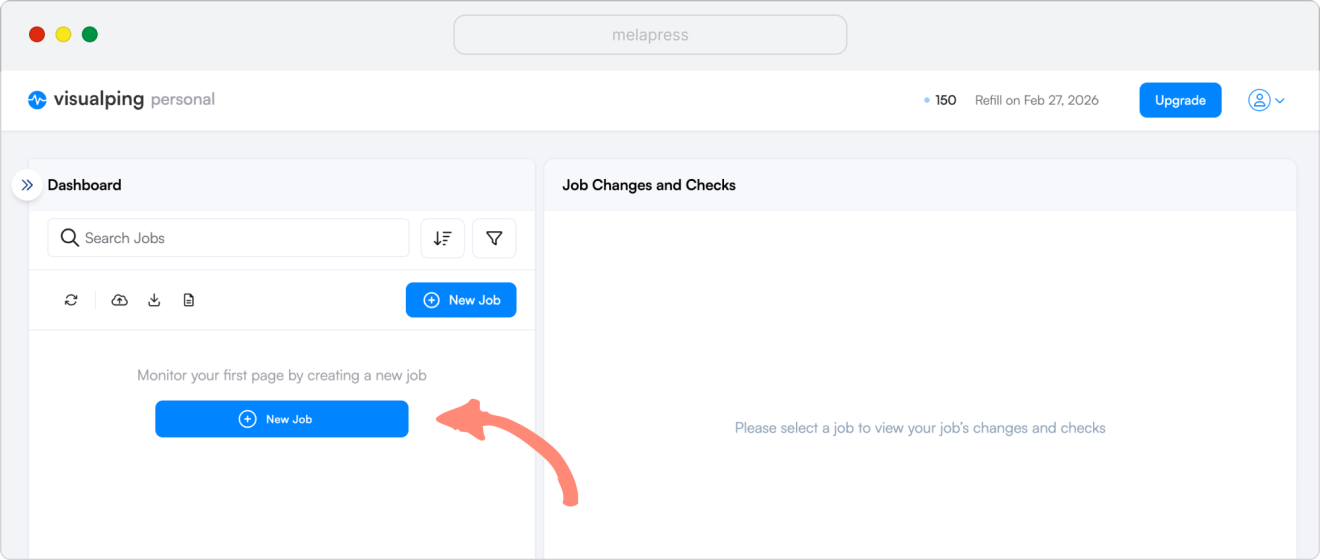
Next, add your website homepage or another important page and configure the monitoring settings:
- Choose when to receive alerts (for example, Any important changes or When contact form is updated)
- Optionally adjust the comparison type (all changes or only visual/text changes)
- Select how often the page should be checked (hourly, daily, weekly, or monthly)
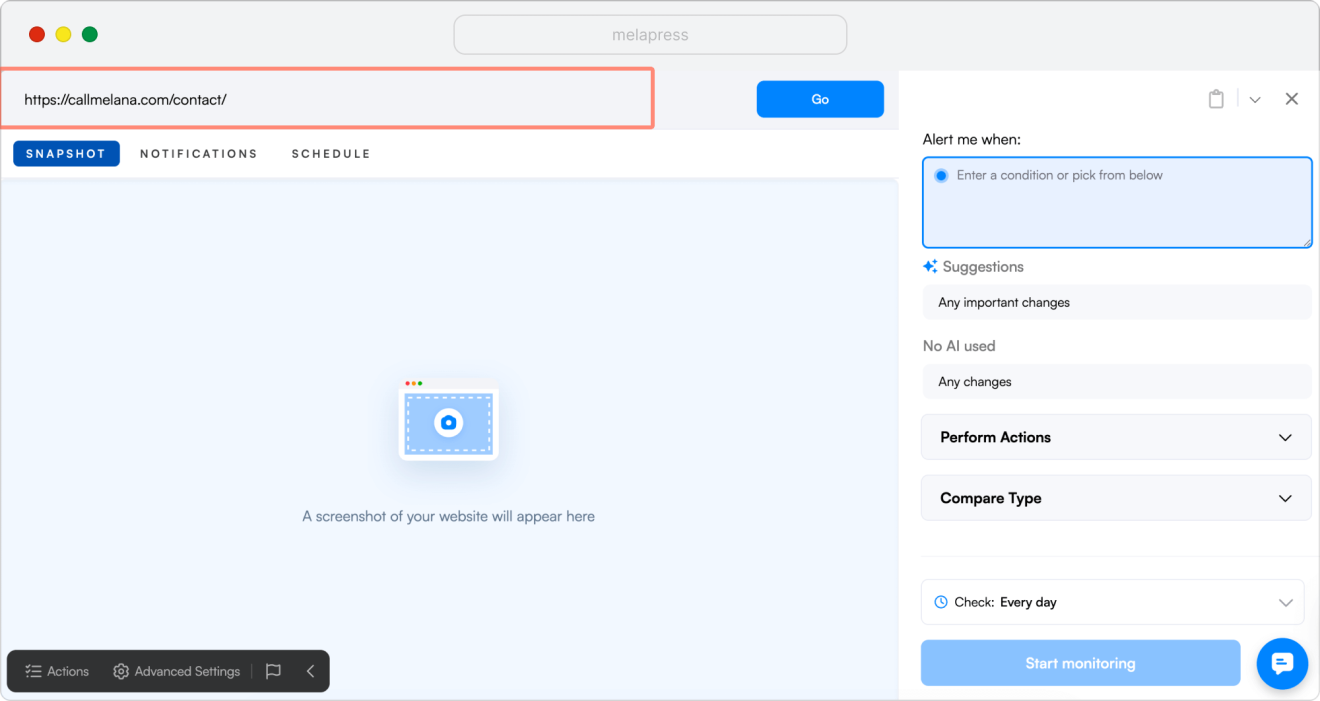
After you configured all the settings you need, press Start monitoring. Begin by adding your most important webpages, like your homepages and key pages where conversions happen. Below is an example of several pages added to the monitoring dashboard:
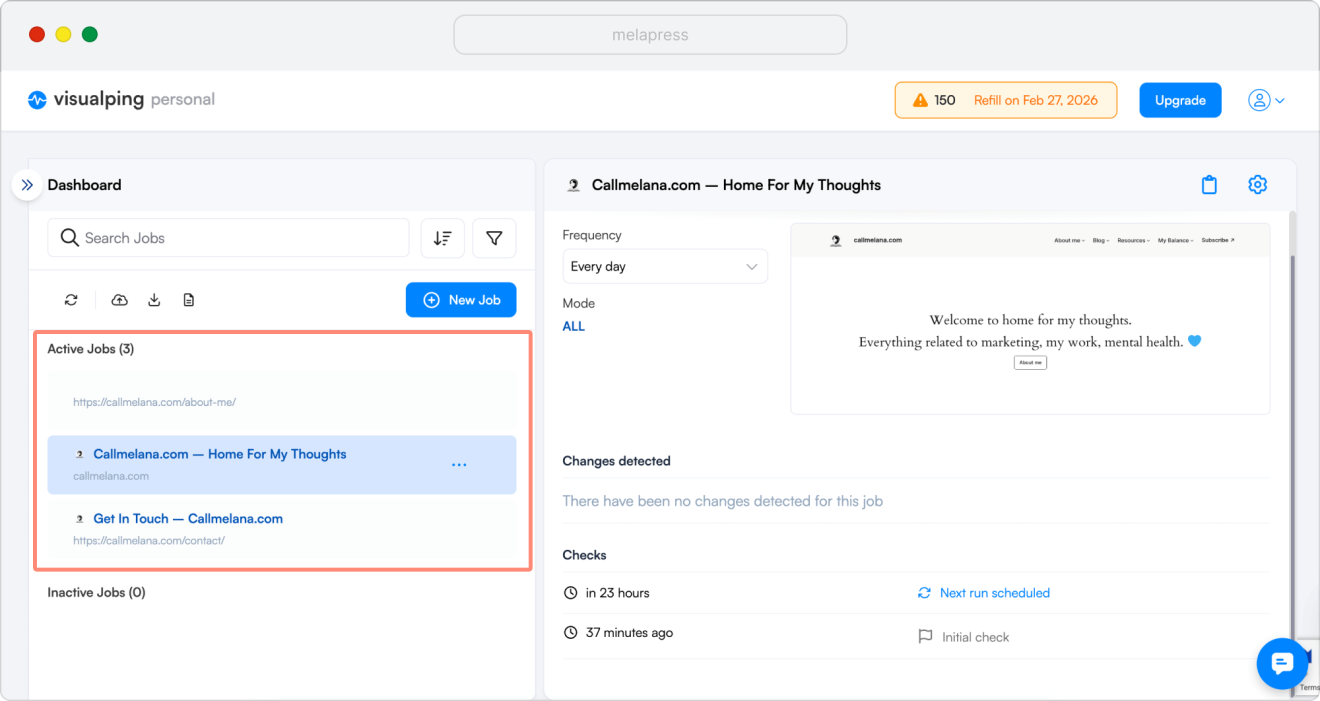
After setup, VisualPing alerts you whenever it detects visual changes. For example, here’s a notification showing an image being added to a contact page:
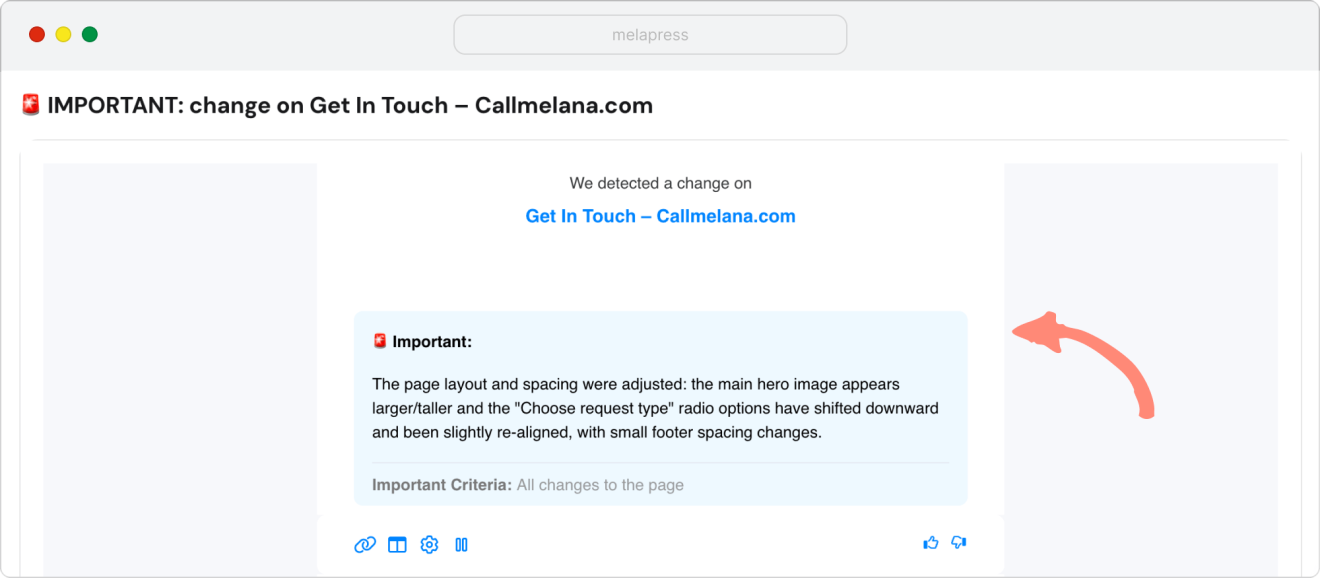
All detected changes are logged in the VisualPing dashboard, where you can compare the original version of the page with the updated one:
Click to accept marketing cookies and enable this content

Limitations of visual monitoring
Visual monitoring only sees frontend changes. It detects any change, including defacement, when edits become visible, often providing context about what elements changed. What it doesn’t do is tell you what happened in the WordPress dashboard leading up to the change, like which user account made the change, what other changes might have occurred, etc. For that, we need an activity log.
Using a WordPress activity log to detect and prevent website defacement
With visual monitoring, you’ll see what changed, but you won’t know how it happened, who did it, or when. That’s where activity monitoring helps.
A WordPress activity log, also called a security audit log, records events and actions taken on a website.
WP Activity Log, a plugin we have been developing here at Melapress for well over a decade now, monitors actions on your WordPress site. It creates an audit trail, so you can identify who made changes and investigate the incident.
What activity logging catches
Activity logging records user activity, such as logins, failed login attempts, and password changes, making it easier to spot suspicious access attempts early. It also tracks user account changes, including new users, role updates, profile edits, and deletions. Perhaps most importantly, it tracks changes users make on the site, including content changes in the WordPress backend, changes to posts and pages, as well as other changes made to plugins, themes, and similar.
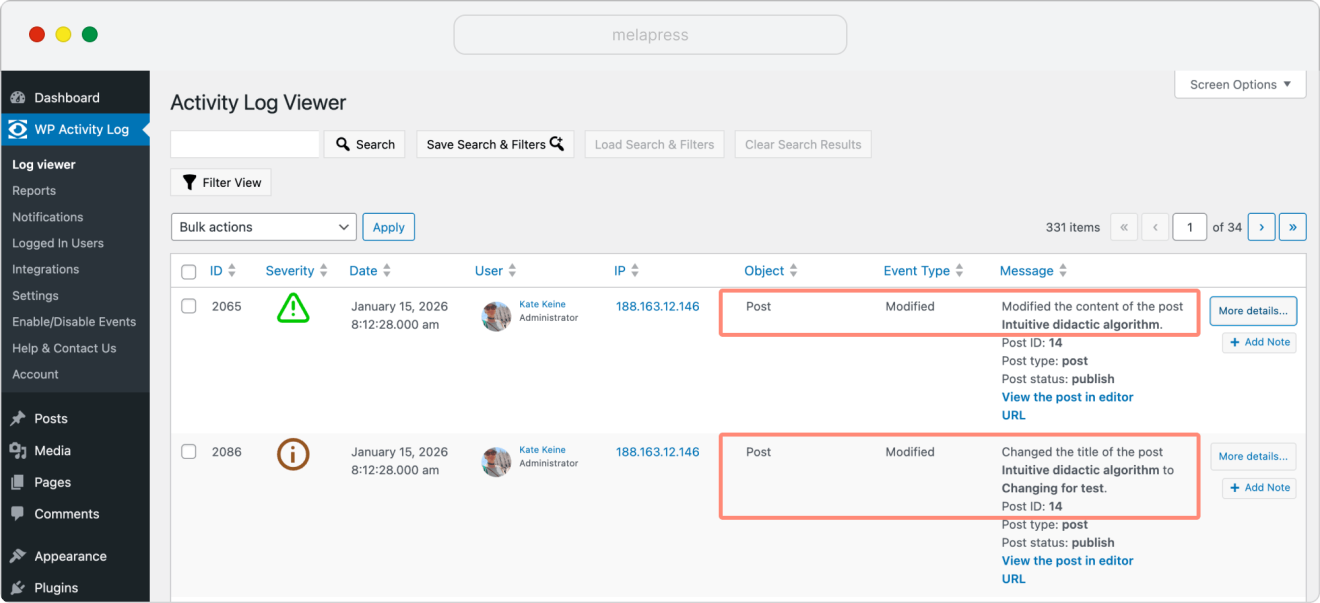
Note: To better understand what actions and changes can be tracked, check out the full list of WP Activity Log plugin features.
Here is a quick example of someone adding a link to the footer and deactivating the WooCommerce plugin, and how it is shown in the WP Activity Log Viewer:
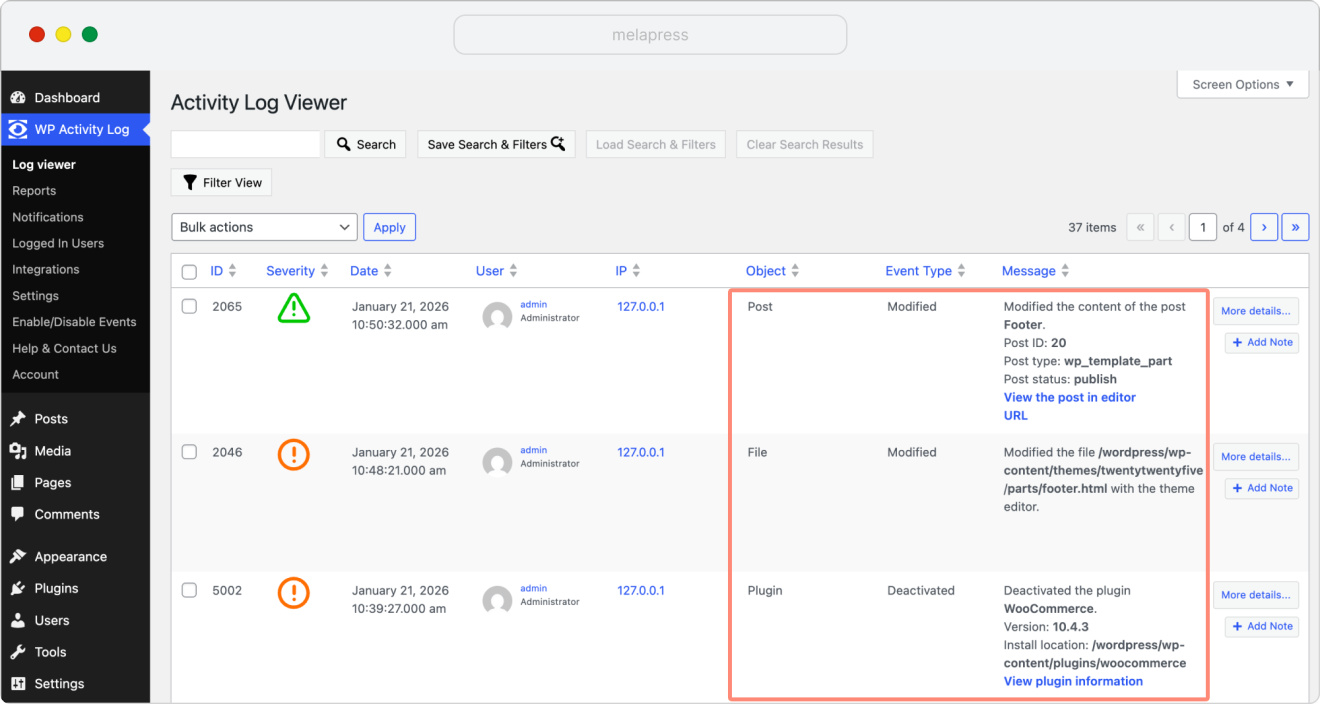
This detailed logging ensures you always have a clear record of what happens on your site and helps you diagnose the root cause of any incident.
Setting up activity logging on your WordPress site
Installing and activating WP Activity Log on your site is really simple. All you have to do is search for WP Activity Log in your WordPress dashboard, or manually download and upload the plugin from your account if you purchased the premium edition.
Next, activate the plugin and add a license key if you are using the premium version. You can then complete the setup wizard to get started quickly and ensure it’s configured to your needs.
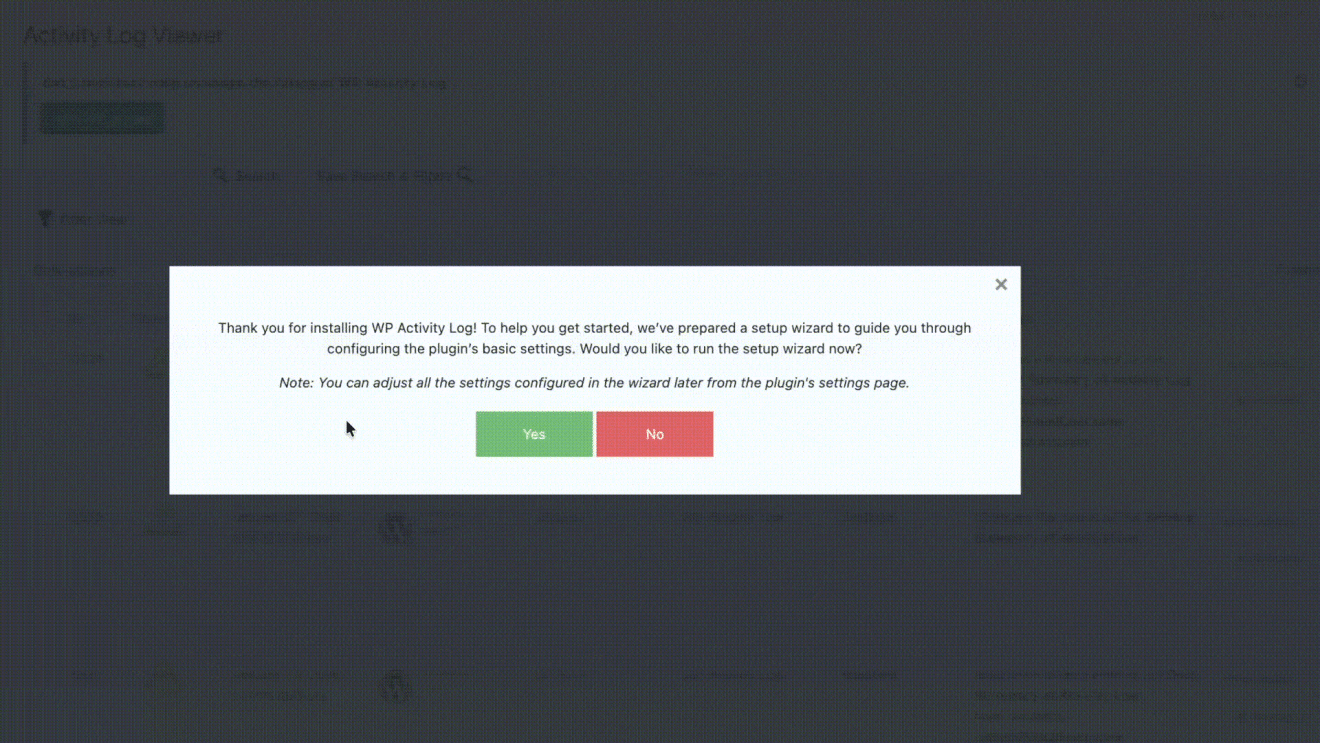
Once you click “Finish” on the final screen, activity monitoring starts immediately with no additional setup required. From there, the plugin begins recording actions across your site and building an audit trail you can rely on when investigating unexpected changes or security incidents.
Note: A dedicated setup guide provides step-by-step instructions for installation and configuration options.
Configuring alerts (premium only)
Configuring alerts can be really useful for detecting important security issues early, including website defacement. Configure alerts by going to WP Activity Log > Notifications tab. Rather than enabling notifications for every event, focus on activities that genuinely require attention to avoid alert fatigue.
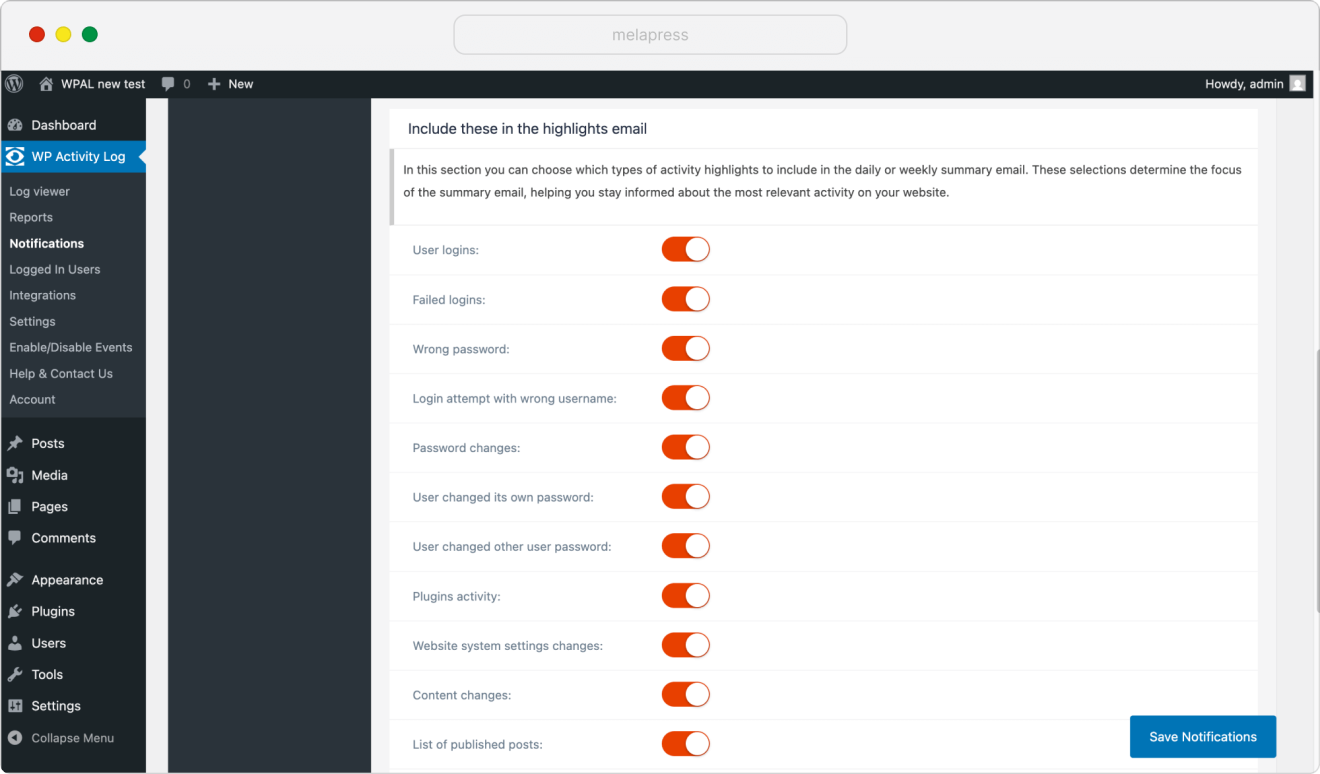
Start with alerts for the most important actions, like the creation of a new admin account, and admin account logins, and refine your settings over time as you learn what’s normal for your site. It’s easier to add more notifications later than to miss a critical warning during a security incident.
Spotting red flags: warning signs to investigate
WP Activity Log helps you catch problems before they escalate. Some warning signs to watch out for include:
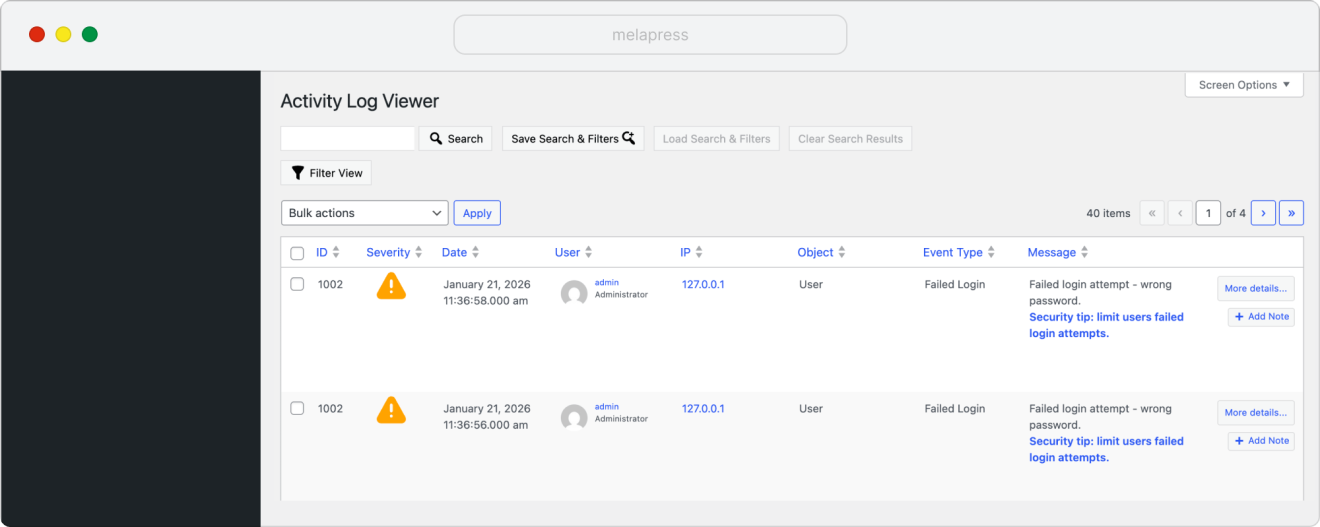
Repeated failed login attempts followed by a successful login
This may indicate credential guessing or brute-force activity, but can also result from legitimate users mistyping passwords.
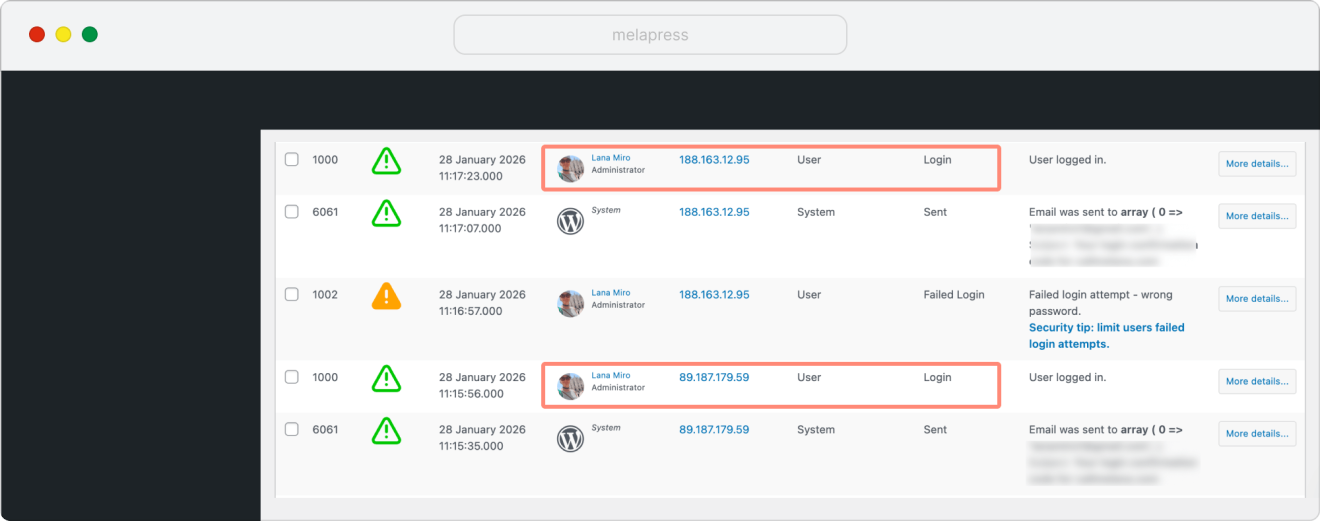
Multiple concurrent sessions tied to the same account
Simultaneous sessions from different locations may suggest credential sharing or account compromise, depending on the timing and geographic context.
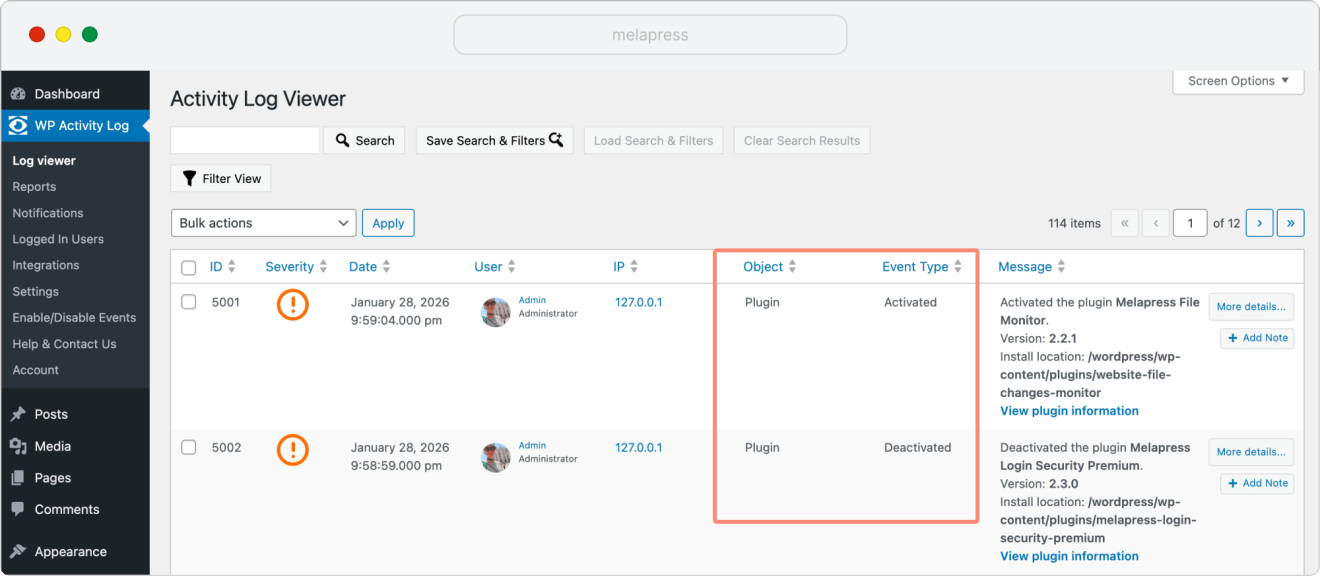
Unscheduled plugin or theme changes
Installations, activations, updates, or file modifications occurring outside scheduled maintenance windows should be reviewed carefully.
Actions that exceed a user’s expected permissions
For example, an account typically limited to editor-level access, initiating plugin installations or system-level changes, may indicate a compromised account/privilege escalation.
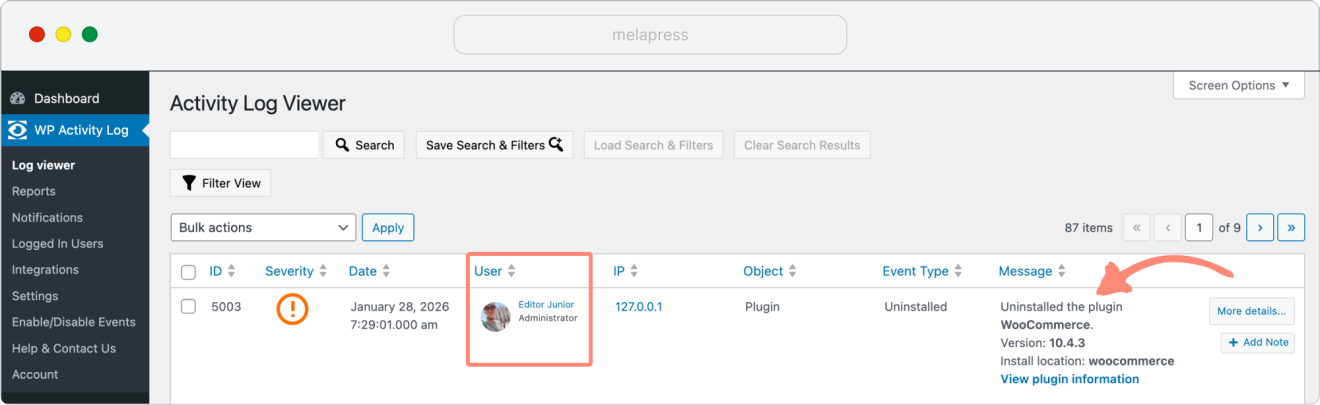
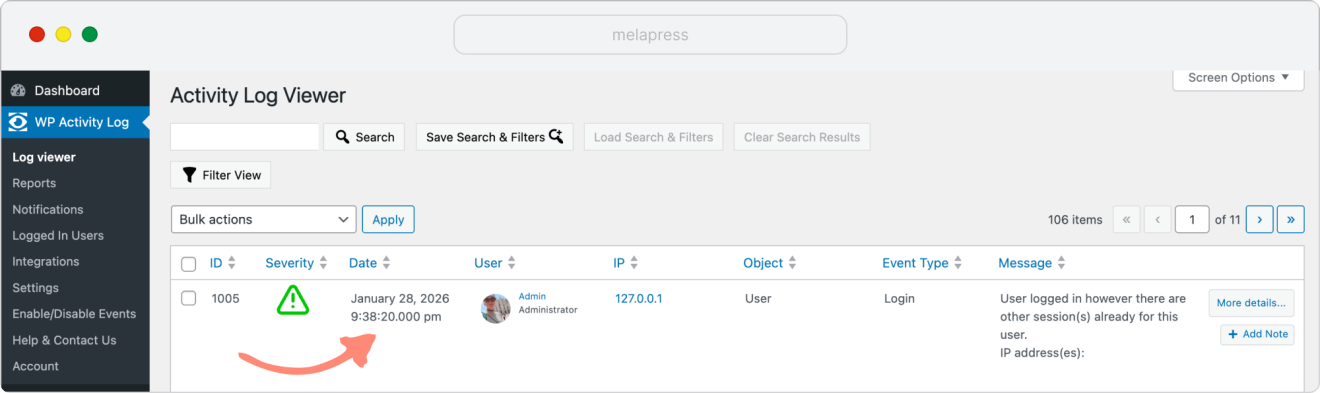
Logins or changes at atypical times
Activity occurring outside normal business hours, can be a red flag when it differs from established patterns. For example, website changes at 9:00 a.m. on a weekend for a local business that’s only open during regular business hours.
Why Visual Monitoring and WP Activity Log Work Best Together
Visual monitoring and activity logging address different parts of the problem. Together, they provide broader visibility into website changes and the factors that caused them.
Visual monitoring tells you when something changes on the site, exactly as visitors would see it. That could be any change visible to the website visitor, but it doesn’t tell you whether it’s a legitimate change or defacement. It tells you what changed and when, but it can’t tell you the cause of the change.
Activity Logs fill in the gaps. They can help show you what caused the change and the events leading up to it on the site. It records events as they occur, providing missing context and helping you to not only find out what happened, but also take swifter action when responding to potential website defacement.
Proactive Site Defacement Monitoring as Part of Your Security Processes
Starting with the basics can get you a long way toward discovering and preventing website defacement. Install WP Activity Log, enable visual monitoring for essential pages, set up alerts that match the site’s risk level, and review logs regularly. These simple steps don’t take much time but significantly reduce blind spots and strengthen your overall website security.
Don’t wait until your site is defaced to start monitoring. The comprehensive audit trail you establish now becomes your evidence during an investigation, enabling faster incident response, more accurate root cause analysis, and significantly reduced recovery time.
What is website defacement in WordPress?
WordPress website defacement refers to unauthorized changes to the publicly visible parts of a site, such as pages, posts, images, links, or layouts, on a WordPress website. This can include injected spam links, content added by a bad actor, phishing links or forms, redirects, or other forms of modified content.
How do WordPress sites get defaced?
WordPress sites are typically defaced after attackers gain unauthorized access, either by compromising user accounts, exploiting vulnerable plugins or themes, or through malware already present on the site. In many cases, attacks are automated, with bots scanning the internet for exposed sites and exploiting them at scale rather than targeting a specific website.
How can I prevent website defacement on my WordPress site?
You can take various steps to reduce the risk of website defacement, including implementing strong user account security controls like password policies, limiting login attempts, and implementing 2FA. Things like ensuring you keep plugins and themes up to date and making sure your team is aware of potential security risks, like phishing, can also help reduce the chance of your website falling victim to website defacement.
Lastly, and perhaps most importantly, setting up an audit log like WP Activity Log can help in spotting potential issues early. Activity monitoring can also help to diagnose what went wrong after an attack, ensuring you can take measures to prevent repeat events.
Can visual monitoring prevent defacement?
Visual monitoring does not prevent defacement on its own, but it helps detect it quickly. These tools compare how your pages look over time and alert you to unexpected visual changes.