Updated on 7 October, 2026
How to add zero setup 2FA to WordPress using WP 2FA
The zero-setup email 2FA method allows users to log in securely with two-factor authentication without needing to manually configure a 2FA method first. So they will automatically receive a verification code via email whenever they log in.
This method is ideal for sites that want to protect all user accounts instantly without requiring setup or user training.
What is the zero-setup email 2FA method?
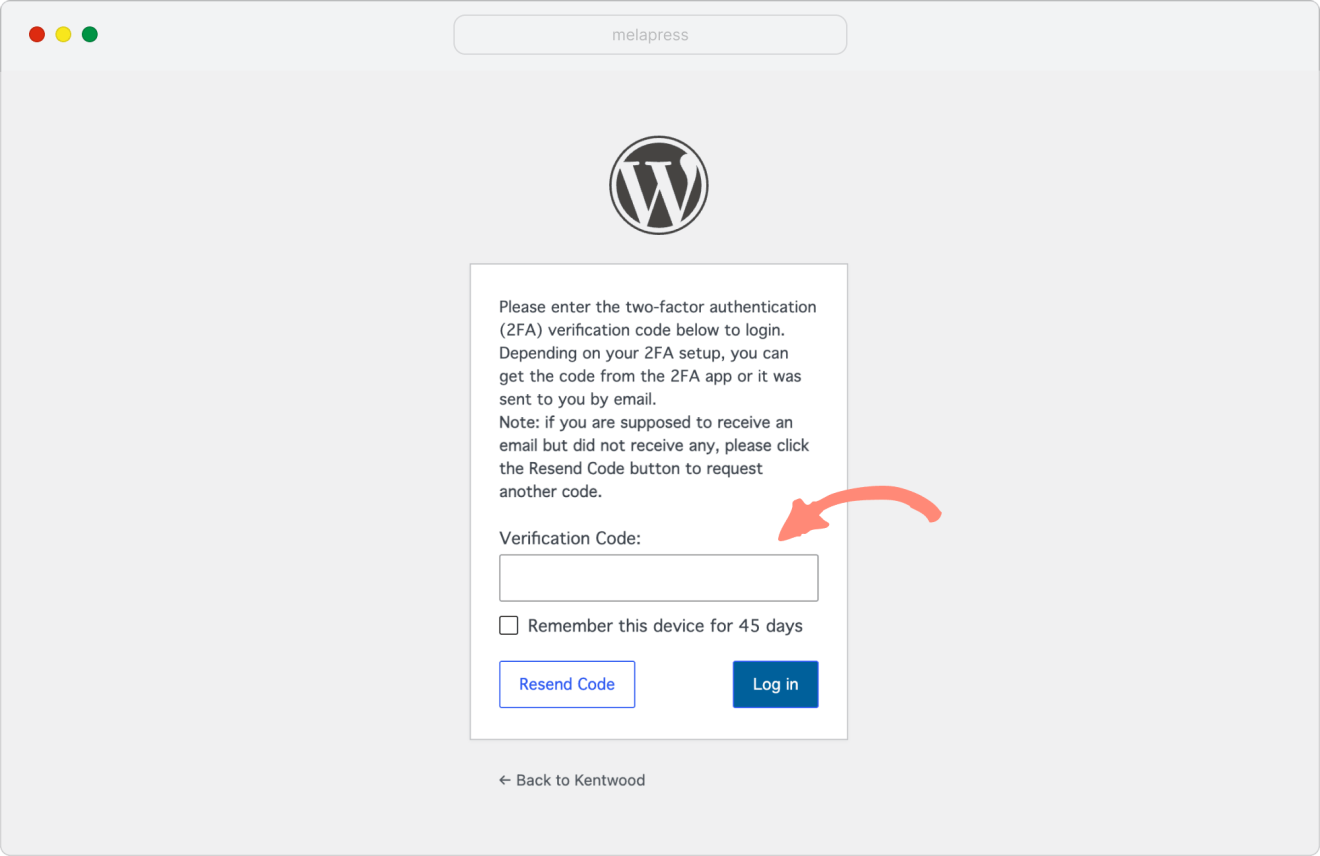
When this method is enabled, WP 2FA automatically sends a one-time verification code to the user’s registered email address whenever they log in. Users do not need to set up any 2FA method manually.
The plugin automatically generates a one-time verification code and sends this to the user’s email. This ensures that every account is protected immediately, even if the user never went through the 2FA setup wizard.
Note: The zero-setup email 2FA method is available in WP 2FA Premium.
How it works
- The user enters their username and password on the login screen.
- If zero-setup email 2FA is enabled:
- A one-time code is automatically generated.
- The code is sent to the user’s registered email address.
- The user is prompted to enter that code to complete the login.
- Once the correct code is entered, they are logged in.
How to configure zero-setup email 2FA
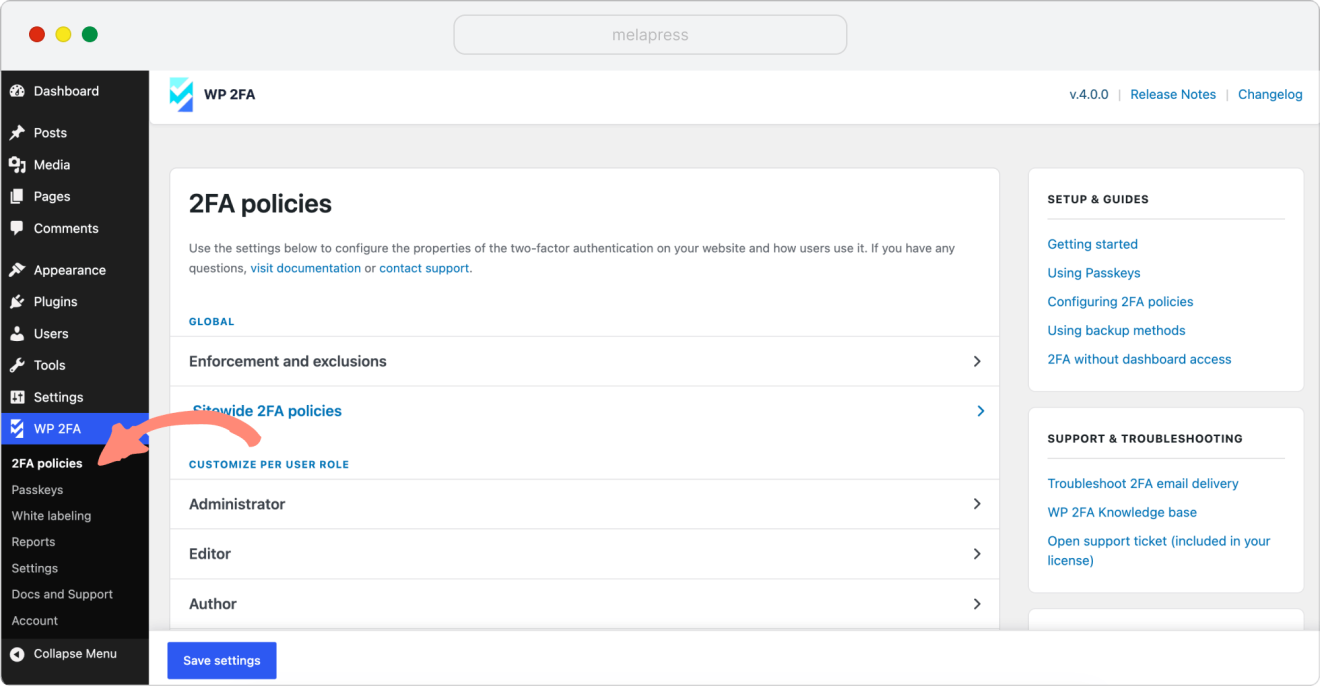
- Log in as an administrator and go to
WP 2FA > Settings > 2FA Policies.
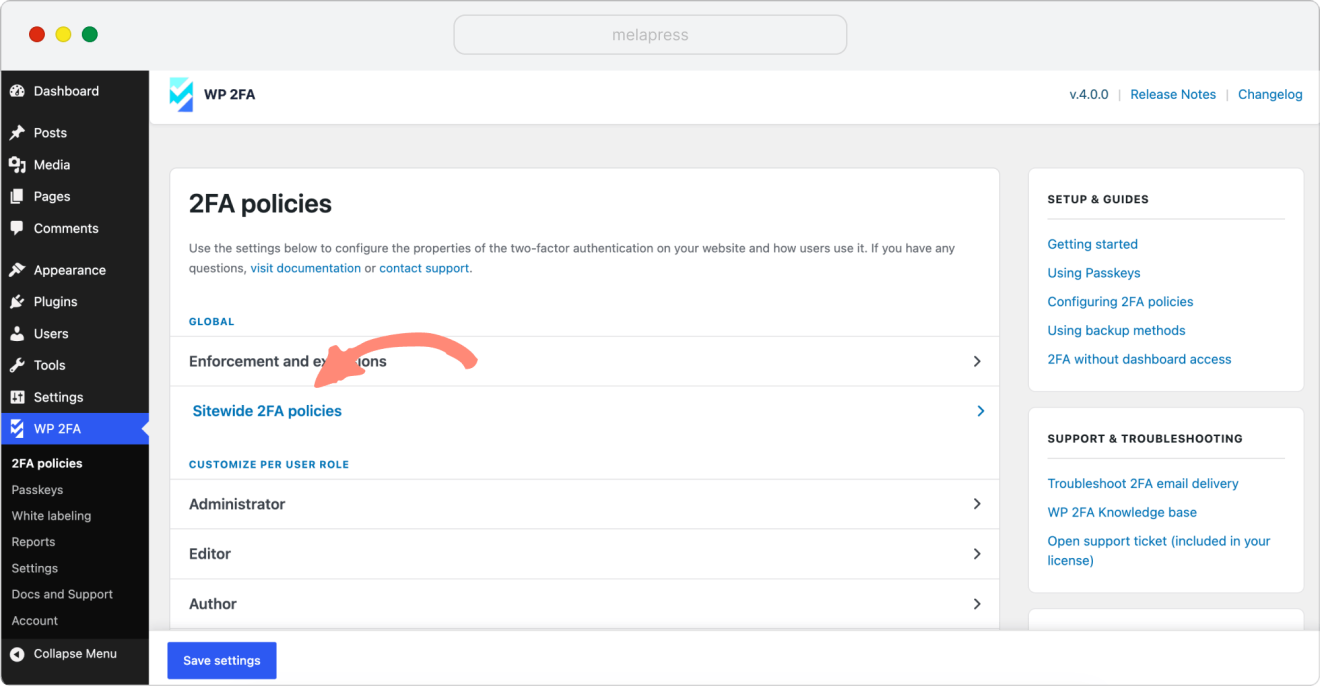
2. Click Sitewide 2FA policies section
3. Scroll through the Select primary 2FA methods section until you find the Zero setup One-time code via email option.
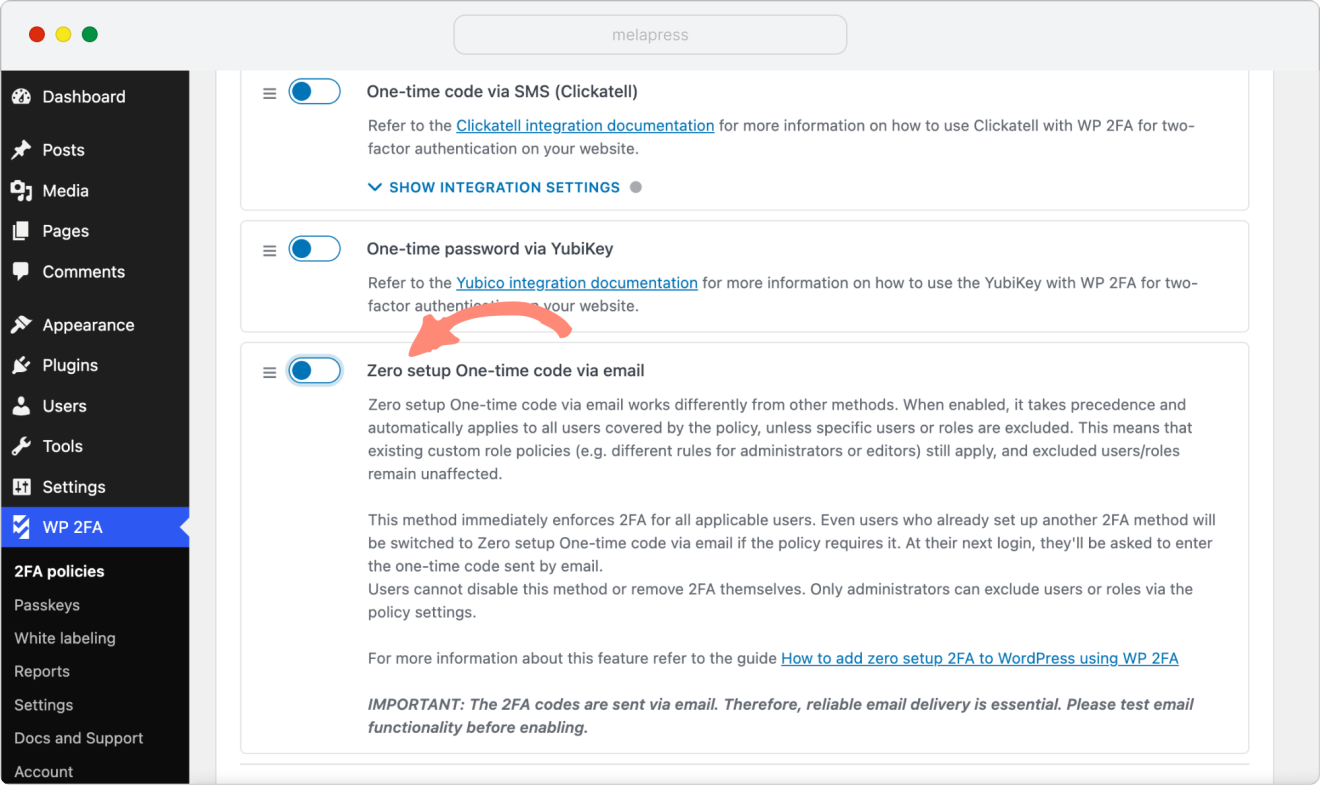
3. Enable Zero setup One-time code via email option.
4. Save your settings.
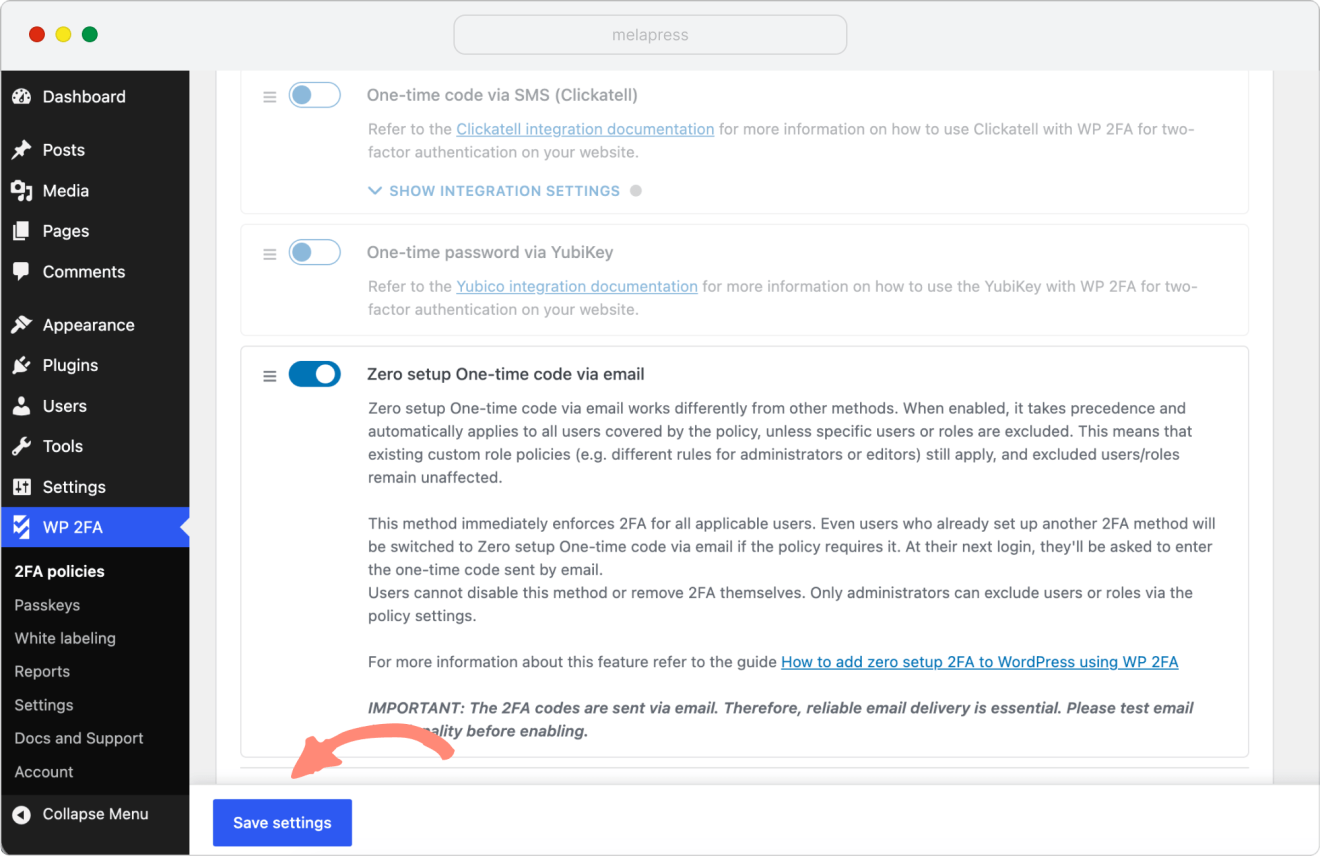
Once enabled:
- The method will take effect immediately for all applicable users.
- Other 2FA methods will be disabled automatically.
- Users will start receiving email codes the next time they log in.
Important considerations
When you enable the zero-setup email 2FA method, it overrides all other available 2FA methods in the plugin. Any existing 2FA configurations (for example, TOTP, or hardware keys) will be disabled and replaced by the zero-setup email method.
Users who previously configured a different method will automatically switch to using email verification codes. While this method is active, users cannot choose or re-enable other methods.
Users can still generate and use backup codes to log in as an alternative login method (if enabled).
Tip: If you want to allow different 2FA methods for specific roles, use the custom role policies feature. You can create a separate 2FA policy for each role and select which methods are available for that group.
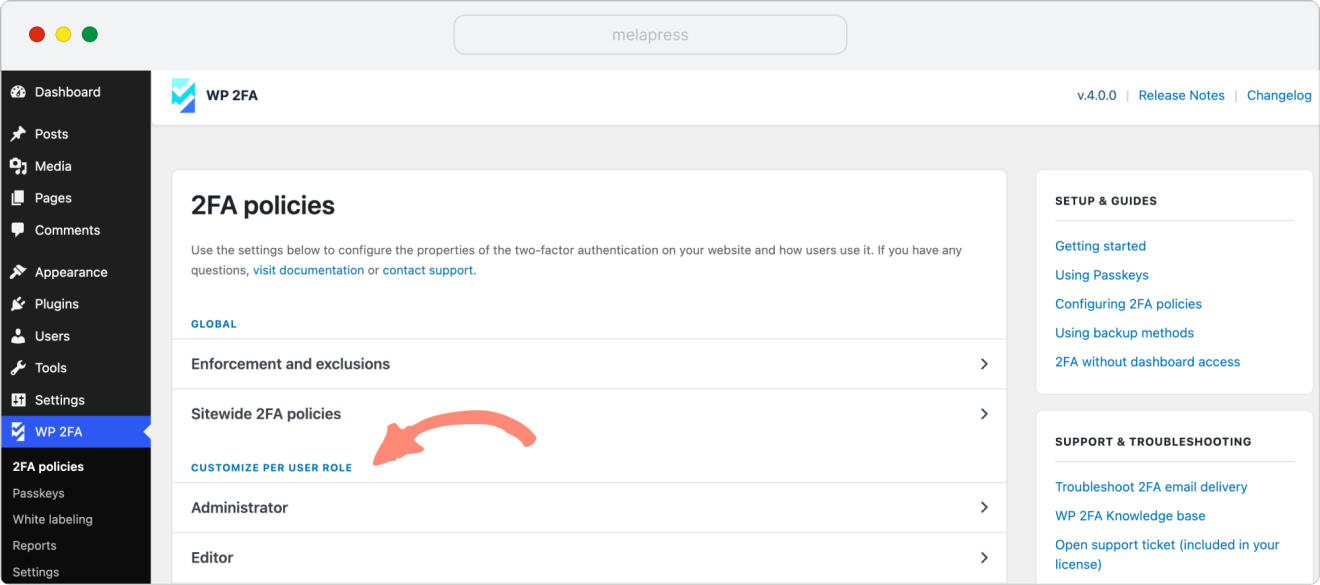
Automatic enrollment and enforcement behavior
Unlike the other 2FA methods, zero-setup email 2FA also automatically enrolls all users when it is enabled.
This enrollment happens immediately and is independent of the plugin’s 2FA enforcement setting.
- Even if your site’s policy is set to “Do not enforce 2FA”, enabling this feature will still activate 2FA for all users.
- This ensures every account is protected without requiring setup or enforcement prompts.
If you want to exclude certain users or roles, you should exclude them before enabling this method (via role policy or user exclusion).
Notes and recommendations
- This method requires users to have a valid and accessible email address associated with their WordPress account.
- If you plan to rely on this method, make sure your website can send emails reliably. For best results, follow our guide on how to improve WordPress email deliverability.
- If your site uses custom roles, configure custom role policies first to define which roles should or shouldn’t use this method.
- Once active, this feature cannot be combined with TOTP or hardware keys.
- The emailed codes expire after a short time for improved security.
To stop using it, simply disable the option in the 2FA Policies settings. Users will then return to their normal 2FA configuration or enforcement flow.