



WP Activity Log version 2 release notes
WP Activity Log release notes for all version 2 builds and releases.
Update 2.6.6
The main highlight of this update is the ability to keep a record of changes done to custom fields created by Advanced Custom Fields (ACF) and similar plugins.
Do note that we also released the new Search 2.0 add-on, with a new UI and functionality. Read the WP Activity Log Search 2.0 release notes for more information.
Logging Capabilities of Custom Fields
Prior to this release, the plugin was only keeping a log of changes done to the built-in custom fields of WordPress in posts, pages and posts with custom post type. Though with this update, it is also able to keep a record in the WordPress activity log when the value of a custom field created by ACF is changed in a post, page, post with custom post type and also user profiles.
In fact, with this update, we also introduced two new alerts:
- Alert 4015: User updated Custom Field in a user profile
- Alert 4016: User created a custom Field in a user profile
Refer to the list of WordPress activity log alerts for a complete list of changes that the WP Activity Log plugin can keep a record of on a WordPress website.
Other Notable Updates
We also included other updates in this version, such as:
- A new option to either show the Username or the First & Last Name of the users in the WordPress Audit Trial.

- Changed the naming format and location of 404 error log files. For more information refer to the logging of 404 errors with WP Activity Log. Note: we changed the naming format because there were security issues with the format we were using before. Thank you Enable Security for the proof of concept and help with this issue.
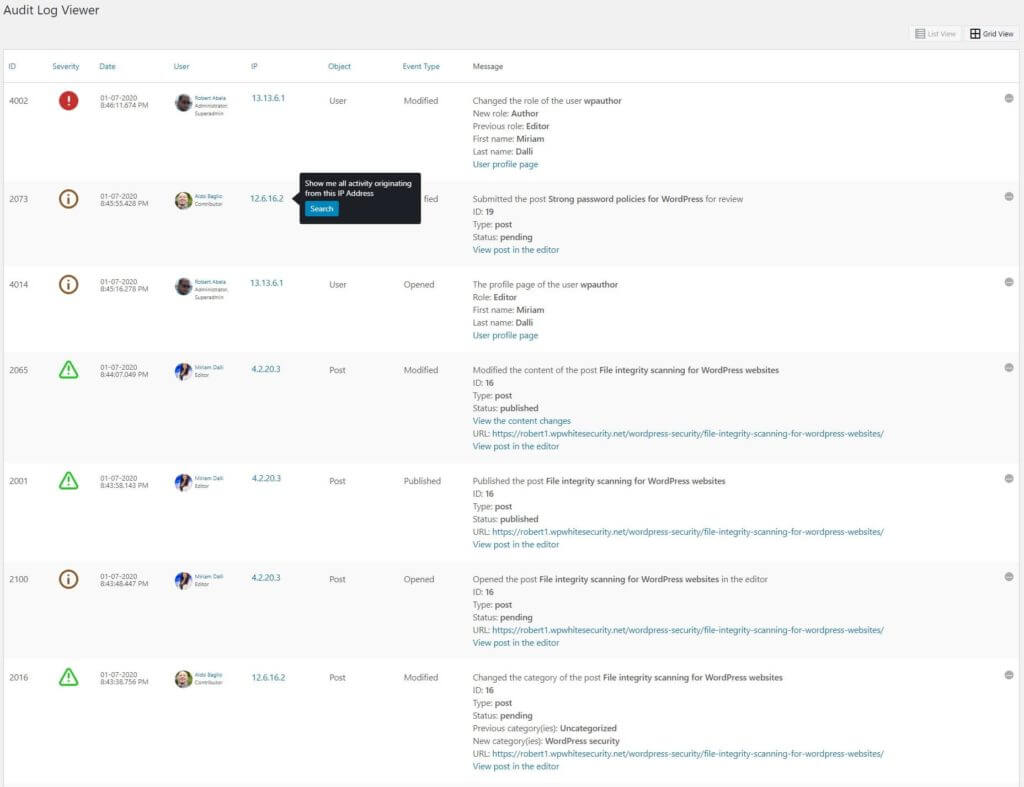
- We also added a new Tooltip functionality to filter all alerts by IP Address, as shown in the below screenshot.
Update 2.6.5
Improved Monitoring of 404 HTTP Errors
WP Activity Log now has two different alerts to keep a record of 404 HTTP errors in the WordPress activity log, which are generated when someone sends a request to a non-existing page. It has:
- Alert 6007, which is used to record 404 HTTP errors generated by logged-in users
- Alert 6023, which is used to record 404 HTTP errors generated by non-logged-in/anonymous users
The segregation of the reporting of 404 HTTP errors allows you to be more specific when configuring WordPress email notifications or when trying to track down a specific problem or suspicious behavior. It is also possible to configure logging options for both of the alerts.
Updated Encryption Mechanism
The plugin used Mcrypt encryption mechanism to encrypt the passwords of the databases used for the external database and also the archiving and mirroring of the activity log alerts. Since Mcrypt is depreciated in PHP7, we changed it to OpenSSL. Note that the Mcrypt module will still be used in the plugin to convert the old configured passwords and will be removed completely in future updates.
Other Notable Changes in WP Activity Log 2.6.5
The other notable changes we have included in this update are:
- We removed the wsal_wp_cookie completely and instead are not using LocalStorage. The cookie was being used to store which database was being used when archiving was enabled
- We improved the reporting of alert 4014, which previously was being reported even when a user was updating another WordPress user’s profile and the profile page is refreshed
- We also introduced the new Alert 1007, which is now being used to report that a user logged out another WordPress user’s session from the Users Sessions Management add-on. Please refer to the list of WordPress activity log alert IDs for a complete list of the WordPress changes that the plugin can keep track of
Update 2.6.2
Monitoring of WordPress Website Site-Wide Settings
This update’s main focus was to improve the monitoring of the site-wide comments settings of a WordPress website, including the settings of sites on a WordPress multisite installation. Below is a list of Alert IDs that the plugin will use to keep a record of such changes in the WordPress activity log:
- Alert 6008: User enabled / disabled the option Discourage search engines from indexing this site.
- Alert 6009: User enabled / disabled comments on the website.
- Alert 6010: User enabled / disabled the option Comment author must fill out name and email.
- Alert 6011: User enabled / disabled the option Users must be logged in and registered to comment.
- Alert 6012: User enabled / disabled the option to automatically close comments after a number of days.
- Alert 6013: User changed the value of the option automatically close comments after a number of days.
- Alert 6014: User enabled / disabled the option for comments to be manually approved.
- Alert 6015: User enabled / disabled the option for an author to have previously approved comments for the comments to appear.
- Alert 6016: User changed the number of links a comment must have to be held in the queue.
- Alert 6017: User modified the list of keywords for comments moderation.
- Alert 6018: User modified the list of keywords for comments blacklisting.
Monitoring of Post Specific Comments, Pingbank and Trackback Settings
In this update, we are also including monitoring capabilities of the Pingback and Trackback settings in posts. Below is a list of alerts the plugin will use to keep a record of such changes in the WordPress audit trial:
- Alert 2111: User disabled Comments/Trackbacks and Pingbacks on a published post.
- Alert 2112: User enabled comments/Trackbacks and Pingbacks on a published post.
- Alert 2113: User disabled Comments / Trackbacks and Pingbacks on a draft post.
- Alert 2114: User enabled comments / Trackbacks and Pingbacks on a draft post.
- Alert 2115: User disabled Comments / Trackbacks and Pingbacks on a published page.
- Alert 2116: User enabled comments / Trackbacks and Pingbacks on a published page.
- Alert 2117: User disabled Comments / Trackbacks and Pingbacks on a draft page.
- Alert 2118: User enabled comments / Trackbacks and Pingbacks on a draft page.
Monitoring Capabilities of Other Changes on Your WordPress Website
We also managed to include the monitoring of the following changes:
- Alert 1006: User logged out all other sessions with the same username
- Alert 4014: User opened the profile page of another user
Refer to the complete list of security alerts the WP Activity Log plugin uses to keep a record of changes in the WordPress activity log.
WP Activity Log Plugin Improvements
In this update, we also applied a few plugin improvements, which are listed below:
- We organized the list of alerts using categories and subcategories, hence now it is easier for you to find a specific alert.
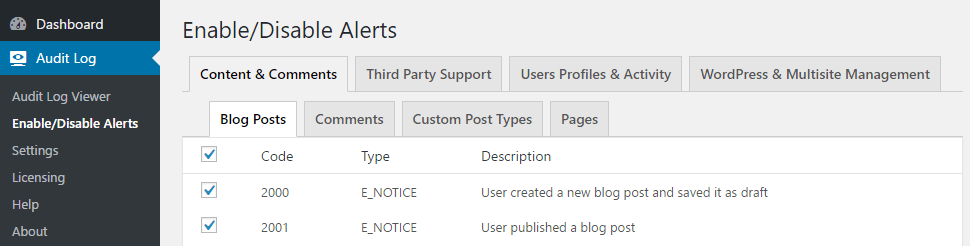
The list of the WordPress activity log alerts is split into categories
- URLs are now reported in full in the WordPress activity log (previously, they were truncated).
- When the logging of requests to non-existing pages (404s) is disabled, the alert will not contain a link to a log file that does not exist.
- Added additional checks when using the function wp_sessions_register_garbage_collection to ensure there are no clashes with other plugins.
Reports, Search, and Users Sessions Management Add-On Updates
Since in this update of WP Activity Log we changed the way alerts are organized, we also released an update for the below list of add-ons. Therefore upon updating the plugin, update the add-ons below, else they might not function properly:
- Reports Add-On
- Search Add-On
- Users Sessions Management Add-On
Update 2.5.9
We are excited to announce version 2.5.9 of the WP Activity Log WordPress plugin, and version 2.0 of the External DB premium add-on. We have really put in a lot of work in these versions, and finally, you can mirror the WordPress activity log to Syslog and Papertrail, the cloud-hosting log management system.
Here is an overview of what is new and improved in these version updates of both the plugin and its External DB add-on.
Mirroring of the WordPress Audit Trail to Papertrail and Syslog
With the new version of the External DB add-on you can mirror the WordPress activity log to Papertrial, Syslog or even an external MySQL database. There are a number of advantages you can benefit from when mirroring the activity log, such as:
- Meet regulatory compliance requirements
- Centralize logging
- Ensure the WordPress activity log is not tampered with (even in case of a hack)
- Ensure the WordPress activity log is always available, even when the website is down
Read the below FAQs for more information on how to configure mirroring of the WordPress activity log to any of the supported solutions:
Archiving of the WordPress Audit Trail
Some of the WordPress websites WP Activity Log is installed on are multisite, and they run thousands of websites. Typically such a setup generates thousands of alerts in the WordPress activity log on a daily basis. Such quantity of data can slow down the reading and writing to the database. Now you can use the Archiving feature in the External DB add-on to keep the WordPress activity log database small, manageable, and fast.
Once you configure the archiving of the WordPress activity log alerts, you can still see the archived alerts in the activity log viewer by using the drop-down menu to select the database.
You can also use the Search feature to search through the alerts in the archiving database and the Reports to generate reports from it, as explained in this FAQ about the archiving of WordPress activity log alerts.
Update 2.5.8
In this update, we standardized the date and time formats the plugin and all the add-ons use, and also the time zone.
With this update, the WordPress activity log of WP Activity Log can now be used by businesses, government agencies, and similar organizations as an official record to adhere with today’s strict compliance requirements.
Time & Date Format in the WordPress Audit Trail
The date and time format used to time stamp the alerts in the WordPress activity log will now have the same format as configured in your WordPress website. Therefore if for example the date and time formats on your WordPress are configured as mm-dd-yyyy and as AM/PM time format, the time stamps used in the WordPress activity log will be with the same format as per the screenshot below.
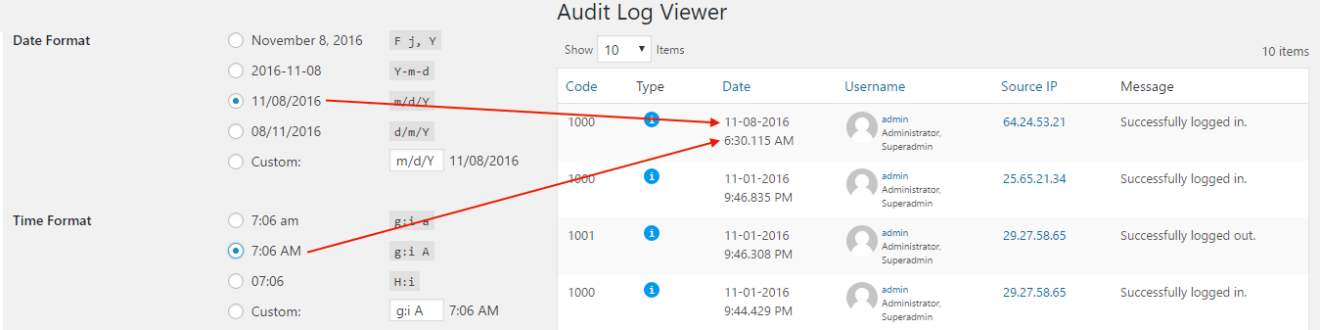
Time and Date Format in WP Activity Log Premium Add-Ons
The same update applies to all the premium add-ons, so if you have any of them installed you will be prompted to update them. In short, with this update:
- All the timestamps in the email alerts generated by the Email Notifications Add-On will use the same date and time format, and time zone configured in WordPress.
- All the WordPress reports changes generated with the Reports Add-On will use the date and time format, and time zone configured in WordPress.
- All the logged in and expiration times reported in the Users Sessions Management Add-On will use the same date and time format, and time zone configured in WordPress.
- All the input fields that require a date or time, such as the filters in the Search Add-On now have a help text that shows which format should be used when entering the date or time.
Other Updates and Improvements
With this update we also applied some improvements to the custom alerts. Please read the updated documentation on how to create your own custom alerts for WP Activity Log for more detailed information on how you can create your own custom alerts.
And last but not least, we fixed some issues reported in the plugin’s support forums and changed the extension of the request log file to php, so it cannot be downloaded directly via a normal HTTP GET request.
Update 2.4
Create Your Own Custom Alerts
Would you like to monitor changes of something specific on your WordPress that the plugin does not? Maybe monitor the changes on a custom WordPress solution or changes on a third-party plugin? In this version, we released a new hook that allows you to do just that. Refer to the Create custom alerts in the WordPress activity log document for more information.
Monitoring Changes in WordPress Menus
In this version, we also introduced new alerts to keep a record of all WordPress menu changes done from both the WordPress admin pages and the customizer. Here is a list of new WordPress menu alerts:
- Alert 2078: User created a new menu
- Alert 2079: User added objects to the menu
- Alert 2080: User removed objects from the menu
- Alert 2081: User deleted a menu
- Alert 2082: User changed the settings of a menu
- Alert 2083: User modified the content in a menu
- Alert 2084: User changed the name of a menu
- Alert 2085: User changed the order of the objects in a menu
Keeping Track of Scheduled Posts, Pages, and Custom Post Types
In version 2.4 of WP Activity Log, we also added the below alerts, allowing you to also keep a record when a WordPress user schedules a post, page, or custom post type:
- Alert 2074: User scheduled a post for publishing
- Alert 2075: User scheduled a page for publishing
- Alert 2076: User scheduled a custom post type for publishing
Refer to the complete list of WordPress security alerts for more information about every WordPress change WP Activity Log can keep track of in the activity log.
Other Improvements and Bug Fixes in this release
In this new version of WP Activity Log, we also fixed an issue where the automatic pruning of Alerts was not working in an out-of-the-box installation. For a detailed list of what is new and fixed in this version, please refer to the plugin’s changelog.
Update 2.1
Support for External DB Add-on
With version 2.1, we are also releasing the all-new External DB Add-on. This add-on enables you to save the WordPress activity log in an external database rather than the default WordPress database. By storing the activity log in an external database, you ensure the WordPress activity log is not tampered with, even in case of a hack attack. You also improve the performance of your WordPress and also ensure your business WordPress website meets today’s strict regulatory compliance requirements.
Get All the Information about a Recorded IP Address with One Click
When a WordPress change is recorded by the plugin, the date and time when the change happened, the username and the role of who did the change, and the source IP address of the user are all recorded. We integrated the plugin with WhatIsMyIPAddress.com so you can get more information about the IP address of the user, such as the ISP hosting it, the country of origin, and other geolocation information with a simple click.

The IP Address in a WordPress Security Alert can be clicked for more information about that IP
As seen in the screenshot above, the source IP address of the user is now linked, and upon clicking on it, you will be redirected to the WhatIsMyIPAddress.com website, where you can find all the information you need about that IP.
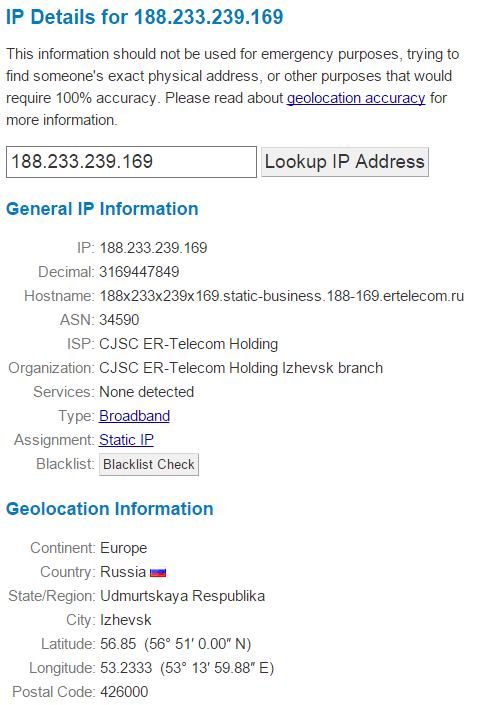
WhatIsMyIP.com provides users with all the details they need about a particular IP Address
Ability To Exclude IP Addresses from Logging
We do not recommend excluding anything from the monitoring and auditing of WordPress though if you really need to, you can now also exclude an IP address from the monitoring.
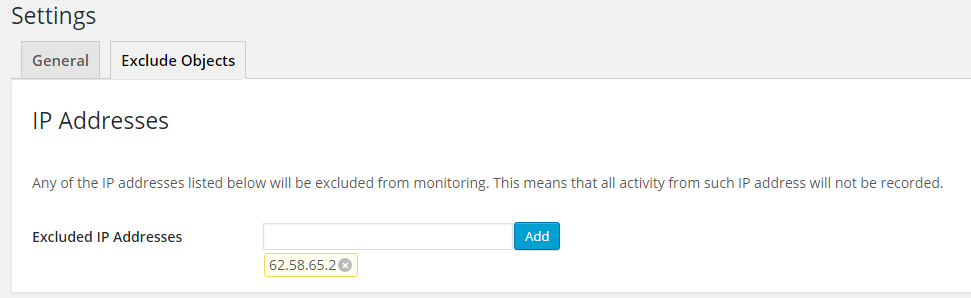
Exclude an IP Address from being monitored by the WordPress plugin WP Security Audit Log
To exclude an IP address, navigate to the plugin’s settings page, and in the Exclude Objects tab, specify the IP address you want to exclude in the Excluded IP Addresses input field and click Add. Once ready, click Save to save all the changes.
Option to Hide Specific Columns in the Audit Log
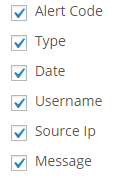
Select the columns you would like to see in the WordPress Audit Log Viewer
By default, the Audit Log Viewer, from where you can see all the WordPress security alerts captured by the WP Activity Log plugin, has the following columns; Alert ID, Type, Date (and time), Username, Source IP, and Message. In a multisite environment, the Site column is also included in the Audit Log Viewer to differentiate the alerts by site. In this new version, it is possible to specify which of the columns should be shown or not. Untick any of the columns you would like to hide from the new option Audit Log Columns Selection in the WP Activity Log plugin settings.
Option to Disable WordPress Background Tasks
WordPress has a number of background tasks which are reported by WP Activity Log plugin, such as the deletion of auto draft posts. If you do not want the plugin to record and report such WordPress background activity, tick the new option Disable Alerts for WordPress Background Activity on the plugin’s settings page.
Other Changes and Bug Fixes in Version 2.1
For more information about the changes and bug fixes in this version of WP Activity Log refer to the plugin’s changelog on the WordPress repository.
Update 2.0
New WordPress Database Connector
In this version of WP Activity Log, the plugin that allows you to monitor WordPress users and their productivity, we built a new database connector that allows faster and more efficient plugin to WordPress database communication. The new WordPress database connector will also allow us to add much more new features through the add-ons, such as support for an external database.
In fact, at the moment, we are working on a new premium add-on that will allow you to save the WordPress Audit Log, to an external database. By hosting the activity log of your WordPress in another database, you improve the security of your WordPress, reduce the chances of having the activity log tampered and as well improve the website’s performance.
Other Features Highlights for WP Activity Log 2.0
Option to Change Time Format of Alerts
It is now possible to select the time format reported for each alert from the plugin’s settings page. Therefore the time stamp for each alert can be displayed in 24-hour format or in 12-hour format (AM/PM), as seen in the below screenshots.
24 Hours Format

WordPress Security Alert 24-Hour time format
12 Hours Format

WordPress Security Alert 12-Hour time format (AM/PM)
Ability to Sort Alerts in Audit Log Viewer
In this version, it is also possible to sort the logs in the Audit Log viewer by Code, Date & Time, and Source IP address. To sort the logs click on the column’s title in the activity log viewer. In the below screenshot, the logs are sorted by Alert Code.
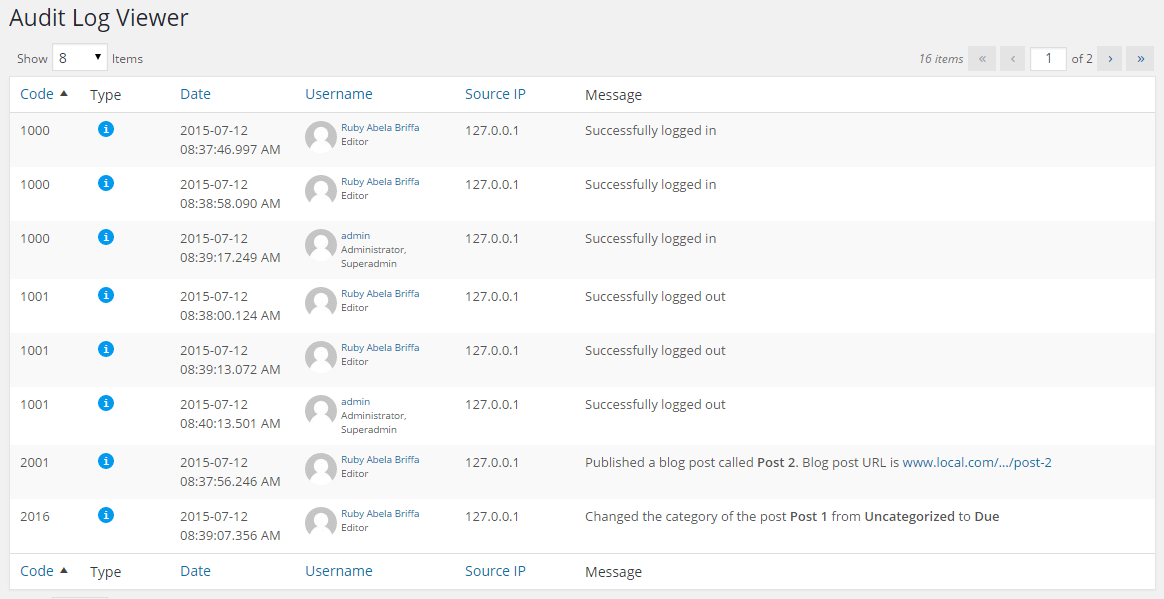
The WordPress security alerts are sorted by code in this example
Bug fixes in this version
- Fixed an issue where the role of a Super Administrator was not reported when it was logged in to a site on the WordPress multisite network.
- Fixed an issue where a user tried to change the password from the profile page, and alert 4003 was generated even though the password confirmation failed.
- Fixed an issue where a WordPress administrator tried to change a WordPress user’s password, and alert 4004 was generated even though the password confirmation failed.
- Fixed some formatting/display issues in the Audit Log Viewer (such as spacing and wrapping of text in the Date & Time column).
- Fixed an issue where multiple plugins were updated at the same time using the Update option in the drop-down menu, and no alert was being generated.