


Updated on 3 March, 2026 by Robert Abela
How to Optimize WordPress Multisite Security for Large Networks
Securing a WordPress Multisite network can be complex. The bigger the network, the higher the stakes. While running dozens or even hundreds of subsites under one installation has its benefits, a single weak point, whether it’s an unpatched plugin, a misconfigured setting, or a compromised user account, can trigger a domino effect across the entire network.
And when it comes to learning about multisite security, standard WordPress security checklists for single sites aren’t enough. In multisite environments, you need a tailored approach that matches the higher risks.
In this guide, we’ll walk through a step-by-step roadmap for securing large multisite networks. From hardening WordPress core to managing user access and monitoring subsites, you’ll learn how to build a strong security framework that protects every site in your network.
Table of contents
- Understanding WordPress Multisite Architecture and Security Challenges
- Essential Steps for Securing Your WordPress Multisite Network
- Step 1: Strengthening WordPress Multisite Core Security
- Step 2: Implementing Robust User Authentication and Access Control
- Step 3: Securing Plugins and Themes Across Multisite Networks
- Step 4: Protecting WordPress Multisite Against Brute Force Attacks
- Step 5: Enhancing Multisite Database and File Security
- Conclusion: Building a Secure WordPress Multisite Network
- FAQs: Common Questions About WordPress Multisite Security
Understanding WordPress Multisite Architecture and Security Challenges
To effectively secure your network, you must first understand how it works and what the differences between WordPress Multisite and single-site installations are.
WordPress Multisite installation operates from a single set of core files, as well as often common themes and plugins. It uses a single database with separate tables for each subsite. This centralized architecture is what makes multisite management so powerful. However, it also presents distinct security challenges.
The primary risk is the “domino effect.” A breach on one subsite can give an attacker a foothold to exploit other sites. This can, for example, lead to the bad actor compromising multiple, or even all websites on the network. Here are the main security challenges you should address:
- Shared Code and Resources: All sites share core files, with plugins and themes also commonly being shared across networks. A vulnerability in these shared assets can be exploited across the entire network.
- Centralized Database: While subsites have their tables, they all reside in a single database. If an attacker gains access to the database, they could potentially compromise data across multiple sites.
- Super Admin privileges: The Super Admin role can take any action on a network, including installing plugins and themes across the entire network. If a Super Admin account is compromised, the whole network is at risk.
- User Management Complexity: Managing users across dozens or hundreds of subsites can be difficult. It increases the potential for weak or abandoned accounts being exploited.
These challenges highlight the critical need for proactive, network-wide security measures. You cannot afford to treat each subsite as an isolated entity. Your WordPress Multisite security strategy must be cohesive and comprehensive.
For agencies and businesses that manage hundreds of subsites, working with a WordPress partner like Seahawk Media, Human Made, WP Buffs, or others can help tackle these things.
Essential Steps for Securing Your WordPress Multisite Network
Below, we’ll go through some measures you can take to implement robust security measures across all subsites, strengthening your multisite network’s security.
Step 1: Strengthening WordPress Multisite Core Security
Your security journey begins with the foundation: the core of your WordPress installation. This is the bedrock of your network, and any weakness here puts everything at risk.
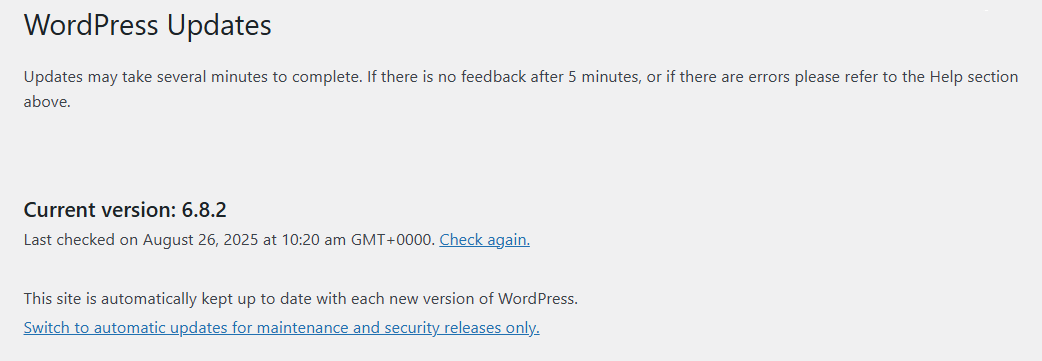
- Keep WordPress Core Updated: This is the most fundamental step. Always install the latest WordPress core updates as soon as possible, keeping WordPress update best practices in mind. These updates often include critical security patches that protect against known vulnerabilities. As a Super Admin, you are responsible for updating the core for the entire network. Consider enabling automatic updates to ensure no updates are missed.
- Secure the wp-config.php File: The wp-config.php file contains sensitive information, including your database credentials and security keys. If possible, restrict access to this file by moving it one level above your public root directory. Ensure file permissions are set to a secure level (e.g., 400 or 440).
- Disable File Editing in the Dashboard: WordPress allows you to edit theme and plugin files directly from the dashboard. This feature is convenient but also comes with some risks. If attackers gain access to a user account, they could use this editor to inject malicious code. Add define(‘DISALLOW_FILE_EDIT’, true); to your wp-config.php file to disable it network-wide.
Securing your core installation is a good baseline and reduces some of the risk for your entire network, but there’s a lot more to be done.
Step 2: Implementing Robust User Authentication and Access Control
Human error is often the weakest link in any security chain, so managing access is a top priority in an extensive network with many users. Strong user authentication and access control are therefore critical components of a comprehensive WordPress Multisite security plan.
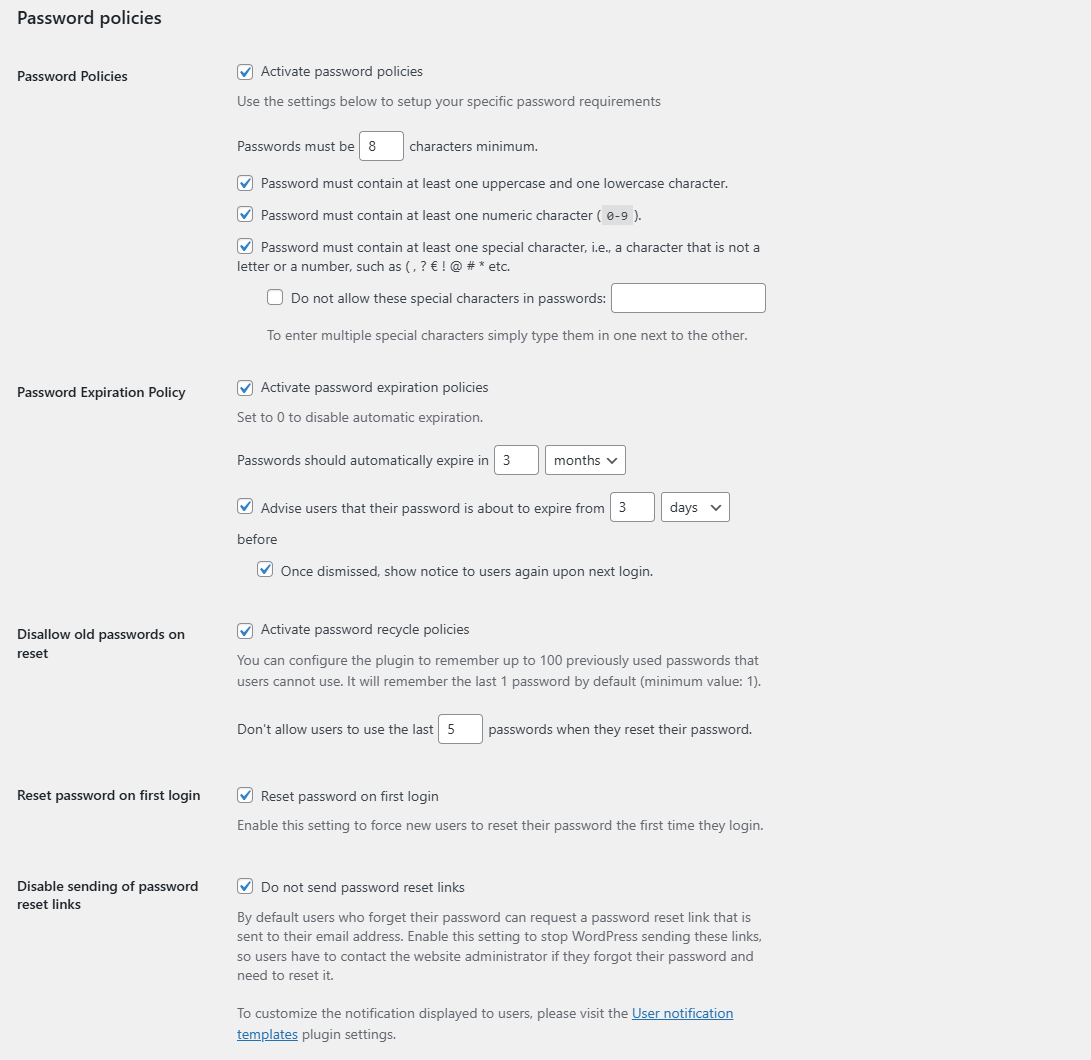
- Enforce Strong Password Policies: Use a plugin like Melapress Login Security to enforce strong password policies and other user account security controls across the entire network. This ensures all users, from subscribers to Super Admins, use complex, hard-to-guess passwords. The plugin can force users to change passwords regularly and prevent them from reusing old ones.
- Implement Two-Factor Authentication (2FA): 2FA is a non-negotiable security measure. Implementing two-factor authentication adds an extra layer of protection by requiring a second form of verification (like a code from an app or email) in addition to the password. Use a reliable 2FA plugin like WP 2FA to enforce it for all users, especially those with elevated privileges.
- Manage Super Admin Roles and Limit Access: The Super Admin role is the most powerful in your network. Limit the number of Super Admins to the absolute minimum necessary. Review who has this role and remove access if it’s no longer needed. On top of this, also make sure to keep regular user account permissions limited to only those that the user needs. Our user role editor plugin can help with this, ensuring you can create custom user roles to ensure accounts have the right permissions without granting more than they should have.
Controlling who has access and how they log in is paramount to protecting your network.
Step 3: Securing Plugins and Themes Across Multisite Networks
Plugins and themes are what make WordPress so powerful and flexible. But they are also the most common entry points for attackers. In a multisite network, a vulnerable plugin on one subsite can threaten the entire system.
- Vetting and Auditing Plugins/Themes: Conduct a thorough security audit before installing any new plugin or theme. Check the developer’s reputation, read reviews, and scan the code for known vulnerabilities.
- Limit Plugin Installation to Super Admins: By default, subsite admins can install plugins, which can cause issues. Disable this feature by adding define(‘DISALLOW_FILE_MODS’, true) to your wp-config.php file, ensuring only Super Admins can install and activate plugins (this also prevents theme and core updates/installations by subsite admins). This gives you central control over the network’s code base.
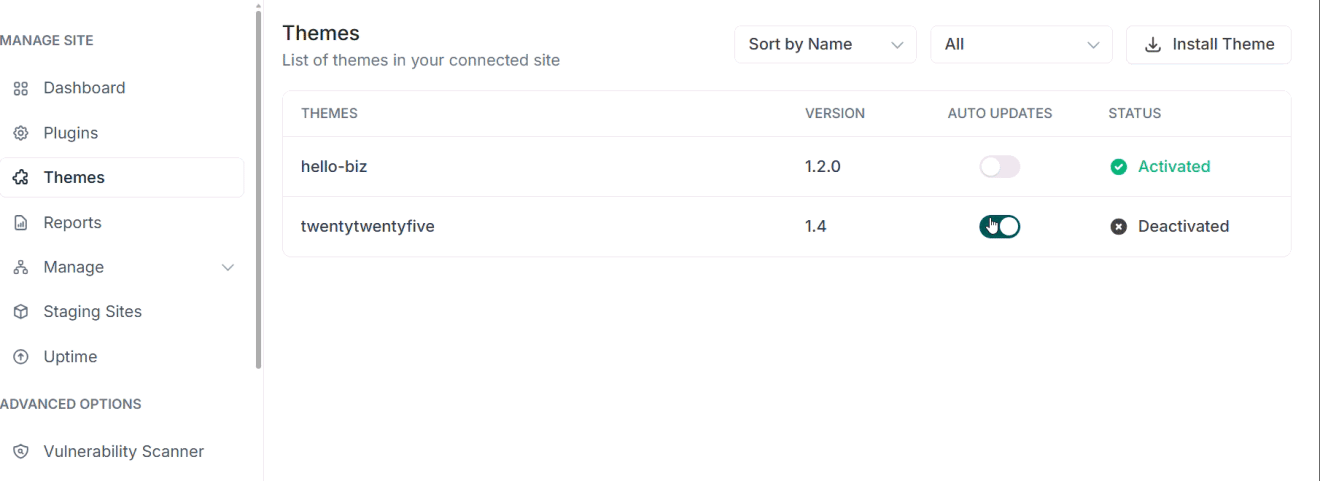
- Regularly Update and Remove Unused Plugins/Themes: Like WordPress core, plugins, and themes must be updated periodically. Obsolete plugins are a prime target for hackers, as are outdated ones with security vulnerabilities. Review your network’s plugins and themes regularly, update them as needed, and delete any that are no longer in use.
A well-maintained plugin and theme ecosystem is crucial for your overall multisite network protection. However, plugin and theme governance can be challenging to do manually. Instead, you can use a WordPress website management tool with plugin management functionality, like InstaWP’s WordPress site management feature, which gives network administrators a single dashboard to manage, audit, and update plugins and themes across every site in their WordPress network, without jumping between individual wp-admin panels.
Step 4: Protecting WordPress Multisite Against Brute Force Attacks
Brute force attacks are one of the most common threats to any website. Attackers use automated bots to try thousands of password combinations until they find the right one. For a multisite network, this threat is amplified, as each subsite login page is a potential target.
- Change the Default Login URL: The default wp-admin and wp-login.php login URLs are well-known to bots. Use a plugin to change the login URL to a custom, hard-to-guess address for all your subsites. This can help reduce the number of automated attacks your website experiences, even though it doesn’t fully prevent them.
- Implement Rate Limiting and IP Whitelisting: Use a plugin or firewall to limit the number of login attempts from a single IP address over a set period. This stops brute force attacks in their tracks. Users who need constant access (like Super Admins) should consider whitelisting their IP addresses.
- Use CAPTCHA or reCAPTCHA: Add a CAPTCHA check to your login forms. This simple step can block automated bots while allowing legitimate users to log in.
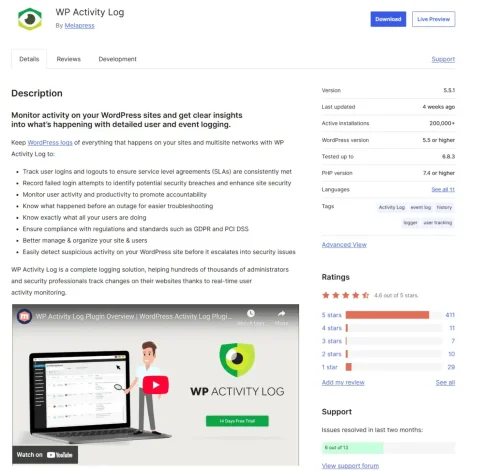
- Monitoring Failed Login Attempts: Use an activity log plugin like WP Activity Log to monitor for failed login attempts and suspicious account activity. This gives you real-time insight into potential brute force attacks and allows you to block malicious IP addresses.

Step 5: Enhancing Multisite Database and File Security
Your database is the heart of your network. It holds all your content, user data, and configurations. Continuing this analogy, your files form the body of your network. Securing both is essential for a robust security posture.
- Secure the Shared Database with Regular Backups: A regular backup strategy is your ultimate failsafe. Use a reliable backup plugin like Duplicator, Blogvault, or similar to schedule daily or even real-time backups of your entire network. Store these backups in a secure, off-site location (e.g., an S3 bucket).
- Set Proper File Permissions: Incorrect file permissions can allow an attacker to write malicious code to your server. As a general rule, set file permissions to 644 and directory permissions to 755. Never use 777.
- Use .htaccess to Restrict Access: Your .htaccess file is a powerful tool for controlling server access. Use it to restrict access to sensitive files like wp-config.php and your plugin/theme directories. You can also use it to block specific IP addresses that are causing problems.
- Encrypt Database Connections with SSL: Ensure your site uses HTTPS. This is a best practice for SEO and encrypts the data being transferred between your users’ browsers and your server, including login credentials and database queries.
Conclusion: Building a Secure WordPress Multisite Network
Securing an extensive WordPress network is a continuous process, not a one-time task. It requires a multi-layered approach that addresses the unique challenges of the multisite architecture. By staying on top of core updates, implementing robust user authentication, keeping plugins and themes updated, and actively monitoring network activity, you can create a formidable defense against a wide range of threats.
Remember, a strong WordPress Multisite security strategy is not just about protection but peace of mind. It allows you to leverage the power and convenience of a multisite network without the constant fear of a catastrophic breach. Start your security journey today by implementing these best practices. Your multisite networks and clients will thank you for it.
FAQs: Common Questions About WordPress Multisite Security
How do I make my WordPress site secure?
To secure a standard WordPress site, implement strong passwords, user account security controls, enable two-factor authentication (2FA), keep all software updated, and use a reputable firewall. These steps are all essential for a multisite network, and they must be applied network-wide. You must also manage Super Admin access and monitor all subsites for suspicious activity.
What is the best WordPress security plugin?
There is no single “best” security plugin, as different plugins serve different purposes. For a comprehensive approach, you should use a combination of tools. This includes tools like Patchstack for vulnerability patching, a WordPress activity log, implementing 2FA and user account security controls, for example.
Does WordPress multisite use one database?
Yes, WordPress Multisite uses a single database. However, each subsite has its own set of tables within that database, each with a unique prefix. This is why robust WordPress Multisite security measures are needed to protect the entire database from a single entry point.
Is WordPress safe from hackers?
No website is immune to hackers, but WordPress can be made very secure with the right measures. The key is to be proactive. By implementing strong security practices, keeping your software updated, and using a multi-layered approach, you can significantly reduce the risk of a successful attack on your multisite network.
How do I know if my WordPress site is Multisite?
You can easily check if your WordPress site is a multisite network. Look in your wp-config.php file for a line that says define(‘WP_ALLOW_MULTISITE’, true);. A multisite installation will also have a “Network Admin” dashboard option in the top-left menu bar.