


Updated on 14 July, 2026
Configuring 2FA for your WordPress user account
Setting up two-factor authentication (2FA) with the WP 2FA plugin takes just a few minutes. This guide walks you through every step using a 2FA authenticator app – the most secure and widely supported 2FA method.
Note for site administrators: If your users do not have access to the default WordPress profile page, you can make the 2FA setup available on a custom front-end page using WP 2FA shortcodes.
Table of contents
Click to accept marketing cookies and enable this content

Launch the 2FA setup wizard
There are two common ways to reach the 2FA setup wizard:
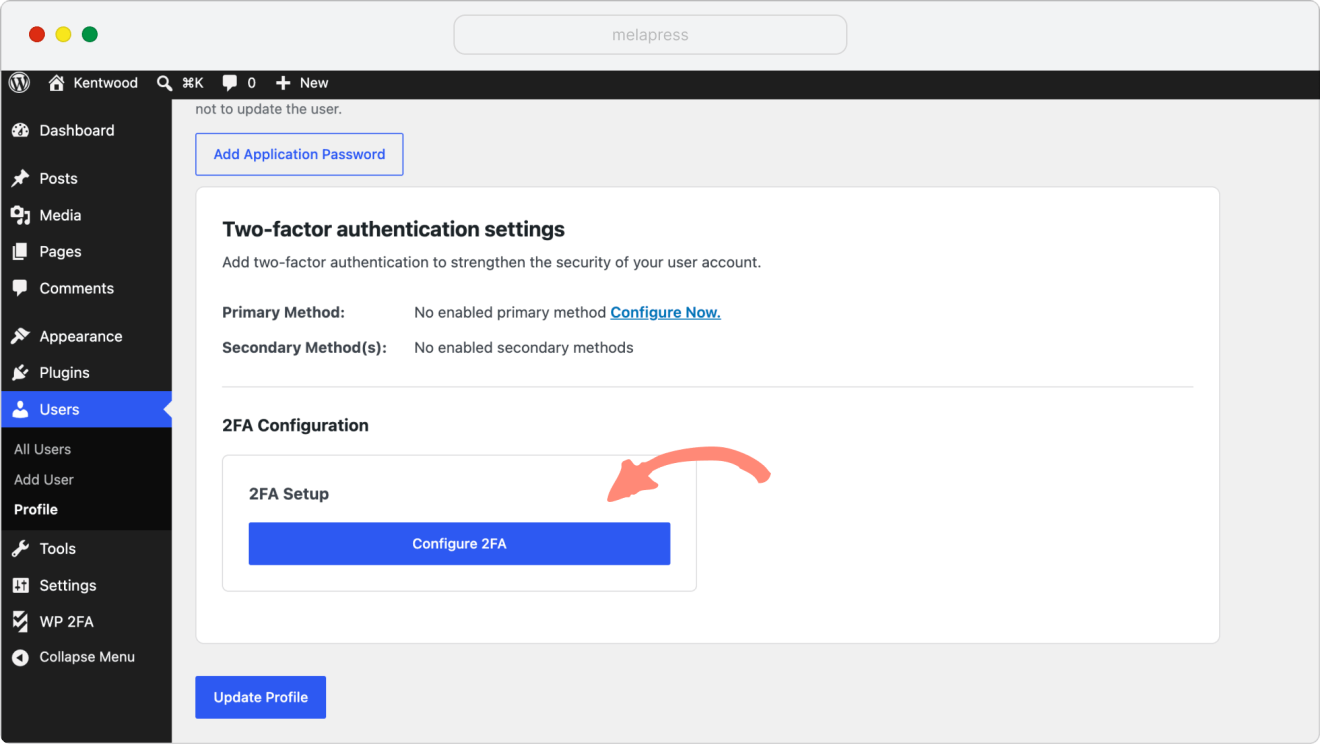
1. From your WordPress profile page – navigate to Users > Profile and scroll down to the Two-factor authentication settings section. Click the Configure 2FA button.
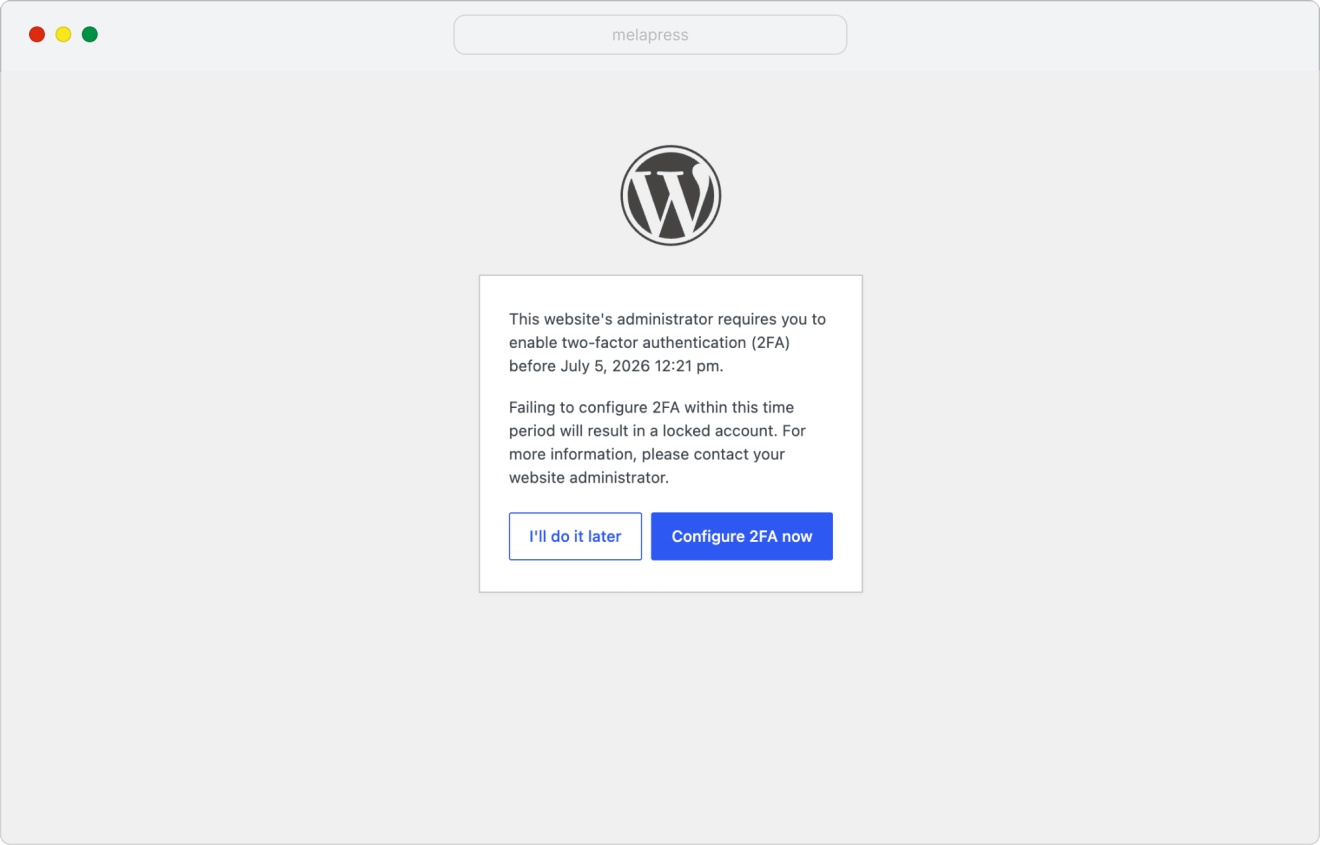
2. On the login page, if your site administrator has made 2FA mandatory, you will be prompted to set it up automatically the first time you log in. The setup wizard launches directly from the login flow.
Choose your 2FA method
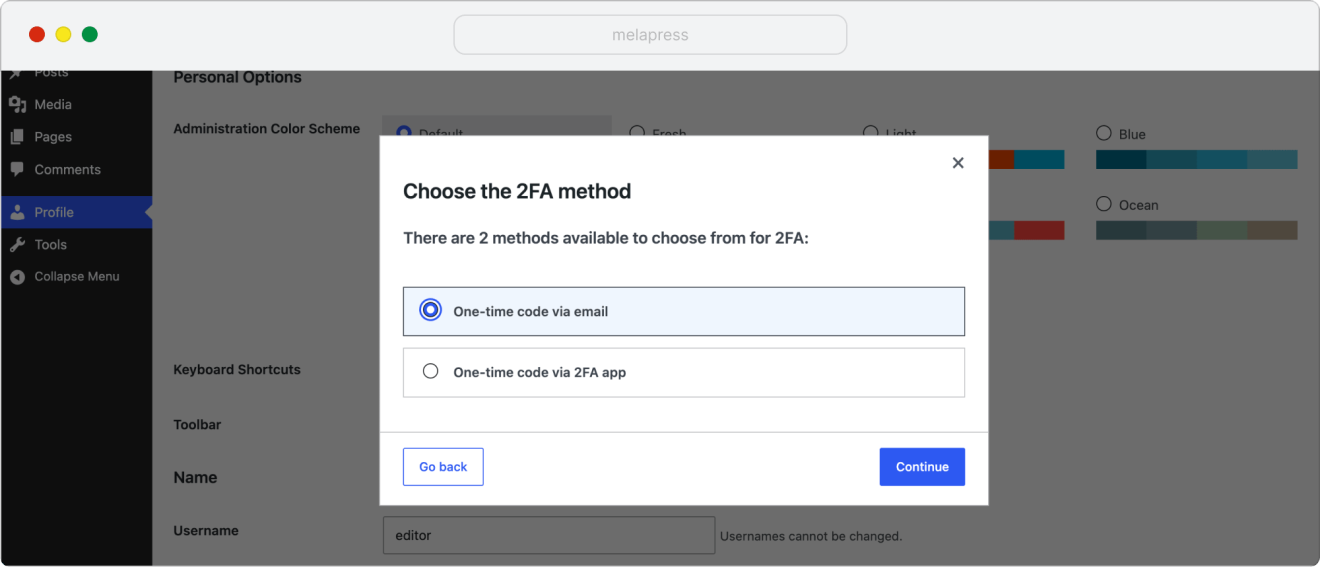
The wizard shows the 2FA methods your site administrator has enabled. Select One-time code via 2FA app and click Next step to continue. This guide covers the 2FA app (TOTP) method – the most secure option available.
Set up your 2FA app
The wizard displays a QR code and a text key. Use either one to link your chosen authenticator app to your WordPress user account.
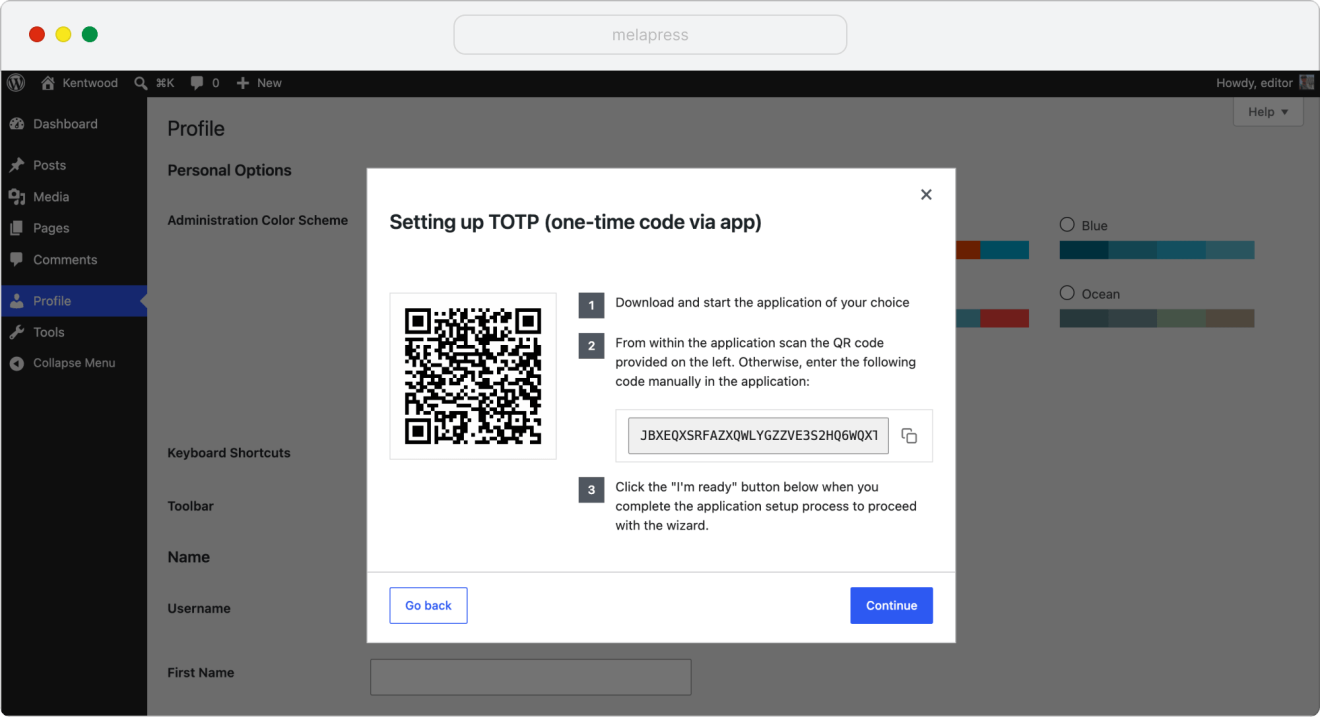
Note: your QR code is unique to your account. The QR code displayed in the wizard is generated specifically for your site and your account. Never scan a QR code from a screenshot or tutorial – always use the one shown directly in your own wizard.
Below is a step-by-step walkthrough using Google Authenticator, the most widely used 2FA app. The process is similar for other supported apps.
Example: Google Authenticator
Step 1. Open Google Authenticator and tap the + button in the bottom-right corner to add a new account.
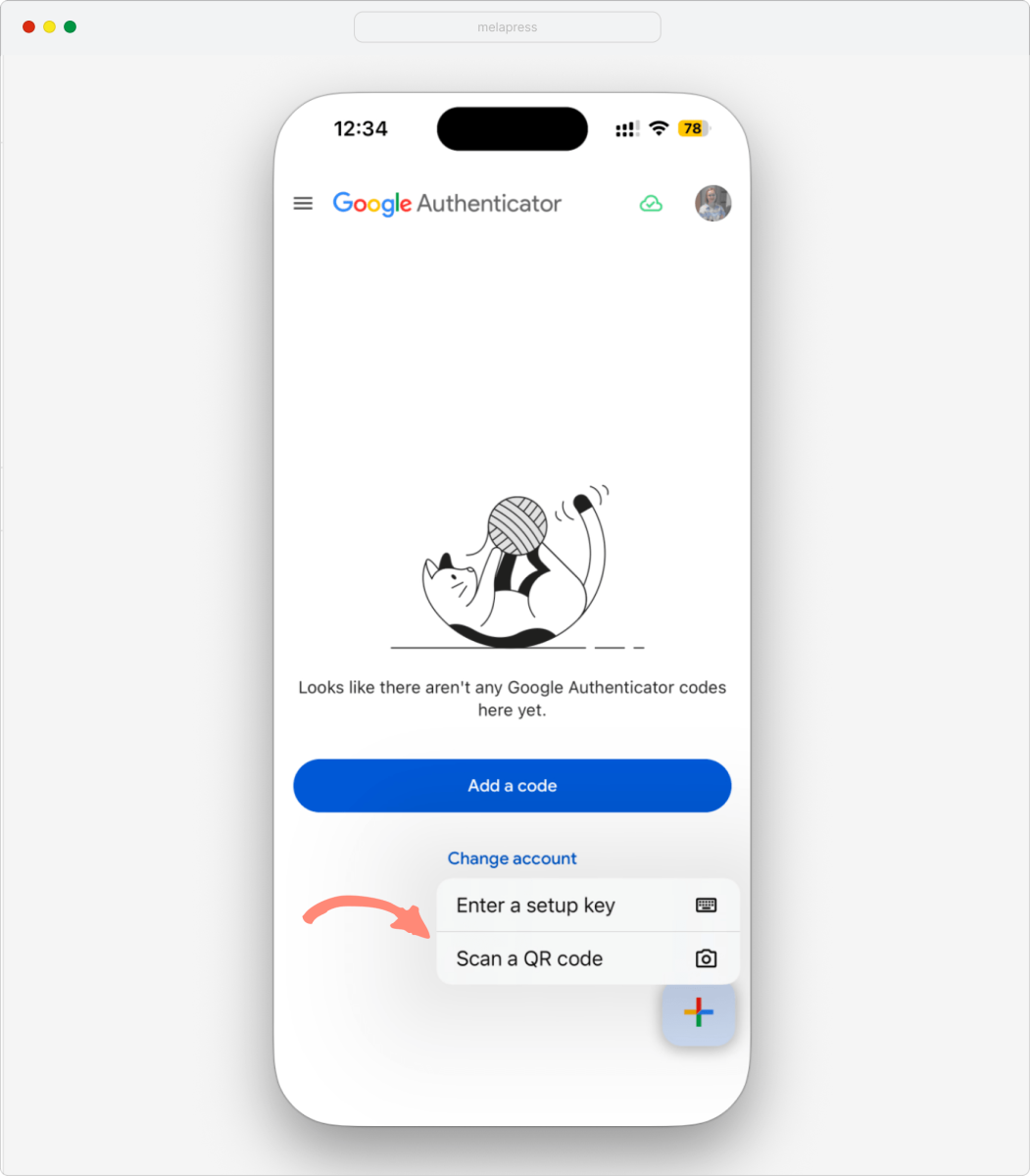
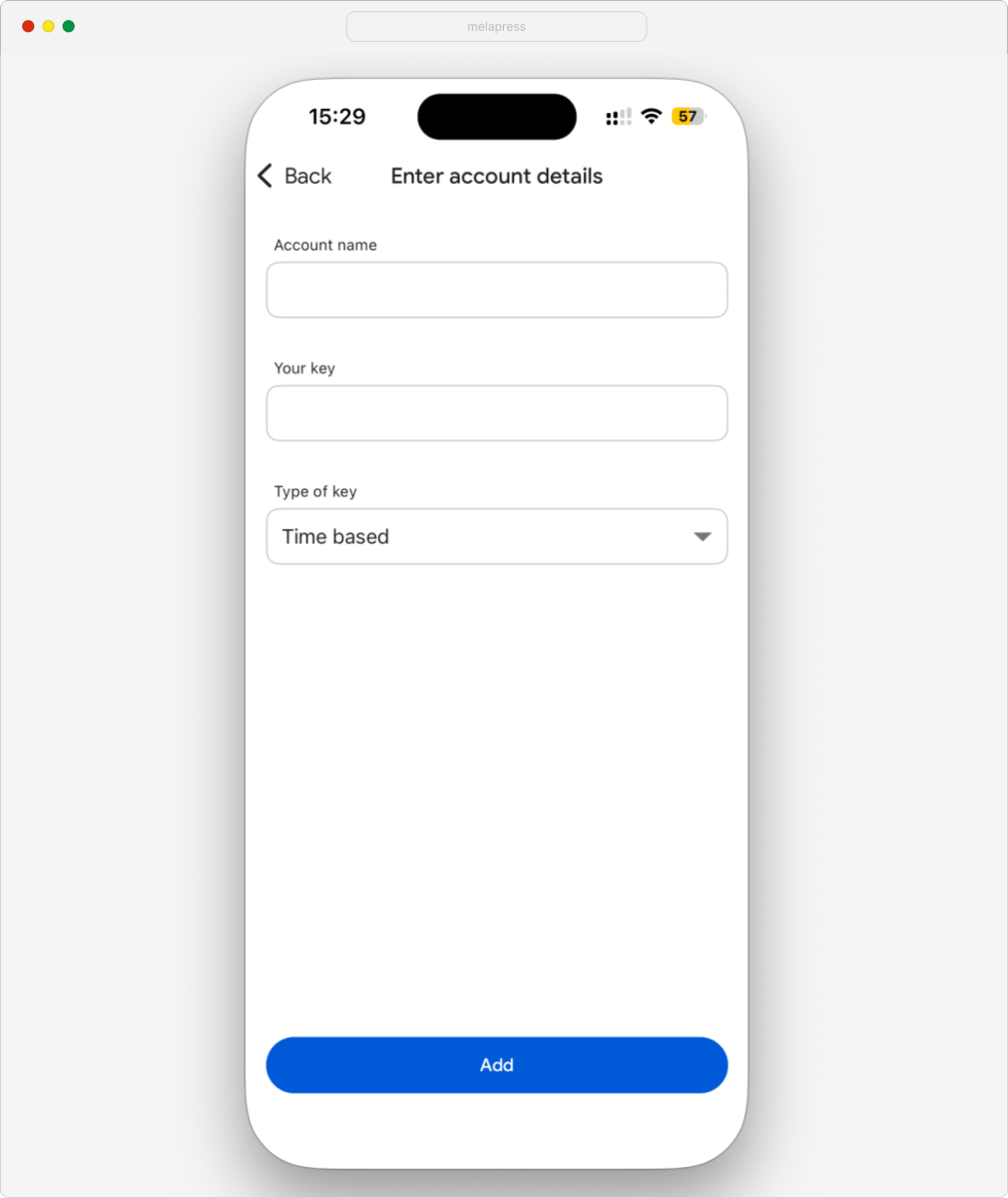
Step 2. Tap Scan a QR code and point your device’s camera at the QR code shown in the WP 2FA wizard. Alternatively, tap Enter a setup key and type the text key shown in the wizard.
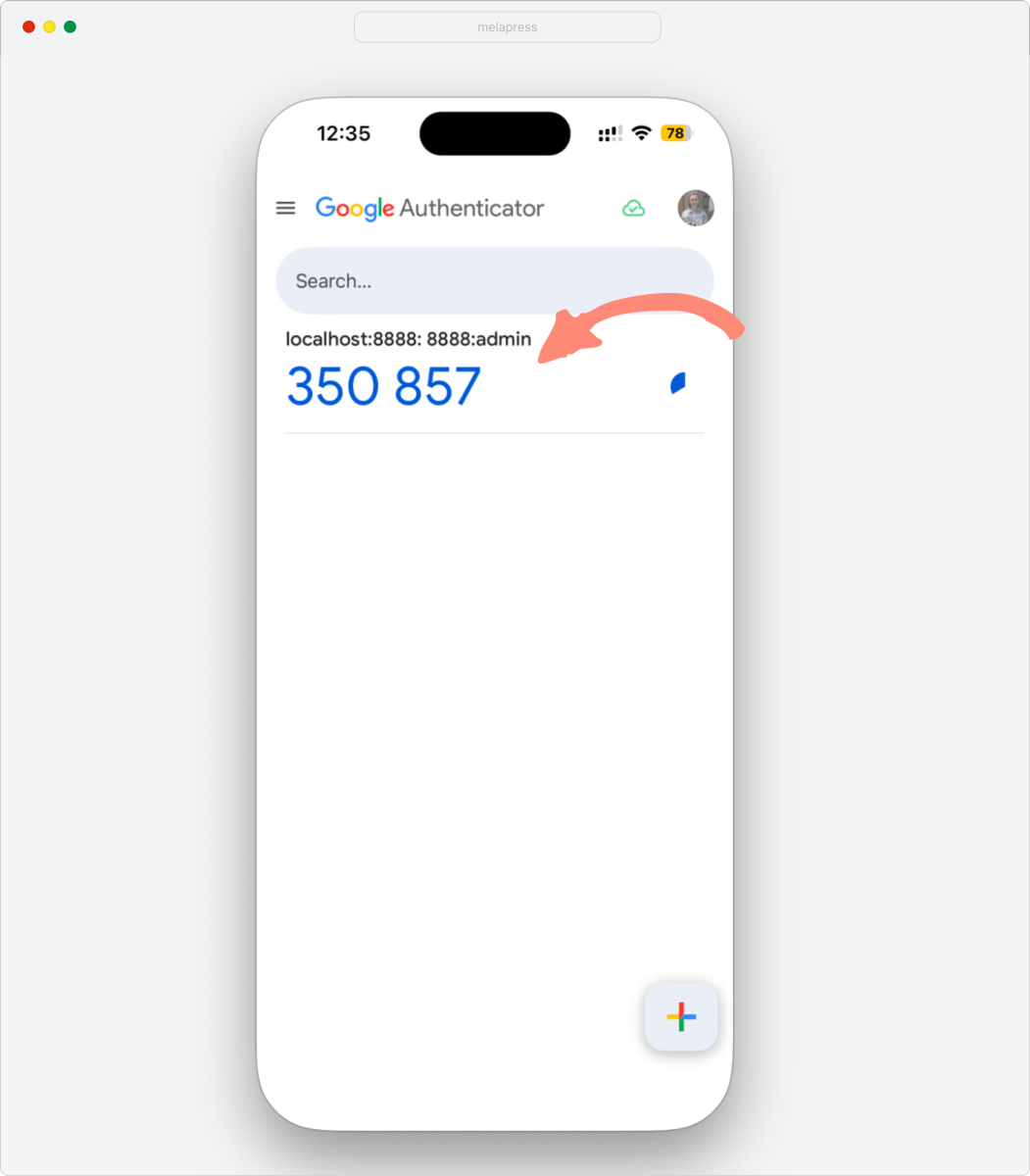
Step 3. Your WordPress site is now added to Google Authenticator. A 6-digit code appears on the home screen – you will use this code in the next step.
WP 2FA works with many other authenticator apps
You are not limited to Google Authenticator. WP 2FA is compatible with any standard TOTP authenticator app, including:
- Authy
- Microsoft Authenticator
- Duo Security
- LastPass Authenticator
- Okta Verify for Android users and iOS users
- FreeOTP for Android users and iOS users
If you already use one of these apps for another service, simply add a new account within the same app – no need to install anything new.
Verify your setup
Once your app shows a 6-digit code, click Continue in the wizard. You will be asked to enter the code to confirm that everything is working correctly.
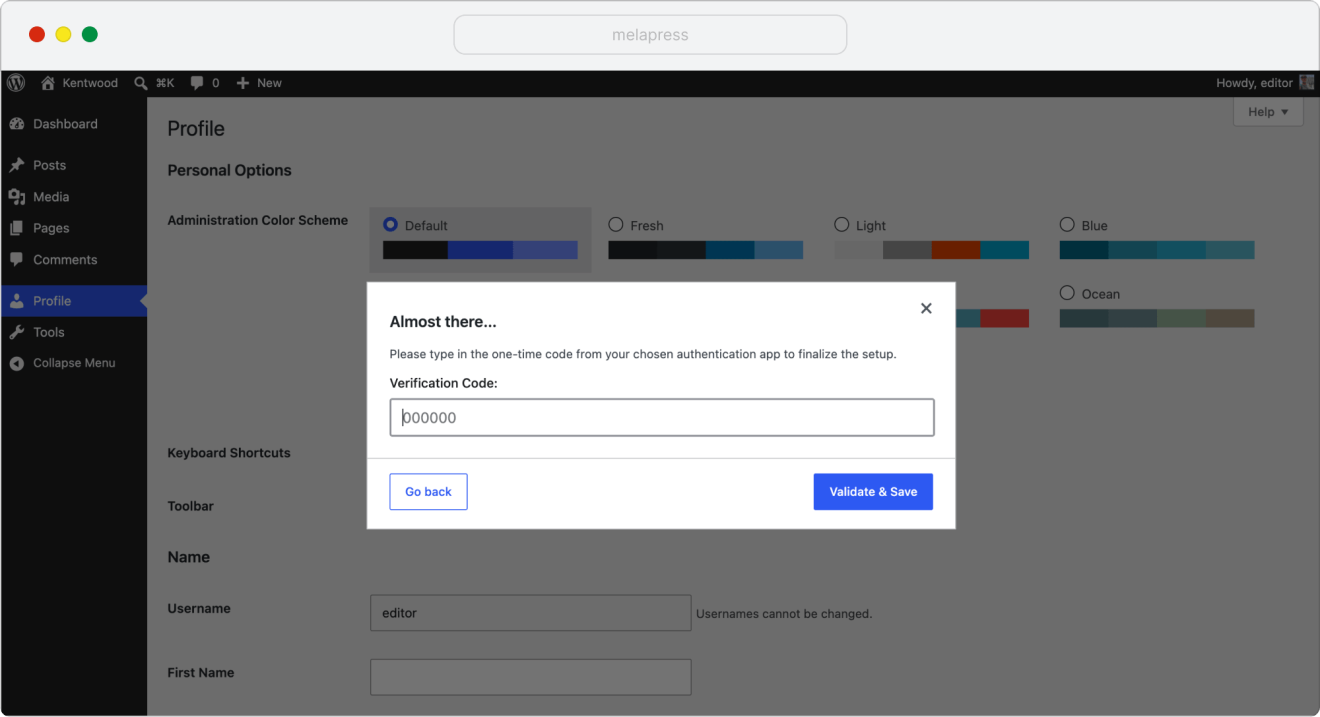
Enter the current 6-digit code from your app and click Validate & Save. The wizard will confirm that your 2FA is now active.
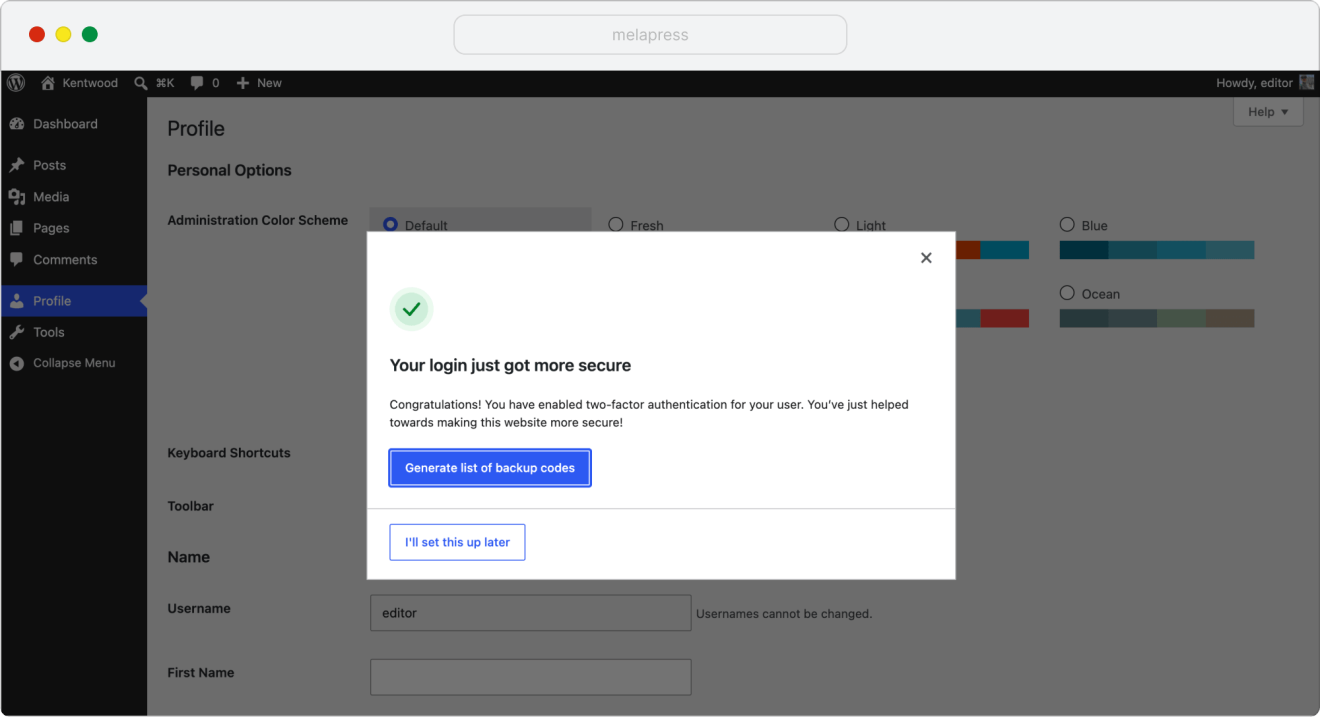
Code not working? The most common cause is a time sync issue on your phone. Make sure your device’s date and time are set to automatic (network-provided) and try again with the next generated code.
Set up a backup method (optional but recommended)
A backup 2FA method lets you log in even if your primary authenticator app becomes unavailable – for example, if your phone is lost or stops working. If your administrator has enabled backup methods, you will be prompted to choose one on the final screen of setup here.
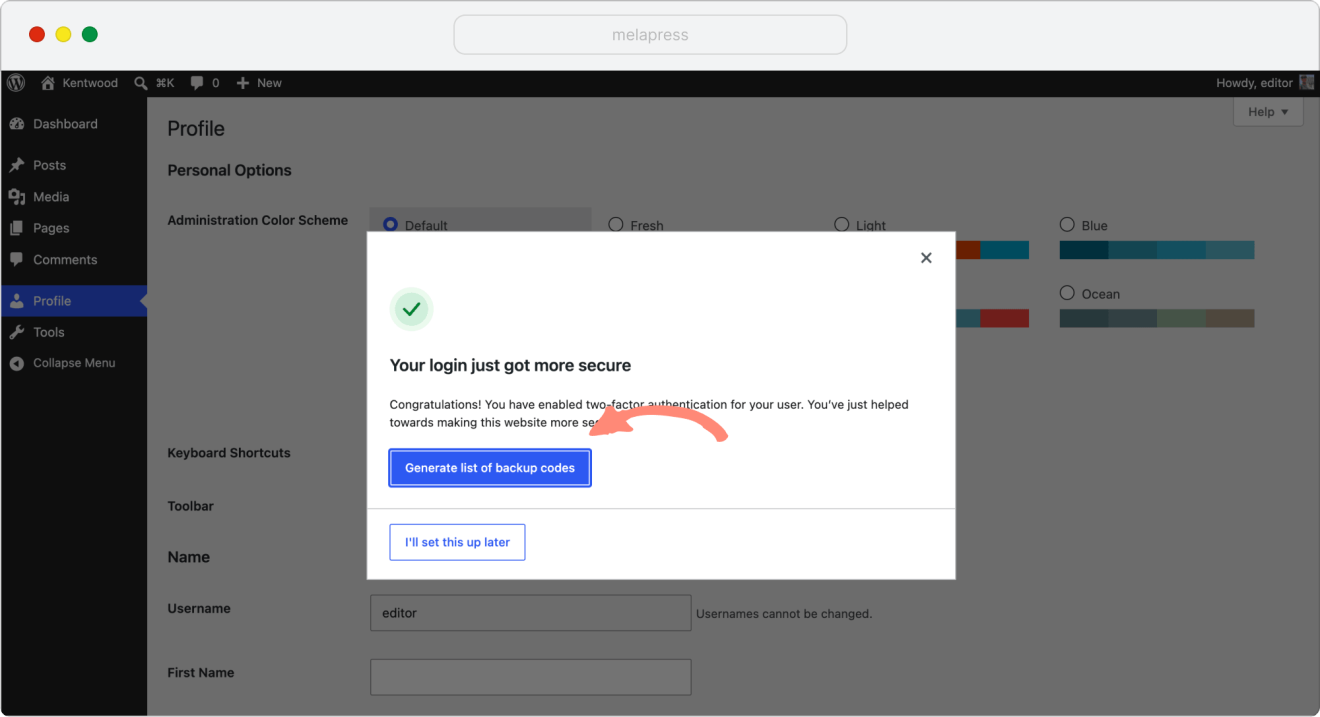
Two backup options are available:
- 2FA backup codes (Free version): A set of one-time-use codes you can save or print. Use any one code if you lose access to your app. Learn more about backup codes.
- One-time code via email (Premium version): A fresh code is sent to your email address each time you log in and need a backup. Requires a WP 2FA premium plan.
Note: Backup codes are available on all plans, including the free plan. Receiving backup 2FA codes via email is available on paid WP 2FA plans. View WP 2FA pricing and upgrade.
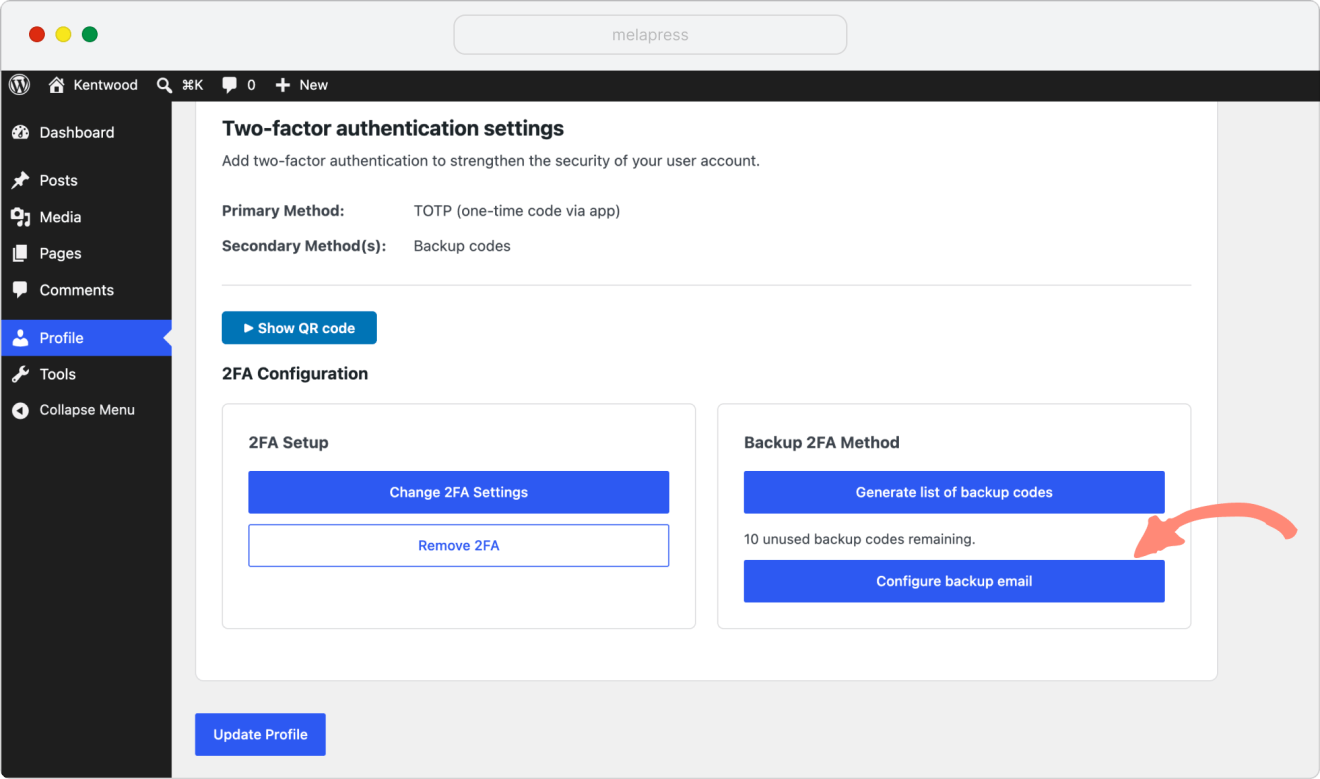
In the example below, we are adding an email backup. Go to Profile > 2FA Configuration and press the Configure backup email button.
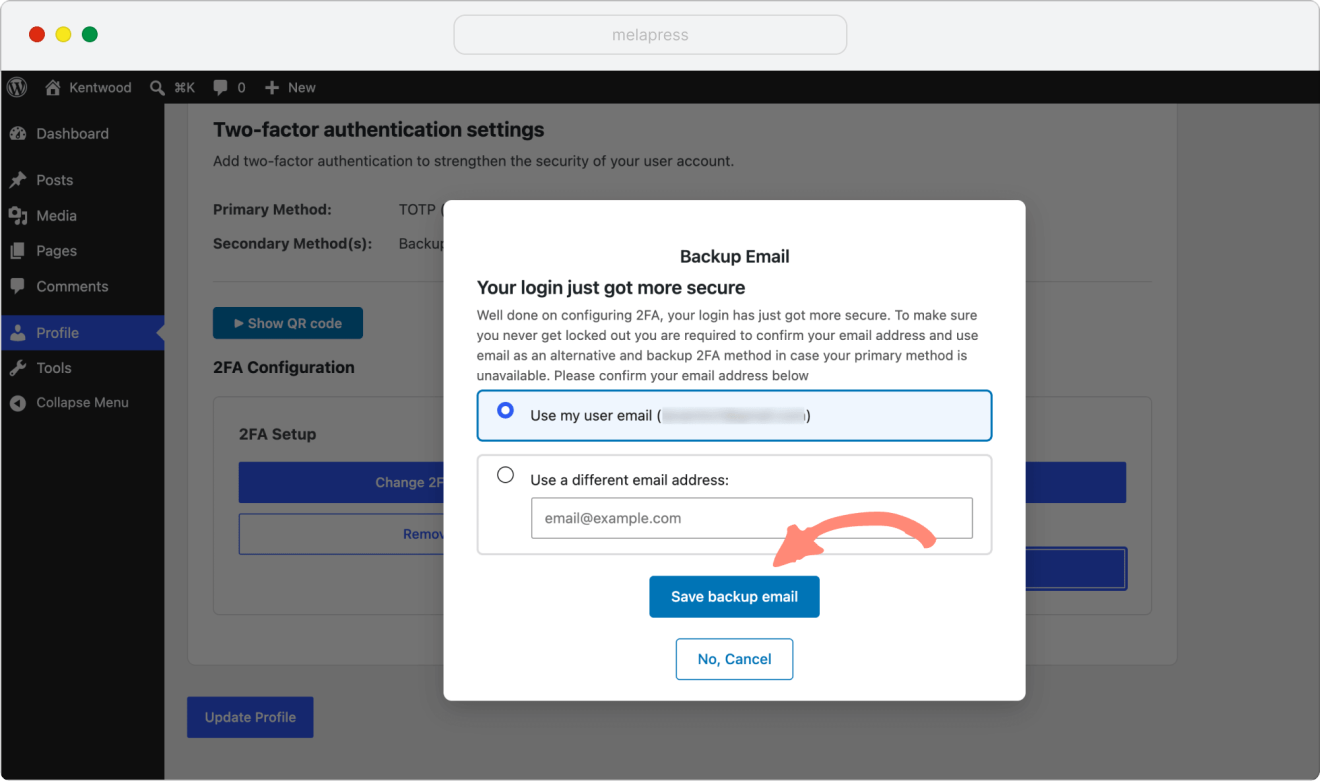
Confirm your email address and click Save backup email button.
Finally, generate and save your backup codes.
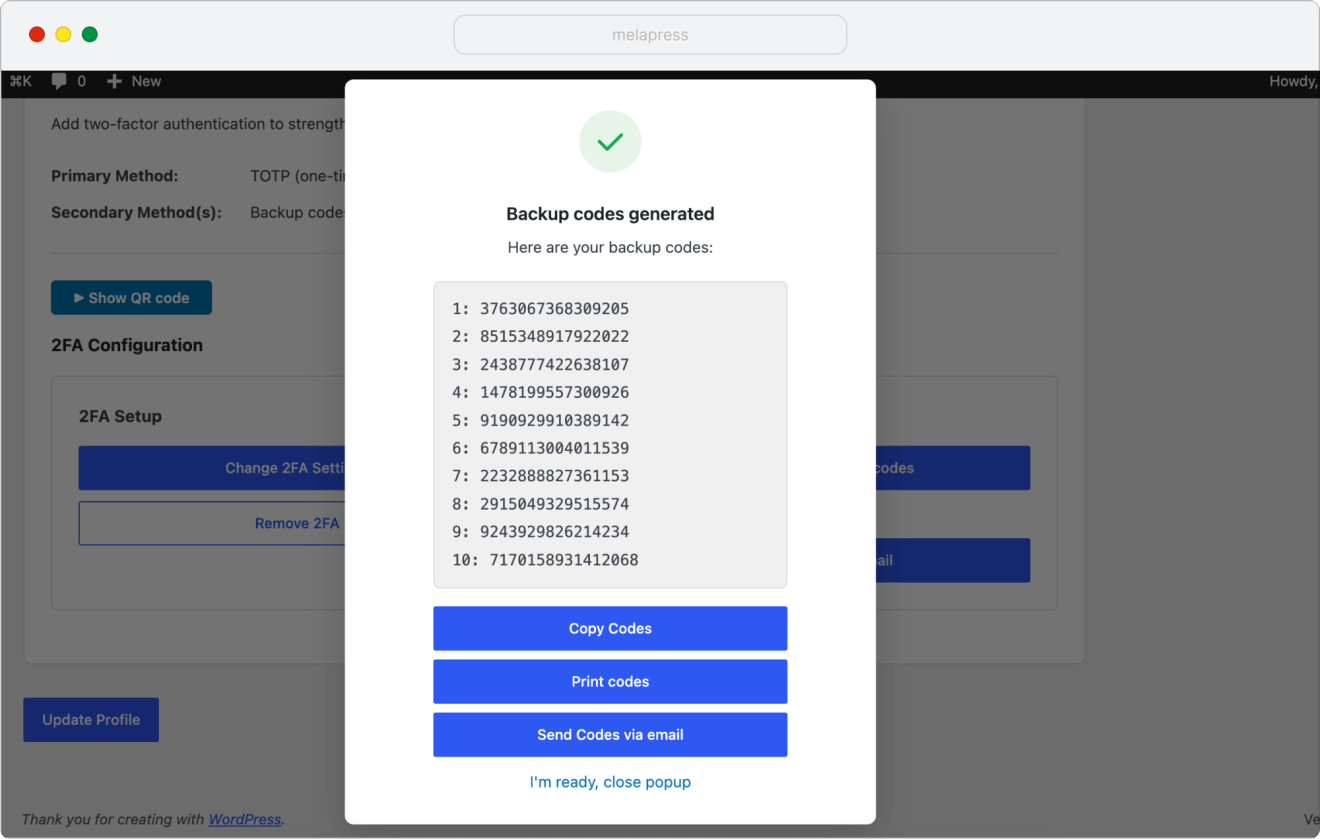
With that, setup is complete, and 2FA is fully active on your account.
Logging in with 2FA
From now on, after entering your username and password on the WordPress login page, you will be prompted for your 2FA code before being granted access.
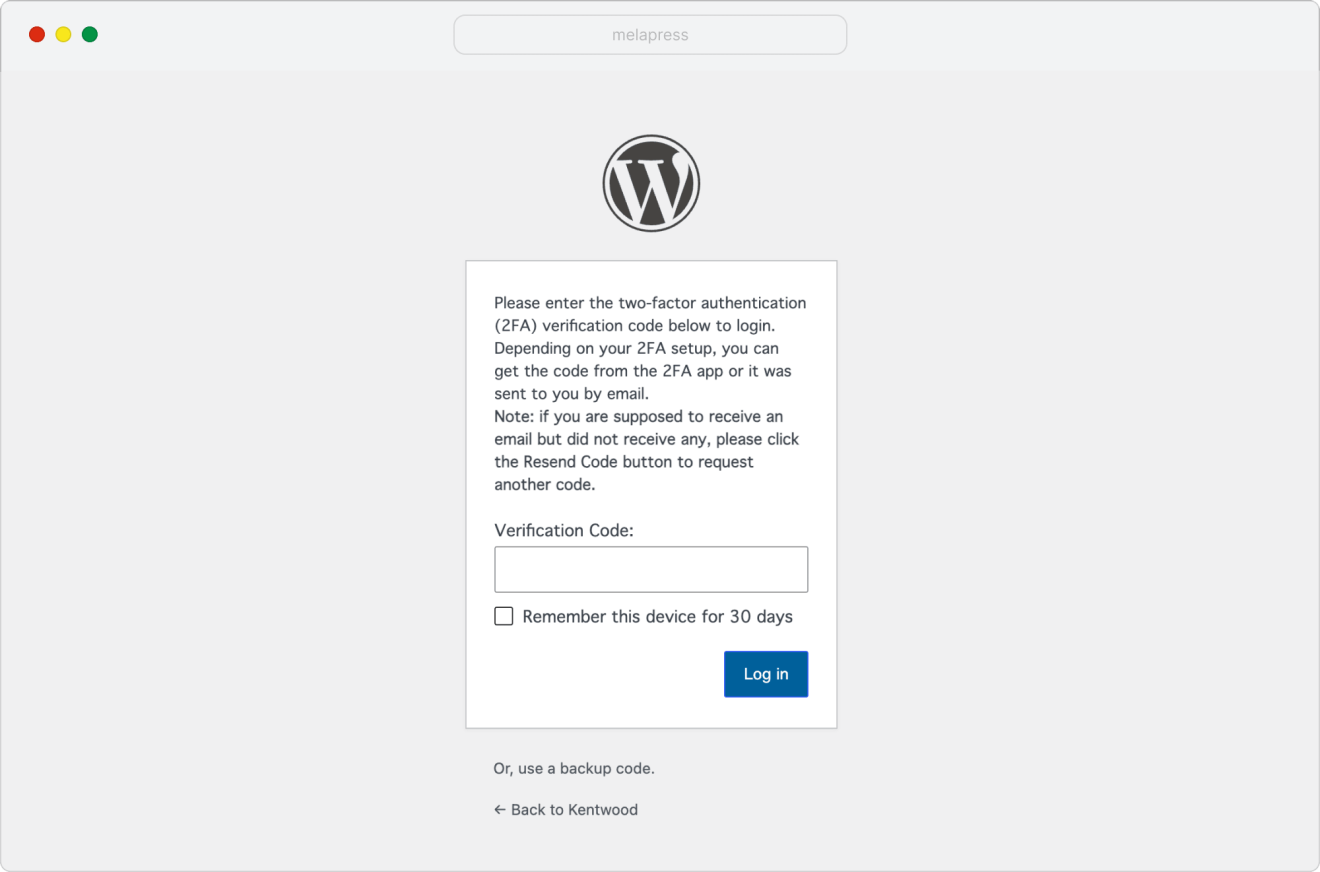
Open your authenticator app, find the entry for your site, and enter the current 6-digit code in the Authentication Code field. Click Log in. If you need to use your backup method, you will find Use backup code option below the Log in button.
