Updated on 7 October, 2026
How to make 2FA mandatory for WordPress users with WP 2FA
With WP 2FA, you can require all users on your WordPress website to configure and use two-factor authentication (2FA), or enforce it only for specific users and roles.
For example, you may want to require 2FA for everyone on the website, or only for users with access to sensitive settings, such as administrators, editors, and authors.
In this guide, we explain how to configure WP 2FA enforcement policies, choose which users must use 2FA, set a grace period for setup, and exclude users or roles when needed.
Table of contents
- Where to find these settings
- Making 2FA mandatory for all users
- Making 2FA mandatory for specific users or roles
- Making 2FA mandatory on a multisite network
- What happens when you enforce 2FA
- What happens if users don’t configure 2FA in time
- Letting a user log in without 2FA just once
- What if I don’t enforce 2FA at all?
- Excluding users or roles from 2FA
- Setting different policies per user role (Premium)
Where to find these settings
All of the settings covered in this guide are located under WP 2FA > 2FA Policies in your WordPress dashboard.
The settings are organized into the following sections:
- Enforcement and exclusions – decide who must use 2FA, and who should be excluded from it.
- Sitewide 2FA policies – the default 2FA methods, grace period, and user access settings that apply site-wide, split across a 2FA Method Selection tab and a User Access Settings tab.
- Customize per user role (Premium) – optional overrides for the Administrator, Editor, Author, Contributor, and Subscriber roles, each with the same two tabs as above.
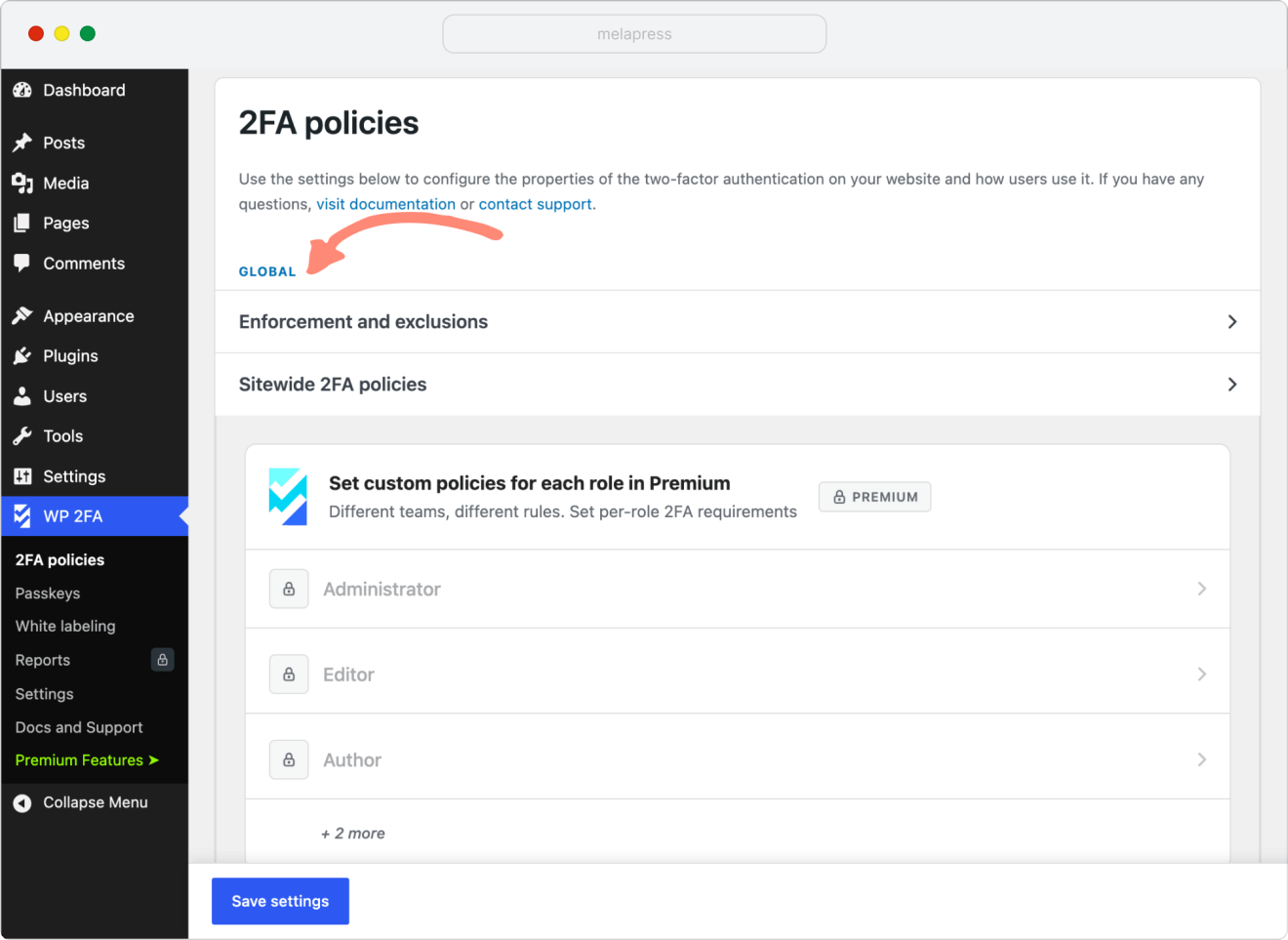
Making 2FA mandatory for all users
To require every user on your website to set up and use 2FA:
1. Go to WP 2FA > 2FA Policies > Enforcement and exclusions.
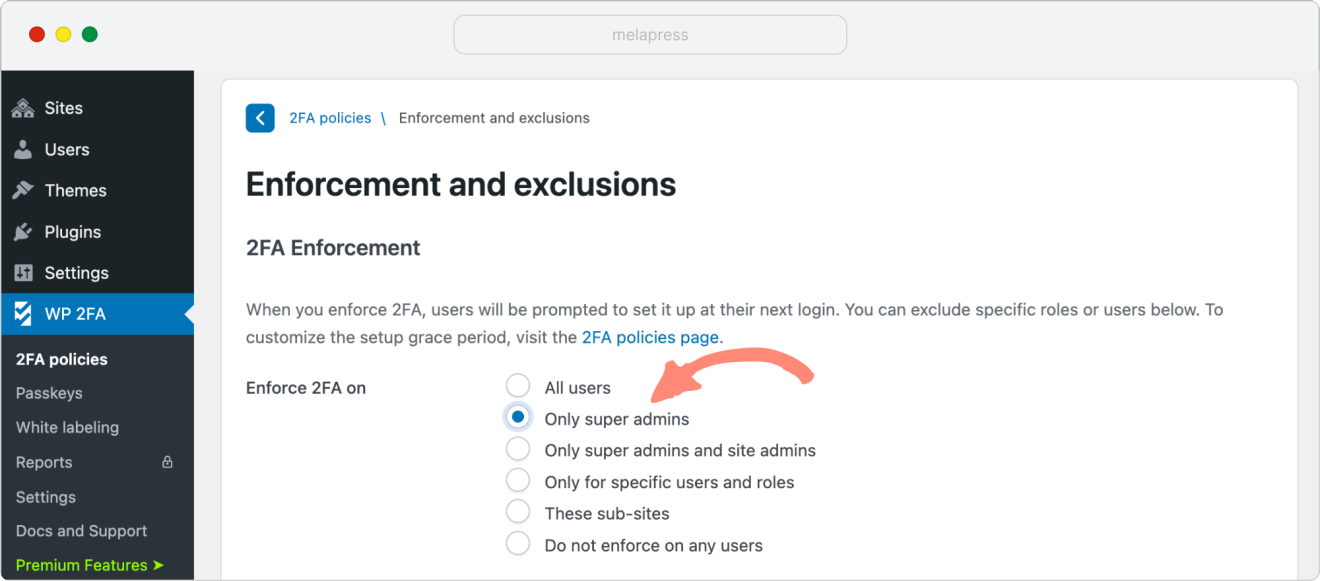
2. Under 2FA Enforcement, set Enforce 2FA on to All users.
3. Click Save Settings.
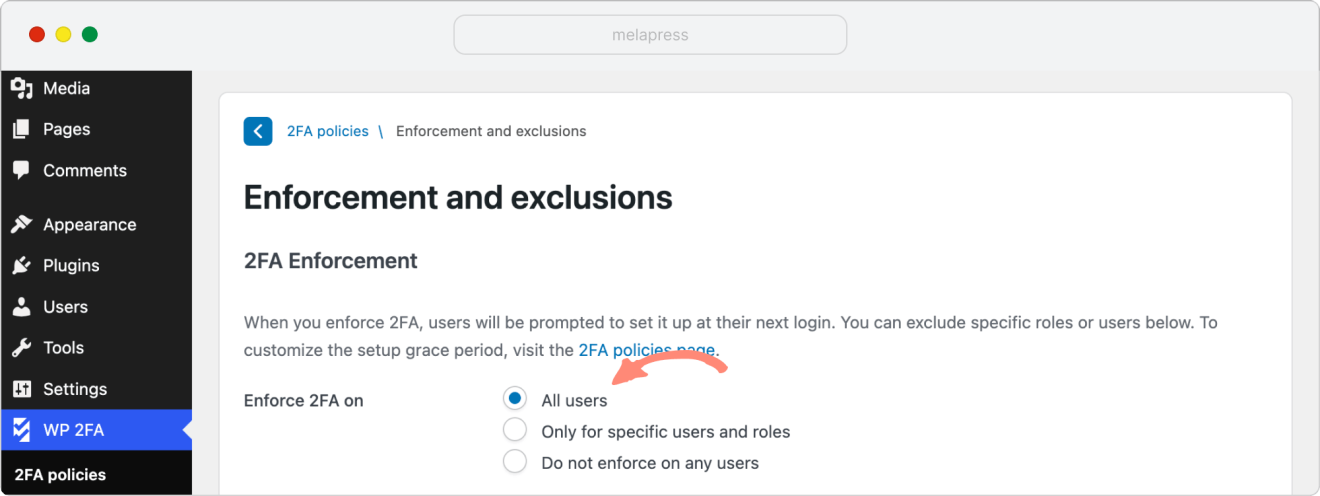
Once you save the settings, users will be prompted to configure 2FA the next time they log in. Depending on your grace period settings, they will either need to configure it immediately or will have a specified amount of time to do so.
Making 2FA mandatory for specific users or roles
If you only want to enforce 2FA for specific users or roles, such as administrators and editors:
1. Go to WP 2FA > 2FA Policies > Enforcement and exclusions.
2. Set Enforce 2FA on to Only for specific users and roles. Two additional fields appear: Users and Roles.
3. Start typing in the Users field to search for and select individual usernames, and/or use the Roles field to select entire roles (e.g., Administrator, Editor).
4. Click Save Settings.
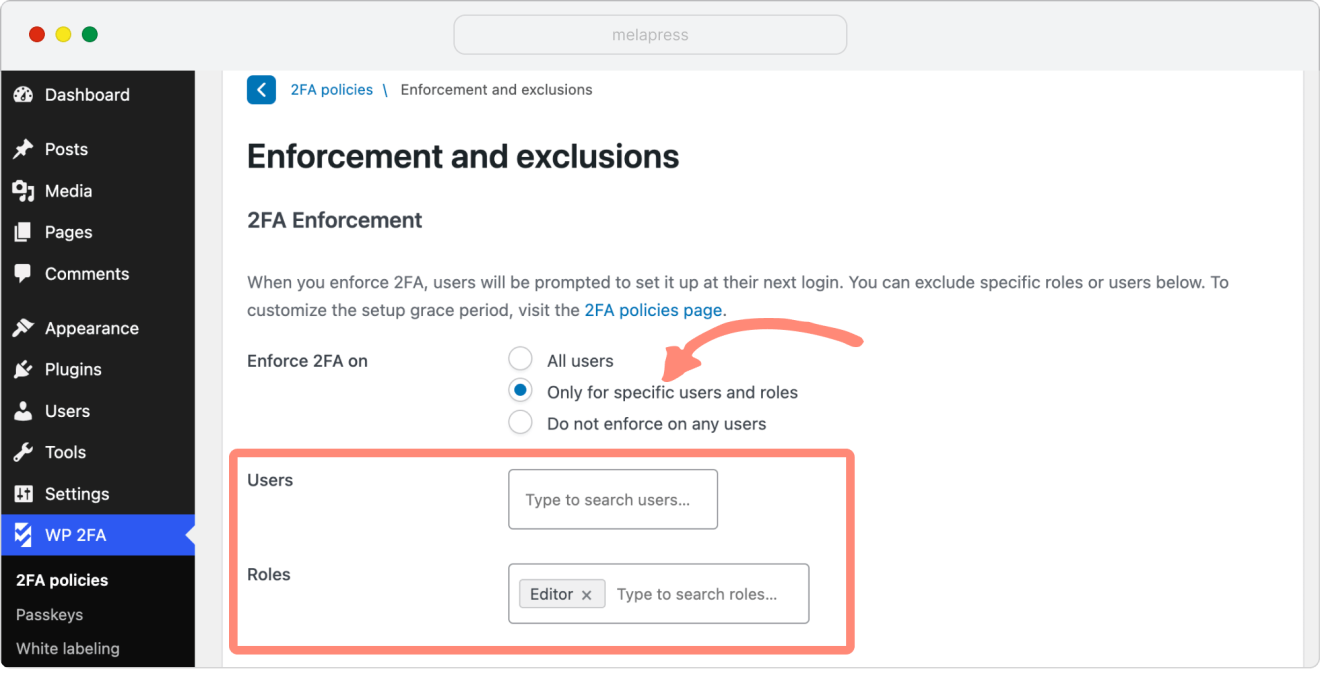
The selected users will be prompted to configure 2FA the next time they log in, according to the grace period you have configured.
Making 2FA mandatory on a multisite network
On a WordPress multisite network, WP 2FA also allows you to enforce 2FA at the network level instead of configuring each sub-site individually.
These settings are managed from the Network Dashboard.
All users of an individual sub-site
To require 2FA for everyone on one specific sub-site of your network:
- Switch to the Network Dashboard.
- Go to WP 2FA > 2FA Policies > Enforcement and exclusions.
- Select the network-level option to enforce 2FA on specific sub-sites, then specify which sub-site(s) it should apply to.
- Click Save Settings.
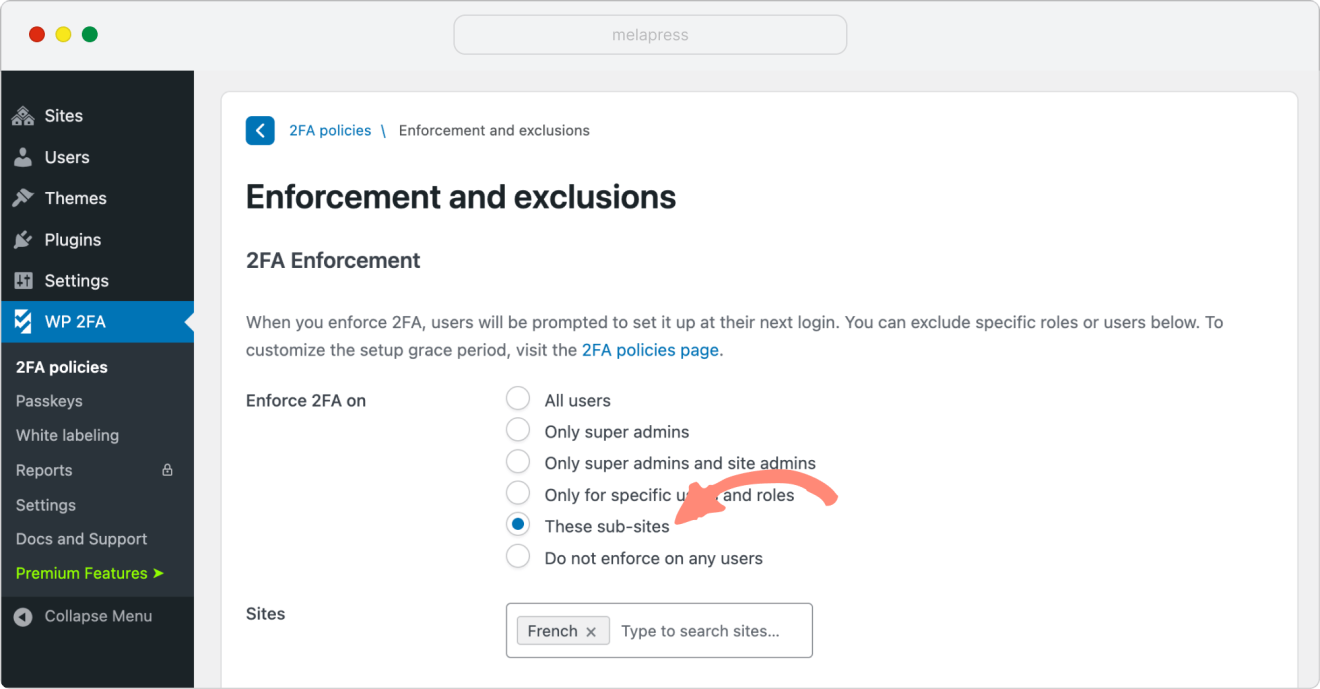
Only the super admins
To require 2FA only for the network’s super admin accounts:
- Switch to the Network Dashboard.
- Go to WP 2FA > 2FA Policies > Enforcement and exclusions.
- Select the option to enforce 2FA on Only super admins.
- Click Save Settings.
What happens when you enforce 2FA
The enforcement setting determines which users are required to use 2FA. The grace period determines how much time those users have to configure it and what happens if they do not configure it in time.
You can configure the grace period from:
WP 2FA > 2FA Policies > Sitewide 2FA policies > User Access Settings tab > Grace period.
Note: If you have configured a custom policy for a specific user role, that role has its own Grace period settings under User Access Settings. These settings override the sitewide grace period for that role.
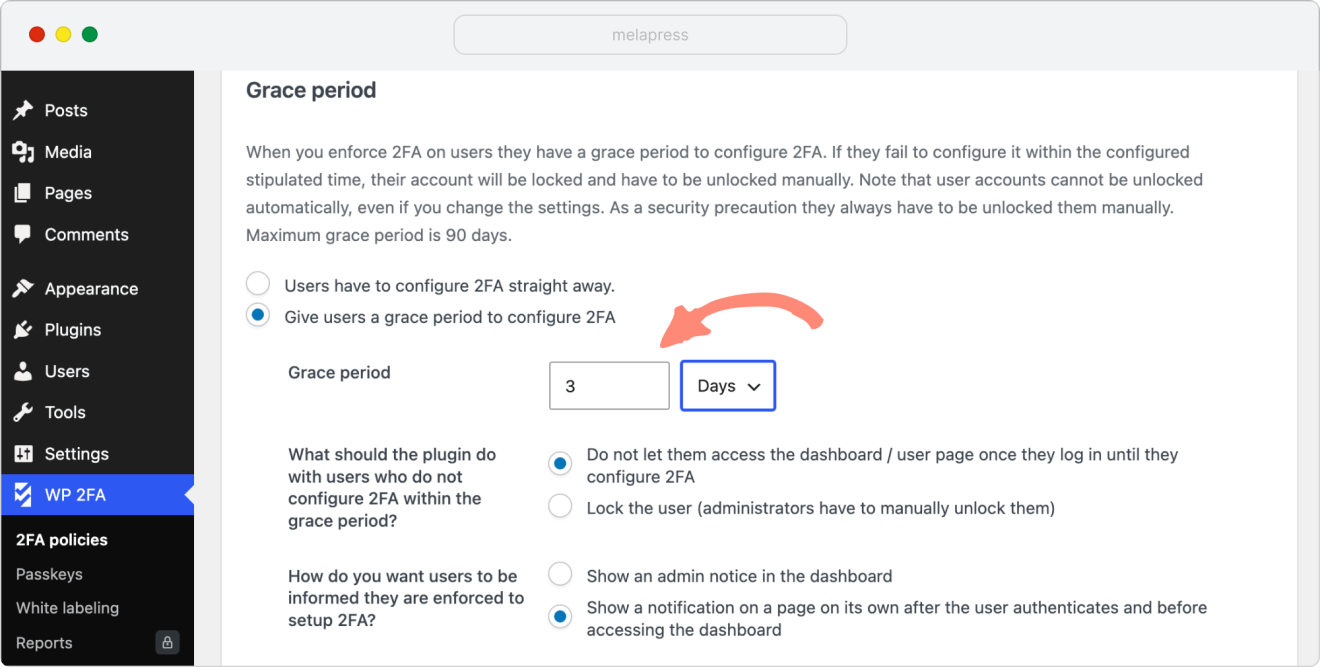
Under Grace period, you can choose between:
- Users have to configure 2FA straight away – no grace period; users must set up 2FA before they can do anything else.
- Give users a grace period to configure 2FA – specify a number of days or hours (up to a maximum of 90 days) before 2FA becomes mandatory.
If you enable a grace period, you can also configure what happens when it expires:
- Prevent the user from accessing the dashboard or user page until they configure 2FA.
- Lock the user account until an administrator manually unlocks it.
You can also choose how users are notified that they need to configure 2FA:
- Show an admin notice in the dashboard.
- Show a notification on a separate page after the user logs in and before they access the dashboard.
Users can configure 2FA from the prompt displayed after login, from a dashboard notification, or from their WordPress profile by clicking Configure 2FA.
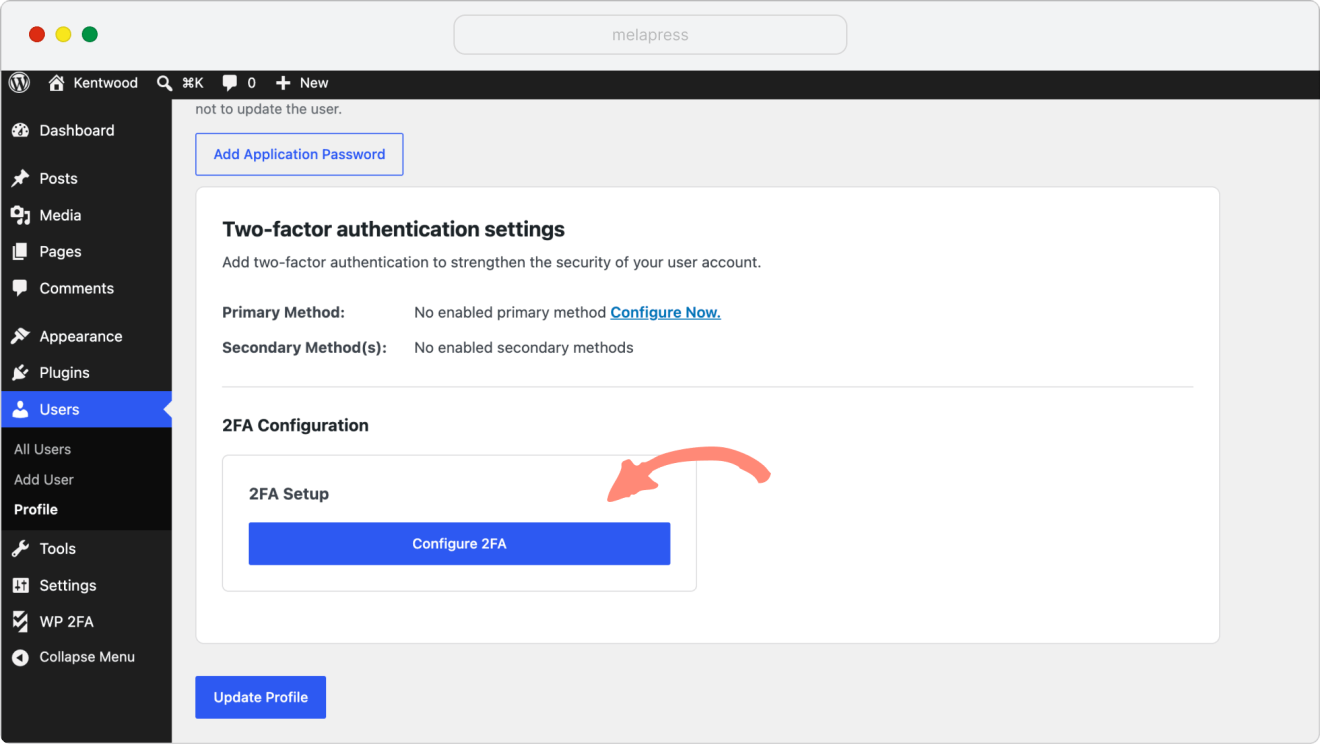
For a full walkthrough of this step, see Configuring two-factor authentication for your WordPress user. It only takes a few seconds.
What happens if users don’t configure 2FA in time
Users who are required to configure 2FA straight away simply cannot access the dashboard or their account area until they do so.
If you give users a grace period and it expires, what happens next depends on the settings you selected. The user will either be required to configure 2FA before continuing or their account will be locked.
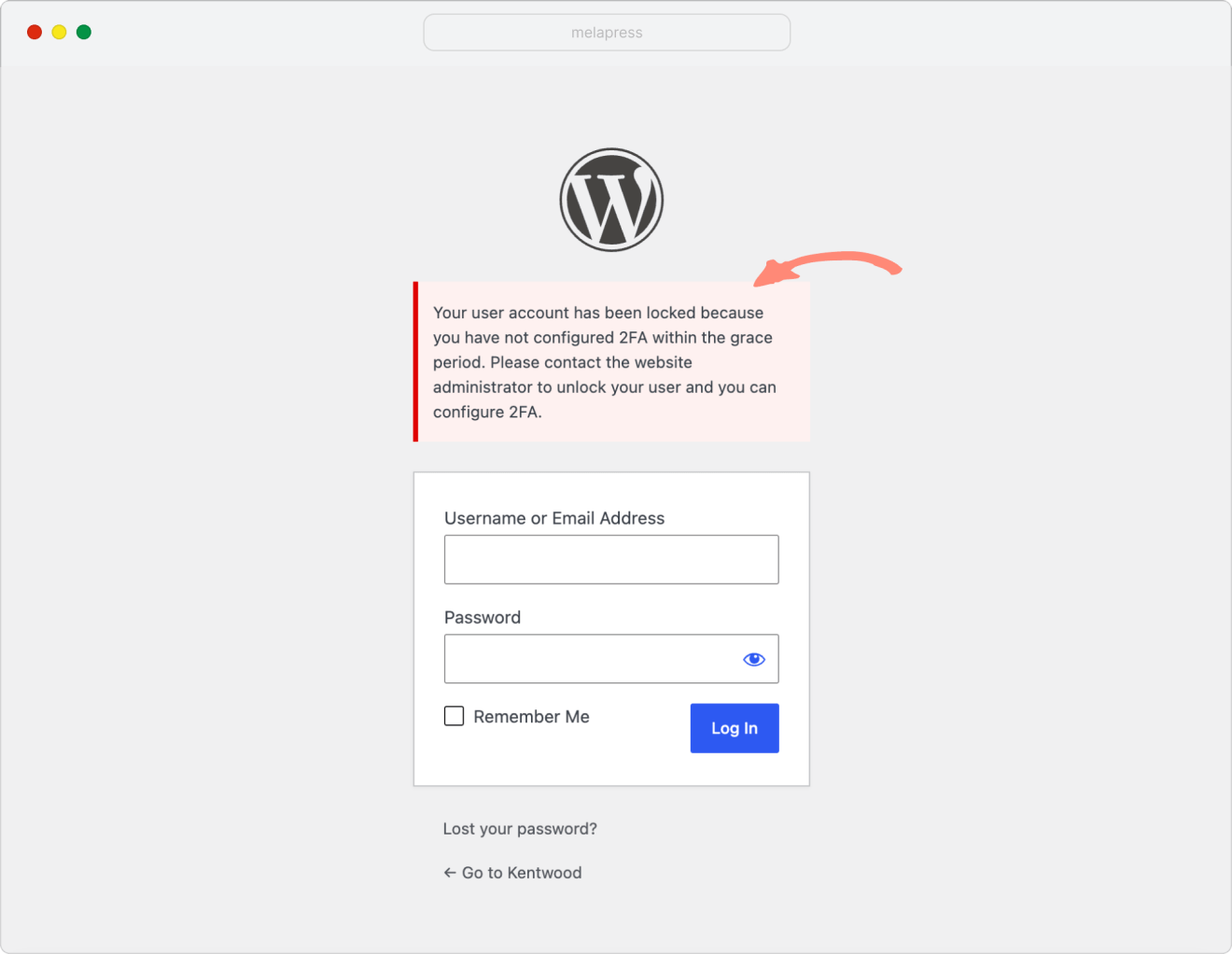
When an account is locked, an administrator needs to manually unlock the user account. The user can then log back in, and their grace period starts again.
Letting a user log in without 2FA just once
Even with 2FA enforced and fully configured, administrators can still allow a user to log in without it a single time, using the Remove 2FA temporarily option from the Users > Profile screen or a user’s profile page.
This can be useful when:
- A user temporarily cannot access their 2FA device.
- They’re experiencing email or SMS delivery issues.
- They’re having trouble generating or retrieving their one-time code.
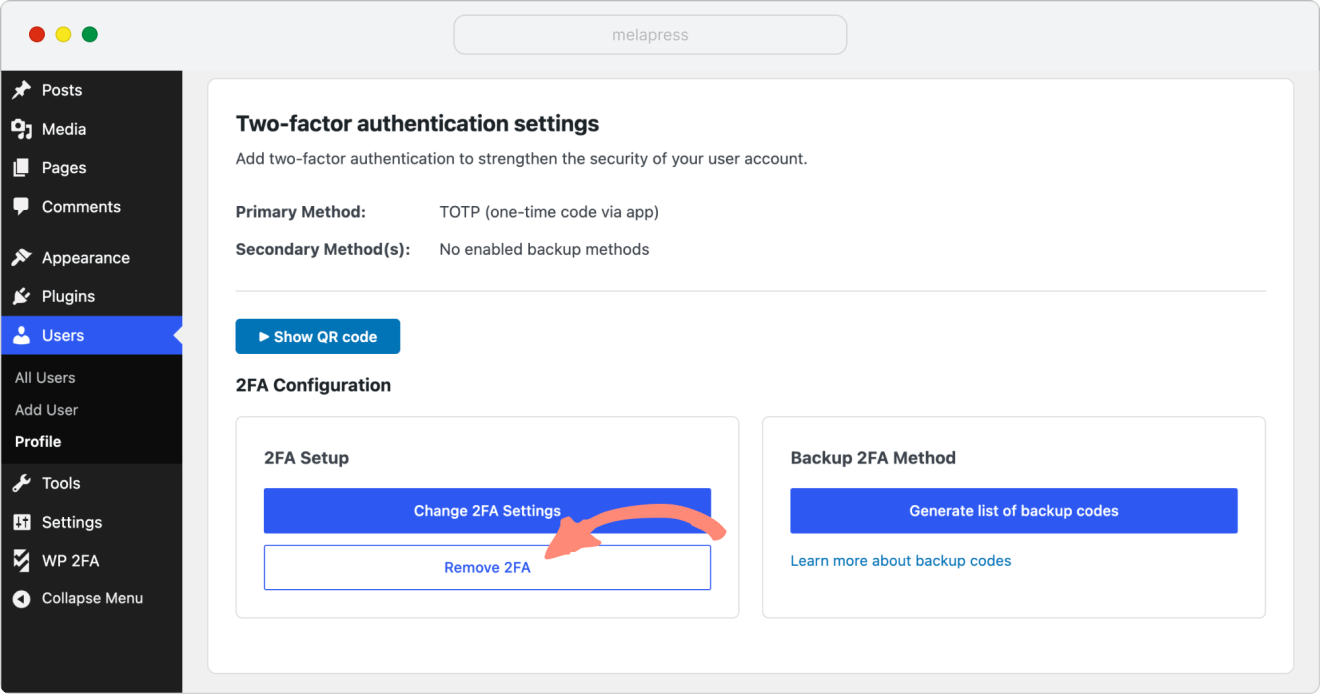
For step-by-step instructions, see how to temporarily disable 2FA for a user.
What if I don’t enforce 2FA at all?
You do not have to enforce 2FA. When Enforce 2FA on is set to Do not enforce on any users, users are not required to configure 2FA. They can still choose to configure it themselves from their WordPress profile.
Note: Choosing Do not enforce on any users does not disable 2FA. It only makes 2FA optional. If you want to prevent specific users or roles from using 2FA, use the exclusion settings described below.
Excluding users or roles from 2FA
If you’re enforcing 2FA broadly but need to leave out an individual user or a whole role, you can do that from the same screen used for enforcement:
- Go to WP 2FA > 2FA Policies > Enforcement and exclusions.
- Scroll down to 2FA Exclusions.
- Use Exclude the following users and/or Exclude the following roles to search for and select who should be left out.
- Click Save Settings.
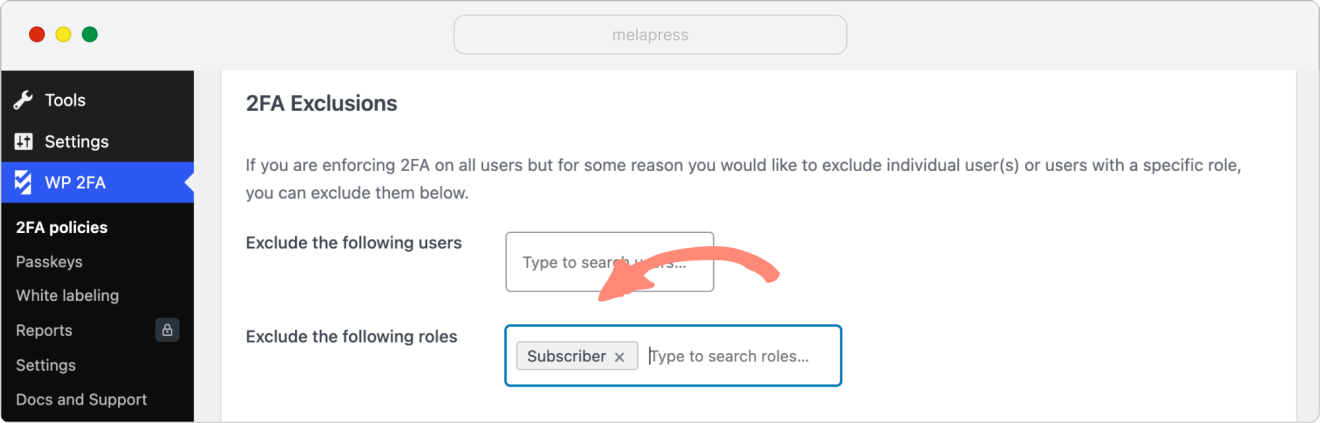
Excluded users will not be able to configure or use 2FA at all, even if they wanted to – this is different from 2FA simply being optional for them.
Setting different policies per user role (Premium)
WP 2FA Premium lets you go a step further than a single sitewide configuration: you can give each user role its own 2FA methods, grace period, and user access settings.
For example, you can require administrators to configure 2FA immediately while giving contributors a grace period. You can also configure different authentication methods and user access settings for each role.
To configure a separate policy for a user role:
- Go to WP 2FA > 2FA Policies.
- Under Customize per user role, click the role you want to customize: Administrator, Editor, Author, Contributor, or Subscriber.
- Turn on Enable custom policies for this role.
- Configure 2FA Method Selection and User Access Settings (including that role’s own grace period) exactly as you would on the sitewide policies screen.
- Click Save Settings.
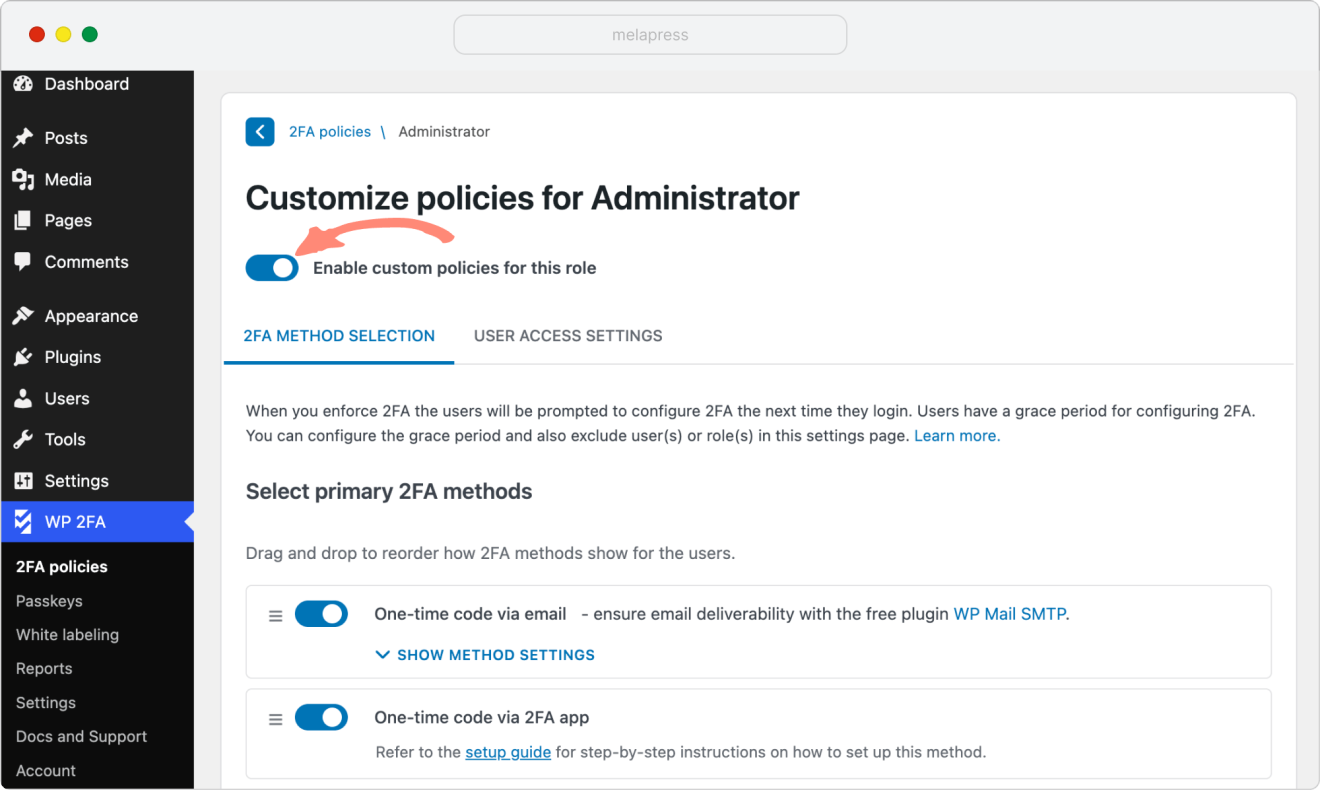
Any role without custom policies enabled continues to follow the sitewide 2FA policies described earlier in this guide.
If anything is unclear or you run into a snag, our team is happy to help – simply open a support ticket. Many thanks for trusting WP 2FA with your website’s security!