


Published on 10 July, 2025
How can I receive a notification when something changes on my WordPress site?
You can configure WP Activity Log to send you a notification when a specific change happens on your WordPress sites and multisite networks. You can receive notifications through email, SMS, and Slack.
Configuring notifications is very simple. WP Activity Log comes with preconfigured notifications that can be set at the click of a button. You can also build your own custom notifications using the included Query Builder.
This KB entry explains how to configure a notification trigger in just two steps.
Step 1: Find the Event ID of the WordPress Change
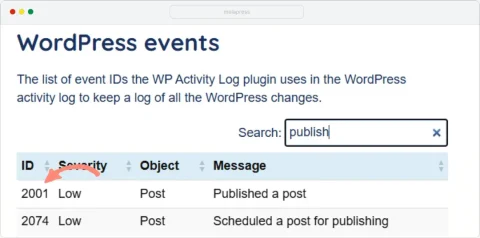
WP Activity Log uses event IDs for the different events and user actions in WordPress. For example, whenever a user logs in, the ID of the event in the WordPress activity log is 1000. Use the search function in the list of WordPress activity log alert IDs to find the ID of the change you’d like to be notified of.
In this example, we will configure a notification for when a user with the Editor role publishes a post.
While the plugin does come with a preconfigured notification for whenever a post is published, there isn’t one for when an Editor publishes a post. As such, we’ll need to create a custom notification. The first thing we need to do is find the ID of the event that the plugin logs when a user publishes a post. I searched for the term “publish” in the list of event IDs and can see that it is 2001.
Step 2: Create the Notification Trigger
Now that we know the event ID, we just have to create the notification trigger. To create it:
- Navigate to WP Activity Log > Notifications
- Click the Custom Notifications menu option and click the Create custom notification button.
- Specify a title for the notification. In our example, we are using ‘Editor published content‘.
- In the Query Builder, choose EVENT ID from the first drop-down menu, equal from the second, and 2001 from the third.
Using the above trigger, the plugin will send a notification whenever a new post is published, regardless of who publishes it. However, we want to receive a notification when an editor publishes a post, so we have to configure another criterion in the trigger.
- Click Add rule to add the second criterion.
- Choose User Role from the first drop-down menu, equal from the second, and Editor from the third.
- Make sure AND is selected since we want both conditions to be met for the notification to be sent
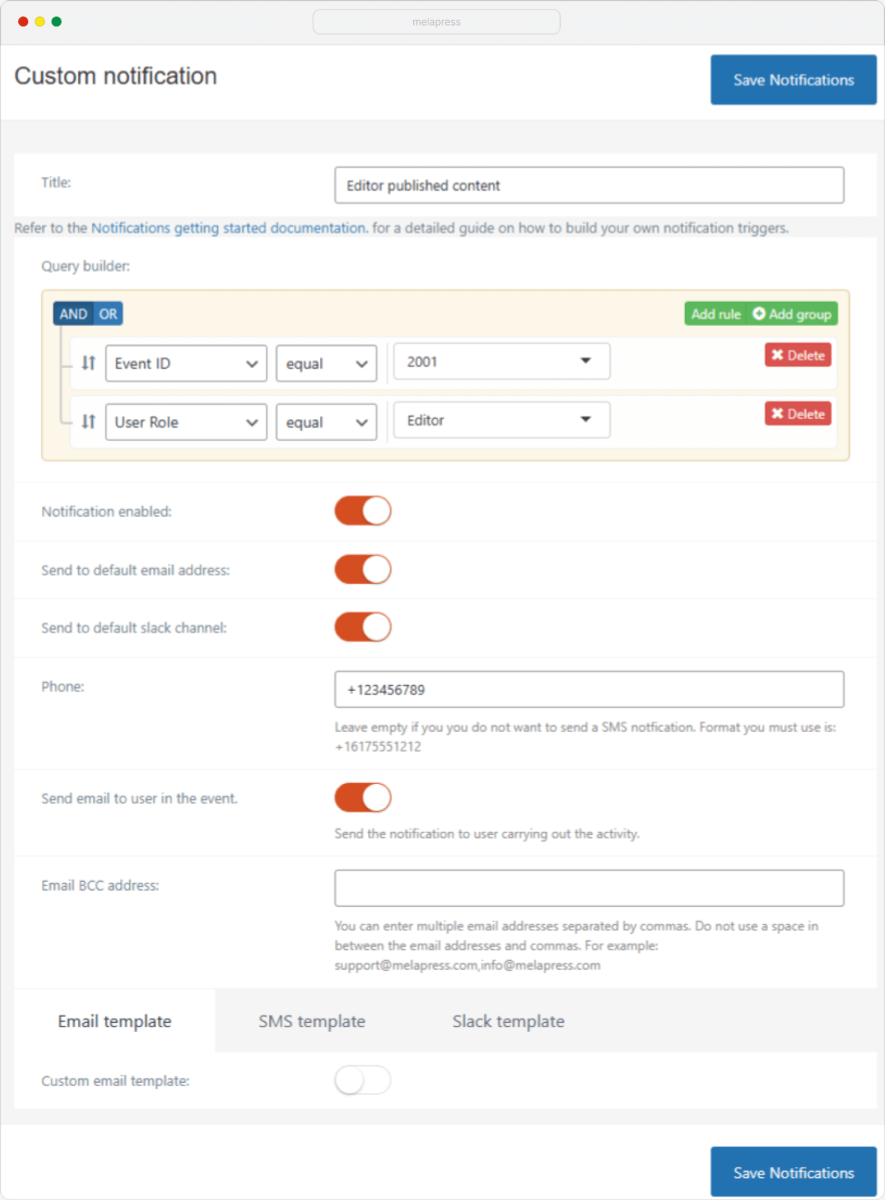
Note: If a default value has been specified for the email address, phone number, or Slack Channel, you will see the option to send the notification to the default value, as shown in the above screenshot for both email and Slack options. You can disable this option and enter a custom value if you wish.
If a default value has not been specified, you will need to enter this each time you create a notification, as shown in the above screenshot for the Phone (SMS) option. Default values can be specified by navigating to WP Activity Log > Notifications > Settings.
You can find more information about this in the Getting started with activity log notifications.
Make your selections regarding where you would like to receive the notification, and click on Save Notifications to save changes.
Note: SMS notifications require Twilio integration, while Slack notifications require integration with Slack.
More advanced trigger criteria
You can use more trigger types to build more complex criteria. For example, if you want to be alerted when an editor publishes a post that has the movie custom post type, you can build a trigger such as the one below:
- Event ID equal 2001
- User Role equal Editor
- Post Type equal Movie
You can read more about grouping notification triggers & using operands in the Getting started with activity log notifications.
